Payouts and settlements
How money collected online reaches the organiser's bank account: releasing paid orders for payout, what the payment partner deducts, the payout reports used for accounting, and what to check when a payout has not arrived.
Looking for something else? Referee costs: fees, claims and paying the referees Player licences: buying, checking and following up Fees, services and discounts
When a tournament collects money online, the money does not go straight into the organiser's bank account. It travels in four steps, and one of them is a button somebody has to press.
- The team or player pays. Card, Swish, Vipps or a bank transfer against a payment request. The money is paid to an account owned by Profixio's payment partner, Ping Payments — think of it as a holding account, not yours. Where the team pays an invoice, the invoice is prepared when the team registers, and it becomes an official document once the team leader downloads it.
- The payment partner holds the money. At this point the payment can still be refunded through Profixio, and the amount is not yours yet.
- The organiser releases the money. Someone with economy rights presses Settle all paid orders on the tournament's payment screen. That tells the partner "this money is correct" — the partner divides each payment between whoever it belongs to and releases your share in one operation. Nothing is transferred until this is done.
- The payment partner transfers it to the bank. The released amounts are gathered into a bank transfer to the organisation's account. One transfer usually covers many payments. That transfer is what the payout reports call a payout.
Two consequences worth remembering:
- Money does not move by itself. A tournament can be finished, fully paid and still have every krona sitting with the payment partner because nobody pressed the button.
- Releasing money is one-way. Once an amount has been released, Profixio can no longer refund it. Any repayment after that has to be made from your own bank account.
Setting the tournament up to take payments in the first place is a different job — see Online payments.
- Setting up online payment, connecting your organisation to the payment partner, and which payment methods teams are offered — Online payments.
- Refunding a payment, cancelling one, and reconciling an over- or underpayment — all of that happens before the money is released, and is on Online payments.
- Invoices, collective invoices and credit notes — Invoicing teams.
- Who owes what, registering a payment by hand, bank-file imports and payment reminders — The team ledger and chasing payments.
- Paying referees — referee bills and expenses are a separate flow with their own approval and payment, on Referee billing.
- The verification process itself. Profixio explains what is needed but the documents go to the payment partner, who decides.
- Prices and terms. What Profixio and the payment partner charge is a commercial matter, not a setting on any screen.
Other federations
Player-licence payments are collected on the federation's own account with the payment partner, not on a tournament, so they are released from the federation's Ping Payments screen rather than from a tournament's payment screen. (Older documentation calls it Admin → Ping utbetalinger.)
- Set Payment link status to COMPLETED, so that only payments that were paid correctly to the payment partner are listed.
- Set Payment order status to OPEN, so that only payments that have not yet been released for payout are listed.
- Switch on For player licenses, so that only licence payments are listed.
- Press Apply filters.
- Tick the checkbox at the top of the list and then choose Select all (the number shown varies). The list shows ten rows per page, so without this step only the ten visible rows are released.
- Choose Settle all paid orders among the bulk actions and confirm. The transfer to the federation's account takes at most two working days.
For other roles
The screens and reports use the payment partner's vocabulary. In plain words:
| Word on screen | What it means |
|---|---|
| Merchant | Your organisation as it is registered with the payment partner — the one that will receive the money. It has an organisation number and a status. |
| Payment order | One payment job: one invoice or one checkout. It has a status of its own, separate from whether the team has paid. |
| OPEN / CLOSED | The money has arrived but is still held by the payment partner. It can still be refunded through Profixio. Nothing is on its way to you. |
| SPLIT | The payment partner has divided the amount between the recipients it belongs to — normally your organisation, plus whoever receives a payment-request fee. Releasing a payment normally does this and the next step in one go, so you rarely see an order stop here. |
| SETTLED | Your share has been released and is queued for transfer to your bank. Profixio can no longer refund it. |
| Allocation | One recipient's share of one payment, when a payment is divided between more than one recipient. |
| Settlement | One released amount on its way to you — in practice, one team's payment. |
| Disbursement / payout | One bank transfer from the payment partner to your account, covering many settlements at once. |
Two words are used loosely in the interface. "Settle" always means release the money for payout. "Disbursed" and "payout" both mean actually transferred to the bank. The distinction matters when you are hunting for missing money: released is not the same as arrived.
Two things must be in place before the payment partner will transfer anything.
1. Your organisation must be verified with the payment partner. This is a legal requirement (often called KYC — "know your customer") and is done once per organisation, directly with the partner, not in Profixio. Profixio never asks for your bank details. For a Norwegian organiser, Profixio sends the tournament's contact address an e-mail with the subject Økonomimodul Komplett; the partner then follows up asking for:
- a company registration document for the organisation (for a Norwegian club, the printout from Brønnøysundregistrene),
- proof of identity — a photo of a driving licence or passport — from a person named in that document,
- a copy of a bank statement showing the account number the money should go to, and who has access to it. If that person is different from the one in the previous point, they must identify themselves too.
All three are uploaded through the link in the partner's e-mail, to a secure server outside Profixio, with your name at the top.
Until this is finished, money can be collected but nothing can be paid out.
2. The merchant status must say APPROVED. You can see it on the payment screen: the card labelled Merchant status shows the status the payment partner reports, together with your organisation number and name. If it says anything else, the verification above is unfinished, and the payment partner will not transfer money no matter how many times the release button is pressed. A status other than APPROVED always means the agreement the payment partner sent to the organiser has not been answered. Check the merchant status before you release a payout.
The block is on the partner's side, which is why a tournament can look finished in Profixio and still not have been paid.
Releasing money is done from the tournament's payment screen, where all the tournament's payments are listed.
Getting there. Open Economy → Payment links in the tournament's administration menu. The item only appears for tournaments that collect money online. (Older documentation and screenshots call this screen "Betalinger status" / "Payment status".)
Profixio also nudges you towards it: a Ping Payouts needs attention button appears on the tournament's card in My Profixio when the tournament finished more than 30 days ago and there is still money waiting, or there are payments where the wrong amount was paid.
Releasing everything at once. Press Settle all paid orders at the top of the list. You are asked to confirm — "This will settle all paid payment orders, and queue them for payout." — and then Profixio works through the payments in the background. You get a Settling payments finished message when it is done, and the figures on the screen update by themselves.
What is included:
- every payment that is registered as fully paid and has not already been released.
What is skipped, and stays with the payment partner:
- payments where the team paid too much or too little (over- or underfunded). Deal with the difference first, or accept the amount with Reconcile order — see Online payments;
- payments that have not been paid at all;
- payments where the whole amount has already been refunded.
Releasing a single payment. The row's action menu has Settle order for one payment at a time. It appears on rows that are paid and not already released.
Who can do it. You need economy rights for that tournament, and payouts must be switched on for your country's payment setup. If the button is not there, one of those two is missing: ask the tournament administrator about your economy rights, or Profixio support about the payment setup.
It cannot be undone. There is no "unrelease". Check the list before pressing, especially if refunds are still likely — see Refunds after the money has been released below.
If the figures look out of date. Profixio keeps its own copy of what the payment partner knows and refreshes it automatically every hour or two. Refresh all at the top of the screen fetches everything again immediately, which is worth doing before you conclude that something is wrong.
Above the list of payments there is a row of cards. They answer most "where is our money?" questions on their own.
| Card | What it tells you |
|---|---|
| Received total | What has been paid in for this tournament, after refunds and payment-request fees have been taken off. If anything has been refunded, that amount is shown underneath as Refunded. |
| Ping Payouts | How much the payment partner has actually transferred to your bank account, with Last payout and the date of the most recent transfer. This is the number to compare against your bank statement. |
| Merchant status | The status of your organisation with the payment partner, plus its organisation number and name. See Before any money can be paid out. |
| Received all total | The raw total the payers paid, Including all fees and without refunds deducted. It is the bigger of the two "received" figures, and the one to use when you want the gross. |
| Invoice fees | The fees charged on paid payment requests, and how many paid invoices they cover. This money does not go to you. |
| Settled, not dispursed | Money you have already released but which has not reached your bank yet. Underneath it shows how much is still ready for settle — that is, money you have not released. If any payments are over- or underfunded, the card also shows Over/underfunded with a count and a total. |
Read together: ready for settle means "press the button". Settled, not dispursed means "the button was pressed, now wait". Ping Payouts means "it is in the bank".
When a tournament using the complete economy module is finished, work through this once.
1. Check that the merchant status says APPROVED. If it does not, no money can be transferred, and the reason is always that the agreement and verification with the payment partner have not been completed. See Before any money can be paid out.
2. Check that nothing is left waiting to be released. If the payment screen still shows an amount ready for settle, press Settle all paid orders.
3. Check what has actually been transferred. The Ping Payouts card shows the total transferred and the date of the last transfer. If it is empty, either nobody has released anything yet, or it is less than two working days since they did.
4. Compare with your bank. The transferred total should match what has landed in the account. The payout reports give you the details behind each transfer.
5. Go through the teams that have not paid correctly.
- A team with an unpaid payment and an expired deadline needs a reminder. Reminders are sent from the team ledger — see The team ledger and chasing payments.
- A team that paid the wrong amount shows as over- or underfunded. Money on those payments is never released, so they must be dealt with: ask for the missing amount, refund the excess, or accept the amount as it is with Reconcile order. That is covered on Online payments.
- A team that has paid and whose payment has been released is finished; nothing more to do.
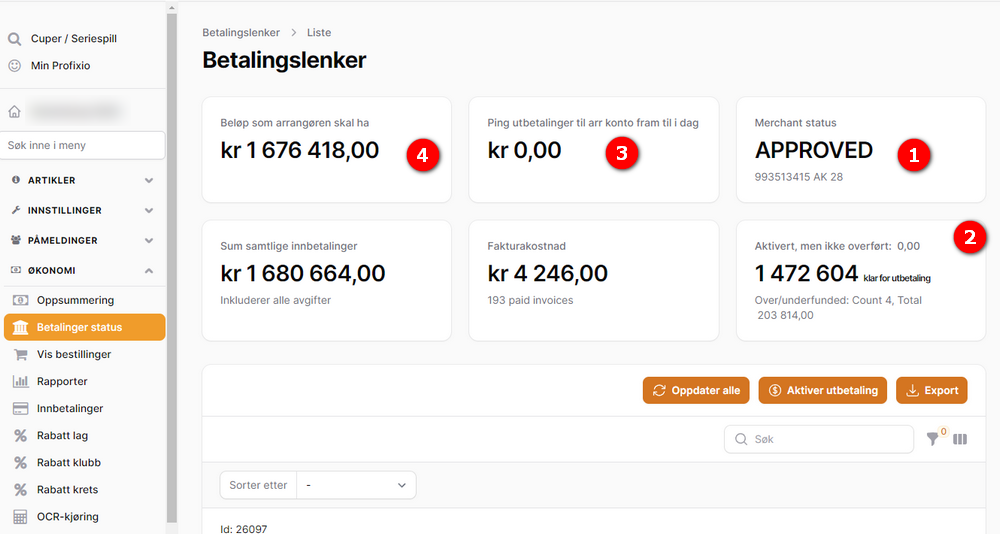
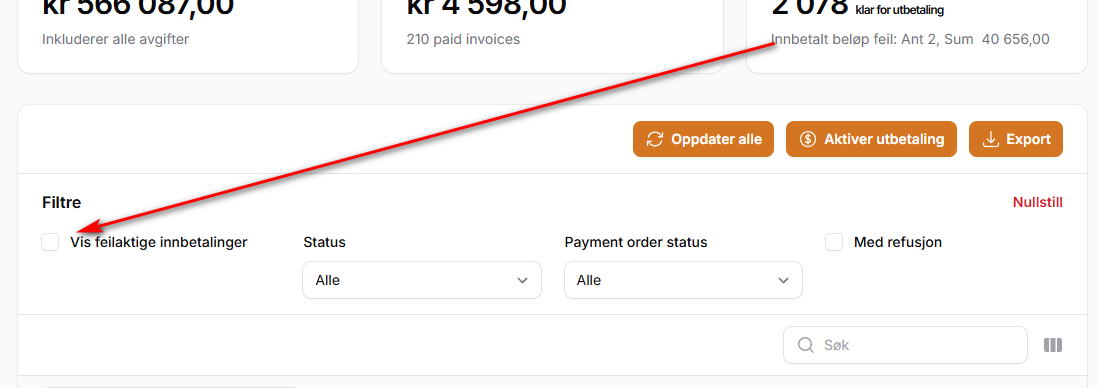
(These screenshots come from the older version of the payment screen; the figures and the vocabulary are the same, the layout is different.)
There are three reports, and they answer different questions.
Settlement report — "what has been transferred to us, and when?"
One line per bank transfer from the payment partner, for a period you choose. It is opened from Economy → Reports with the Ping Settlement report button (and from the federation's and district's own administration screens). Columns:
| Column | Meaning |
|---|---|
| Date | The date the money was transferred |
| Reference | The payment partner's reference for that transfer — the text you will recognise on your bank statement |
| Gross sale | What the payers paid, excluding payment-request fees |
| Fees | What the payment partner deducted |
| Refunds | What was paid back to payers out of this transfer |
| Settlement sum | What was actually transferred to your account |
Gross sale minus fees minus refunds equals the settlement sum, so the report reconciles line by line. Set the period with From and To, then Print it or Export it to a spreadsheet. The export is not the summary you see on screen but the detail behind it — one row per paid-out payment, with the transfer date, the tournament, the team, what was bought and the amounts, which is what you want for bookkeeping. Details on a row opens the report below.
Disbursement report — "what was in that one transfer?"
The breakdown of a single bank transfer. It shows the date, the reference, Sum payouts and Number of payouts, then a Summary of payments per tournament — one card per tournament with Number of payments, Gross sale, Payments Fees, Refunds and Paid out. Payments that do not belong to a tournament, such as licence payments collected by a federation, are gathered in a card called Other payments, so the cards always add up to the total at the top.
Below the cards is every individual payment in the transfer: gross sale, fees, refunds, the amount paid out, the payment method, and what was bought — team, class and the order lines. This report can be printed.
Financial Report Attachment — "what do we hand the accountant?"
Under Economy → Reports, the Financial Report Attachment summarises the tournament's money in one page: registration fees and services paid, refunds, total payments, and for tournaments using online payment also Payments from PING, Disbursed from PING and Difference paid - disbursed. That last line is the money still with the payment partner.
The same page has a Payouts from PING report listing every payout line with the team, the club, what was bought, the payment reference and the payment method, and it can be exported.
Who can open the reports. The settlement and disbursement reports are for the organisation that owns the money: a tournament administrator with economy rights for that tournament, and a federation administrator responsible for the federation's own account (or a district's account underneath it). Team leaders and club users cannot open them.
The amount that lands in the bank is smaller than the amount the teams paid. Three things sit in between.
The payment partner's transaction fee. Taken from each payment before it is divided up, and it varies with the payment method. Profixio does not hold the fee tariff — the Fees column in the payout reports is worked out backwards, as what was received minus what was paid out to you minus any payment-request fee minus refunds. In other words the reports tell you what was deducted, not what the rate was.
The payment-request fee. Where the payment partner issues payment requests (invoices with a payment reference), a fixed fee is added per invoice. It is paid by the payer on top of the invoice amount, and it goes to a separate recipient — not to you. The amount, the VAT rate, the wording on the invoice and the recipient are set per country, not per tournament. The total for your tournament is on the Invoice fees card.
The cost of the transfer itself. Each transfer to your bank account costs a small amount. That is the reason payouts are not automatic: if there is nothing new to transfer, there is no point paying for a transfer, and it is why releasing money in batches is better than one payment at a time. The exact amount is part of the agreement with the payment partner, not something Profixio sets or shows.
Refunds are not a fee, and the reports keep them in their own column. A refund makes the transfer smaller without the payment partner having charged you anything for it.
What Profixio charges for the economy module itself is a commercial matter and is not shown on these screens.
From the moment somebody presses Settle all paid orders, the transfer to your bank account should take at most two working days.
If more than two working days have passed and nothing has arrived, something on the checklist below is not in order — most often the organisation has not finished verifying itself with the payment partner.
Payments released after a transfer has gone out are simply included in the next one. There is no fixed payout day: transfers happen because somebody released money, not on a schedule.
The exact terms — how quickly the partner transfers, and what the transfer costs — are part of the agreement with the payment partner and are not settings in Profixio.
Profixio can only refund money that is still held by the payment partner. As soon as a payment has been released for payout, the refund actions disappear from that row, and any repayment has to be made from your own bank account, by hand.
There is a second, easily forgotten reason not to release everything at once: a refund is paid out of the balance the payment partner is holding for you. If you have emptied that balance, there is nothing to refund from, even for a payment that is still refundable in principle.
Practical rules:
- Keep some money with the payment partner while withdrawals, cancellations or price corrections are still likely — typically until the tournament has been over for a while.
- Do the refunds you know about first, then release the rest.
- If you have already released the money and a team must be repaid, pay them from your own account and register the repayment on the team as a negative amount, so the team's ledger stays correct.
Payments where the whole amount has already been refunded are skipped when you release money — there is nothing left on them to pay out.
How to make a refund while the money is still refundable is covered on Online payments.
| Thing | What it does | Where |
|---|---|---|
| Merchant status | The payment partner's verification status for your organisation. Must be APPROVED before any transfer happens |
Card on the tournament's payment screen |
| Settle all paid orders | Releases every fully paid, not-yet-released payment for payout. Runs in the background; confirmed with "This will settle all paid payment orders, and queue them for payout." Cannot be undone | Top of the tournament's payment screen |
| Settle order | Releases one single payment | Row action menu on the payment screen |
| Reconcile order | Accepts an amount that differs from the invoice, so the payment can be released. Documented on Online payments | Row action menu on the payment screen |
| Ping Payouts needs attention | Appears on the tournament's card in My Profixio when the tournament ended more than 30 days ago and money is still waiting or amounts are wrong | My Profixio tournament list |
| Refresh all | Fetches the current state of every payment from the payment partner, in case Profixio's copy is out of date | Top of the payment screen |
| Payment links | The tournament's payment screen: the figures, the release buttons and every payment | Economy → Payment links (only for tournaments collecting money online) |
| Ping Settlement report / Payouts from PING / Financial Report Attachment | The three payout reports | Economy → Reports |
| From / To | The period covered by the settlement report. It opens on the year of one month ago up to today — so for most of the year that is "this year so far", but in January it opens on the previous year. Widen it if you are looking for an older payout | Settlement report |
| Export | Downloads the settlement report as a spreadsheet | Settlement report |
| Thing | What it does | Where |
|---|---|---|
| Whether organisers may release money themselves | Switched on per country payment setup, and off by default. When off, contact Profixio support to have money released | Contact Profixio support to change it. |
| Payment-request fee, VAT and recipient | Set per country, not per tournament | Contact Profixio support to change it. |
Also worth knowing: a tournament cannot be deleted while the payment partner still holds money for it. The delete action is disabled with the message "The tournament has payments that Ping has not paid out yet", and asks you to contact support to have the payout completed first.
Work down the list. In practice the answer is nearly always in the first three steps.
- Does the merchant status say
APPROVED? If not, the organisation has not finished verifying itself with the payment partner, and nothing will ever be transferred. Chase the verification documents. - Is there still an amount "ready for settle"? Then nobody has released it. Press Settle all paid orders.
- Is it less than two working days since it was released? Then it is on its way. The Settled, not dispursed card shows exactly that money.
- Are payments over- or underfunded? Those amounts are never released. The card shows the count and the total. Fix or accept them, then release again.
- Have the teams actually paid? An unpaid payment is not missing money, it is an unpaid invoice. Chase it from the team ledger.
- Have you pressed Refresh all? Profixio's copy of the figures is refreshed automatically every hour or two. If a payment was made or released minutes ago, refresh before drawing conclusions.
- Does the amount look too small rather than missing? Compare the settlement report line for that transfer: gross sale minus fees minus refunds is what reaches the bank. A large refund makes a transfer much smaller than expected.
- Are you looking at the right account? The money goes to the account the organisation gave the payment partner during verification, which is not necessarily the account in your own records.
- Still nothing? Contact Profixio support with the tournament name, the amount, and the reference from the settlement report if there is one. Only the payment partner can say what happened to a transfer after it left them.
Currency and country. A tournament is set up with a currency (NOK or SEK) and a country. The reports show amounts in the currency of the transfer, so a report can mix currencies if an organisation has run tournaments in more than one.
How a payment is divided. The rule that decides who gets what share of a payment lives with the payment partner, not in Profixio, and is set per country — with the option of a different rule per payment method. Profixio cannot change it, and it is not visible on any organiser screen; you only see the result, in the reports.
Payment requests and references. Whether the payment partner can issue payment requests at all, what the document is called, and which reference the payer uses (KID in Norway, OCR in Sweden) are set per country. So is the fee charged per payment request, its VAT rate and who receives it.
Whether organisers may release money themselves. This is switched on per country payment setup. Where it is off, the release button is not shown to organisers at all. Contact Profixio support to have money released.
Federations and districts have their own accounts. A federation can have its own registration with the payment partner, separate from the clubs'. Money for player licences and transfers is paid to the federation and is paid out to the federation's account, not to any tournament. In the disbursement report those payments show up under Other payments, because they do not belong to a tournament. A district can have its own registration underneath its federation, and a federation administrator can open the settlement report for the districts beneath them.
What is not Profixio policy. How long a transfer takes, what it costs, and what documents the verification requires are the payment partner's rules, not settings in Profixio. Profixio cannot speed a transfer up or waive a fee.
Was this page helpful?