Setting times and venues for series matches
How the home club sets date, time and venue for its own series matches inside a scheduling window, what Profixio checks while it does, and how a federation opens, extends and closes that window.
Looking for something else? Generating and scheduling matches
In most series play the federation decides who plays whom and in which round, but not when. The home club knows which hours it has in its own hall, so the federation hands the fixture over to the club and lets it pick the date, the kick-off time and the venue itself.
Profixio calls this scheduling (in Swedish and Norwegian: tidssetting / tidsättning). It works like this:
- The federation publishes a division's fixtures with a last day to schedule. Every match in that division gets the same deadline, an allowed date window, and — optionally — a short note for the club.
- While the window is open, the responsible club for each match fills in date, time and venue. Each change is saved immediately.
- Profixio checks the venue against the federation's facility register, warns about clashes in the hall, and shows the federation how far each club has got.
- When the deadline passes, the club can no longer edit. From that point a change has to go through a match move application instead.
Two things people mix up constantly:
- Scheduling is not a match move application. Scheduling needs nobody's approval — the club types a time and it is the time. A match move application is a request that the federation has to approve, and it only becomes available after the scheduling deadline has passed.
- A fixture that is hidden from the public while the window is open is not a cancelled fixture. Divisions are usually published for scheduling in a hidden state so the public never sees a half-finished programme.
- Reading the League matches list itself — its columns, row colours, status values, visibility filter and export — see Administering series matches.
- Moving a match after the scheduling deadline, and approving or rejecting those applications — see Applying to move a series match.
- Which switch hides a fixture from the public, locked classes, hidden results and hidden tables — see Hiding matches, schedules and results from the public.
- Editing a match itself — score, teams, comments — and the team-leader Update matches button in a tournament — see Editing a match and registering results.
- Generating the fixtures in the first place, and scheduling a tournament's matches onto courts — see Generating and scheduling matches.
- Setting up the season and its series — see Setting up a series season.
- Appointing referees, and what happens to appointed referees when a match moves — see the referee pages.
For other roles
Where. Sign in and open League matches in the Profixio admin. Press Scheduling mode at the top of the list. Old bookmarks and app shortcuts that point at the previous address still work and take you straight into scheduling mode.
What you need. A Profixio login with a club-level series role, and the Match Admin right on the club (a Club Main Admin always has it too). A team leader account is not enough — this is a club-level job, and the rights are given on the club's user list.
What you can edit. In scheduling mode three columns turn into fields you type straight into:
- Date — a date picker. It cannot be in the past.
- Time — typed as
HH:MM. - Bane (the venue) — start typing and pick from the list.
Everything else on the row is read only: the match number, the teams, the class, the responsible club, the allowed date window, the deadline, and the note the federation left you.
How saving works. Each field saves on its own the moment you leave it. There is no Save button and no confirmation step, and a saved time is live on the public pages and in the app immediately. If you change your mind, just type the new value.
Which matches you see. Only matches your club is in or is responsible for. You can only edit the ones where your club is the responsible club — normally the home club. If a match you expected to arrange is read only, the responsible club is somebody else, and only the federation can change that.
A pencil icon next to the match number, and the tooltip "You can edit scheduling for this match", tell you the row is yours to fill in. A chain-link icon means it is not.
The venue must exist in the federation's facility register. The field is a lookup, not free text: you can only save a hall that is registered with the federation. If you type something that is not in the register, the field simply snaps back to its previous value — nothing is saved and no error is shown. If your hall is missing from the list, it has to be added to the register first; ask the federation.
The list is not limited to your own club's halls — any facility registered anywhere in the federation can be chosen. If your federation expects clubs to use only their own halls, that is a rule the federation enforces by looking at the result, not something Profixio blocks.
What Profixio checks, and what it does about it. All of these are warnings. None of them stop you from saving:
| What is checked | What you see |
|---|---|
| Is time or venue still missing? | Status Unscheduled, and the row turns red |
| Does another match overlap in the same hall? | Status Match collision, and the cell becomes clickable |
| Does it only overlap once the class's warm-up and pack-down time is counted? | Status Match collision with pre/post time |
| Is the hall open at that time, according to its own schedule? | Status Facility not available, showing the hall's own reason text |
| Does the venue name resolve to a real facility? | Status Facility not found |
| Nothing wrong | Status Scheduled |
Click a collision status and a window headed Collisions for match (match number) lists every match it clashes with, so you can see at once which one to move.
Collision warnings are per hall. They compare the matches booked in the same hall, so keep an eye yourself on two of your teams playing at the same moment in different halls.
Before you pick a time it helps to see what the hall already has that day. Click into the time field of the match and a small panel opens under it showing, for the chosen venue and date:
- Assigned time in facility: — the hours the hall is available that day, with unavailable periods struck through and any note the federation has added shown in brackets. If the hall has no schedule at all for that day, it says No available times in schedule.
- Matches: — every match already booked in that hall on that date, with start and end time, tournament or series, and the two teams. Your own match is shown in bold so you can see where it lands.
This is the quickest way to answer "is 14:00 free?" without leaving the row. It reflects what is registered in Profixio — a booking your club has made outside Profixio, in the municipality's booking system, will not appear here.
Two different limits apply to a match in the scheduling flow, and they behave differently.
The last day to schedule (a hard limit). This is the date after which the club can no longer touch the match. It runs to the end of that day — a deadline of 30 September means the club can still edit at 23:59 on 30 September, and not at all on 1 October. When it has passed:
- the date, time and venue fields go read only for the club (they are shown greyed out, not hidden, so you can still read them);
- the match counts as Overdue in the federation's list. If it never got a time or a venue the row stays red; it turns grey once time and venue are filled in but the deadline has passed;
- the route for changing the match becomes a match move application, which is a different thing with its own deadline and needs federation approval.
Every match in the same division normally carries the same deadline.
The first and last allowed date (a soft limit). The federation also sets the date range the match is supposed to be played within — typically the round's week. This one is not enforced. A club can save a date outside the window and it will be accepted; the row simply turns yellow in the federation's list so somebody can look at it. Whether an out-of-window date is acceptable is federation policy, not something Profixio decides.
The note from the federation. If the federation left a note on the match when it published the division, it is shown on the row. It is read only — you cannot reply to it in the list.
What happens to a match nobody scheduled. Nothing automatic. The match keeps whatever date it had, stays in the federation's list as overdue, and the club has to contact the federation. Profixio does not send reminders before the deadline and does not escalate anything after it. Any reminder routine is something the federation does itself.
Opening the window is done in the external league scheduler, not in Profixio. A division is published from there with the scheduling deadline, the allowed date window and the optional note, all in one step, and normally with the fixtures hidden from the public at the same time. Until that has happened, a match is simply not in the scheduling flow and no club can set a time for it.
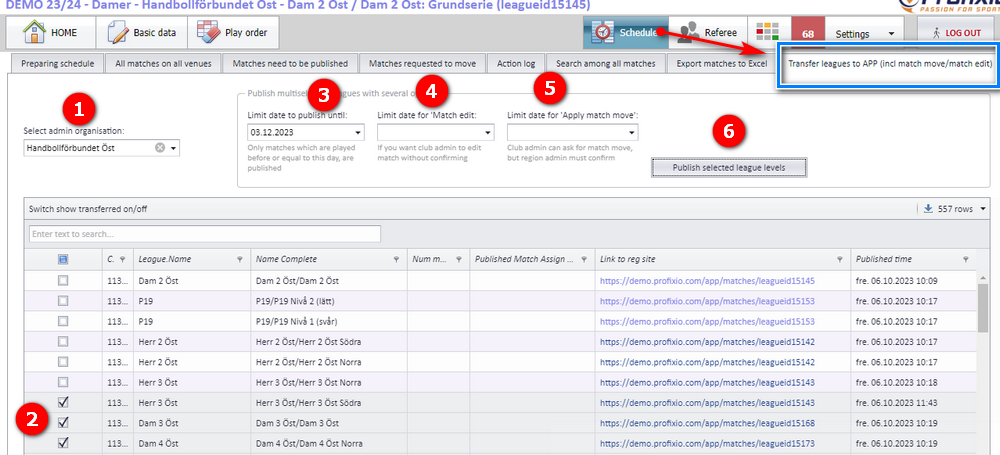
When several divisions are published at once, the same screen also asks separately for the match move deadline. Leaving the scheduling date empty means the clubs are given no scheduling access at all for those divisions.
Changing an existing deadline is done in Profixio. On the series list in the league admin:
- turn on Activate edit mode and type a new date in the deadline column of a single series, or
- select several series and use the bulk action Assign last day to schedule.
Either way the new date is written to every match in those series that is already in the scheduling flow. It does not start the flow for matches that were never published for scheduling. If none of the selected series has any match with a deadline, Profixio tells you so: "Could not assign last day to schedule — The last day to schedule for the selected leagues must first be published from PL."
The date you set must not be more than a week in the past.
Closing the window early is done the same way: set the deadline to a date that has already passed, and the clubs lose edit access immediately.
Making the fixtures public again is not done from here. Publishing the finished programme to the public is a step in the external scheduler; see the visibility page for what actually controls whether a fixture is shown.
The same League matches page is what a federation or district uses to watch the clubs work. In scheduling mode a summary strip appears above the table:
- Total assigned matches — how many matches are in the scheduling flow this season.
- Unhandled matches — how many still have no time or no venue. Red when it is more than zero.
- Overdue — matches whose deadline has already passed. Only shown when there are some.
- Next deadline — the next date that falls due, and how many matches share it.
- Match collisions — only appears once you have narrowed the list to a single responsible club, because the count is expensive to work out.
Every number is clickable and filters the table beneath it, so you can go straight from "27 unhandled" to the 27 rows.
Useful filters for this job:
| Filter | What it gives you |
|---|---|
| Only matches with scheduling | Everything that is in the flow, and nothing else |
| Missing time or field | The ones the clubs have not finished |
| Expired matches | Split by whether the deadline has passed |
| Field mismatch filter | Matches where the typed venue name does not match the linked facility — usually a spelling problem |
| Status (Needs work, Match collision, Unscheduled) | Appears once one responsible club is selected |
The row colours tell you the same story at a glance: red means somebody still has work to do, yellow means the date is outside the allowed window, grey means the deadline has passed. The full colour and status reference lives on the series match administration page.
A federation or district user can also fix a time directly, without waiting for the club — but only while the match is more than one day away. A match being played today, or one already played, is locked on this page on purpose and has to be corrected on the match itself.
Nobody, automatically. Setting or changing a time, date or venue in the scheduling flow sends no email, no SMS and no push notification — not to the away club, not to the team leaders, not to appointed referees.
What does happen:
- The new time is live on the public pages and in the app straight away.
So if teams must be told about a new time, either the club tells them, or the federation republishes the match from the external scheduler.
Match move applications are the exception. When a club applies to move a match after the scheduling deadline, both teams' contacts are notified by email, and in a federation series the clubs themselves as well. That flow is described on its own page.
The external league scheduler notices that the match differs from its own copy and flags it as needing publication. Nothing is sent out until somebody publishes the match from there in the ordinary way — that publication is what triggers the notification system.
Everything above is about series. A standalone tournament can be run in the same spirit — a long-running league where the teams themselves arrange their home matches — but it uses a completely different mechanism.
The team leader then opens Update matches, sees the fixtures where one of their teams is the home team, and fills in date, time and venue on each one. Away fixtures are not listed — the home team arranges the match.
Two important differences from series scheduling: there is no deadline and no allowed date window, and the right is given to team leaders, not to club administrators. There are no collision warnings or facility checks either — the tournament's own courts are used, not the federation's facility register.
The mechanics of that button, and how to switch it on, are described on the page about editing matches and registering results. Generating fixtures without times is described on the match generation page.
The recipe is:
- Generate the fixtures without times, so they are published without a date and venue.
- Turn on team-leader result registration for the tournament. That is what gives the team contacts the Update matches button on My Profixio.
- Optionally put a note on each round ("during week 4") so teams know roughly when their match is expected.
| Setting | What it does | Where it is set | Also means |
|---|---|---|---|
| Last day to schedule | The date until which the responsible club may set date, time and venue. Runs to the end of that day | Set when the division is published from the external league scheduler; changed afterwards in the league admin, inline in edit mode or with Assign last day to schedule | This is the only marker that a match is in the scheduling flow at all. It also makes the match visible to the club even when the fixture is hidden or the class is locked, and it blocks match move applications until it has passed |
| First and last allowed date | The date range the match is meant to be played within | Set together with the deadline, when the division is published | Advisory only. A date outside it is accepted and just colours the row yellow |
| Note to the club | A short message shown on the match row | Set together with the deadline | Read only for everybody in Profixio |
| Responsible club | Who has to arrange the match and may schedule it | The series data, with a per-match override; maintained in the external league scheduler | If it is empty, no club can schedule the match and it will sit unhandled until the federation fixes it |
| Venue | The hall the match is played in | This page, in scheduling mode | Must exist in the federation's facility register. Saving it also links the match to that facility, which is what the public pages, the match report and exports use |
| Match hidden from the public | Whether the fixture is shown publicly | Set automatically together with the deadline when a division is published for scheduling, or manually on the match | Hidden with a deadline is the normal scheduling state. Hidden without one means cancelled or withdrawn |
| Series match list enabled | Whether League matches exists for the organisation at all | Set per organisation. | Off for Swedish wrestling only. When off, nobody in that organisation has this flow |
| Warm-up and pack-down time | Minutes before and after a match that count as occupied in the hall | Per class | Only affects the Match collision with pre/post time warning, nothing else |
Work down the list; the answer is nearly always one of the first four.
"The match is not in my list at all."
- Check the season — the list always opens on one season and there is no all-seasons view.
- Clear the filters, particularly responsible club and any date range.
- Is your club really the responsible club on that match? A club only sees matches its own teams are in or that it arranges.
- Has the division been published for scheduling yet? Until it has, no club has anything to fill in.
"The row is there but the fields are greyed out."
- Are you in Scheduling mode? Read mode never lets you type.
- Has the last day to schedule passed? Look at the deadline on the row. After it, use a match move application instead.
- Is your club the responsible club, or just the home team on paper? Only the responsible club may edit.
- Do you hold Match Admin on the club, or Club Main Admin, which includes it? A team leader role does not give this.
"The venue will not save." It has to be a hall in the federation's facility register, spelled exactly as it is registered there. Pick it from the suggestion list rather than typing it out. If it is genuinely missing from the register, the federation has to add it.
"It says Facility not found even though I picked it." The name matched something, but not a facility registered to your federation. Retype it and pick from the list.
"It says Facility not available." The hall's own schedule says it is closed at that time. Either pick a time inside the hall's hours or ask the federation to correct the hall's schedule.
"The federation says my match is red." Red means the match is in the scheduling flow and still has no time or no venue. Fill both in and it clears.
"Nobody was told about the new time." Correct — Profixio sends nothing for a scheduling change. See the section on notifications.
The scheduling flow itself is the same everywhere it exists. The differences are:
- Swedish wrestling does not have the series match list at all, so this flow does not exist for that organisation.
- How much of the season is opened at a time, how long a scheduling window is, whether clubs are expected to use only their own halls, and what happens to a club that misses its deadline are all federation policy. Profixio enforces none of it. The only hard rules in the software are: the responsible club, the Match Admin right, the end-of-day deadline, and that the venue must exist in the facility register.
- Whether a series is administered by a district or by the federation decides who on the federation side can step in and fix a time.
- The external league scheduler is the source of truth for the fixtures, the responsible club and the initial deadline in every federation that uses it. A match only enters the scheduling flow once it has been published from there.
See also
Not covered here
Was this page helpful?