The team roster (name list)
How players and leaders are put on a team: the two different roster systems Profixio uses, adding one player or many, people from another club or another country, leader roles, shirt numbers, roster limits and the player deadline, chasing missing names, and who is allowed to edit.
Looking for something else? Messages, e-mail and SMS to teams and participants Players registering themselves and being approved Player statistics and player profiles Preparing a match in the electronic match protocol
The team roster — often called the name list — is the list of people a team brings to a tournament or a season: the players, and the coaches and other staff around them.
One roster belongs to one team in one tournament or season. It is not a club membership list, and it is not the line-up for a single match. A person can be on several teams' rosters at the same time, and each of those rosters is edited separately.
What a roster line can carry:
- the person's name (and, depending on the tournament, birth date, phone, food needs and extra questions the organiser has added),
- whether the person is a player or a leader, and which kind of leader,
- a shirt number,
- a playing position, where the sport uses positions,
- a link to the person's licence, in federations that run licences through Profixio.
Being on the roster is not the same as being allowed to play. Eligibility is decided separately.
Being on the roster is also not the same as being in a match. In sports that use match protocols, somebody still has to pick, per match, who is on the team sheet — the roster is only the pool that pick is made from.
Profixio has two different roster systems, and almost every confusing question about rosters comes from not knowing which one you are looking at.
1. A list that belongs to the tournament. You type names in. They exist only inside that tournament. Nothing is looked up anywhere, nothing is remembered for next year. This is the normal setup for ordinary cups and weekend tournaments. The screen is a card headed Players and teams members, with an Add team person button and a New player form.
2. A roster built from the person register. Each line points at a real person in Profixio's person register. You do not type a name — you search for the person and pick them. The line then carries their licence, their club, their shirt number and their role. This is the normal setup for federation series and for federations that run licences through Profixio. The screen is a table of players and staff with Add Players / Add Coach buttons above it and an Edit players toggle.
Nobody chooses this per tournament in the normal case. Profixio decides it from the federation the tournament belongs to, the sport, and whether any class is set to be streamed. A tournament-level override exists but is not part of the ordinary settings pages — see "Settings and behaviour reference".
What follows from the choice:
| Tournament-local list | Person-register roster | |
|---|---|---|
| Where a name comes from | typed in | picked from the person register |
| Kept after the tournament | no | yes, the person is |
| Licences shown on the list | no | yes |
| Player deadline applies | yes | no |
| Class maximum enforced | yes | no |
| Guest players can register themselves | yes | no |
The roster is part of the public team page by default. Visitors see the names, the roles and the shirt numbers; in the app and on the newer team pages the same list is shown as cards or as a table.
What limits it:
- The tournament can switch player registration off entirely. Then there is no players tab on any team page, for anybody.
- A class can be taken off the public view. The class setting Show players public is on by default. Turn it off and the players tab only appears for people who are allowed to see that team's roster — team contacts, the club, and the organiser. It can be switched for a whole set of classes at once from the class list.
- Personal details are not public. A visitor sees the name; birth dates, phone numbers, food needs and the answers to extra questions are only shown to people who may see them. Where a line cannot be shown, the page says "Person info is not available" rather than hiding the line.
- Unlicensed people can be filtered out. On the person-register roster most federations show only people with a valid licence, so a name that has been added but not licensed may be invisible to everybody — including the team leader who added it. Whether unlicensed people are shown as well is set per federation, and free-text rosters ignore the filter.
Hiding the match line-up before a match is a different mechanism and is described on the match-protocol page.
- Picking who plays a particular match — starters, bench, captain, liberos, shirt numbers on the team sheet, adding somebody who is not on the roster, and when the line-up becomes public: see Match protocol setup.
- Whether a person is allowed to play — licences, transfers, playing rights, age limits and co-operation agreements: see Player licences and Playing rights and eligibility. This page only says where the roster refuses to add somebody.
- Players registering themselves and being accepted or rejected — see Player self-registration and approval.
- Creating, searching and merging the people themselves — see The person registry.
- Entering the team in the first place, and the rest of the team page: see Registering a team for a tournament and Managing a registered team.
- Bulk e-mail and SMS to participants beyond name-list reminders: see Communicating with participants.
- Goals, cards and appearances per player: see Player statistics and profiles.
Other federations
Every team playing in a series run by Norges Bedriftsidrettsforbund has to register its players. This is done once for the season, not per match — players can be added, changed and removed until the series ends, and every change is kept in the team's log.
In series, players must be fetched from NIF's player register. If a person is not there, they have to be registered through NIF first. The person entering the team must sign in with Idrettens ID, so that Profixio can confirm they are a valid person in the NIF register. Somebody without the right role in NIF will be told so and cannot download players — the way out is to get the club's registration-responsible person added as a contact on the team, which usually means contacting the district.
Once a club's players have been fetched once, they are available for that club's other series without the person doing it having to hold the NIF role again.
In tournaments — typically a weekend event — the rules are looser. Players may be typed in by name, and the person entering the team can sign in with any account.
Choosing which applies. Settings → Basic has a choice between series (players from the person register) and tournament (players typed in locally). The default is series.
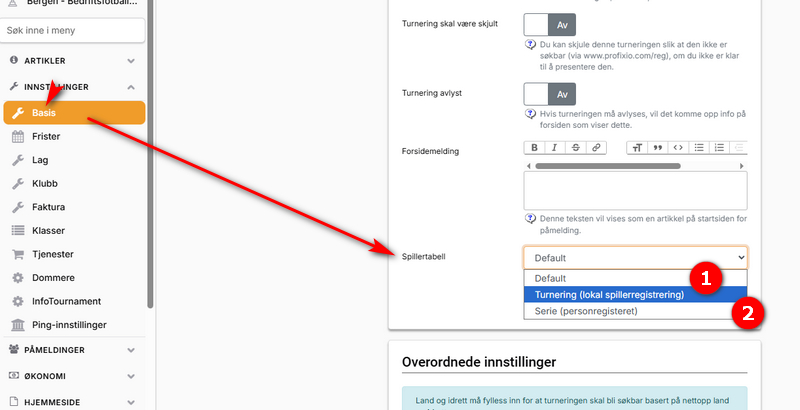
Switching to tournament brings the players already fetched from the register across into the local list, once, and only while the local list is still empty.
Why the register is required in series play. It is how membership and a valid licence can be confirmed, how insurance cover attaches to the player, how anti-doping registration is kept, and how it can be documented afterwards who took part and for which club.
Other sports
In beach volleyball and padel there is no squad to build. A team is one or two people, and those people are the team — the team's name on the schedule and in results is made from the players' names.
That changes how registration works:
- The players are chosen when the entry is made, not added to a roster afterwards. Registering the pair is registering the team.
- Where the players come from a licence register, you pick them from it. Where a player is from abroad and has no record, they can be entered by name.
- There is no Add Players button on the team page afterwards, no shirt numbers, and no maximum-players setting to configure — the format decides the number.
If a pair needs to be changed, that is a change to the entry, not an edit to a roster.
For other roles
The roster lives on the team's own page. There is one page per team, and everything about that team — contacts, orders, economy, players — is on it.
As a team leader or club administrator. Sign in and open your teams from Min Profixio / My Profixio. Pick the team, then the players section. If you may edit, you get the edit controls; if you may not, you get the same list read-only.
As a tournament administrator. Two routes:
- Open the team from the team list and work on its page, exactly like a team leader would.
- Or use the admin overview: the menu entry Players for each team gives one row per team with player counts, and an Edit players link on each row that jumps straight to that team's roster.
A second admin page, Show all players, lists every individual person in the tournament rather than every team. It has per-column search, an Excel export, and columns for food needs, allergies, accommodation and any extra questions the organiser has added. It is only available for tournaments that keep their own player list.
If there is no players section at all, the tournament has player registration switched off (see "Settings and behaviour reference"), or the class is a personal class where each entry is one person and there is nothing to build a squad from.
This is the ordinary cup setup: you type the names in yourself.
- Open the team page and find the card Players and teams members. If the class or the team has a limit, the heading also shows (max N players).
- Press Add team person. A New player form opens.
- Fill it in and save. The person is added to the list immediately and the next form is ready.
What the form asks for depends on the tournament. First and last name are always there. Birth date or year of birth can be hidden, optional or required. Phone, food needs, allergies and "staying at the accommodation" are separate switches the organiser turns on, and the organiser can add extra questions of their own. Shirt number can be made compulsory per class.
Roles on the list. Each line is a player, a team leader, a coach, a parent or a referee. Only the lines marked as player count towards the team's maximum.
Adding many at once. If the organiser has switched on quick registration, the form opens as a block of empty rows instead — type name after name and the block grows as you fill it, so a whole squad goes in without saving between each person.
Guest players. Where the organiser allows it, a player can also put themselves on a team and wait to be accepted. That flow is described on its own page.
Every person added this way exists only in this tournament. Next season you start from an empty list — unless the organiser copies the tournament, which does not bring players with it.
In federation series and in federations that run licences through Profixio, you do not type names — you pick people who already exist.
- Open the team page and find the roster table. Above it are Add Players and Add Coach.
- Press one of them. You get the club's people to choose from. By default the list shows only people with a valid licence for this competition; some federations show unlicensed people too, marked Missing license.
- Pick the person. They are added to the roster straight away. You can give a shirt number at the same time, or let Profixio take the next free number.
If the person is not in the list, work through this order:
- Wrong club. The list is your club's people. Administrators may get an As admin you can select club option to look in another club; ordinary team leaders do not.
- No licence yet. In most federations an unlicensed person is simply not offered. Sort the licence first, then come back.
- Not in the register at all. Where it is allowed, Register new person lets you create the person. What happens next depends on the federation: normally the person is created in the register and linked to the club, and only then added to the team.
- Nothing at all is offered (No licenced persons available): the club has nobody eligible, which in practice means the licences have not been bought or the players belong to a different club.
In Norwegian federations that read the NIF register, there is an extra search that fetches the person from NIF instead. The person is created in Profixio from the NIF record and then added to the team. If the NIF record has no usable e-mail address you get a warning and nothing is created — that has to be fixed in NIF first.
After a player is added, in federations where players buy their own licences, the player gets an e-mail asking them to check their licences. People who follow that player in the app also get the team added to their favourites.
Editing what is already there. Turn on Edit players. Each line becomes editable: shirt number, leader role, position, and any extra column the federation has defined. Changes save as you leave each field — there is no separate save button. Quit Edit Mode turns it off again. Show license information expands the licence details for every line.
A roster line remembers which club the person belongs to, so a team can legitimately hold people from more than one club. Two situations come up.
Borrowing from another club in the same federation. Only administrators can look outside their own club, and only when the federation allows it — that is the As admin you can select club option on the add screen. Whether the borrowed player may actually play is a separate question about co-operation agreements and playing rights, and Profixio checks that when the person is added, not when they are picked.
Foreign clubs in an international tournament. A club from another country has no record in the federation's register, so there is nobody to search for. For these teams Profixio switches the roster to free text: you register the players and staff by name on the team itself, they land on the roster, they can be picked in the match protocol, and they appear in player statistics — without any licence.
A team gets the free-text roster when both of these hold:
- the team's club is not linked to a real club in the federation's register, and
- either the tournament is marked as international and the club's country differs from the tournament's country, or the tournament has License is not required for players switched on.
Two things reliably break this and are worth knowing:
- Uploading a club logo can switch it off. Adding a logo can create a placeholder club record and link the team to it. Profixio now ignores placeholder links, but a team that was linked to a real club by mistake will lose its free-text roster until that link is corrected.
- A cup-local club shared by every team. When all teams in an international cup hang off one club created inside the tournament, the country test fails and nothing is offered. The fix is the licence waiver, not a country change.
Leaders sit on the same roster as the players, on their own lines. On the person-register roster they are listed under Stab; on a tournament-local list they are ordinary lines with a leader role instead of player.
The kind of leader is not asked for when you add one. Both ways of adding a leader — picking an existing person with Add Coach, and registering a brand-new person — give the leader the federation's first leader role automatically. In Swedish handball that means every leader you add becomes Ledare A, whatever they actually do.
This is expected behaviour, not a fault, and the correction is quick:
- Turn on Edit players on the roster.
- Each leader line now has a role dropdown. Pick the right one. It saves itself.
The role can also be corrected later in the match protocol, per match.
Which roles exist is the federation's own list, not something a tournament organiser sets. Most federations have two leader roles. Swedish handball has five (A to E) and Swedish bandy has its own set. Federations can define a different list per sport.
Leaders and licences. Some federations require leaders to hold a licence like players do; others exempt them. Where leaders are exempt, they stay visible on the roster even when the list is filtered down to licensed people only. Requirements about coaching qualifications are checked when the protocol is set up, not when the roster is built.
Shirt numbers. Every roster line can carry a number.
- On the person-register roster you can type it when you add the player, or let Profixio assign the next free number, or fill it in later in Edit players.
- On a tournament-local list the number is a field on the player form. A class can make it compulsory.
Duplicates are only caught in one place. Editing a number inline refuses a number another player on the same team already has, with "Another player has the same shirt number." When you add a player, use a number that is still free on the team.
The roster number is a default, not a rule. Numbers used in a match are stored on the match itself, and changing a shirt number on the roster afterwards does not rewrite matches that have already been played.
Positions. Where the sport uses playing positions, each line has a position dropdown in Edit players. It is informational on the roster; what a player actually does in a match is decided in the protocol.
There are two places a maximum can be set, and one place it is actually enforced.
Setting it.
- Per class. The class has a Max num of players field. This is the normal way to cap squads.
- Per team. A tournament administrator can override the class value on a single team, also called Max num of players, on the team's edit form. This is for the one team that legitimately needs more. An empty value means "use the class value"; a team override always wins.
When a limit applies, the players heading shows (max N players) so the team leader can see it.
Enforcing it. The limit is checked when somebody adds a person to a tournament-local list. Adding player number N+1 is refused with "The maximum limit on the number of players has been exceeded". Only lines marked as player count — leaders, coaches and parents do not.
On the person-register roster, follow up squad sizes by hand: the number to look at is the player count per team on the Players for each team overview.
There is a separate lower bound used only for reporting: the class minimum feeds the Missing players column and the Below class minimum filter on that same overview. It does not block anything.
A tournament can set a date after which teams may no longer change their name list.
Where it is set. Tournament admin → Settings → Deadlines, in the General Deadlines section. There are two date fields:
- the real player deadline — after this date, teams are locked out,
- a second, display-only player deadline. Where it is filled in, that is the date shown to teams on the tournament's deadline list, while the real one stays later. Organisers use it to give themselves a private grace period.
Both fields are hidden for Profixio's own league product, which does not use them.
What it blocks. After the deadline a team leader who tries to edit the roster is told "The deadline for registering players has passed." and the edit controls disappear.
What it does not block.
- It has no bearing on the person-register roster. Federation series rosters stay editable regardless of this date; series normally stay open for changes for the whole season, and the changes are logged.
- It never stops the organiser. Anyone with name-list or team-editing rights in the tournament can still change players after it.
The deadline is a date, not a time — it takes effect from the start of the following day.
The admin menu entry Players for each team opens the name-list overview: one row per team, with the club, the class, where the team is staying, the total number of people, counts per role, how many are over age or too old, and a Missing players count against the class minimum. It exports to PDF and Excel, and the page describes itself as sending name lists to emergency services or reminders to team leaders.
Two mailings run from here, and Profixio keeps a count of each per team so you can see who has already been chased.
Send the list out. Send list by mail sends the team's list of names to an address you choose — the intended use is emergency services, the accommodation, or anyone who needs to know who is on site. Available per team and for a selection of teams at once.
Remind the team leader. Send to teamleader mails the team's contacts a reminder to complete their name list. The default subject is "Please update the list of players for" followed by the team's name, and the default body is "Dear teamleader, please use the following link to register players for your team." — both editable before sending, and your last wording is remembered for the next send. The mail contains the team's current list of players and a Change players link that takes the team leader to the team's roster so they can update it.
Both are also bulk actions: filter the overview — for example with Below class minimum — tick the teams, and send to all of them in one go.
Nothing is automatic. There is no scheduled reminder, no "chase everybody two days before the deadline". Somebody has to press the button. Reminders are logged per team, and the log shows who was mailed and when.
A separate Communication page handles general e-mail and SMS to everyone in the tournament, including all players, rather than name-list follow-up specifically.
Removing a person from a roster takes them off that one team. It does not delete the person, does not touch their licence, and does not affect any other team they are on.
On the person-register roster the removal is permanent. There is no undo and no bin to restore from. The only trace is a line in the team's event log recording that a player was removed. If somebody removes the wrong person, add them back — nothing else is needed, but the original line is gone.
What removal does not do.
- It does not remove the person from matches that have already been set up or played. Match line-ups are stored on the match, and events already recorded stay.
- It does not cancel or refund a licence.
- It does not free anything up if the person was already used in a protocol — the protocol refuses to drop a player who has events recorded.
In federation series the roster is a running record. Players can be added and removed all season, and the changes are logged on the team, so it is possible to see afterwards what the squad looked like at any point.
Editing a roster is checked per team, in this order:
- Tournament staff go first. Anyone in the tournament holding name-list rights or team-editing rights may edit any team's roster, also after the player deadline.
- The player deadline stops everyone else, but only on tournament-local lists.
- In a series, the federation can lock team leaders out. An organisation setting decides whether team administrators may edit players at all. A federation that expects clubs — not individual team leaders — to maintain squads can have it turned off. It applies to series only: in ordinary cups and tournaments, team administrators can always edit their squad regardless of the setting.
- Otherwise, it comes down to the team. You may edit if you are a contact person or administrator for that team, or a club administrator with player rights for the club.
Viewing is much wider than editing: the roster is normally visible to anyone who can see the team page, subject to the visibility rules below.
Adding a new team contact is how you give somebody access. If another person needs to maintain the list, add them as a contact person on the team.
Work down the list; the first "no" is almost always the answer.
- Is there a players section on the team page at all? If not, the tournament has player registration switched off, or the class is a personal class.
- Are you signed in as somebody attached to that team? Being a club administrator elsewhere, or being signed in with an account other than the one the team lists as a contact, is the single most common cause. Sign in with the e-mail address you are listed with as a contact on the team.
- Has the player deadline passed? You will be told so explicitly. Only the organiser can add people after it.
- Is this a series where the federation has locked team leaders out? Then the club has to do it, not you.
- Is the team at its maximum? The heading shows the limit; the refusal names it.
- Is the person missing from the list of people you can pick? That is a different problem — see "Adding players from the person register". Usually: wrong club, no licence, or not in the register yet.
- Is this a foreign club with nothing to pick from? The team needs the free-text roster; see "Players from another club or another country".
- Has the team been deleted? A deleted team refuses new players and says so.
If a team leader insists a name is there and an administrator cannot see it, check that you are both looking at the same team — teams with similar names in neighbouring classes are a classic mix-up — and that the roster list is not being filtered down to licensed people only.
| Setting | What it does | Where | Also means |
|---|---|---|---|
| Turn player registration off | Switches player registration off for the whole tournament | Tournament admin → Settings → Player | No players tab on any team page, for anybody; the deadline and limits become irrelevant |
| Show players public | Whether the players tab is shown to the public for this class | Class settings; also a bulk action on the class list | On by default. Off = the tab is only shown to people allowed to see that team's roster |
| Player deadline | The date after which teams may no longer edit their name list | Settings → Deadlines, General Deadlines | Only bites on tournament-local lists; organisers with name-list or team-editing rights can still change players after it |
| Display-only player deadline | A later player deadline shown to teams | Settings → Deadlines | The real deadline still governs; used to keep a private grace period |
| Max num of players (class) | Maximum players per team in the class | Class settings | Only enforced on tournament-local lists; counts player lines only |
| Max num of players (team) | Per-team override of the class maximum | Team edit form, tournament admin only | Empty = use the class value; any value wins over the class |
| Draktnr obligatorisk | Makes the shirt number compulsory on the player form | Class settings | Tournament-local lists only |
| Birth date on the player form | Birth date on the player form: hidden, shown or required | Settings → Player | Also governs the year field in quick registration |
| Birth-date field shown | Whether the birth-date field appears on the player form | Settings → Player | Affects what is asked for, not what is listed |
| Food, accommodation and phone questions | Extra questions on the player form: food needs, accommodation, phone | Settings → Player | Food answers become columns on the Show all players page and feed catering reports |
| Fast bulk entry | Opens the add form as a block of blank rows for fast bulk entry | Settings → Player | Independent of which roster system the tournament uses |
| Information text on the player form | Free text shown to the person filling in the player form | Settings → Player | |
| Extra fields for players | Organiser-defined questions added to the player form | Settings → Player | Become columns on the Show all players page and in its export |
| License is not required for players | Players without a valid licence may be added to rosters and match squads | Settings → Basic, federation admin | Also switches on the free-text roster for teams with no real club link |
| Spillertabell | Forces one of the two roster systems for this tournament | Settings → Basic. Visible to Norges Bedriftsidrettsforbund district and federation administrators, in that federation's own tournaments | Switching to the tournament-local list copies the existing licensed players across once, and only if no local players exist yet |
| Team administrators may edit players | Whether team administrators may edit players in this federation's series | Organisation setting | Series only; cups always allow it |
| Organisation licence display flags | Whether unlicensed people are listed, whether coaches need a licence, whether all licences are shown, whether missing licences are flagged | Organisation configuration | Explains why the same roster looks different in two federations |
Rights used on this page. Name-list rights and team-editing rights are tournament permissions given to organiser staff; with either of them, players can still be changed after the player deadline. The name-list overview requires name-list editing rights. The read-only Show all players page accepts several viewing rights, including ones limited to catering or emergency-services staff.
Which roster system applies. Profixio picks it automatically, in this order:
- A tournament with any class marked for streaming always uses the person register.
- Norwegian rugby and Norwegian company sports use it conditionally: only while the tournament has no locally typed players yet and the federation's person search is available. Once local players exist, they keep the local list.
- Beach volleyball, table tennis, water polo, padel and beach water polo always use it, whatever the federation. So does Swedish volleyball where licensed players are required, and Profixio-league beach volleyball.
- Competitions belonging to Swedish handball, Swedish basketball, Swedish bandy, Swedish rugby, international bandy, Nigerian football and Volleyball Australia always use it.
- Everything else — the great majority of ordinary cups — keeps its own local list.
Leader roles are per federation. Swedish handball has five (A to E); Swedish bandy has its own set; most federations have two. Federations can define a different set per sport. Whichever set applies, a newly added leader always gets the first one and has to be corrected by hand.
Licences on the roster are per federation. Whether unlicensed people are even listed, whether coaches need a licence, and whether a missing licence is flagged in red are all organisation settings. This is why a Swedish handball roster shows licence badges and a Norwegian cup roster shows none.
Squad size on person-register rosters is federation policy: a federation that limits squads to a fixed number follows it up on the Players for each team overview.
Whether team leaders may touch a series roster at all is a federation setting. A federation can have it turned off so that squads are maintained by club administrators.
Norwegian rugby is the one federation where players buy their own licences; adding a player to a roster there triggers an e-mail asking them to sort their licence.
See also
Was this page helpful?