The referee's own pages
What a referee sees and does when signed in: assignments in series play, accepting or declining a nomination, handing a match back through Buy & Sell, unavailable periods in the calendar, the personal calendar subscription, and the referee's own page inside a single tournament.
Looking for something else? Referee registration for a tournament Referee setup: assigning, publishing and restoring referees on matches Referee costs: fees, claims and paying the referees
When you are signed in as a referee, Profixio gives you a small set of personal pages: the matches you have been given, the answer you owe on a nomination, a calendar where you mark the periods you cannot officiate, your own contact details and photo, and — where the federation uses it — your expense claim.
There are two separate referee worlds in Profixio, and they look different:
- Series play (leagues). Your federation keeps you in its referee register, and a referee administrator appoints you to matches across a whole season. Your home page here is Referee Assignments, with a calendar beside it.
- A single tournament (a cup). You sign up for that one tournament, and the organiser puts you on matches inside it. Your home page here is My Referee Info for that tournament.
The two do not share data. A referee who does both will have a federation referee role and a separate registration in each tournament.
- Signing up as a referee for a tournament — the form, the deadline and what the organiser configures on it: see Referee registration for a tournament.
- How appointments are made in the first place — filtering matches, referee groups and pairs, publishing, nominating and putting matches on Buy & Sell: see Appointing referees across a series.
- Assigning referees on a tournament's match list, and the referee setup history: see Referee setup.
- Filling in an expense claim — lines, receipts, rates and what happens after you send it: see Submitting a referee expense claim. The administrator's side is Reviewing and paying referee claims.
- The referee register itself, referee types and match roles: see The referee register, roles and referee types.
- The app, push notifications and favourite teams: see The Profixio app.
- Delegate and fair play reports, which some federations put on the same match cards: see that page.
For other roles
You sign in with your ordinary Profixio account — use the email address your federation or the tournament organiser registered you with. There is no separate referee password for series play.
If referee is the only role on your account, signing in with your email address and password takes you straight to Referee Assignments. Signing in through Google or Facebook, or holding an administrator role as well, lands you somewhere else — the Referee Assignments button on My Profixio always gets you there.
If you hold more than one role — for example referee in one federation and club official in another — you are in one role at a time. The role picker sits at the top of the My Profixio page ("Roles in FX", with your current role shown underneath). A referee role is listed as Referee/official, followed by the federation and your name. Pick it and press Continue; the page reloads in that role.
This matters more than it sounds. Assignments, the calendar, the Buy & Sell list and the referee menu all follow the role you are currently in. If your assignments seem to have vanished, check the role picker first.
Referee Assignments (also in the left menu) lists the matches you have been given across every competition in your federation. Your name, email address, a link to your Calendar and a button for subscribing to the matches in your own calendar app sit at the top, with the number of matches below the filters.
The list has three tabs (the first two are still shown with their Norwegian names in every language):
- Kommende — upcoming matches, from today onwards. This is the default.
- Historikk — matches already played. There is no cut-off; the whole history is there.
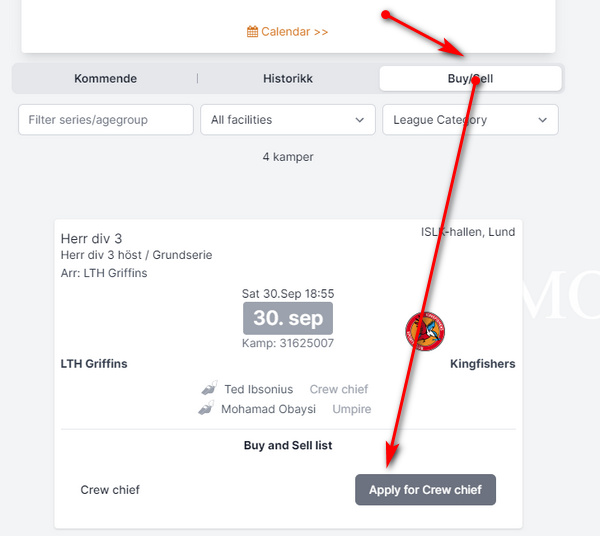
- Buy/Sell — matches in your federation that another referee has handed back and that are free to apply for. The tab switches back to upcoming by itself when the list empties.
Three filters narrow the list: a free-text box that searches the competition name and age group, a facility list, and a league-category list. You can also switch between the card view and the compact list view.
Open a match card and you get the whole picture of the appointment: the other officials on the match with their roles (your own line is in bold), your accept/decline buttons if you have been nominated, the Buy & Sell options, and — when the competition uses them — the delegate report and the match protocol.
Only assignments that have been published to referees appear here. While an administrator is still working on the appointment, nothing is shown to you at all, and there is no way for you to see a draft appointment.
An appointment can be published as a nomination: you are asked, and the appointment is not final until you answer. The match card then shows a yellow box with your role and the text "You have been nominated for this match.", and two buttons: Accept this match and Deny Match (the decline is confirmed with "Refuse this match").
If the administrator set an answer-by date, the box also says "Last day to accept/deny nomination" with that date. Once that date has passed the nomination is no longer shown to you and can no longer be answered — it simply drops out of your list, and the administrator has to appoint the match again or extend it. Nothing is sent to you when that happens, so answer while the box is there.
When you accept, the appointment becomes final: the match turns green in your calendar, and the administrator sees it as accepted.
Changing your mind after accepting. There is no "un-accept" button. What you get instead — where the competition allows it — is Put on buy/sell list, which hands the match back so another referee can take it. See the next section.
An appointment can also skip the nomination step and be published as final straight away. In that case there is no accept or deny button on the card; if you cannot officiate, contact your referee administrator.
Buy & Sell is the marketplace for appointments that a referee cannot keep. It has to be switched on for the competition — if you do not see the options, your competition does not use it.
Handing your own match back. On an accepted match, press Put on buy/sell list and confirm. The card then says "This match is on the buy/sell list." and offers Remove from buy/sell list if you want to take it back — which also removes any applications other referees have made for it. You cannot put a match that has already started on the list.
Taking someone else's match. The Buy/Sell tab on your assignments page lists free roles, and the match card shows a Buy and Sell list with a button Apply for the role in question. What happens next depends on the competition:
- Normally your application is registered and a referee administrator decides who gets the match. Until then you can withdraw it again with Remove application for that role.
- If the competition runs in auto-accept mode (a badge on the list says so), you are warned that "Application for this match will be automatically accepted" and the match is yours the moment you confirm.
Profixio refuses an application, with a short explanation, when:
- the match has no date, or has already been played;
- nobody has actually withdrawn from that match;
- you already hold a role in the same match;
- you are already appointed to another match in the same time block — an overlap of up to 16 minutes at either end does not count as a clash, so back-to-back matches on the same pitch stay applicable;
- your federation has blocked you personally from using Buy & Sell.
At the top of your assignments page and your calendar there is a button — "Add this to your Google Calendar, Outlook or iCal". It opens a panel with Subscribe via links for Google Calendar, Apple Calendar and Microsoft Outlook, plus Copy to clipboard if you want to paste the address somewhere else.
This is a subscription, not a one-off export: your calendar app re-reads it on its own schedule (often a few hours, sometimes longer for Google), so a change made in Profixio this morning may not show in your phone until later in the day. The calendar page in Profixio is always the current truth.
What the feed contains:
- your appointments that have been published to you, including nominations you have not answered yet (until the answer-by date passes) and your own matches that are on the Buy & Sell list;
- roughly the last year and everything ahead, up to 500 matches;
- for each entry: the two teams as the title, the competition and pitch in the description, start and end time, and the venue with map coordinates when Profixio has them.
What it does not contain: appointments that have not been published to you, appointments you declined, and — worth knowing — your role on the match. The feed says which match, not whether you are the main referee or the fourth official.
Keep the address to yourself.
In a tournament you have signed up for, your home page is My Referee Info. You reach it from My Profixio, where each tournament you are a referee in gets a row with a My Referee Info button, a My Matches button with the number of matches on it, and — when there is anything to show — a Total line with what the tournament currently owes you.
My Referee Info holds up to four cards:
- Registration — everything you filled in when you signed up: name, club, referee number, contact details, referee grade and type, and any extra questions the organiser added. If the tournament asks which days you can officiate, those days are listed underneath. Edit registration takes you back to the sign-up form, where you can change your answers, or delete your registration entirely, for as long as you are still registered. Your email address is the one thing you cannot change there.
- Expense Claim — only when the tournament uses referee expenses. See below.
- Economy — match fees, driving and other costs, and the total, with Download receipt (PDF).
- Matches — your next matches, with a link to the full list.
My Matches for a tournament shows all the matches you are set up on, with the total count. Your email and phone number are shown on that page to the organisers, and to team leaders if the organiser has switched that on.
Sign in with the email address you registered with: a referee who signed up with one address and later signs in with another will not see any of this. That is the most common cause of "I am registered but the tournament shows nothing".
In series play, your name, contact details and referee types come from your federation's referee register. You cannot edit them yourself — ask your referee administrator to correct anything wrong. Your referee types are shown as small badges on My Profixio, so you can check what the federation has registered on you.
What you can maintain yourself is your photo: the card on My Profixio has Change photo, Save photo and Delete photo. Pictures up to 16 MB are accepted, and the picture is scaled down in the browser before it is uploaded.
If your federation has turned on the referee contact list, you also get a Conctact List entry in the menu that opens the federation's referee list — headed Referees, or Referees/officials in Swedish handball. Where it is not turned on, referees have no way to look each other up — but you always see the contact details of the officials on your own matches.
In a tournament, the details are yours to maintain: everything on the sign-up form, including grade, referee type, bank account, next of kin and the days you are available, is edited by you through Edit registration. Which fields exist at all is decided by the organiser.
When a tournament or federation has switched on referee expenses, the Expense Claim card on your referee page is where you start: Create expense claim the first time, then Continue editing, Edit and resubmit or View details depending on where the claim has got to.
The card tells you where the claim stands in one word — Not submitted yet, Draft, In review, Approved, Paid or Rejected — with a small progress line beside it. Everything between sending the claim and the final approval is shown as In review, so the card does not change while it passes from the referee coordinator to finance.
The expense page itself is more precise: it says whether the claim is waiting for review, approved and waiting for payment, or paid. If a claim comes back rejected, the reason the reviewer wrote is shown there and you can edit and send it again.
A referee who has been removed from the tournament, but who has already worked matches there, keeps access to the claim — the work still has to be paid for.
How to fill in the claim itself, what counts as travel and what the rates are, is described on the expenses page linked at the bottom.
You are notified by email, and by push in the Profixio app if you have it installed and signed in, when:
- an appointment is published to you, changed or withdrawn;
- you are given a match through Buy & Sell in auto-accept mode;
- in cup tournaments, the organiser has switched on notifications and one of your matches changes date, time, pitch or teams — the organiser also chooses how many days before the match this applies.
The message names your role and the match, and links straight to your assignments. Messages are collected and sent out a few minutes after the change, so several changes made at the same time arrive as one message rather than five.
Push can be turned off per device from the app; for email, talk to the referee administrator who sends them.
Keep an eye on the answer-by date of your nominations yourself; when you accept or decline, your answer shows up in your referee administrator's appointment console.
A federation can run competitions where referee names are not public. The federation switches this on per division, not per referee — there is no personal setting for it, and it is not something you can ask to have turned on for you alone.
What it changes:
- Names of the officials are hidden from the public match pages of those competitions.
- Someone looking at another referee's calendar sees the busy time, but the entry is only labelled Assignment — no teams, no competition, no link.
What it does not change: your own pages. You always see your own appointments in full, with teams, competition, venue and your co-officials, whether the competition is anonymous or not.
Being appointed to a match does not make you an administrator of it. As a referee you cannot:
- see appointments before an administrator publishes them;
- appoint, move or remove referees on a match — including your own, apart from answering a nomination or using Buy & Sell;
- open another referee's page or calendar; a referee can only open their own;
- look up referees who are not on your matches, unless your federation has turned on the referee contact list;
- change your name, contact details or referee types in the federation's referee register, or your email address on a tournament registration;
- reach the referee appointment console or the tournament's referee administration; those need a referee-administrator permission.
Registering the result or the protocol of a match is a separate permission again, given per competition or tournament — it can go to the referee on the match or to the home team.
Work down the list; stop at the first one that fits.
- Are you in your referee role? Check the role picker on My Profixio. One role is active at a time, and assignments follow the active role. Someone who is both a club official and a referee sees no assignments while the club role is active.
- Is it the right federation? A referee role belongs to one federation. Appointments made by another federation need that federation's referee role.
- Has the appointment been published yet? Administrators can prepare appointments without publishing them. Unpublished appointments are invisible to referees everywhere — list, calendar and calendar feed.
- Was it a nomination whose answer-by date has passed? Then it has dropped out of your list. Ask the administrator to appoint you again.
- Did you decline it, or hand it back on Buy & Sell? Declined and handed-back appointments do not come back on their own.
- Is it in the past? The upcoming tab only shows today onwards; look under the history tab, which keeps everything. The calendar and the calendar subscription are the ones with a limit: roughly the last year.
- Is the tournament or competition still visible? Cancelled, deactivated or hidden competitions drop out of your lists even when your appointment is intact.
- In a tournament: are you signed in with the address you registered with? A different address means an empty referee page.
- Are you looking at a subscribed calendar rather than Profixio? Subscribed feeds refresh on the calendar app's schedule, not immediately.
If the assignment is missing for everyone and not just for you, it is an appointment problem rather than a viewing problem — see the referee appointment page.
Nearly everything on this page is switched on or off by the federation, and none of it can be changed by the referee:
| What | Decided by | Effect on you |
|---|---|---|
| Whether referees use Profixio for the sport at all | Federation, per sport | No referee assignments page content without it |
| Nominations, or appointments published as final | Federation and competition | Whether you get accept and deny buttons |
| An answer-by date on nominations | The administrator, per appointment | The nomination disappears when the date passes |
| Buy & Sell | Per competition | Whether you can hand a match back or apply for one |
| Auto-accept on Buy & Sell | Per competition level | Whether an application is granted instantly or decided by an administrator |
| Being blocked from Buy & Sell | Per referee, by the federation | Applications are refused for you |
| Anonymous competitions | Per division | Other people's names are hidden; your own pages are unaffected |
| The referee contact list | Per federation | Whether you get a Conctact List menu entry with the federation's referees |
| Referee expenses | Per tournament or competition | Whether the expense card appears |
| Match-change notifications in cup tournaments | Per tournament, by the organiser | Whether you are told when your match moves |
Swedish handball labels the referee list Referees/officials rather than Referees, because the same register also holds delegates and other officials.
Anything in the federation's own referee rules — how far in advance you may hand a match back, whether declining needs a reason, how many matches you must take — is federation policy.
See also
Was this page helpful?