Editing a match and registering results
How a match is corrected after it exists — score, winner, date, time, venue and teams — and the three separate ways a result reaches Profixio: signed in as an organiser, with the tournament's shared results password, or through a QR code for a single match.
Looking for something else? Setting times and venues for series matches Administering series matches Applying to move a series match Appointing referees across a series Preparing a match in the electronic match protocol Reporting a match live Finishing and signing the match protocol Integrations, the open API and webservice access
A match in Profixio is one row in the match programme, and almost everything on it can be changed after it has been created. The same form is used whether you are correcting a typo in the score or moving the match to another day.
What the match form covers:
- The result — the score for each team, the winner, and per-set scores where the class plays sets.
- The match itself — name, date, time, venue/court, home team and away team.
- Comments — a public comment shown next to the match, an admin note, and an internal comment to the secretariat.
- Protests and deviation reports — when a protest was handed in, and whether the secretariat has read it.
- Housekeeping — hide the match from the public, reset the result, switch home and away team, lock the teams in a playoff slot, and mark whether the match counts in the table.
Not everything is open to everyone. The form shows a Result tab and a Protests tab to anyone who is allowed to register results, and adds the Match and Referees tabs only for people with full match-edit rights. If you only see a score box and a protest tab, that is not a fault — it is the level of access you were given.
Saving a result is not the last step in the chain: it recalculates the class table, can move teams into playoff fixtures, and updates player statistics. Saving a new date can remove the referees. Both are covered further down.
- Creating the fixtures, drag-and-drop scheduling, moving a whole day, bulk changes to court or date, and undoing a bulk change — see Match generation and scheduling.
- Hiding a match, a class or a result from the public — see Hiding matches, schedules and results from the public.
- Series and league match administration, including the club time-setting flow, match-move requests and the league match list — see League match administration, League scheduling and time setting and Match move requests.
- Appointing referees to matches and the referee settings on the match list — see Referee setup on the match list and League referee appointment.
- Live event reporting, line-ups and signing the protocol — see EMP live reporting, Preparing a match in the electronic match protocol and Signing the match protocol.
- How the standings are actually calculated — see League standings and tables.
- Messaging teams and referees about a change — see Communicating with participants.
- Submitting results over the API — see Integrations, API and web services.
For other roles
The match form normally opens as a panel over the match list, so you never lose your place. It also exists as a page of its own, which is what you land on from a direct link.
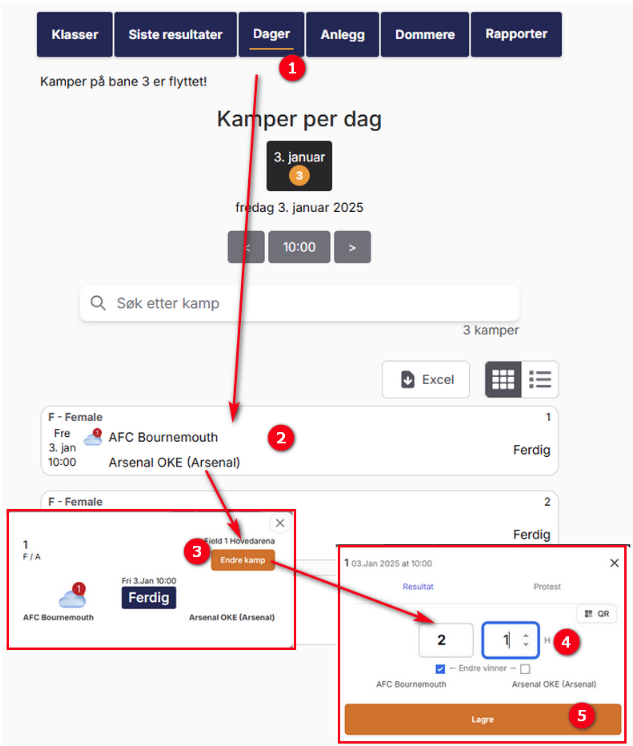
- Go to the tournament's match list. Any of the views work: Days, Categories, Latest results, Facilities, Teams or Referees. Pick whichever gets you to the match with the fewest clicks; the Referees view is the fastest way for a referee to find their own matches.
- Find the match and click it, or click the Edit match button on the match row.
- The match panel opens with the Result tab active.
- Enter what you need and click Save. Each tab saves on its own — saving the result does not save an unsaved change on the Match tab, and the other way round.
If you reached the match from a QR code, you land on that one match and can register its result.
A match admin produces that code by opening the match and clicking QR on the Result tab, then showing it to the referee on a tablet, a computer monitor or a phone. Scanning it gives the referee the right to register that match’s result, but not to edit the match — see QR codes for a single match.
Team leaders who have been given result rights get their own list instead: My Profixio → Update matches, which shows only the matches their own teams play in.
On the Result tab you get one score box per team.
- Type the home team's score in the left box and the away team's score in the right box.
- The winner is worked out from the scores as you type, and shown between the boxes.
- If the class plays sets, fill in each set under the total. Use Add a new set for another set; sets with an empty score are ignored when you save.
- Click Save.
When the score boxes are greyed out. The boxes are disabled until both teams are known. A playoff fixture that still reads Winner of quarter-final 1 has no teams yet, so there is nothing to register a result for; the form says the result registration is not available because of missing teams. Register the results of the earlier round first and the teams will be filled in automatically.
Who registered it. When you signed in with the shared results password you were asked for your name. That name is stored on the match as the person who registered the result, so the organiser can see who entered what.
Saving is immediate and public. As soon as you save, the score appears on the public match list and in the app, the class table is recalculated, and teams are moved into any playoff fixtures that depend on this match. There is no draft state and no approval step.
The winner is normally derived from the score, but it is a separate value on the match and you can set it yourself.
Draws. In group play a level score is saved as a draw and the table handles it. In a playoff fixture that decides who goes on to the next round, a draw is not a valid answer: as soon as you type equal scores on such a match, Profixio clears the winner and shows a message that the match must have a winner, and it refuses to save until one is chosen. Use Change winner to tick the team that actually went through — after extra time, a penalty shoot-out, a coin toss or a decision by the jury. This is also how you record a team being punished with a loss they did not lose on the pitch.
Coin toss and drawing of lots. When two teams end up exactly level in the table and the standings cannot decide who advances, open any match in that class and use Open Draw/tie Window. Pick the team that won the toss, and the table is recalculated with that team ahead. This is a class-level decision, not a match result: it does not change any score.
Walkovers and cancelled matches. Profixio has no separate walkover field on the match form. A walkover is recorded as an ordinary result — usually the scoreline your federation's rules prescribe — with the winner set manually if needed, and the reason written in the public comment. A match that is cancelled outright is normally hidden instead of being given a result.
Correcting a score is just re-editing it: open the match, type the right numbers, save. The table is recalculated again, and any playoff fixture that had already been filled in from the old result is filled in again from the new one.
Clearing a result completely needs full match-edit rights. On the Match tab, use Nullstill kampresultatet (reset the match result). It clears the score, the winner and all set scores in one go, and asks you to confirm first. Use it when a result was registered on the wrong match — which is the most common reason a table looks wrong.
A cleared match counts as unplayed again. That means it starts producing match-change notifications again if they are switched on, and referee assignments can be removed again if you then move it.
A match that already has a result behaves differently in four places: its referees are no longer removed when you change the date, it stops producing match-change notifications, the person responsible for its match protocol can no longer be handed over to someone else, and it can no longer be given a match protocol it does not already have. Resetting the result puts the first three back.
These fields live on the Match tab, which only appears if you have full match-edit rights.
- Date and time — free date and time fields. A match left without a date counts as unscheduled and produces no match-change notifications.
- Venue — a dropdown of the courts registered for the tournament.
- Home team and away team — dropdowns of the teams in the same class. Tick Show teams from all categories in the dropdown if you need a team from another class, which happens when a class is merged or a team is moved.
- Switch the home and away teams — one button that swaps them, with a confirmation. Use this instead of picking both teams again by hand.
- Match name — the free-text name shown for the fixture.
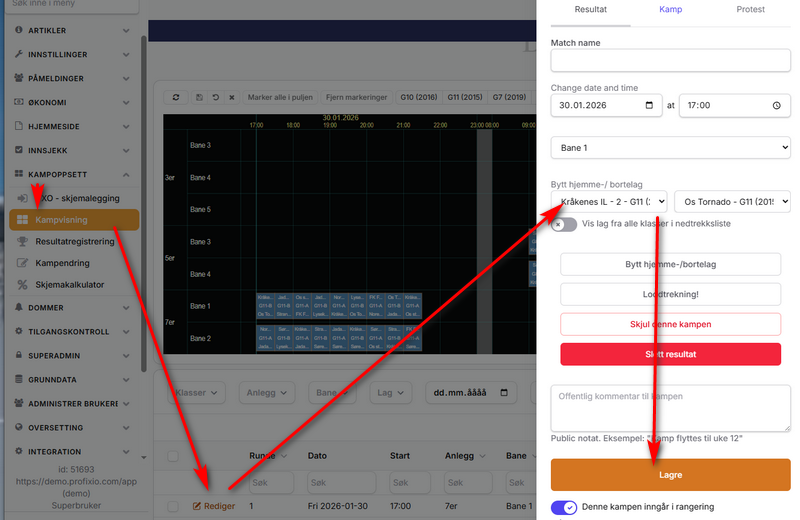
Two things you should know before you save a new date:
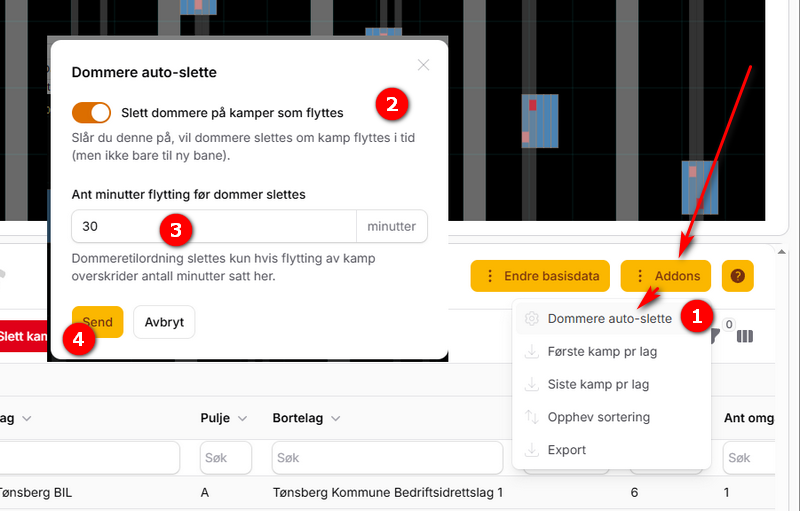
- Referees may be removed. By default, moving a match by more than 30 minutes removes the referees appointed to it and emails them. Moving the match to a different court does not. See What happens after you save.
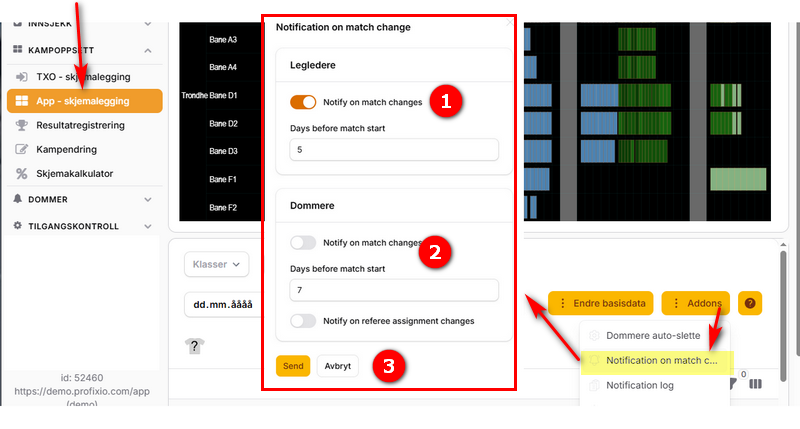
- Turn on notifications or message the teams yourself. Match-change notifications to team leaders and referees are off by default. With them off, message the teams yourself from the match list when you move a match.
Playoff fixtures. If the match is part of a playoff bracket you also get Kamp lag laast (teams locked). Ticking it means the table calculation will not replace the teams you picked. You rarely have to tick it yourself: picking a different home or away team turns it on automatically, on the assumption that a manual choice should survive the next table calculation. Untick it if you want the standings to take over again.
Teams in a published playoff should only be changed while the match has no result. Clear the result first, change the teams, then register the result again.
Moving many matches at once — a whole day 30 minutes later, every match to a new court, drag-and-drop in the schedule view — is done in the match scheduler, not here.
Protest er lest — the tick that says the secretariat has read the comment — is only visible to users with referee-administrator rights.
Organisers can pull every comment and protest in the whole tournament into a spreadsheet with Print comments for matches, at the bottom of the Protests tab of any match.
| Route | Who uses it | What it grants |
|---|---|---|
| Signed in with your own account | Organisers, referees registered for the tournament, team leaders where the organiser allowed it | Depends on the role — organisers and registered referees get the full match form, team leaders get their own teams' matches |
| The shared results password | Secretariat staff and young referees | Result registration only, for that tournament |
| A QR code for one match | A referee at the court, handed a code by the match admin | Result registration for that one match |
Two consequences worth saying out loud:
- The shared password and the QR code do not let you move a match. They open the Result tab and nothing else. If somebody with the password reports that they cannot change the time or the referees, that is by design.
- A referee who is registered as a referee in the tournament and signs in with their own account gets the full match form, not the restricted one.
Everything you get from any of these routes is tied to the tournament you are currently in. Switching to another tournament clears it and you have to sign in again.
A tournament can hand out one password for registering results without having an account. This is what most cups use for the secretariat and for referees who are too young to have an email account.
Using it.
- Open the tournament in the Profixio app or on profixio.com.
- Choose Register Results in the menu.
- Enter the password you were given and your first name, then Sign in.
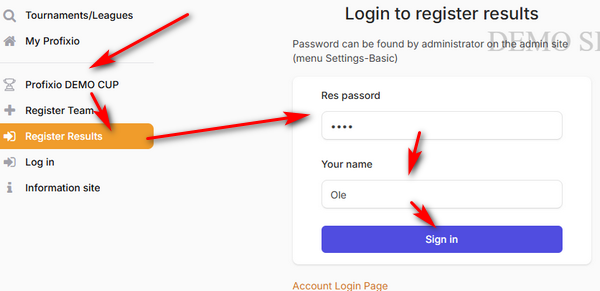
Your name is only used to record who registered each result. After signing in you are taken to the match list, where you open the match and enter its result.
A referee who is registered in the tournament and signs in with their own account can register results on every match in the tournament, not only the matches they are appointed to, so they do not need the shared password.
The menu entry only appears if you need it. People who already have result rights — the organiser, a registered referee, a team leader with result rights — do not see Register Results at all, because they already have the access it grants. The entry is also only offered in standalone tournaments, not in series.
Signing out. Use Log out of results registration on the same page. The access also disappears when you switch to another tournament.
Give the password only to the people who register results for you, and change it between events.
Turning it on (organiser).
- Open the tournament's Main settings or Referee settings.
- Set Res passord to the password you want.
- Switch on Login shared password.
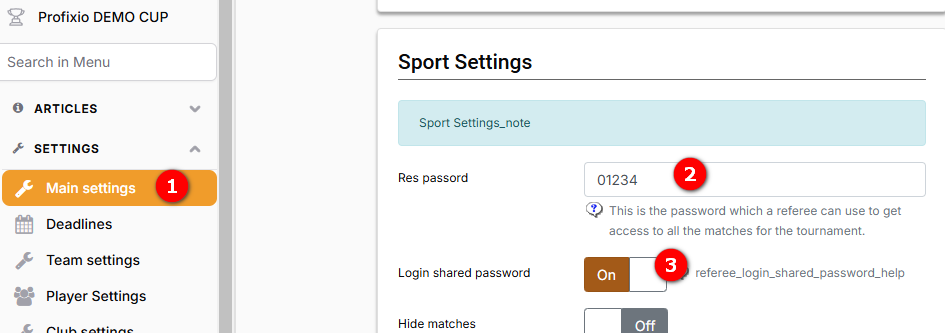
If you switch the login on but leave the password empty, Profixio warns you when you save: the login cannot work without a password.
For a single match, the match admin can hand a referee a QR code to register that match’s result.
- Open the match on the match list. The QR button sits at the top of the Result tab.
- Click it and show the code on your screen, tablet or phone.
- The referee scans it and lands straight on that match with the right to register its result.
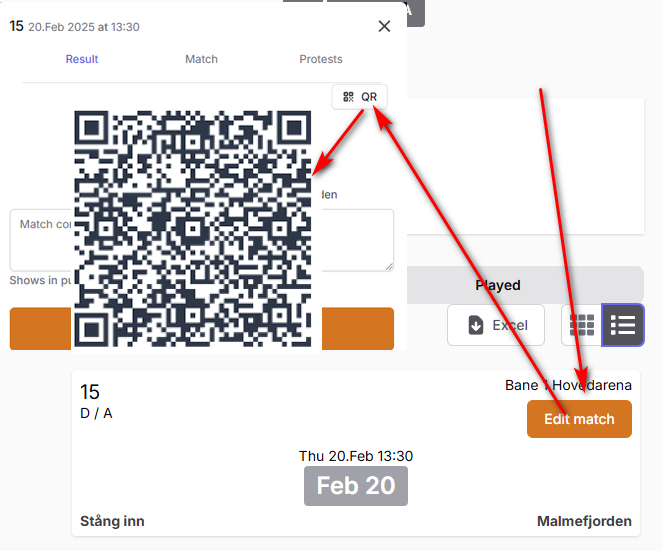
What the code gives the referee:
- Result registration for that one match only. Scanning one code does not open any other match.
- Nothing else. Date, time, venue, teams and referees stay closed.
The QR button is only offered in standalone tournaments, not in series.
Show the code only to the referee for that match. Do not put the codes on a public noticeboard.
A tournament can let the teams themselves report their results. It is off by default.
What a team leader has to do. Sign in with the same email address that was used when the team was registered. This is the single most common reason a team leader cannot see the button: they have an account, but not on that address. Every contact person on a team gets the access, not just the first one.
Where they find it. Sign in → My Profixio → the Update matches button on the tournament.

The list shows only the matches their own teams play in. Clicking Edit match opens the match panel with a Result tab and a slimmed-down Match tab where date, time and venue can be corrected.
Turning it on (organiser). Tournament settings → team settings → Team leader allowed to register results.

This is a real grant, not a read-only view. A team leader with this setting on can change the date, time and court of their own matches as well as register the result. Turn it on when you want the teams to do the work, and leave it off when you want the organiser to stay in control of the schedule.
| Setting | What it does | Where | Also means |
|---|---|---|---|
| Shared results password | The shared password used to register results | Main settings, and Referee settings | Change it between events if it has been passed around |
| Sign-in with the shared results password | Shows the Register Results login in the menu | Main settings, and Referee settings | Warns on save if the shared password is empty. Standalone tournaments only |
| Team leaders may register results | Team leaders may update their own teams' matches | Tournament settings → team settings | Adds the Update matches button, and grants date/time/venue editing on those matches, not just the result. Off by default |
| The organising club may register results | The organising club may register the result of matches it hosts | Referee settings | Only offered in series |
| Remove referees when a match is moved | Removes the referees when a match's date or time changes | Match scheduler → Addons → Referee auto-delete settings | On by default. Removed referees are emailed. Changing only the court never removes anyone |
| Minimum minutes before referees are removed | How far a match must move before the referees are dropped | Same place | Default 30 minutes, so small adjustments are safe |
| Notify team leaders of match changes | Email and push to team leaders when a match is moved | Match scheduler → Addons → Notification on match change | Off by default. Only fires within the day window below, and only for matches without a result |
| Days before kick-off a team leader is notified | How close to kick-off a change triggers a message | Same place | Default 7 days |
| The same two settings, for appointed referees | Notice of a match change, and the day window, for referees | Same place | Off by default, default 7 days |
| Notify a referee when an appointment changes | Notify a referee when they are appointed to or removed from a match | Same place | Off by default. Separate from match-change notices |
| Per-set scores | Adds per-set score fields to the result form | Class settings | Without it the match only has one total score per team |
| Match counts in the table | Whether this match counts in the table | Match tab on the match form | Turn off for guest matches |
| Teams locked in this playoff slot | Table calculation will not replace the teams in this playoff slot | Match tab, playoff fixtures only | Turned on automatically when you pick a team by hand |
Saving a match sets off several things that are easy to miss.
The class table is recalculated. Every save from the match form queues a recalculation of the class the match belongs to, and small classes are also recalculated on the spot so the table is right by the time the page reloads. Playoff fixtures that draw their teams from the standings are filled in from the new table.
Player statistics are updated when the score or the winner changed.
Referees may be dropped. If the date or time changed, the match has no result, referee auto-delete is on, and the move is bigger than the configured threshold, every referee appointed to the match is removed and emailed that they are no longer on it. Changing only the venue never removes anyone. A match that already has a result is never touched.
Team leaders and referees may be notified. If match-change notifications are switched on, changing the date, time, venue, home team or away team queues an email and a push message — but only when the match has no result yet, and only when kick-off (before or after the move) falls inside the configured number of days. Outside that window nothing is sent, deliberately: nobody wants a notification about a match four months out.
Tell the teams yourself. When notifications are off, mark the matches in the match list and use the send email/SMS action to tell the teams about the move.
Every change is logged. Saves from the match form are written to the audit log with the fields that changed. Contact Profixio support to find out who changed what and when.
Work down this list before escalating.
- Are the score boxes greyed out? Then the match has no teams yet — it is a playoff fixture waiting for an earlier round. Register the earlier results first.
- Do you only see a Result tab and no Match tab? That is normal for the shared password, a QR code, and anyone who is not an organiser. It is not a fault.
- Is the person on the right tournament? All result access is per tournament and ends when the person opens another tournament.
- Team leader who sees no Update matches button? Either the organiser has not switched on team-leader result registration, or the team leader is signed in with a different email address than the one used when the team was registered.
- Referee who cannot open the match? A referee registered for the tournament gets access with their own account. A referee in a series gets access to matches they are appointed to, around the date of the match — not months later.
- The shared password login is not in the menu? Either it has not been switched on, or the person already has result rights and does not need it, or this is a series rather than a standalone tournament.
- Saving a playoff result fails with a message about the winner? The scores are level on a match that must produce a winner. Tick the winner manually.
- The result saved but the table did not change? Check whether the match is marked as not counting in the table, and whether the class hides its table from the public.
- The result is right but the wrong match shows it? Reset the result on the wrong match, then register it on the right one. Both classes are recalculated.
When a match is played with the electronic match protocol, the score is produced by the events the secretariat registers — goals, sets, penalties — and not by anybody typing a total.
The table uses the score saved on the match. A total typed in the match form leaves the protocol and its events as they were, so the printed protocol and the published result then disagree.
The rule of thumb: if the match has a protocol, fix the result by fixing the protocol, not by typing over the total in the match form. Use the match form only to correct things the protocol does not own — the public comment, the venue, an internal note.
What the protocol does lock. Once a match has a result, the person responsible for writing the protocol can no longer be handed over to someone else, and a match that already has a result cannot be given a protocol it does not already have. Once the match has been ended in live reporting, ordinary scorers can no longer add events — only someone with full match-edit rights can.
Sets. Sports played in sets — volleyball, beach volleyball, table tennis and similar — get per-set score fields under the total when the class is set up for sets. The class decides how many set rows appear, and both Register Set Results? and How many sets to display can be changed straight from the Category block on the Match tab. The total still decides the winner; the sets are stored alongside it.
Rugby bonus points. Classes with 15 players a side get two extra tickboxes on the result form, Try BP and Losing BP, so the bonus points that decide the table can be recorded with the score — but only when the organisation has bonus points switched on in its competition configuration. Today that is the Norwegian rugby federation and nobody else. Other sports and other class sizes do not show them.
Series versus standalone tournaments. The QR code button and the shared-password login are only offered in standalone tournaments. Series have their own routes into result registration, including letting the organising club report the results of matches it hosts. Match-change notifications on this page are the tournament mechanism; series produce their own.
Everything else follows your federation's rules. What scoreline a walkover gets, whether a levelled playoff is decided by penalties or a coin toss, when a protest is valid and whether a result may be corrected after a deadline are decided by your federation. An organiser can save and correct a result at any time, so apply those rules when you register or correct results.
Some of the older match-editing screens are still in place and still function. They write to the same data, so a change made in one shows up in the other.
The old match-edit grid. A table of the tournament's matches where the date, time, court, comment and admin note can be edited inline, with a Send result action per match and export to Excel and PDF. Organisers get bulk editing across selected rows on top. The current navigation does not link to it.
Older results-registration links. If your organisation ever circulated older results-registration links, register results from the current match form instead.
Neither of these is where new work should happen. The current match form covers everything they do except bulk inline editing, which lives in the match scheduler.
See also
Not covered here
- Setting times and venues for series matches
- Administering series matches
- Applying to move a series match
- Appointing referees across a series
- Preparing a match in the electronic match protocol
- Reporting a match live
- Finishing and signing the match protocol
- Integrations, the open API and webservice access
Was this page helpful?
There are three different comment fields on a match and they are not interchangeable.
Both public fields are printed under the result on the match card, one after the other, so use one of them and leave the other empty rather than repeating yourself.
The Protests tab (called Avviksrapport in series) is where a protest is logged: the time the home team's protest was handed in, the time the away team's was, and the internal comment describing it. Saving the tab notifies the tournament, and when the internal comment has changed the organiser also gets a deviation notification.