Giving people access to a tournament
How an organiser adds staff to a tournament and decides what each of them may do, what the permission groups actually control, and how to work out why someone cannot reach a screen.
Looking for something else? Things to ask Profixio support for
Three things are worth knowing before you start:
- Access is given per tournament. Someone who administers this year's cup has no rights in next year's cup, or in any other tournament, until they are added there too. This surprises people who run several tournaments.
- Access is given as groups, not as single rights. You tick one or more permission groups for a person — for example a group that covers the finance screens, or one that covers check-in. A person can have several groups at once and the rights simply add up. No group ever takes a right away from another.
- Being able to see a menu item is not the same as being allowed in. Judge access by what happens when the page opens, not by the menu.
A person can have access for two reasons: an organiser added them to this tournament, or they come from the federation that owns the tournament or from the organisation that holds its licence. The second kind is not managed from the tournament and cannot be removed there.
- Signing in, passwords, changing your e-mail address and social sign-in — see Accounts and signing in.
- Federation and district users, and how those roles are registered — see Federations, districts and base data. That is also where access to leagues and series is handed out.
- What each tournament module does and how a tournament is configured — see Tournament settings.
- Referee registration, referee assignment and referee expenses — covered on the referee pages.
- Team leaders and club representatives. They do not get access from this screen; their rights follow from the team or club they are registered on.
For other roles
You need an access that includes managing other users — in practice the full tournament administrator group. The person who created the tournament has it automatically.
- Sign in and make sure the right tournament is the active one.
- In the admin menu, open License and then Users. Older help material calls this screen "Access control".
- Click New.
- Type the person's e-mail address. If the address is already known to Profixio, the Name field fills in by itself. If that person already has access to this tournament, the screen switches over to editing them, so you cannot create a duplicate by accident.
- Tick the permission groups they should have.
- Save.
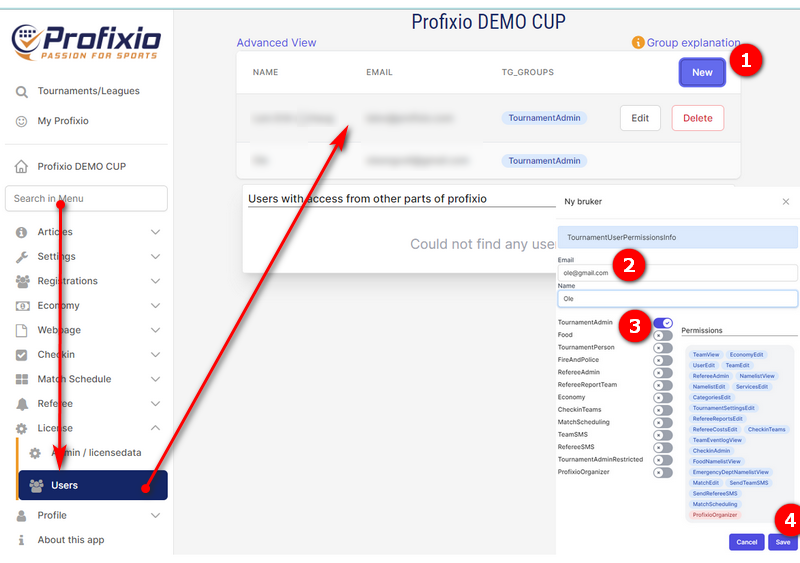
Everyone you add this way is sent an e-mail headed "Login information for" their address, telling them they now have access and giving them a link to sign in. Two things about that mail are worth knowing:
- If the address was new to Profixio, an account is created and the mail gives them their sign-in details. They should choose their own password after signing in.
- If the person already had a Profixio account, the mail is still sent, but the password line shows placeholder characters rather than a password. Their existing password still works and is unchanged. Warn them, or they will write back asking what their password is.
The mail is written in whatever language you are using Profixio in when you grant the access, although a few lines — the subject in particular — may come out in English.
The most common mistake is granting access to a different address from the one the person actually signs in with. If they sign in with Facebook or Google, the address on that account is what counts. See Accounts and signing in.
New access is not live in a session that is already open. The person must sign out and in again, or switch tournament, before the new screens appear.
The list of groups is the same in every tournament. Tick as many as you need — the rights add up.
During the tournament itself, the people helping you work in one of four roles: results registration (an ordinary volunteer), administrator (full access to everything), referee (access to result registration for all matches) and secretariat (check-in and lists). Work out which role each helper will have, then tick the groups that cover it.
| Group | What the person can do |
|---|---|
| TournamentAdmin | Everything, including handing out and withdrawing access for other people. This is the usual choice for a co-organiser. |
| TournamentAdminRestricted | Everything except managing other people's access. Use it when you want a fully working administrator but want to keep control of who gets in. |
| MatchScheduling | Match schedules: create and change matches and register results. It also opens the separate scheduling tool. |
| RefereeAdmin | Everything to do with referees in this tournament: add and remove referees, assign them to matches, referee settings, referee reports and referee costs, and sending SMS to referees. It opens the scheduling tool as well, but not the right to change matches or register results. |
| RefereeReportTeam | Referee reports only — no referee register, no assignment, no costs. |
| Economy | The finance module, plus editing teams, fees and services, and classes. |
| CheckinTeams | Check-in and check-out: team information, editing teams, editing name lists, and the food list. |
| Food | Only the food and allergy overview for players — no names and no other personal information. |
| FireAndPolice | Only the emergency list: names, dates of birth and accommodation for everyone registered. Give this to safety staff and nobody else. |
| TeamSMS | Sending SMS to registered teams. |
| RefereeSMS | Despite the name, this currently gives the same team-SMS right as TeamSMS. If someone needs to send SMS to referees, give them RefereeAdmin instead. |
A few further entries appear in the same list. Groups whose names begin with League belong to league and series administration, not to running a single cup, and are handed out from the federation's own screens — see Federations, districts and base data. If you see a group that is not in the table above and you did not create it yourself, leave it alone and ask Profixio support what it is for.
Tournaments can also have groups of their own, created by the organiser and only visible in that tournament. See "Making your own groups" below.
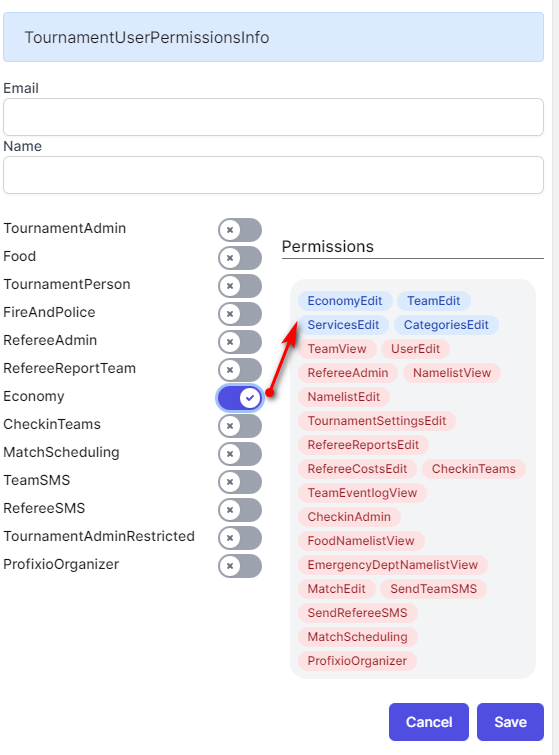
Everyone who has been added to the tournament is listed with their Name, Email and current groups.
To change what someone may do, click Edit on their row and tick or untick groups. Each tick takes effect as you make it — there is no separate save step on that panel.
To take access away completely, click Delete. You are asked to confirm, and the confirmation warns that the action is permanent. It removes all of that person's groups for this tournament only. Their Profixio account, and their access to any other tournament, is untouched. There is no undo — if you remove the wrong person, add them again.
Two things you cannot do from this screen:
- You cannot edit or remove yourself. Your own row has no buttons. Ask another full administrator to change your access, or contact Profixio support if you are the only one.
- You cannot remove people who are listed separately as having access from elsewhere in Profixio. Their access comes from a federation or licence role, not from this tournament.
As with adding, a change only reaches the other person when they next sign in or switch tournament.
Underneath the main list there is a second, read-only card headed "Users with access from other parts of profixio". These people can work in your tournament without ever having been added to it.
They typically come from the federation that owns the tournament, or from the club or organisation that holds the licence the tournament runs on. Club and district users who are not listed here have to be added by an organiser like anyone else.
This access cannot be edited or removed from the tournament. If someone should not have it, it has to be changed where their federation role is registered — see Federations, districts and base data.
Federation staff can also administer and delete tournaments their federation owns, which ordinary tournament administrators cannot.
If the card is empty it simply reads that no users were found; that is normal for a tournament run outside a federation licence.
The RefereeAdmin group on this page applies to one tournament. It lets the person add and remove referees, assign them to matches, change the referee settings for that tournament, handle referee reports and referee costs, and send SMS to referees. It also opens the scheduling tool, because assigning referees means working in the schedule — but on its own it does not let them change matches or register results. If your referee co-ordinator also needs to move matches or enter scores, add MatchScheduling as well.
The referee-administrator role on a person's federation or district record is something else entirely. It governs referee work across the federation's leagues and series — referee registers, referee assignment in league play, and who may see protected referee information. It is set where the person's federation role is registered, not from a tournament, and giving someone the tournament group does not give them any of it.
If a referee co-ordinator only needs to write and read referee reports, give them RefereeReportTeam rather than the full referee group.
Registering as a referee, being assigned to matches and claiming expenses are covered on the referee pages, not here.
The standard groups cover most needs, but a tournament can define its own. At the top of the user access screen there is a link marked "Advanced View". It opens an older, fuller screen where you can:
- create a group that exists only in your tournament and give it a name your volunteers recognise,
- rename or delete the groups you created yourself,
- see exactly which individual rights each group holds, and who is in which group.
You cannot change the rights inside a standard group, or the order the groups are listed in — both are shared by every tournament in the system. Ask support if a standard group is close to what you need but not quite right.
There is also a "Group explanation" link on the same screen, which opens the reference article for the standard groups.
The advanced screen needs the same access as the ordinary one, so only someone who can manage users will see it.
| Behaviour | Rule |
|---|---|
| Where | Admin menu, License then Users |
| Who may open it | Anyone with a group that includes managing user access — in practice the full tournament administrator group, plus federation staff |
| Scope | One tournament. The same person must be added separately in every tournament |
| Add | New, then e-mail address, name, and one or more groups |
| E-mail sent | Always, headed "Login information for" the address. A brand-new account receives its sign-in details; an existing account receives the same mail with a placeholder instead of a password, and keeps its old password |
| Mail language | The language the granting administrator is using; a few lines, including the subject, may appear in English |
| Address already on the tournament | The screen switches to editing that person; no duplicate is created |
| Edit | Edit; each tick takes effect immediately, no save step |
| Remove | Delete with a confirmation; permanent; removes the person's groups for this tournament only |
| Yourself | Your own row has no Edit or Delete button |
| When changes take effect | Next time the person signs in or switches tournament |
| Groups combine | Yes — rights add up; no group subtracts a right |
| Own groups | Can be created, renamed and deleted for a single tournament from "Advanced View" |
| Access from elsewhere | Listed read-only under "Users with access from other parts of profixio"; not removable here |
| Empty states | "Tournament is not connected to any users" for the main list, "Could not find any users" for the second card |
See also
Not covered here
Was this page helpful?