Ice hockey: getting started as a team leader
For team leaders in Norwegian ice hockey: create your account, register the team, add the players, find the matches and choose the players for each play day.
This guide is for team leaders and club people in Norwegian ice hockey who register teams and players in Profixio. It takes you through the four things you do, in this order:
- Register the team for a tournament.
- Add the players to the team's roster.
- Find the team's matches.
- Choose which players take part on each play day.
Each step has its own section below, and the pages listed under See also have the full details.
For other roles
You need a Profixio account to register a team, and the same account is used for everything you do in Profixio.
- On the sign-in page, press Haven't signed up yet?.
- Fill in Name, Email address, Phone, Password and Confirm Password, and press Register.
- You are signed in, and Profixio sends a code to your e-mail address. Enter it in Verification Code and press Verify Code, so the teams and roles linked to that address show up for you.
Instead of a password you can also use one of the buttons under Sign in with, for example Google or Facebook.
If someone else at the club registers the team, ask them to add you as a contact person on the team, so the team shows up for you.
To use Profixio on your phone, see the page The Profixio app on your phone.
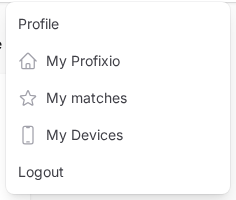
When you are signed in, press your profile picture at the top right and choose My Profixio; it is also in the side menu.
My Profixio is your start page: it lists the tournaments you have a role in. For a tournament where you are a contact person for a team, it shows the button My registrations with the number of teams. My matches, in the same menu, collects the matches of the teams you follow, across all tournaments.
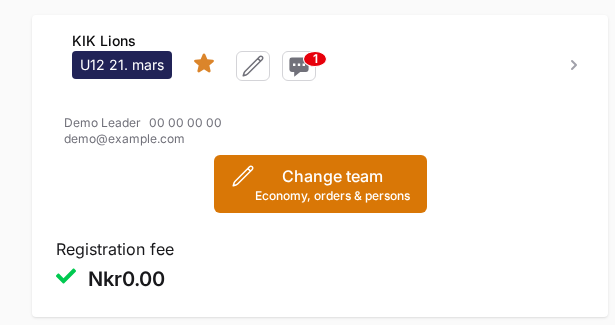
Inside a tournament you reach the same page with the My registrations button on the tournament's front page. Press the team name on My registrations to open the team page, with the tabs Matches, Players and Players in match.
- Open Tournaments / Federations in the menu, find the tournament and open it.
- On the tournament's front page, press Sign up team. While registration is open, the page also shows Deadline for registering teams: with the last date.
- The form Team registration takes you through the steps Choose or register your club, Choose class and Your registration. Pick your own club from the list and press Use this club.
- On Your registration, give the team a name and enter the team leader; Set me as teamleader fills in your own details.
- Press Confirm registration.
The team leader and the contact people you enter become the team's contact people, and the team is added to their favourites, so its matches show up in My matches.
Fees, extra questions, waiting lists and what to do when your club or class is missing are explained on the page Registering a team for a tournament.
The roster (name list) is everyone on the team in this tournament. You build it once, and in step 4 you pick from it for each play day.
- Open the team page (My registrations → the team name) and the tab Players.
- Under Players and teams members, press Add team person.
- Fill in the form New player and press Save.
- Give coaches and other staff their own role instead of player.
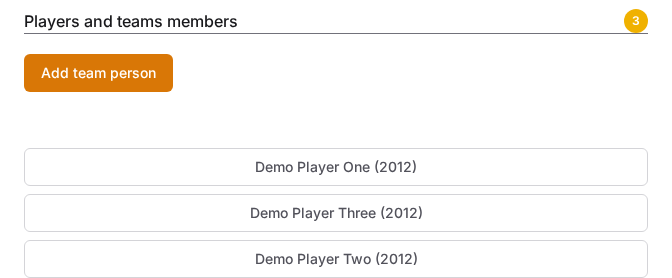
Only people with the role player can be picked for a play day. After the organiser's player deadline the page says "The deadline for registering players has passed."; ask your organiser if the roster needs changing after that.
Shirt numbers, roster limits and the other fields on the form are explained on the page The team roster (name list).
- The tab Matches on the team page lists the team's matches. From the same tab you can subscribe to the team's matches in Google Calendar, Apple Calendar or Microsoft Outlook.
- My matches, in the menu under your profile picture, shows the matches of every team you follow, split into Upcoming and Played. A team you are a contact person for is followed automatically. To follow another team, press its star (Add to favorites).
In tournaments played over several play days, the team page has the tab Players in match, where you choose which of the team's players take part on each play day.
- Open the team page (My registrations → the team name) and the tab Players in match.
- The play days your team is placed on are listed under Upcoming, and the next one is marked Next. Each play day shows its date and court when the organiser has set them. Play days that are over are listed under Played.
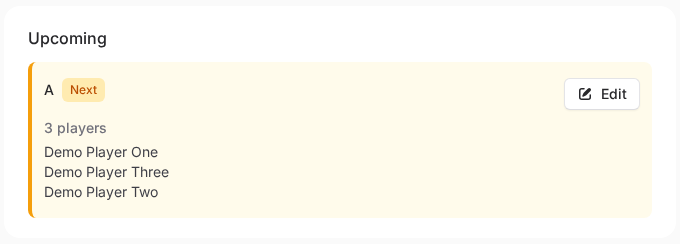
- Press Edit on the play day, tick the players who take part and untick those who do not.
- Press Save. The play day then shows how many players are picked, and their names.
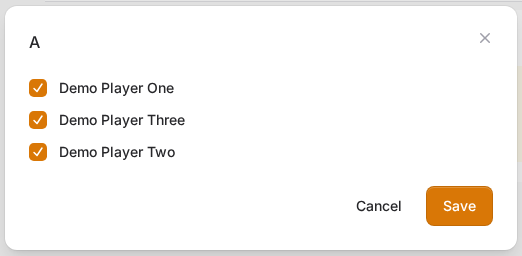
You pick from the players on the team's roster, so add them in step 2 first. You can open a play day again with Edit and change the selection the same way. Registering the players for each play day is required.
The team's contact people and the organiser can choose the players. To let someone else do it, add them under Contact persons on the Players tab with Add contact person.
The organiser can also send the team's contact persons an e-mail with a PDF that shows the play days of every team in the class.
- The team is missing from My Profixio and My registrations. You are not a contact person on the team. Ask the person who registered it to add you as a contact person, with the e-mail address you sign in with.
- You have just created your account and the team is still missing. Confirm your e-mail address with the code Profixio sent you (see Getting started). Teams linked to your e-mail address show up after that.
- There is no Players in match tab. The tab is there in tournaments the organiser has set up with play days, for the team's contact people. Ask your organiser if you expect it.
- The tab shows no play days. The message "The team is not set up for any tournaments yet." means the organiser has not placed the team on a play day yet.
- There are no players to tick. The message "The team has no players registered." means the roster is empty: add the players first, in step 2.
Was this page helpful?