Ordinary group play
Setting a league level up as ordinary group play in PL: making groups, moving teams into them, and making the round-robin matches either with Profixio CUP or directly from the "Make round robin matches" popup, including the same popup for playoff groups.
Looking for something else? Building a cup or playoff tree Going from group play to playoff Pool play and cross pool play
For other roles
A group play is a league level whose teams are divided into two or more groups. Teams often register themselves into one major level, and the league administrator then divides them into groups.
Once the groups exist and every team is placed in one, the matches within each group are made either by letting Profixio CUP place them in the schedule, or directly with the "Make round robin matches" popup when you already know when the matches will be played. Both ways are described on this page.
The menu "Basic data", tab "League settings", includes a group panel. In this panel, groups are made, edited and deleted.
- Click the button "New" to make a new group.
- Change the group data if necessary (see the settings under "Group settings" below).
- Click on a group to make it the active group when you are going to make the schedule for it.
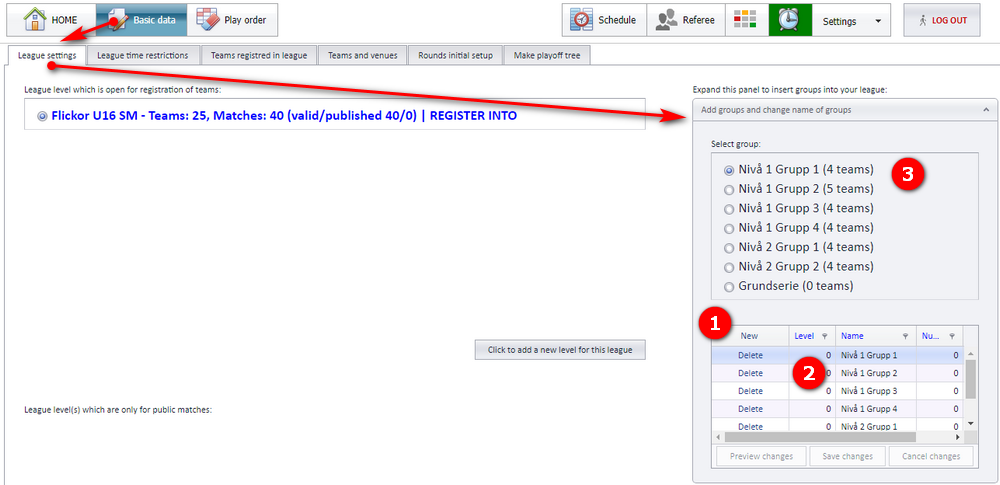
| Setting | What it does | Where |
|---|---|---|
| "Level" | A sorting value only, so that the groups are shown in the order you want. | Group panel, "Basic data" > "League settings" |
| "Name" | The name of the group as it is shown in the public match schedule (in the app). | Group panel, "Basic data" > "League settings" |
| "Num leagues to play" | By default all teams in a group play each other once. Enter "2" in this column if the teams shall meet twice. | Group panel, "Basic data" > "League settings" |
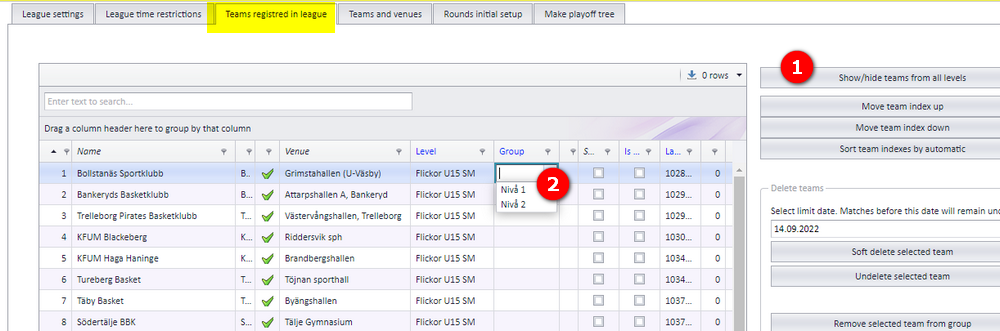
After the groups are made, the teams must be moved into their respective group. This is done in the tab "Team registered in league".
- Click "Show/hide teams from all levels". This lets you choose among all teams in the whole league.
- Select which group each team shall belong to.
- Save afterwards. In the Swedish interface the button is "Spara ändringar" (save changes); the changes take effect when you save.
Profixio CUP is a mathematical engine which collects a large amount of existing data and positions the matches in your schedule. Using Profixio CUP requires some data input from you:
- All participating teams must be placed in a group (see "Teams in a league" and "League levels and groups").
- All rounds must have a valid start and end date (see "Prepare and generate the schedule").
- The scheduling date priority must be set (see "Time restrictions for season, league and teams").
The generation itself is described on "Prepare and generate the schedule".
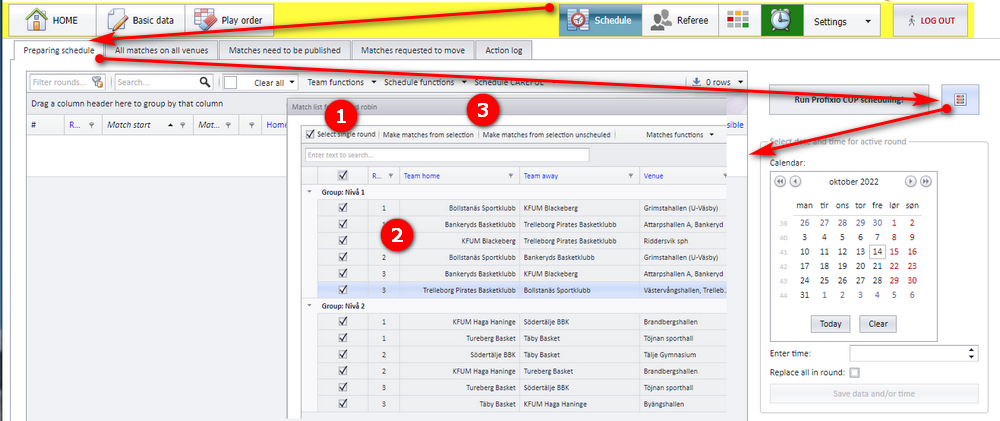
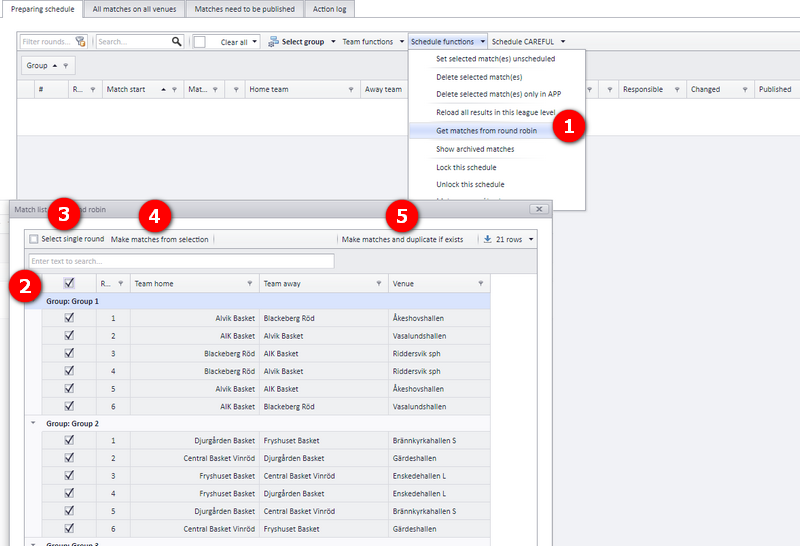
If you know when the matches shall be played, you can make the matches directly without entering any data about priority weekdays, which week each round is played and so on. Enter the menu "Schedule" and open the popup "Make round robin matches" (click the button shown in the image below).
- Tick the checkbox if you only want to make a single round. The default is a double round, with home and away team switched in round two.
- Select the matches you want to schedule.
- Make the matches with the button "Make matches from selection". Close the popup when done.
If you do not use the Profixio CUP schedule, every match date and time is set manually. There are functions that help you do this without spending too much time on it; they are described on "Changing a match date, time, venue and teams".
It is not necessary to make rounds before scheduling matches in playoff groups. After the teams are divided into groups, the matches can be scheduled directly with the round robin algorithm.
- Enter the menu "Get matches from round robin".
- Select the matches you want to schedule (often you select all matches).
- Decide whether to use single or double rounds.
- Make the matches by clicking the make-matches button.
- If the matches shall be duplicated, that is, identical matches already exist in the schedule, use the duplicate button instead of the button in step 4.
After the matches are made, close the popup.
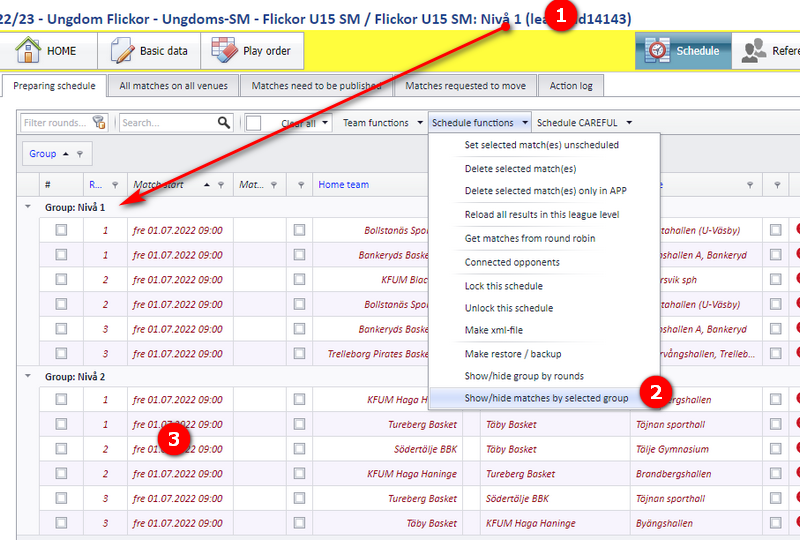
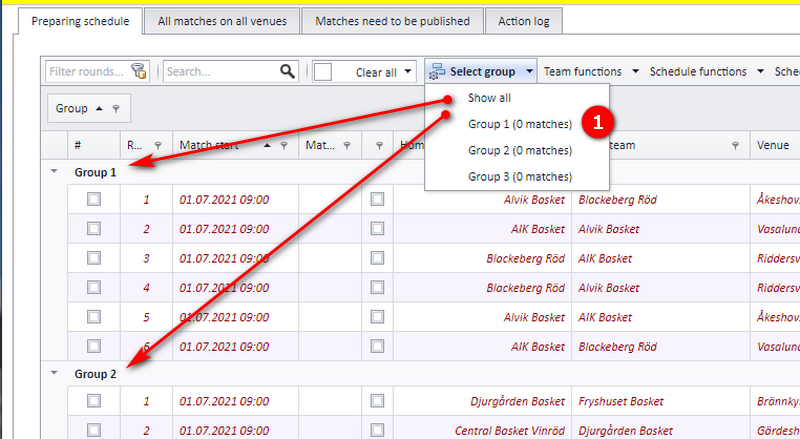
Open the group menu shown in the image ("Välj grupp", choose group, in the Swedish interface). This filters the match list to the selected group.
Click "Show all" to list all matches in all playoff groups again.
If PL shows you Swedish labels, these are the screens and buttons used on this page:
| English label | Swedish label |
|---|---|
| "Basic data" > "League settings" | "Grundläggande data" > "Tävlingsinställningar" |
| "New" (group panel) | "Ny" |
| "Level" / "Name" / "Num leagues to play" | "Nivå" / "Namn" / "Antal serier som ska spelas" |
| "Team registered in league" | "Lag registrerade i tävlingen" |
| "Show/hide teams from all levels" | "Visa/dölj lag från alla nivåer" |
| "Schedule" > "Make round robin matches" | "Spelschema" > "Skapa matcher från gruppspel" |
| "Make matches from selection" | "Skapa matcher från urval" |
| "Get matches from round robin" (playoff groups) | "Skapa matcher från gruppspel" |
| "Show all" (group menu) | "Visa alla" |
- Creating league levels and how levels relate to groups: "League levels and groups".
- Registering teams and the team list: "Teams in a league".
- Round dates, date priority and generating the schedule with Profixio CUP: "Prepare and generate the schedule" and "Time restrictions for season, league and teams".
- Setting date, time and venue on the matches after they are made: "Changing a match date, time, venue and teams".
- Pool play and cross-pool play: "Pool play and cross-pool play".
- Building the playoff after the group play: "From group play to playoff" and "Building a cup or playoff tree".
See also
Was this page helpful?