Teams in a league
The team list in Profixio League and its functions: columns, play key indexes, groups, replacing, switching and duplicating teams, the Team functions dropdown in the schedule, the responsible club on a match, and publishing teams that have no matches yet.
Looking for something else? Building a cup or playoff tree
For other roles
The team list in Profixio League shows the teams that take part in the league you have open. Teams are imported from the public registration site (called "APP" in Profixio League) every time a user activates a league. If a team is deleted from the registration site, the team is replaced by a vacant team in Profixio League.
Only teams active in the selected league level are shown in the list. To show all teams regardless of level, use the top button "Show/hide teams from all levels" (Swedish UI: "Visa/dölj lag från alla nivåer").
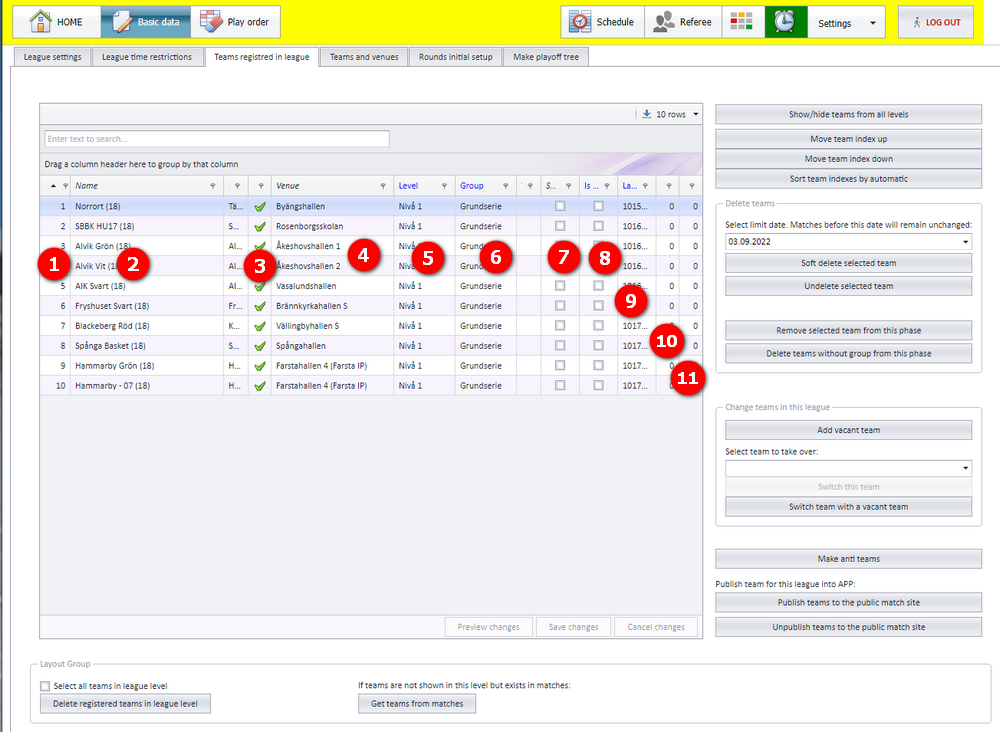
The numbers below refer to the numbered bubbles in the screenshot.
| # | Column | What it shows |
|---|---|---|
| 1 | Index | The index of the team, used in play keys. |
| 2 | Name | The name of the team, with the number of matches in parentheses. |
| 3 | Registered | A green checkbox means the team is registered in APP. |
| 4 | Venue | The priority venue for the team. A team can play at several venues, but one venue should be the priority venue. |
| 5 | Level | The level this team is placed in. A team can be copied to take part in several levels. |
| 6 | Group | The group assigned to the team. A level can consist of several groups. |
| 7 | Soft-deleted | Whether the team is soft-deleted. A soft-deleted team still shows in this list, which makes it possible to undelete the team. |
| 8 | Vacant | Whether the team is a vacant team. |
| 9, 10, 11 | Ids | The ids of the team. |
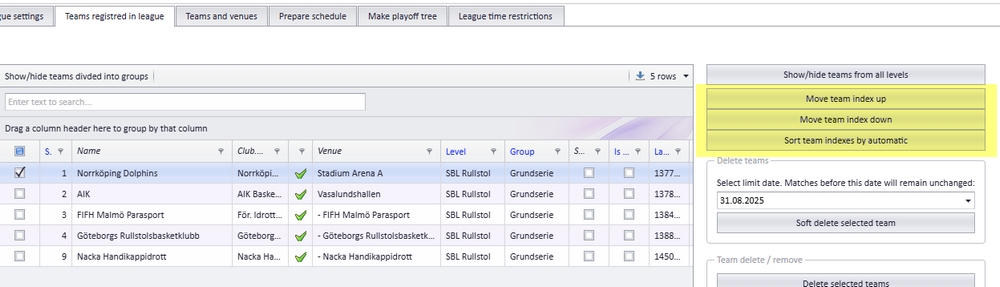
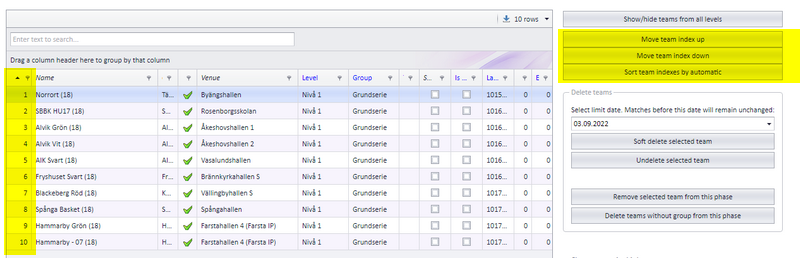
If the league level uses a play key, the teams must be indexed so they fit the play key list. You do this by positioning the teams as shown in yellow in the screenshot.
How play keys themselves are built is described on the page "Play order and play keys".
Regardless of play type (standard, pool play, cup play and so on), the participating teams MUST be assigned a group.
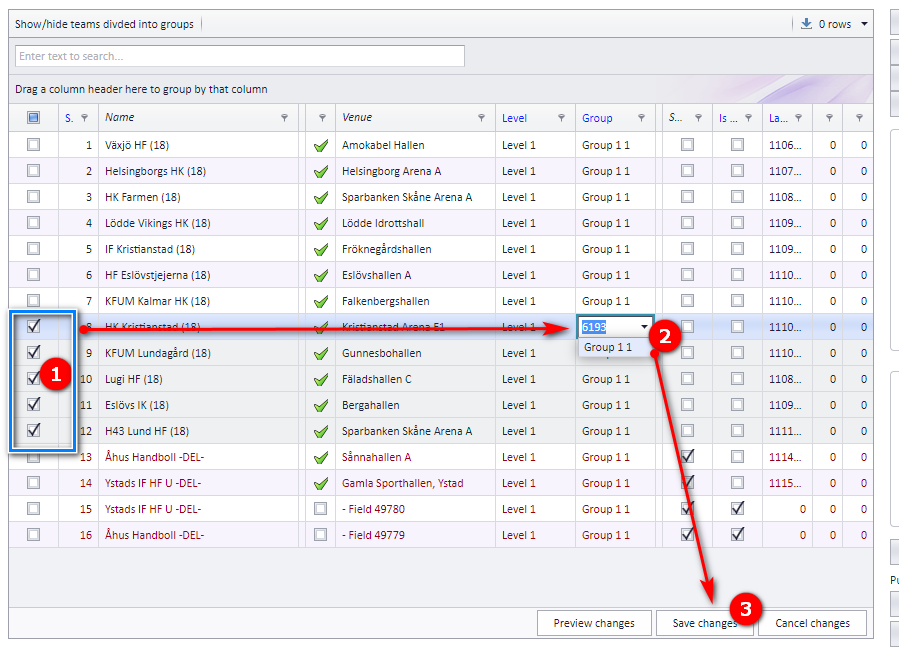
To assign one team to a group, select the group from the drop-down box in the team's row and remember to save.
To assign several teams to one group:
- Select the teams.
- Select the group and click save.
- Save.
How levels and groups are created is described on the page "League levels and groups".
The first time a team is downloaded from the registration site, the team is saved into its correct league level. The next time teams are downloaded, teams do NOT change their league level. So if you move a team from one level to another inside Profixio League, the move is kept; the registration data does not move it back.
Teams are deleted from the team list. A team can be deleted with a date limit ("Radera lag med datumgräns" in the Swedish user interface).
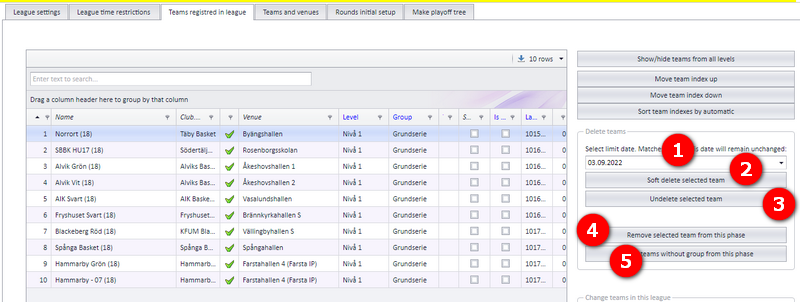
The full procedure, and what happens to the team's matches, is described on the page "Replacing, deleting and moving teams".
A team can be switched with another team or with a vacant team. The main reason to switch a team rather than delete it is to keep the match schedule correct and unchanged: the schedule will of course change because the team changed, but the matches themselves are not removed.
Replacing or switching teams always starts with selecting the team going out in the team list (the left-side grid in the screenshot) and selecting the team coming in from the dropdown shown in the red rectangle. Only one team can be selected from the team list. Teams can be selected regardless of category (or level) in the league.
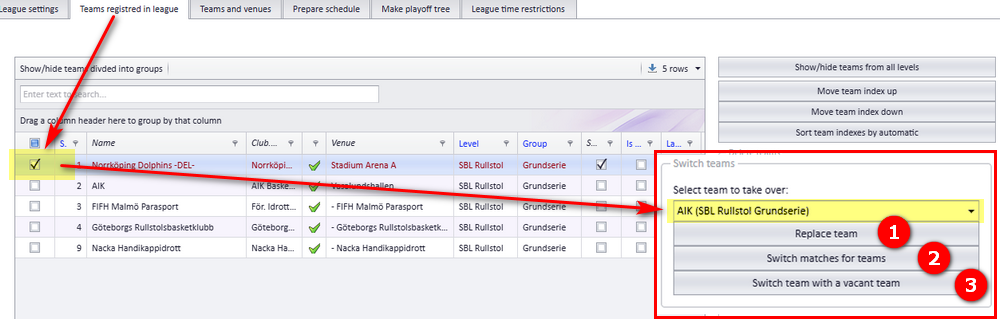
There are three functions:
- Replace team. The typical example is a new team that shall take over all matches for an existing team. The replaced team is set as soft-deleted and the matches are switched over. The public site (APP) is NOT updated, so the matches must be published.
- Switch matches for two teams. Select two teams that shall switch levels, groups and matches. The public site (APP) is NOT updated, so the matches must be published.
- Switch team with a vacant team. Select one team in the list of teams. This team is soft-deleted and replaced with a vacant team. The public site (APP) is NOT updated, so the matches must be published.
Use the function shown in bubble 9 in the team list, "Switch team with a vacant team" (Swedish UI: "Byt lag med ett vakant lag"). Select the team to remove and click the button. This is what happens:
- A new vacant team is added to the league level and named "VacantX", where X is a number between 1 and 100.
- The team going out is marked as soft-deleted and still shows in the list of teams.
- All matches with the outgoing team switch to the vacant team instead.
- The match schedule is recalculated. Affected matches where the home team is vacant are set as red and without a venue.
- Affected matches where the home team is NOT vacant get the venue of the home team.
- Affected matches where the home team is NOT vacant get the home team as responsible team.
- Affected matches where the home team is vacant get the responsible team set to zero.
Vacant teams in general are described on the page "Vacant teams".
- Select the first team.
- Select the team it shall switch with.
- Click the button "Switch matches for teams".
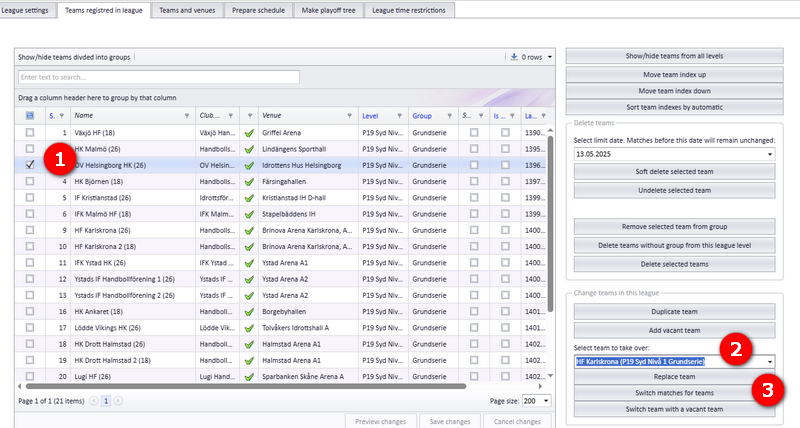
What happens:
- Teams are switched even if matches exist in APP, but APP is NOT updated. The matches need to be published.
- Each match keeps its time, but the venue is changed to the home team's venue, and so is the responsible club.
- If the two teams are in different levels and/or groups, team one changes to the level/group of team two, and team two to the level/group of team one.
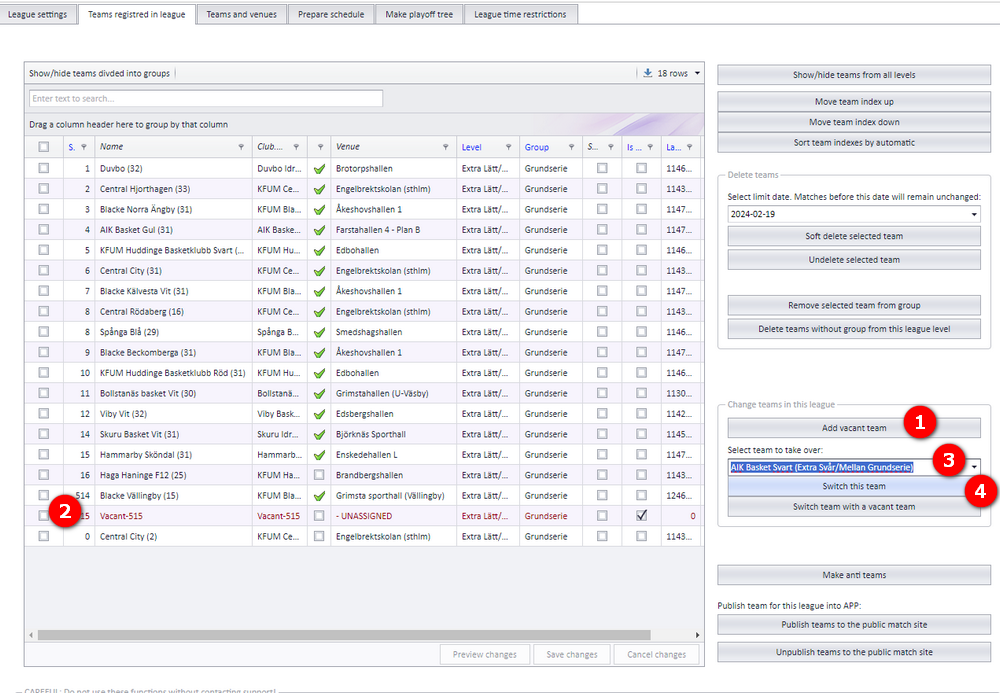
You can add a registered team to whichever level you want. If the team has matches, the team is duplicated so that its existing matches are kept.
- First, add a vacant team to the league level you want to add the new team to.
- Select this vacant team (tick the checkbox).
- Select the team you want to add. If the same team shows several times because it already takes part in different levels, it does not matter: just select one of them.
- Finally, click "Switch this team" (Swedish UI: "Skifta detta lag").
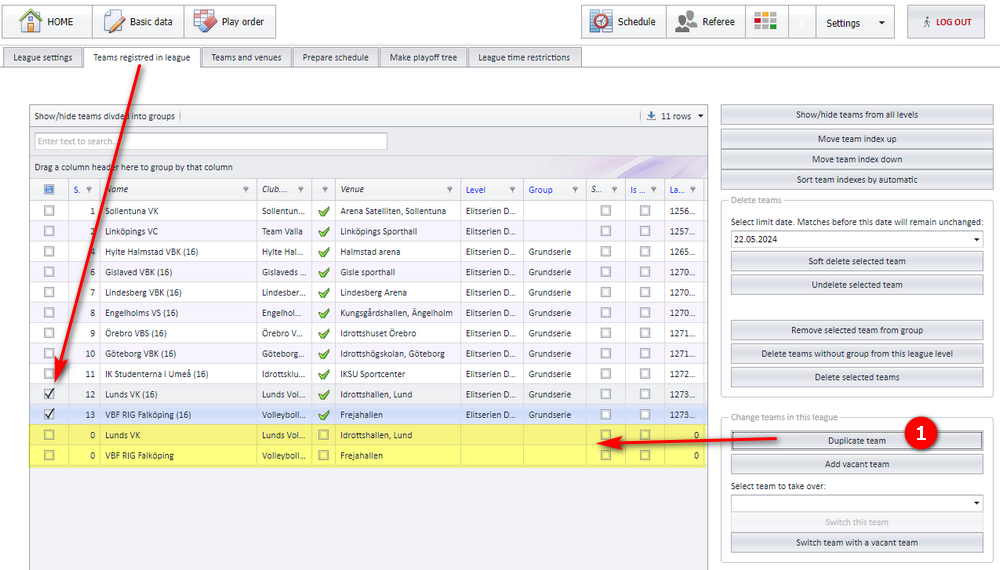
A team can be duplicated. This is often done when a team shall play in a continued play-off. A duplicated team gets the correct league identity, but no level and group. Level and group must be chosen for the duplicated team before it can be used.
Open the menu "Teams registered in league" (Swedish UI: "Lag registrerade i tävlingen").
- Select the team(s) you want to duplicate and click "Duplicate team" (Swedish UI: "Duplicera lag"). The duplicated team(s) show up in the grid without level and group.
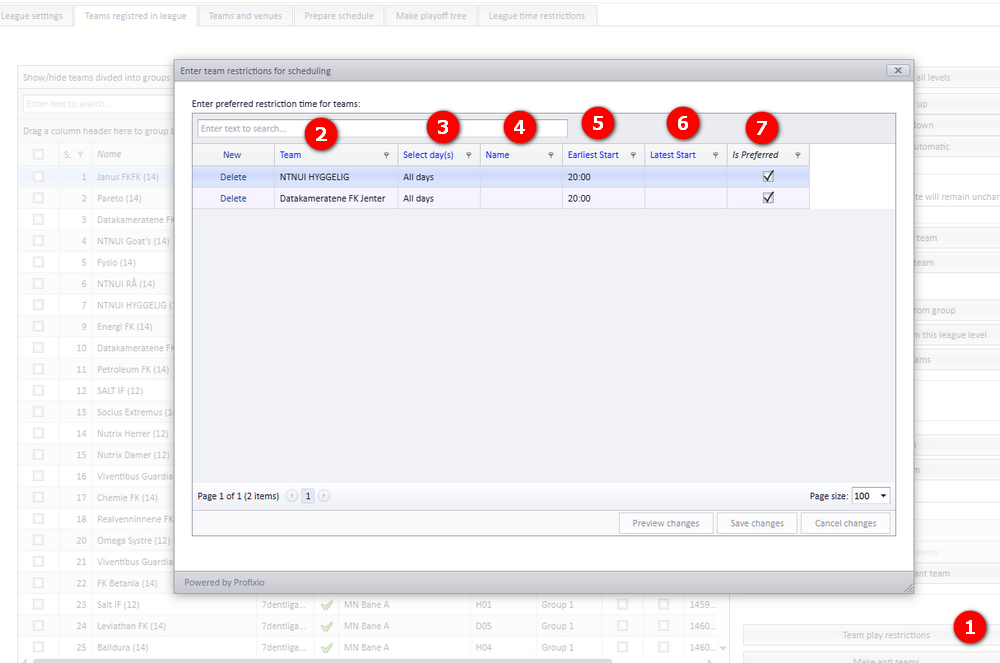
If you use the Profixio CUP scheduler, teams can be restricted to play only in certain time windows. The restriction is set as "Preferrable", so the team is not absolutely locked to your time window: if the time is not possible, the match is set to the nearest available time.
- Click the button "Team play restrictions".
- Select the team from your active league.
- Select which days you want to include in the restriction. It is not possible to select a specific date.
- "Name" is just for your own reference.
- Enter "Earliest start" if you want to restrict the team from starting to play earlier.
- Enter "Latest start" if you want to restrict the team from playing later.
Time restrictions on the season and the league as a whole are described on the page "Time restrictions for season, league and teams".
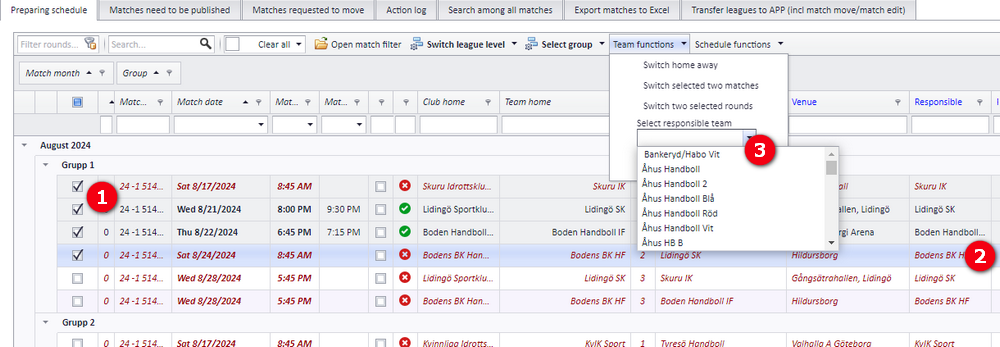
All functions that have teams as their main object are found in the "Team functions" dropdown in the schedule grid (Swedish UI: "Lagfunktioner"). All functions must be confirmed by the user before they are executed.
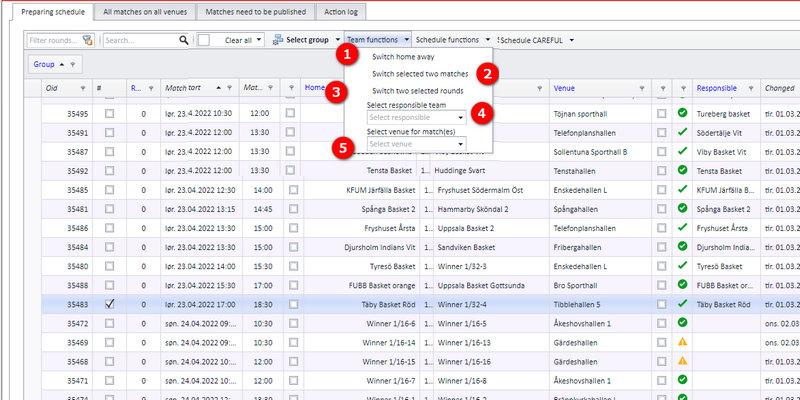
The dropdown has three functions, described in the sections that follow:
- Switch home away team (Swedish UI: "Byt hemma borta")
- Switch selected two matches (Swedish UI: "Byt plats på dessa två markerade matcher")
- Switch two selected rounds (Swedish UI: "Byt plats på dessa två omgångar")
"Switch home away team" in the "Team functions" dropdown swaps the home and away team on the selected matches.
- Select the match(es) to switch home and away team for.
- The venue for the match is changed to the new home team's priority venue.
- Play-off matches are also switched, but play-off tree matches are not: play-off tree matches are not affected by switching teams in the schedule window.
- Split matches can also be switched.
- No other data is changed.
"Switch selected two matches" in the "Team functions" dropdown swaps two matches with each other.
- Select exactly two matches to be switched. Date, time and rounds are switched between them. A backup is made before the switch.
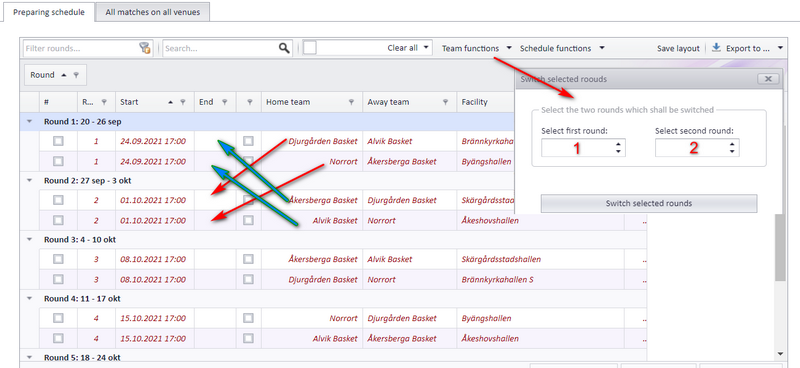
"Switch two selected rounds" in the "Team functions" dropdown swaps two rounds with each other.
- Select the two rounds that shall switch places with each other.
- Example in the screenshot: the teams in match x in round 1 switch playing time with the teams in match x in round 2.
A responsible club is the club that is responsible for administering the match. Each match in the schedule grid has a responsible club, which is shown in its own column.
The numbers below refer to the numbered bubbles in the screenshot.
To change the responsible club for one match:
- Tick the match (that is, select it).
- Select the responsible club directly in the cell (bubble 2). All clubs belonging to the federation can be chosen.
To change the responsible club for several matches at once:
- Select one or several matches.
- Select the responsible club from the drop-down list (bubble 3).
- After confirming, the grid reloads with the newly selected club as responsible.
When a responsible club is changed and the match is published, a notification is sent to both teams and to the admin of the new responsible club.
Other match notifications are described on the page "Notifications when a match changes".
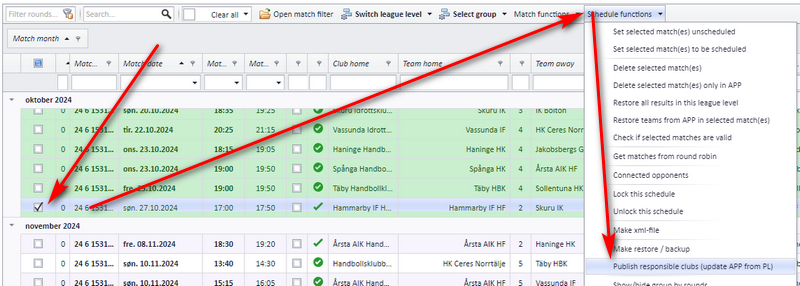
After a match is published, the responsible club can still be updated using the menu shown in the screenshot. No notifications are sent, and no other match data is touched (date, published status and so on). The responsible club is updated directly in APP from this menu, so there is no need to publish again.
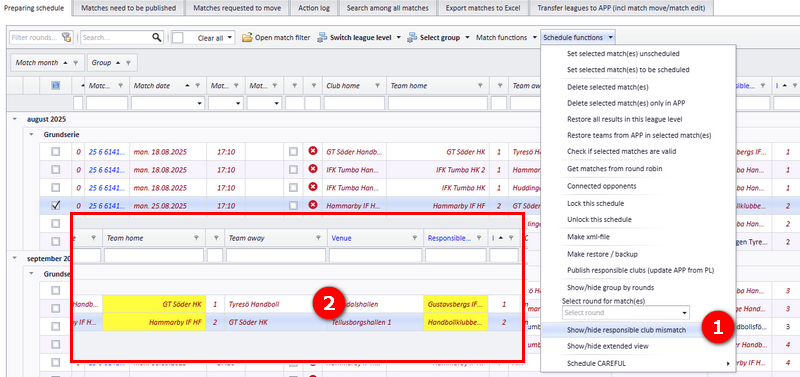
To check whether any match has a responsible club that differs from the home team's club, use the function shown in bubble 1 in the screenshot. Only matches with a mismatch are shown, and the home team and responsible club columns are coloured yellow.
To close this view, click the function in bubble 1 once more, or reload the page.
Teams can be published to APP without having any matches.
Only teams that are assigned a group are published. Teams that are vacant, soft-deleted and/or not assigned a group are not published, and in addition they are deleted from APP. Teams can be removed from APP again if wanted (see "Unpublishing teams").
Open the menu "Basic data" - "Teams registered in league" (Swedish UI: "Grundläggande data" - "Lag registrerade i tävlingen").
- Only teams assigned a group will be published.
- Click the button shown in the screenshot to publish.
- Click the button shown in the screenshot to unpublish.
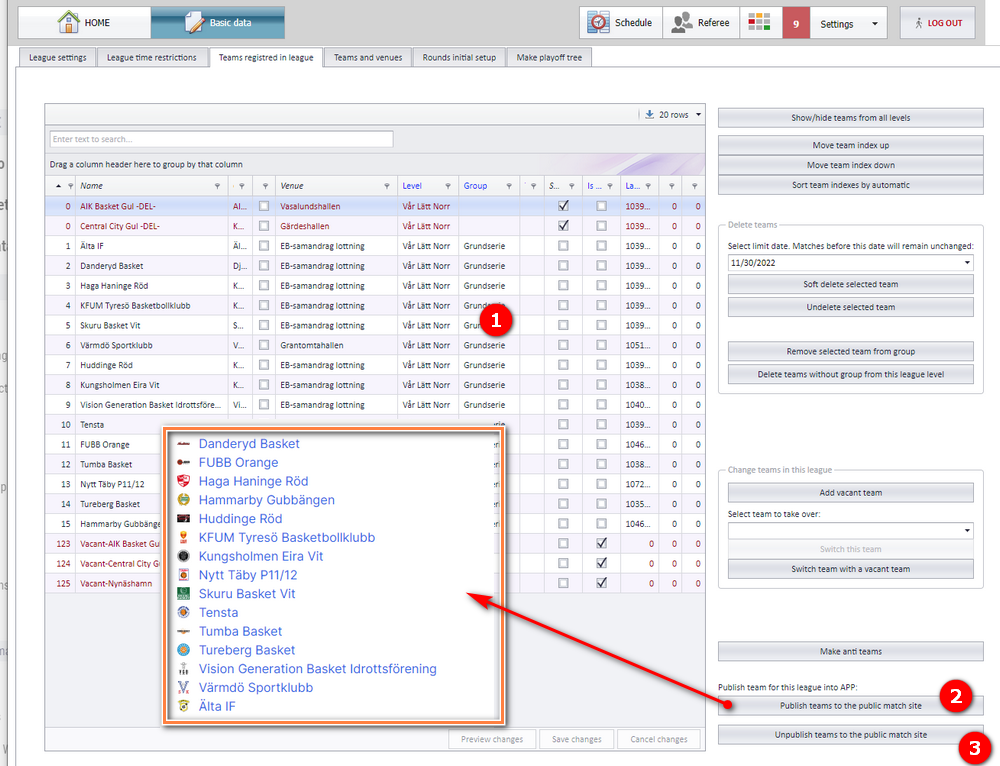
Teams can be unpublished from "Teams registered in league" as long as no matches exist for the category in APP. When matches exist for the category in APP, the teams cannot be unpublished.
When teams are unpublished, the category, group, clubs and teams are deleted from APP. No registration data is deleted; only the data that affects the match schedule.
- Creating levels and groups: "League levels and groups".
- Deleting, replacing and moving teams in full detail, including the action log: "Replacing, deleting and moving teams".
- How vacant teams behave in the schedule: "Vacant teams".
- Venues and a team's home venue: "Venues and team home venues".
- Play keys and play order: "Play order and play keys".
- Season- and league-wide time restrictions: "Time restrictions for season, league and teams".
- Publishing the schedule itself: "Publishing the schedule".
- The registration site teams are imported from: "The league registration site".
See also
Not covered here
Was this page helpful?