Venues and team home venues
The country-wide venue register in FX, venue areas and club home venues, how venues come into a league, and assigning home venues to teams in the "Teams and venues" tab for scheduling.
- Time restrictions on the season, a league or a team (as opposed to venues): see Time restrictions for season, league and teams.
- Preparing and running the scheduler that uses the venues: see Prepare and generate the schedule.
- Changing the venue of a single match after scheduling: see Changing a match date, time, venue and teams.
- Adding, replacing and moving the teams themselves: see Teams in a league and Replacing, deleting and moving teams.
- Creating the season and loading its base data from FX: see Organisation and season setup.
For other roles
Venues are registered in FX (the Profixio web administration), in a table that is shared by all organisations in a country. Administrators for basketball, bandy and every other federation see the same view of all registered venues in that country.
All administrators can add and edit venues. A venue can also be deleted when no data is connected to it; this is typically used when a venue was saved completely wrongly.
Each venue can be set to have a number of areas. An example: Wembley is defined as one venue. The region that knows Wembley best enters 3 areas, because it is assumed that at least a third of the venue is used when a match is played. This is not optimal in every case: matches in leagues for very young players perhaps only take a sixth of the venue.
Do not divide a venue into too many areas. It becomes too complex to handle.
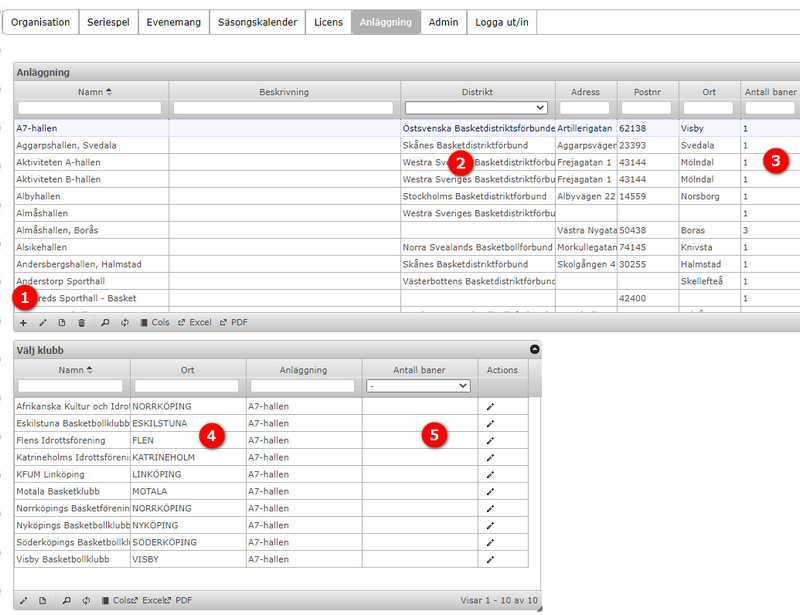
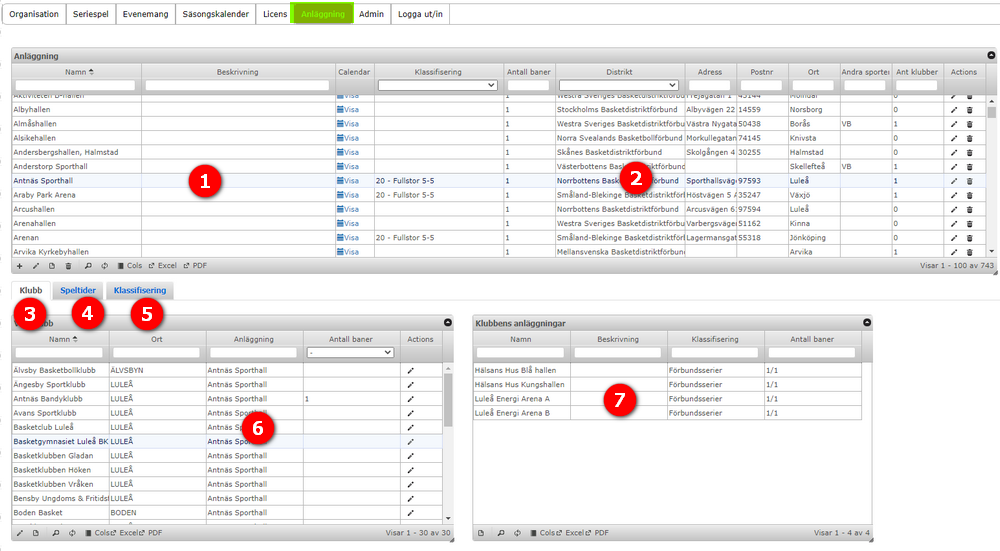
The numbers refer to the screenshot below.
- Every organisation and region administrator can add new venues and edit existing ones (address and so on). Use the + sign to add a venue.
- Each venue must be connected to a region. All clubs in that region can then define the venue as their home venue.
- Each venue can have 1 or more areas. Do not define too many areas; 1 to 3 are often enough.
- After selecting one row in the venue table, all clubs for the active region are shown in the club table (bubble 4).
- For each club, enter the number of areas the club uses at the selected venue in most cases. If the venue has 3 areas and the club is set to use 3 areas, the whole venue is used and no other matches can be played in that venue at the same time.
These are only the default settings. Each league can have its own settings.
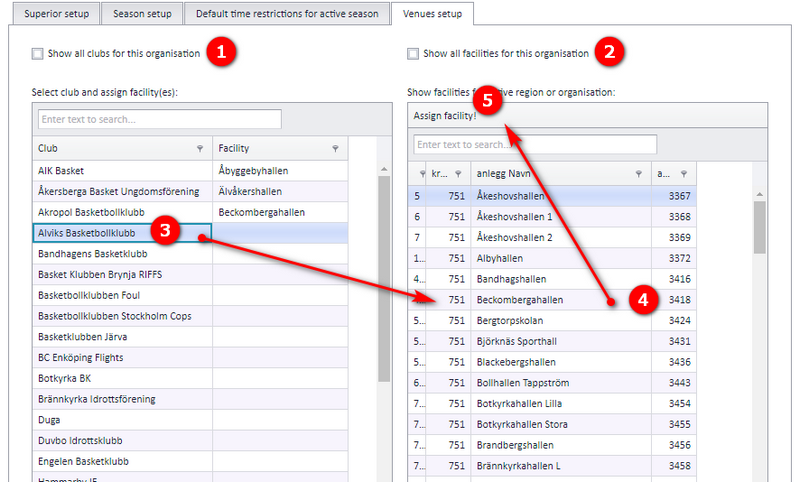
As a one-time setting, a club defines its home venue(s). Scheduling a league is easier when all clubs have their home venues assigned. For each league, the league scheduler can still change a club's home venue(s).
Each club must have a home venue. If a club has no home venue, a venue named "Field ClubName" is created for it.
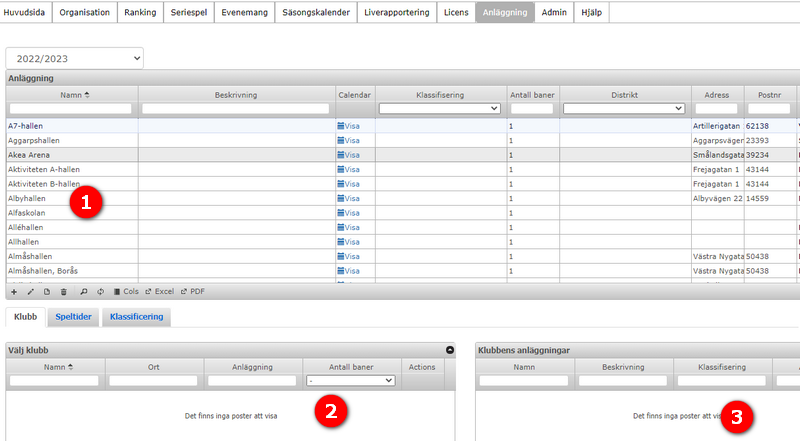
When a league is activated, venues from FX (the Profixio web administration) are imported into that league. There are two kinds of import, depending on how the organisation uses venues:
- Organisations whose venues are limited in FX: time availability is set by the club or region responsibles.
- Organisations whose venues are NOT limited in FX: all available venues for the organisation are imported into PL, and every venue is available at any time.
Venues are fetched from FX based on the venues of each team's club. It is also possible to assign venues belonging to other clubs to a team.
- Venues are defined in FX and imported into PL. If a venue changes name, the name is updated directly in PL.
- There is no venue availability data set by regions or clubs.
When matches are positioned, all venues assigned to teams can be used, with no time limits on these venues.
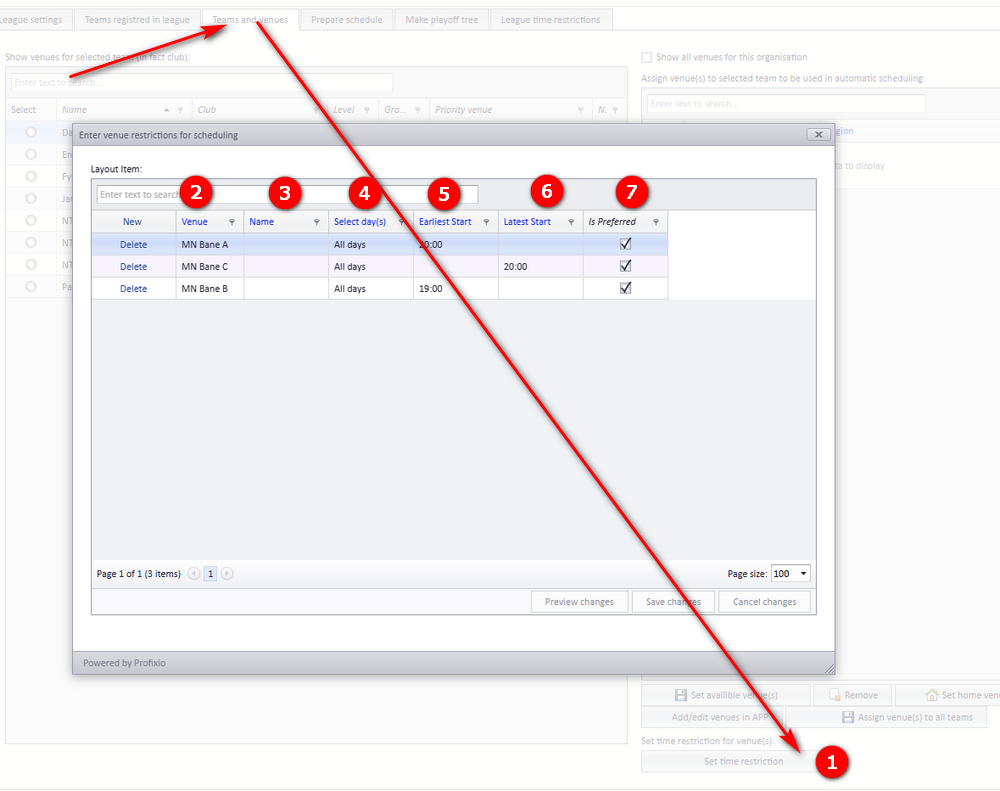
When you use the Profixio CUP scheduler, venues can be restricted to play only in certain time windows. The restriction is a preference, not a lock: if no time inside your window is possible, the match is set to the nearest available time.
- Click the "Venue play restrictions" button.
- Select the team from your active league.
- Select which days to include in the restriction. The restriction applies to days of the week; a specific date cannot be selected.
- Name is just for your own reference.
- Enter "Earliest start" to keep the team from starting earlier than this time.
- Enter "Latest start" to keep the venue from being available later than this time.
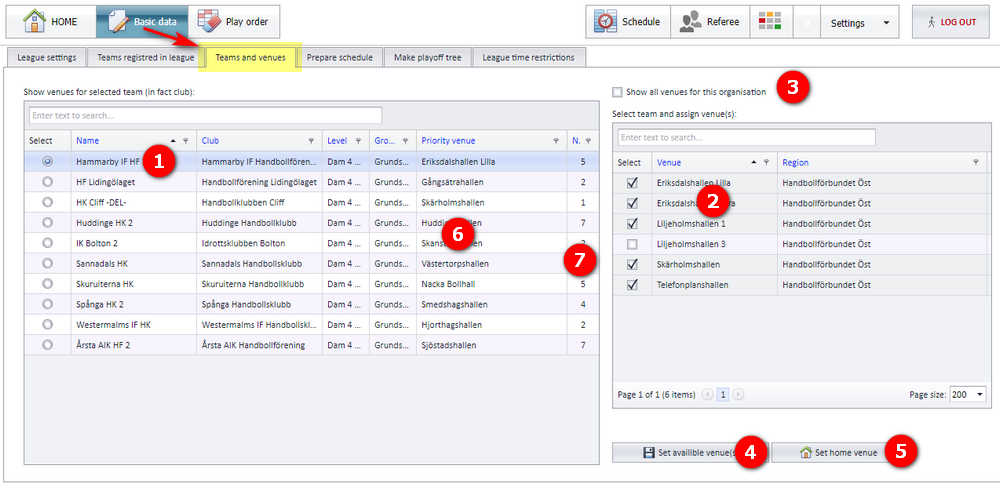
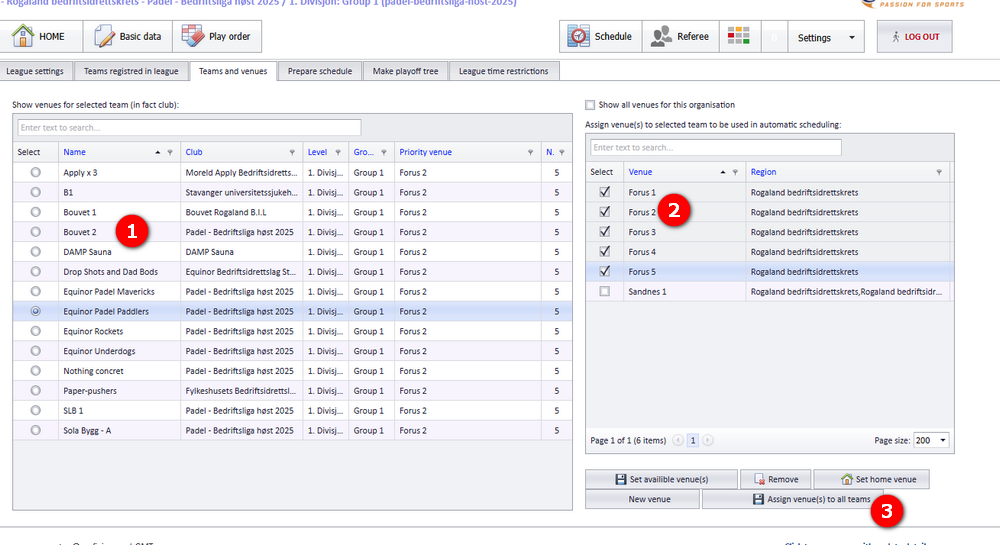
Venues are assigned to teams in the tab "Teams and venues"; this is the only place it is done. A team can have several venues, but only one "Priority" venue. Venues are fetched from FX (the Profixio web administration), where venue data is set by the region administrators. Venues in a team's venue list are used in scheduling when the priority venue is not available.
All teams in the league level are shown, regardless of which group they are assigned to.
Venue data, defined in FX: a facility can be set as "Priority facility" (bubble 7). This influences the team's priority venue in PL.
- Select a team.
- All possible venues for the selected team's club are shown in this list. Select one or several venues to assign to the team, then click the button at bubble 4. Selected venues are the venues the PL scheduling algorithm uses; venues that are not selected can still be chosen manually on a match.
- Tick the checkbox at the top, "Show all venues for this organisation", to choose among all venues in the organisation. Otherwise only the venues of the team's club are shown. Use a filter on region to show only specific venues.
- Assign the selected venue(s) to the selected team.
- The selected venues appear in the list of team venues. Only venues in this list are used in scheduling.
- A team can have one priority venue. This venue is used in the match schedule when it is available and not restricted (it is the venue of first priority).
- The priority venue is shown for each team. Venues that are not official are shown with a marker in front (for example "- Täby").
- The number of assigned venues is shown here.
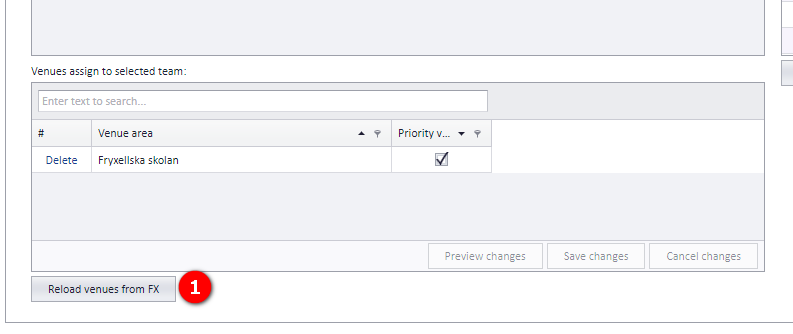
- The "Reload venues from FX" button; see the section with that name.
If a team has too many or too few venues, click "Reload venues from FX" to fetch the venues again. An existing match schedule is kept as it is. Venues are downloaded from FX and assigned to the teams. Temporary venues on teams are deleted when they are not used in the match schedule.
Note: if you have customised the venue list for teams, that list is reset and every team gets all its venues in the list again.
- Venues kept in PL are shown with a checked checkbox.
- Unchecked venues are fetched from FX and can be ticked to be used by the scheduling algorithm.
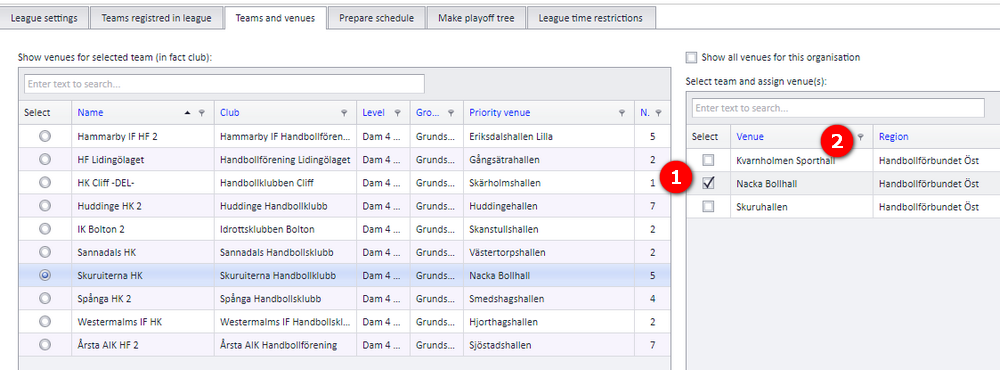
All teams shown in the list (bubble 1) can be given the same venues. Venues that are not ticked are removed from the teams' venue lists. This does not change a team's home venue (its priority venue).
- All teams in the list are updated.
- Tick the venues to assign to the teams.
- Click "Assign venues(s) to all teams".
Was this page helpful?