Replacing, deleting and moving a team
What happens in PL and in the public schedule when a team withdraws and is replaced by a vacant team, how the limit date decides which matches are archived and which are deleted, the delete and un-delete buttons for a team, and how to move a team to another series with or without existing matches.
Looking for something else? The series registration site
- What a vacant team is and how vacant teams are used when building a schedule: see "Vacant teams".
- Adding teams to a league and editing them: see "Teams in a league".
- Deleting individual matches and reading the action log: see "Deleting matches and the action log".
- Changing the teams on a single match without withdrawing a team: see "Changing a match date, time, venue and teams".
- Generating or regenerating a whole schedule: see "Prepare and generate the schedule".
- How the standings are calculated after a team is withdrawn: see "Standings and ranking criteria".
- Publishing the changed matches to the app: see "Publishing the schedule".
For other roles
A team leaves a league in one of two ways: it is withdrawn in the Profixio app ("APP" in PL), or it is soft-deleted in PL. In both cases PL automatically replaces the team with a vacant team, so the schedule keeps its shape and the remaining matches stay in place.
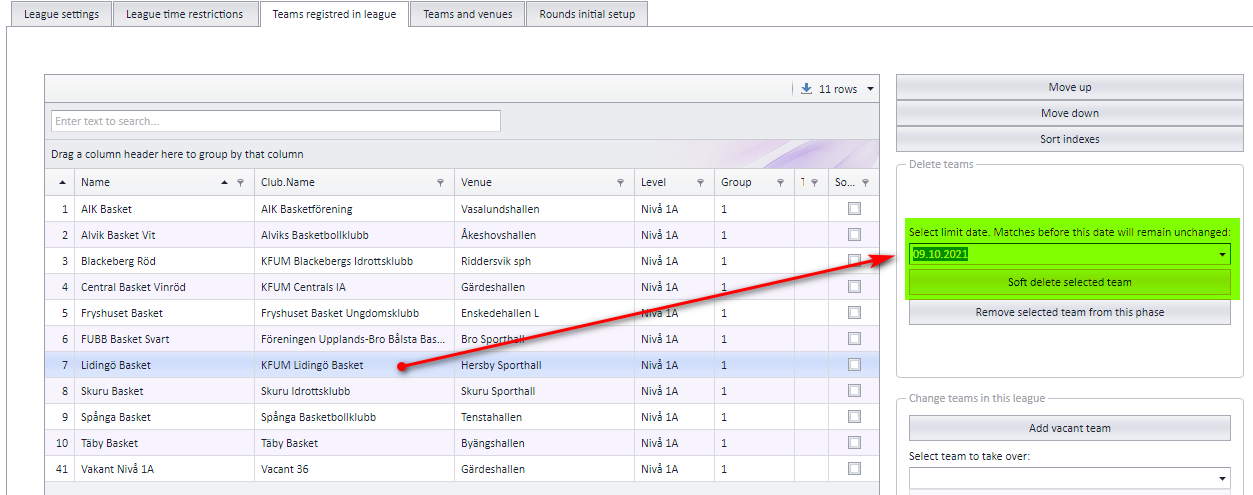
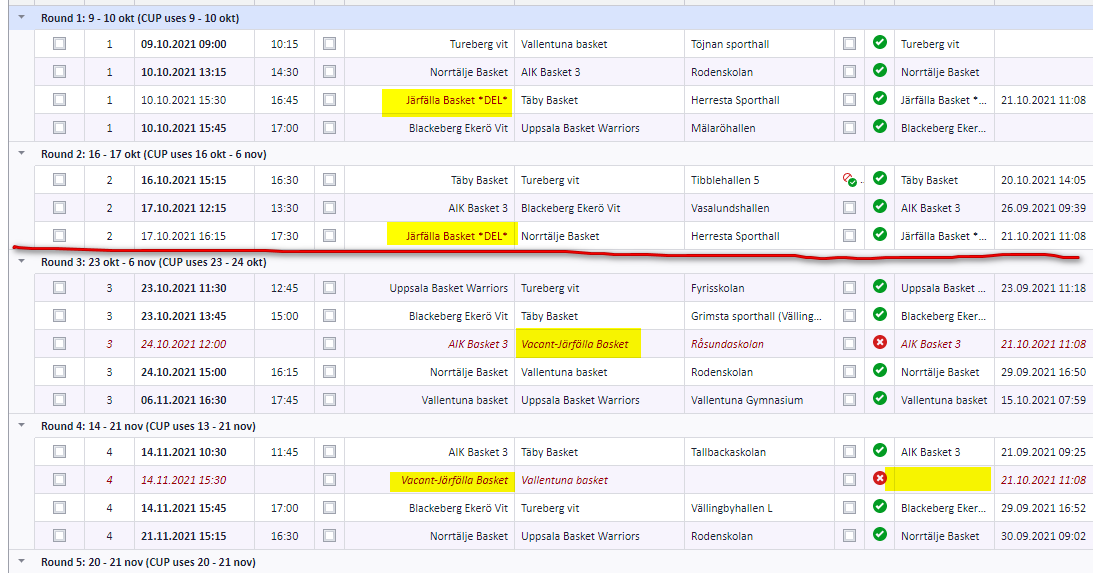
When you soft-delete a team in PL you can set a limit date. The limit date flags the team's matches up to that date as archived; the matches after it are handed to the vacant team. See "The limit date" for what the date does on each side, "What changes on the withdrawn team's matches in PL" and "What changes in the public schedule" for the consequences, and the two examples further down for how this looks in practice.
You choose the limit date in PL when you soft-delete a team. The limit date decides how the team's matches are deleted on the public site and which status they get in PL.
| Matches | Public site (app) | PL |
|---|---|---|
| Before the limit date | Remain unchanged. | Not changed at all (date, time and teams stay). The matches are flagged as archived and kept for history. |
| After the limit date | Deleted. | Changed as described under "What changes on the withdrawn team's matches in PL". |
If the withdrawn team is set as match responsible team, it is removed as responsible on the matches after the limit date, in both PL and the app, and those matches are left without a responsible team.
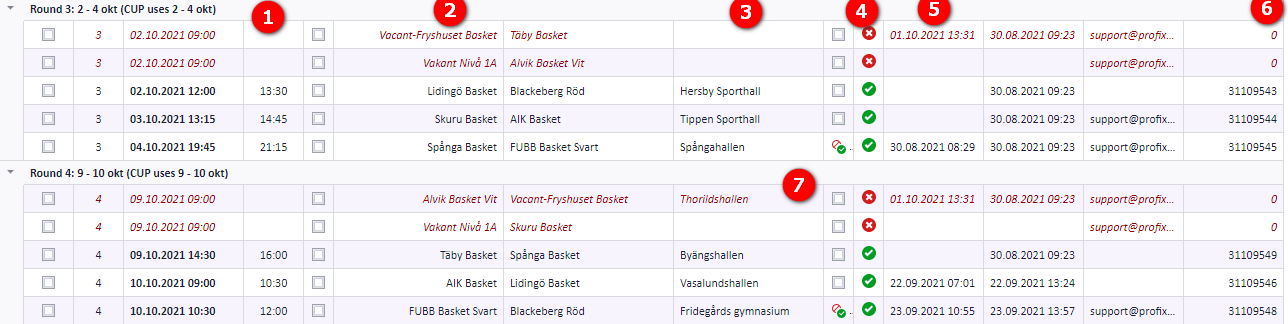
Only matches that are not flagged as "Archived" are affected. On each of those matches:
- The end time is set to zero. The start time stays unchanged.
- A vacant team replaces the withdrawn team.
- If the withdrawn team is the home team, the venue is set to zero.
- The match status turns red: the match no longer shows in the visualizer and is not published (unless you override this).
- The match's "Changed time" is set to the time of this change.
- The match's link to its public counterpart is cleared, so it is added to the public schedule (app) as a new match with a new ID.
- If the withdrawn team is the away team, the venue stays unchanged.
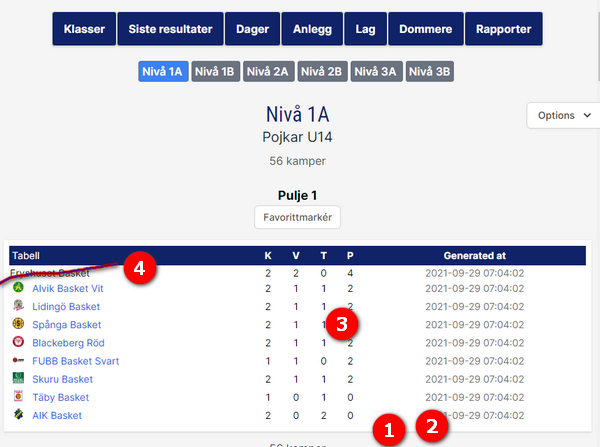
As soon as a team is soft-deleted or replaced with a vacant team, the public site changes for that league level. No action is needed from you.
- All matches without a result for the withdrawn team are deleted. Matches with a result remain unchanged, but they are not included in the table calculation.
- All deleted matches with results are flagged, so you can find these deleted matches later.
- All points taken against the withdrawn team are deleted.
- The withdrawn team is removed from the teams table.
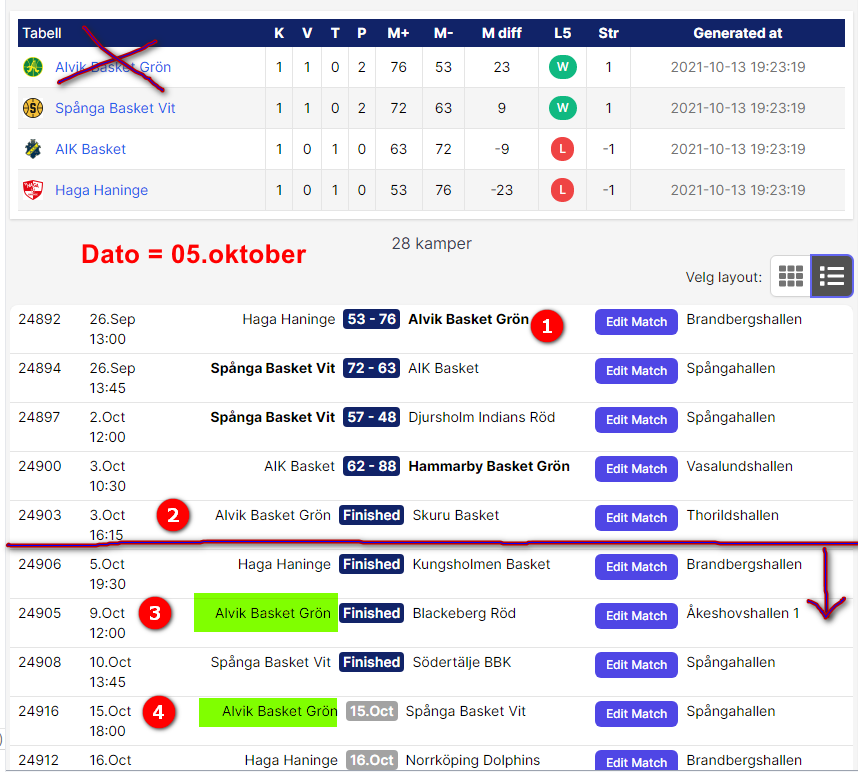
Lidingö plays several matches, and 3 of them are finished with a result. Those 3 matches were played before Lidingö decided to withdraw, and the referees on them are already paid, so they must not be deleted. Lidingö is withdrawn with limit date 09.10.2021.
Tip: right-click an image and open it in a new tab for a larger view.
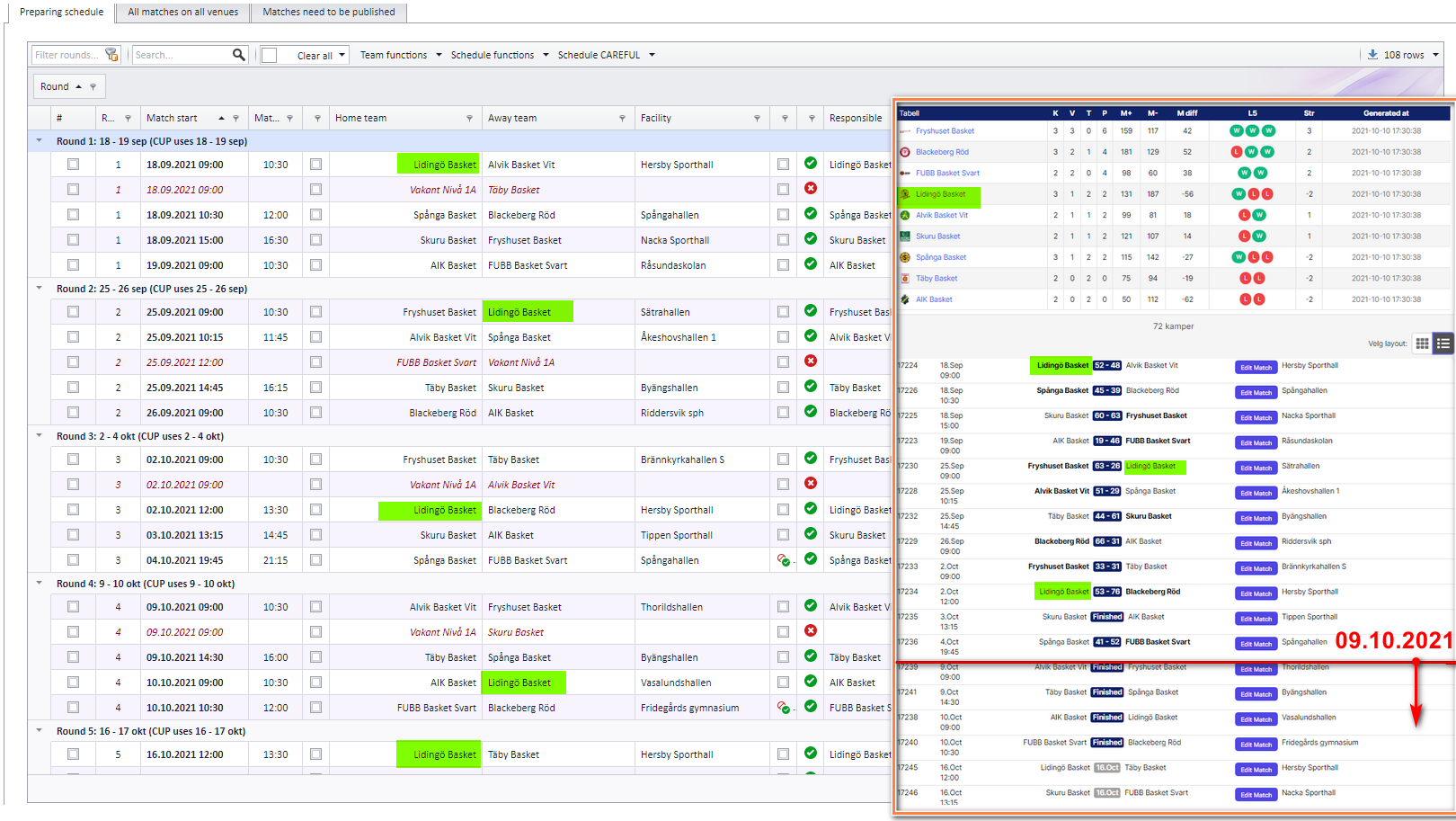
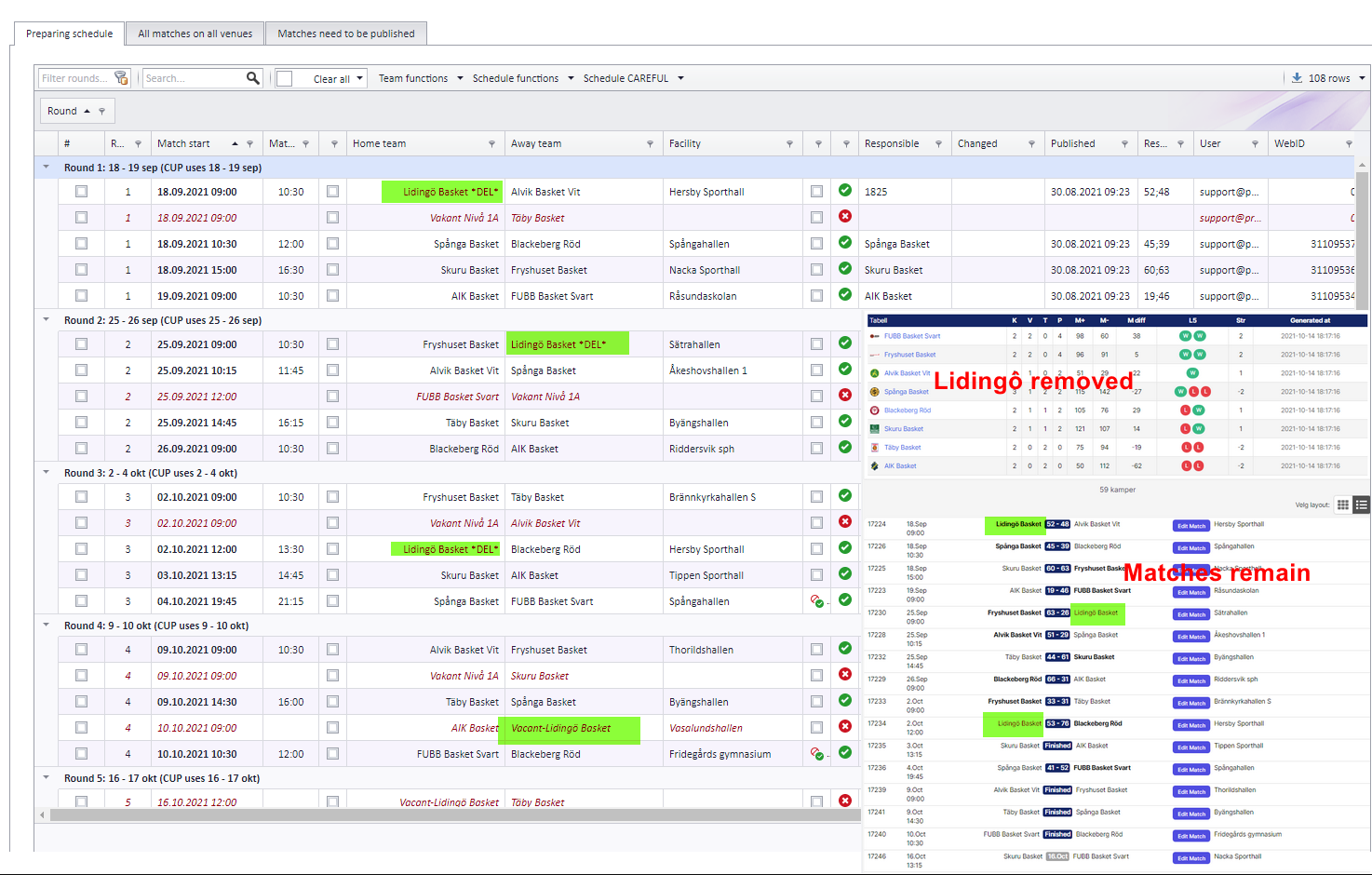
In PL, all 3 matches before the limit date are flagged as "archived", set to red and no longer show in the visualizer. In the remaining 13 matches (those after the limit date) the withdrawn team is replaced by a vacant team.
On the public web, the soft delete with limit date 9 October 2021 deletes 13 matches. The 3 matches before that date are not affected at all. But because Lidingö is withdrawn, no matches against Lidingö count in the ranking table.
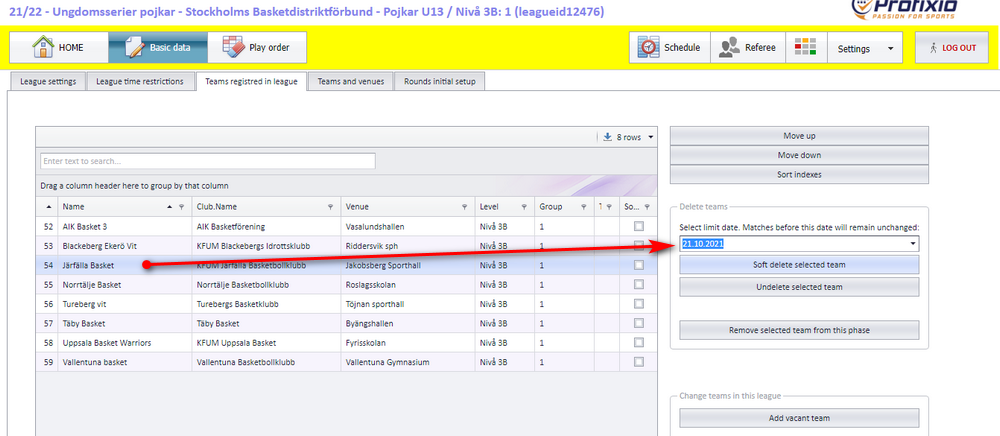
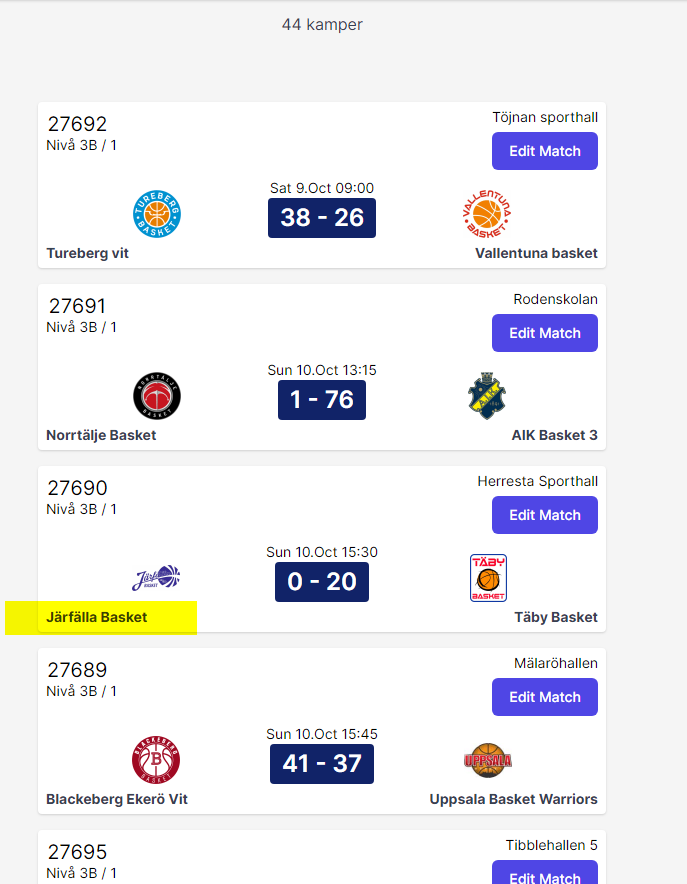
Withdraw "Järfälla Basket" with limit date 21.10.2021:
Ranking table in the app: "Järfälla Basket" is removed from the table, and none of the matches with "Järfälla Basket" are included in the table ranking.
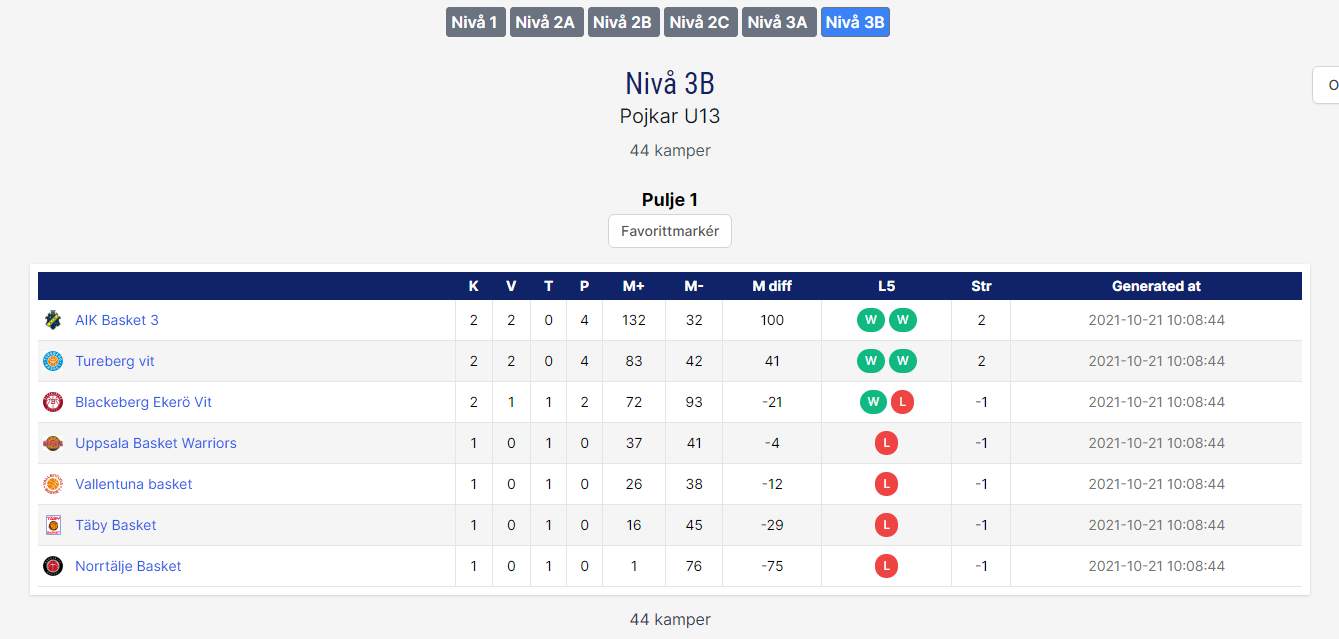
Public web: the matches before the limit date with the withdrawn team are unchanged.
PL: the matches with the withdrawn team as home team are unchanged, but the withdrawn team is flagged.
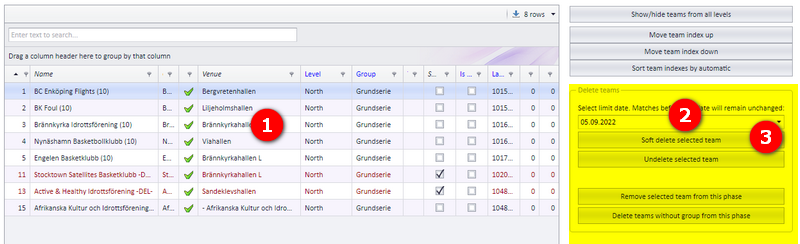
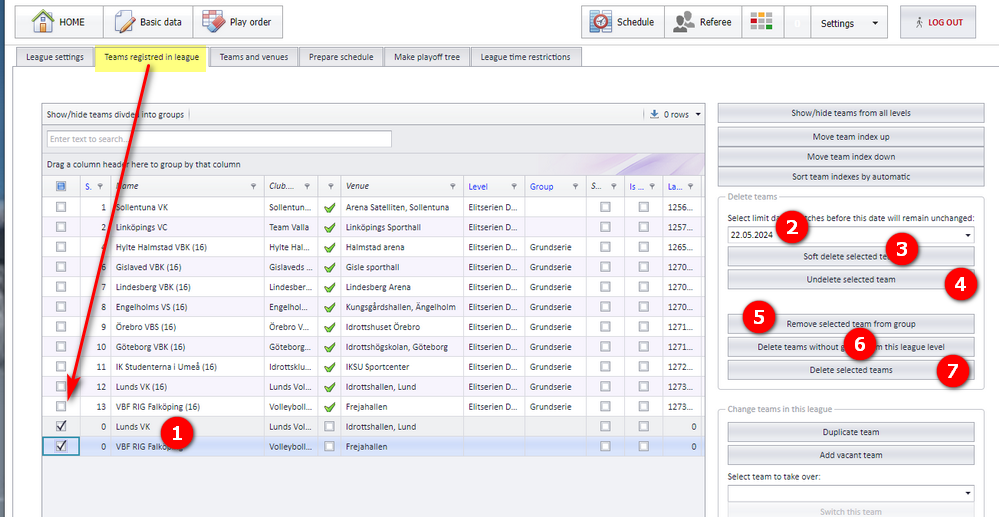
There are several ways to delete a team in PL. A team that has matches can be deleted permanently only after its matches are deleted; the exception is "Remove selected team from group" (bubble 5), which deletes the matches for you. The bubbles refer to the screenshot below.
- Select the team you want to delete.
- Enter a limit date if the team's history is to remain in the app. Clear the date if the history is not to be considered. What the limit date does is described under "The limit date".
- "Soft delete selected team": the team is deleted in the app; in PL it is replaced with a vacant team, including on its matches; if the deleted team is set as responsible on a match, the responsible team is removed.
- Un-delete the selected team (see "Undeleting a team").
- To delete a team permanently, first click "Remove selected team from group". If the selected team has matches, the matches are deleted in PL. If the team is a vacant team, it is deleted right away; if not, click button 6 to actually delete the team.
- Delete all teams that do not belong to any group. All teams are considered, so no selection is necessary. Teams are deleted even if they are registered in the app, but only in PL, not in the app. To remove a team completely, including from the app, delete it in the app as well.
- Select the teams you want to delete. Only teams that do not come from the registration site and have no matches are deleted.
A deleted team can be set as undeleted with the un-delete button (bubble 4 on the delete team screen).
- The undeleted team becomes an ordinary team again (neither soft-deleted nor vacant).
- Its matches are changed so that the undeleted team takes over.
- Home matches: the venue is set to the undeleted team's home venue, and the responsible club is set to the undeleted team's club.
A team can be deleted from a series that has started. You choose whether the team's matches are deleted too. If the matches are not deleted, the points other teams have won against the deleted team are kept.
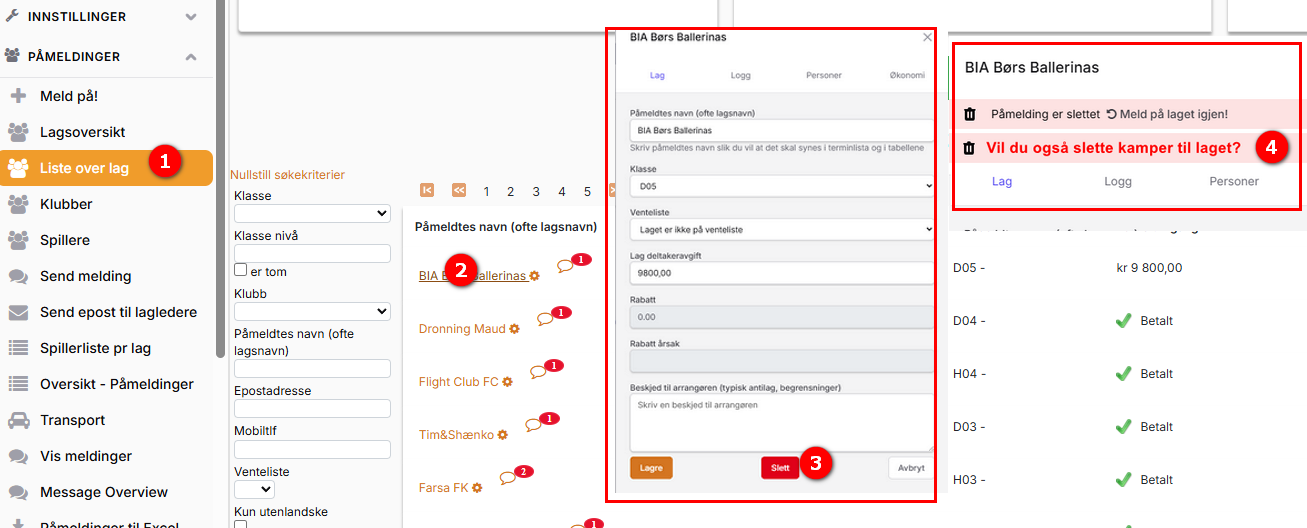
- The example shows the menu "Påmeldinger" (registrations) - "Liste over lag" (list of teams), but you can use any window where you can click the team name.
- Click the team name.
- Click "Slett laget" (delete the team).
- The team is now shown as "Slettet" (deleted), and you can choose whether its matches are deleted as well.
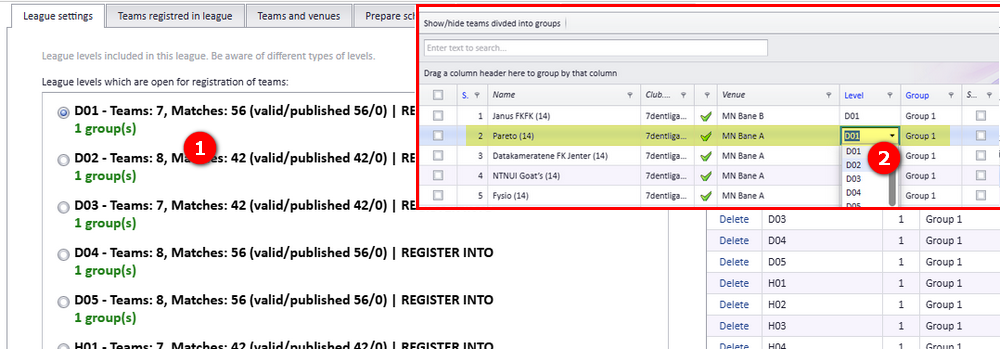
A team can be moved from one series to another. If the schedule is already made, the team's matches must be deleted first: the series cannot be changed on a team that is set up with matches.
Example: series D01 has a team called "Pareto" that wants to move to D02.
If Pareto is not set up with matches, just change the series as shown in the screenshot (bubble 2). Remember to save afterwards.
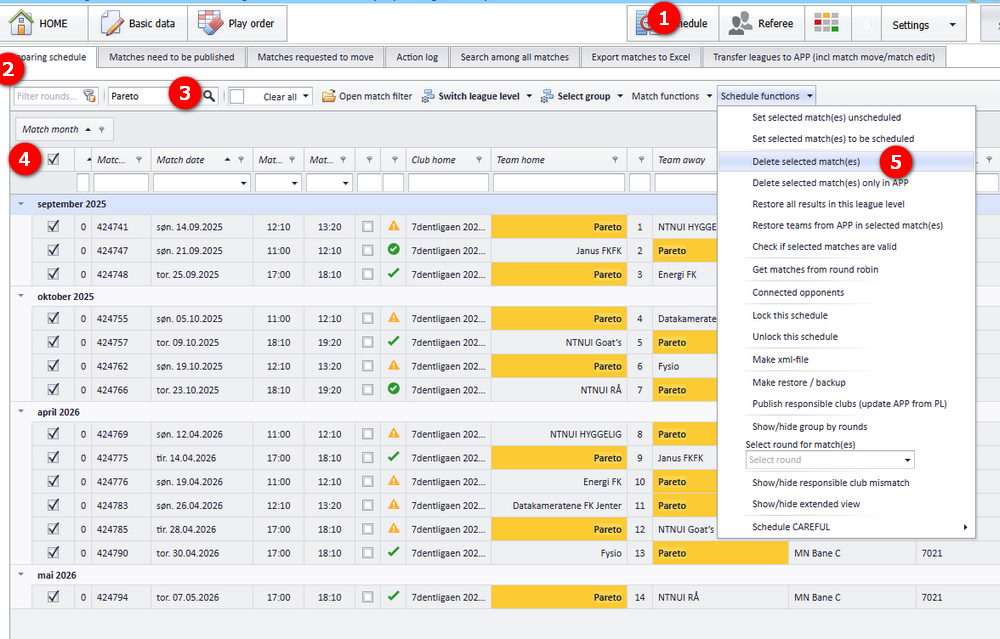
When the team is already set up with matches:
- First delete the matches the team plays in. Follow the bubbles in the screenshot to delete the matches.
- Then change the series on the team (bubble 2 in the screenshot under "Moving a team to another series").
- You now have two options:
- a) Create matches for the moved team only, leaving the remaining matches untouched (see "Creating matches for the moved team only").
- b) Set up the whole series again.
- Activate the right series.
- Click the button shown in the screenshot to get a list of all matches.
- Search for the team, here "Pareto", and select all its matches (checkbox in the first column).
- Click "Make matches from selection".
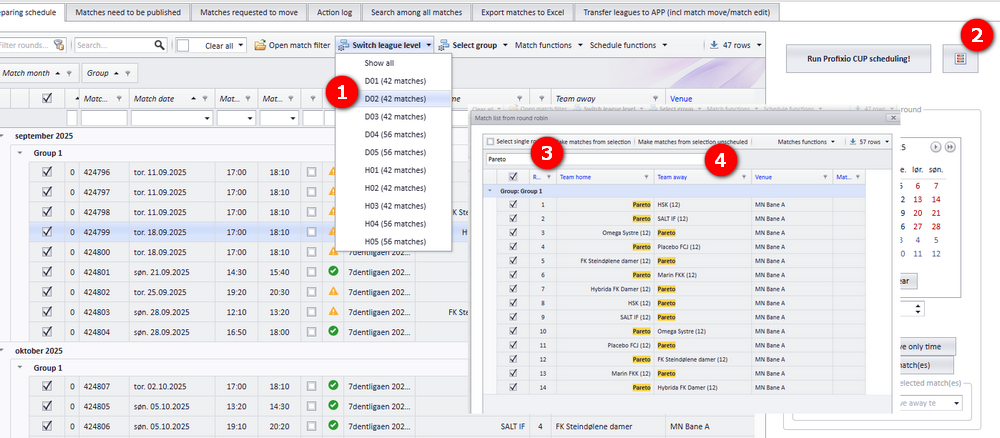
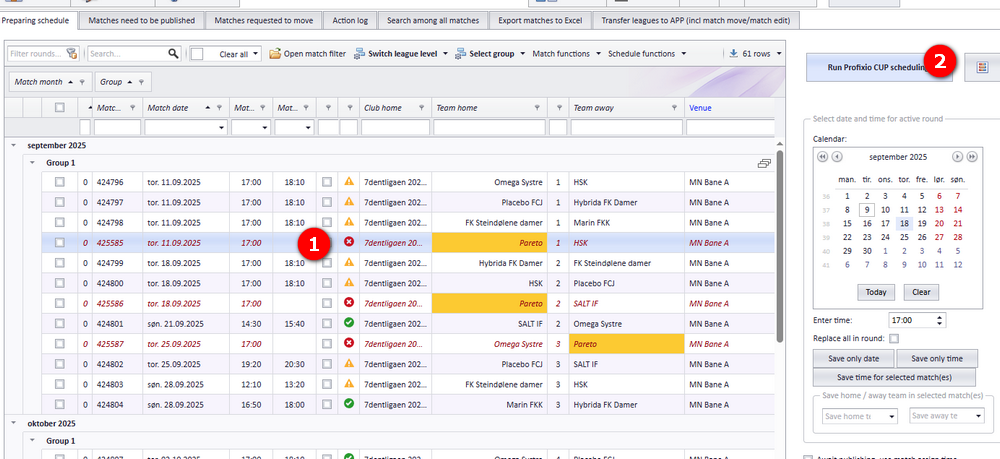
The matches are now placed roughly right, but without an end time. Use "CUP Scheduling" to place them; in the example this is the 14 matches for Pareto.
- Click "Run Profixio CUP Scheduling".
See also
Not covered here
Was this page helpful?