Publishing the schedule
What to check before publishing a schedule from PL to the app, how PL shows which matches still need publishing, publishing several league levels at once, removing published matches from the public pages again, and the hidden/public switch on the series in the app.
Looking for something else? League levels, groups and activation The series registration site
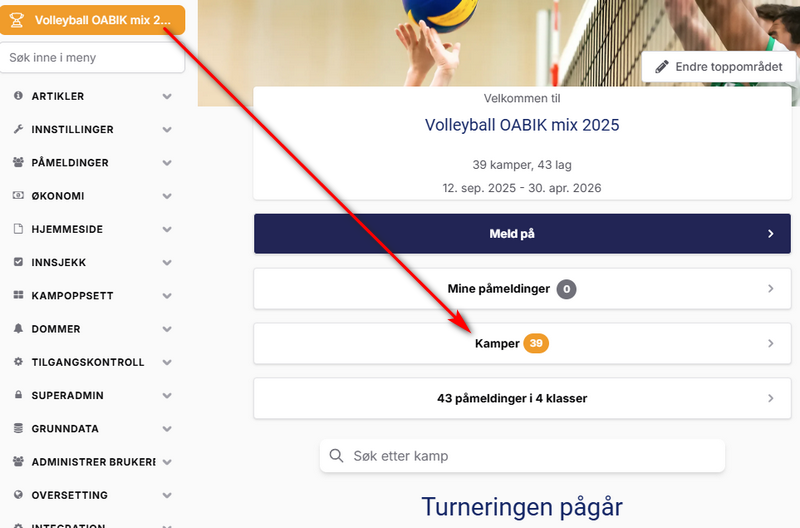
Click "Kamper" (matches) to see the matches:
For other roles
A match is published when it is the same in PL and in the app (the public match pages on profixio.com).
Every match has a column "Ändrad tid" (changed time) and a column "Publicerad tid" (published time). When a match is changed in its date, time, teams, venue or responsible team, "Ändrad" (changed) is set to the actual time this is done. When a match is published, "Publicerad tid" is set.
Example of a table showing these two columns:
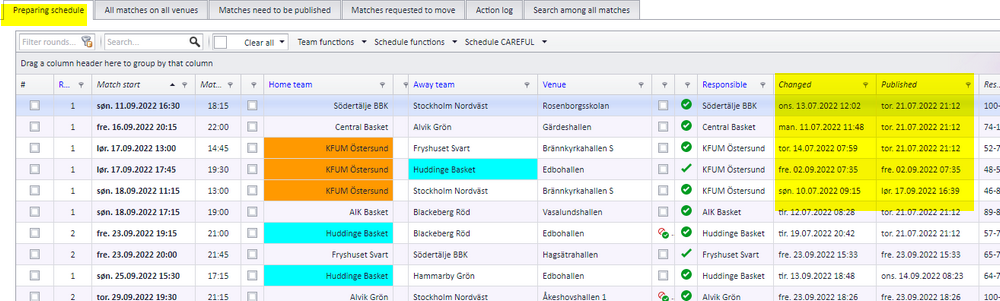
In the match list under "Spelschema" (schedule), the column "Matchstart" (match start) is shown in bold if the match is published, that is, the match is the same in PL and in the app.
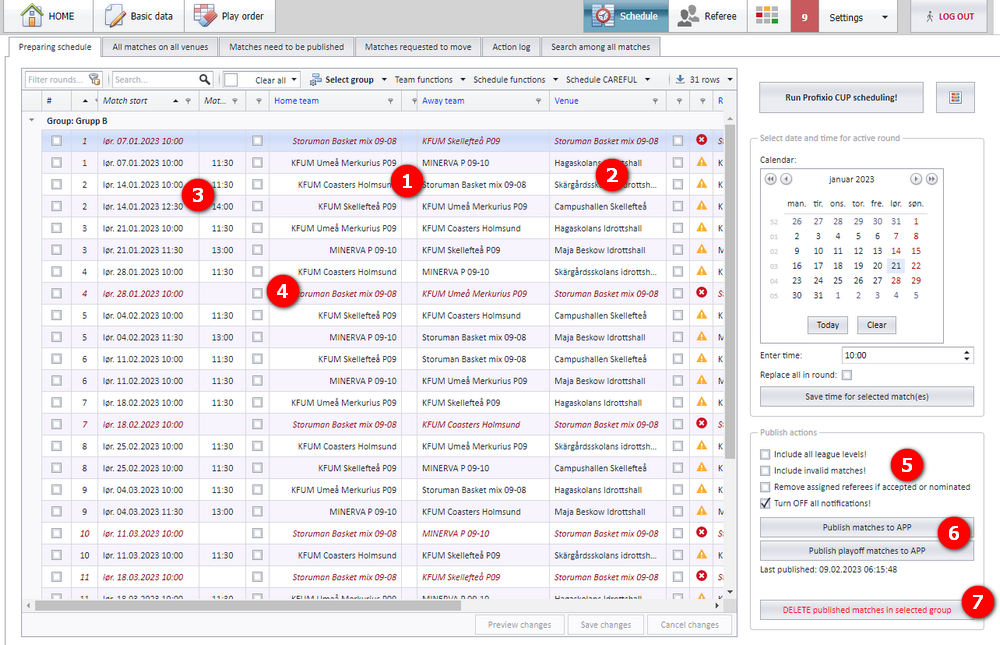
Before publishing, check the important data. The numbers refer to the screenshot below.
- Which teams play.
- The venues for the matches.
- Date and start time. If the end time is missing, the match is shown as red.
- Red matches have data you must be aware of. Red matches are NOT published by default, but this can be overridden, see "Publishing red or invalid matches anyway".
- Choices to make before publishing.
- Buttons for publishing.
- Delete a published schedule. The matches are removed only in the app, see "Removing published matches from the public pages".
There are a few ways to publish matches that cannot be published by default:
- Tick the column "Åsidosätt" (override) on the match.
- Tick "Inkludera ogiltiga matcher" (include invalid matches).
- Select the match(es) by ticking the first column.
When you open the menu "Spelschema" (schedule), all changes to matches are downloaded to PL for the active competition.
Example, with the numbers referring to the screenshot below:
- The venue was set to "Edeborgshallen".
- The venue is changed in the app to "Ebohallen".
- After opening the menu "Spelschema", the match in PL has changed venue to be the same as in the app.
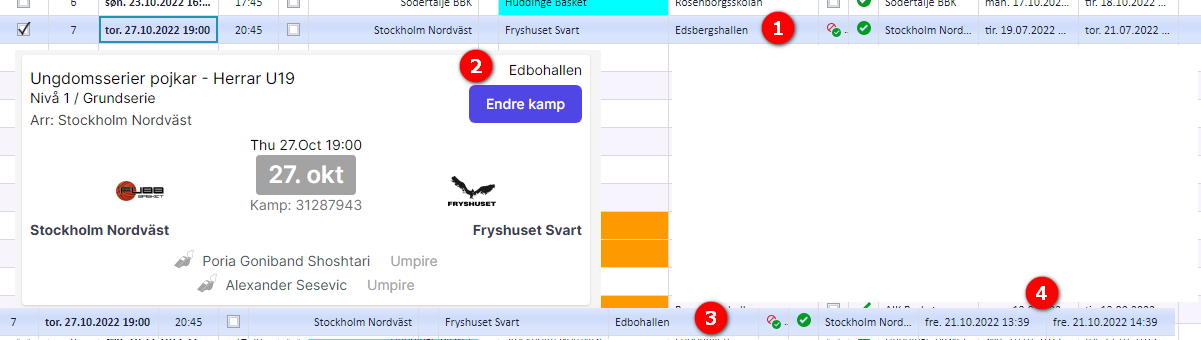
Menu "Spelschema" (schedule), tab "Matcher som behöver publiceras" (matches that need publishing).
This window shows all matches that are not published, that is, they differ between PL and the app. Often a match is changed in PL and not published. All such matches appear in this window.
Note: the new venue is NOT published automatically. The match is set to "Ej publicerad" (not published).
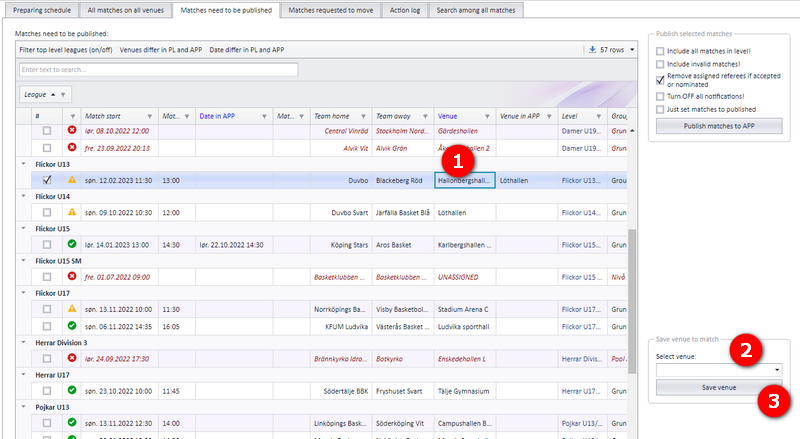
The numbers refer to the screenshot below.
- Select the row of the match you want to change.
- Choose the new venue and..
- ..click the "Spara" (save) button.
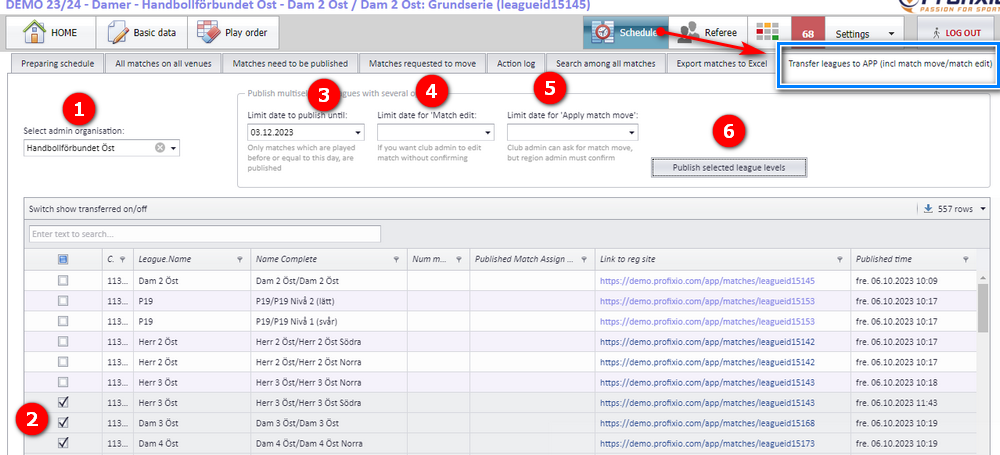
You can publish several league levels at the same time. The wait can be up to 3 minutes for 200 league levels. Do NOT publish more than 200 league levels at a time. Only matches from today onwards are published.
The numbers refer to the screenshot below.
- Choose a district filter to avoid too many league levels.
- Tick the levels you want to publish (remember to use the top checkbox to select all in the list). See "Filter tips when selecting levels".
- If you only want to publish matches up to a certain date, choose that date here. Matches scheduled after this date are not published.
- If you want to give the club administrator the possibility to administer match time and/or venue (called "Tidssättning", time setting), choose the date limit here. Leave the date empty if you do not want to give access to time setting at all.
- If you want the club administrator to apply for a match change (which must be confirmed by the competition administrator), choose the date limit here. Leave the date empty if you do not want to give access to applying for match changes at all.
- Click the button to run the publishing. Be aware of the dialog you must confirm to publish.
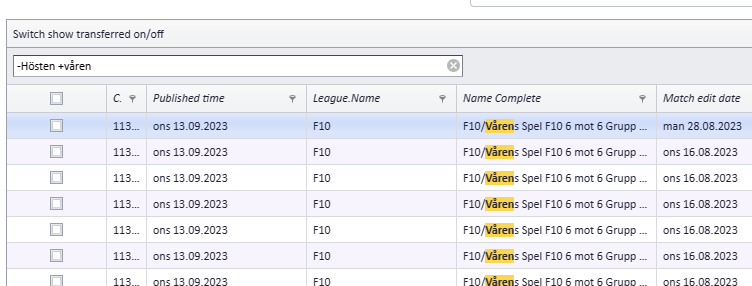
If you want to include some levels and exclude others, use the characters + and -.
Example: to include 'Våren' (spring) and exclude 'Hösten' (autumn), enter "-Hösten +Våren" as the picture below shows (use a space between the words).
You can then easily select all with the top checkbox "Markera alla" (select all).
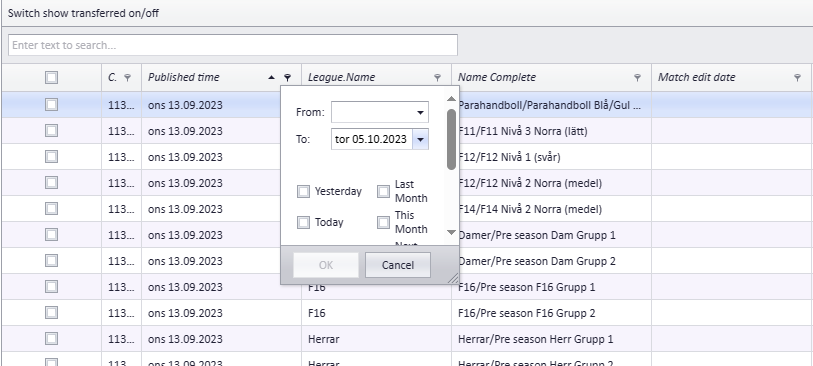
If you want to filter on certain dates, see the picture below. This is useful if you want to select all levels that are not published today.
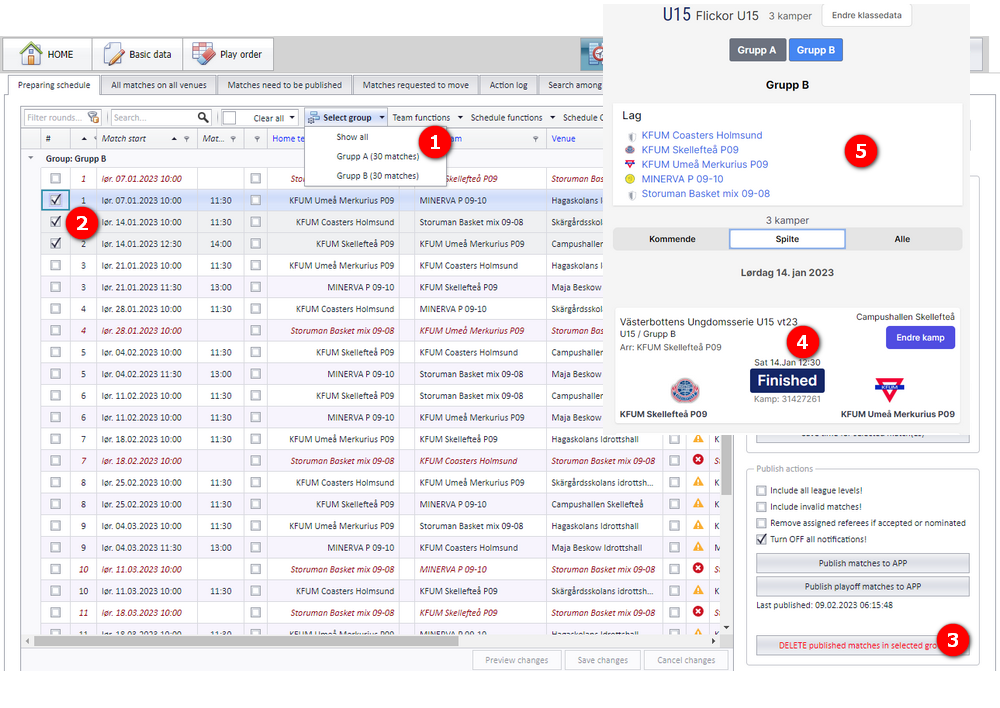
You can remove a published match, or all matches on a level, without disturbing other data. The schedule in PL stays unchanged, except that the matches are unpublished. The matches are removed only in the app (and NOT in PL).
If the league level has several groups, only the active group is removed. It is possible to show all groups; matches are then removed in the app for all groups.
The numbers refer to the screenshot below.
- If there are several groups on the league level, activate the wanted group first (or select all groups).
- When you select matches with the checkboxes, only those matches are removed from the public page.
- Click the button to remove the matches.
- The matches in the app are removed..
- ..but the teams stay unchanged.
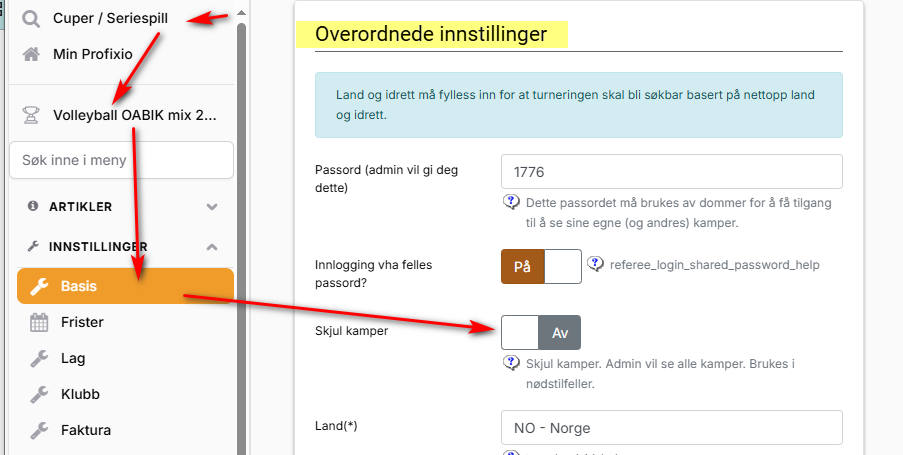
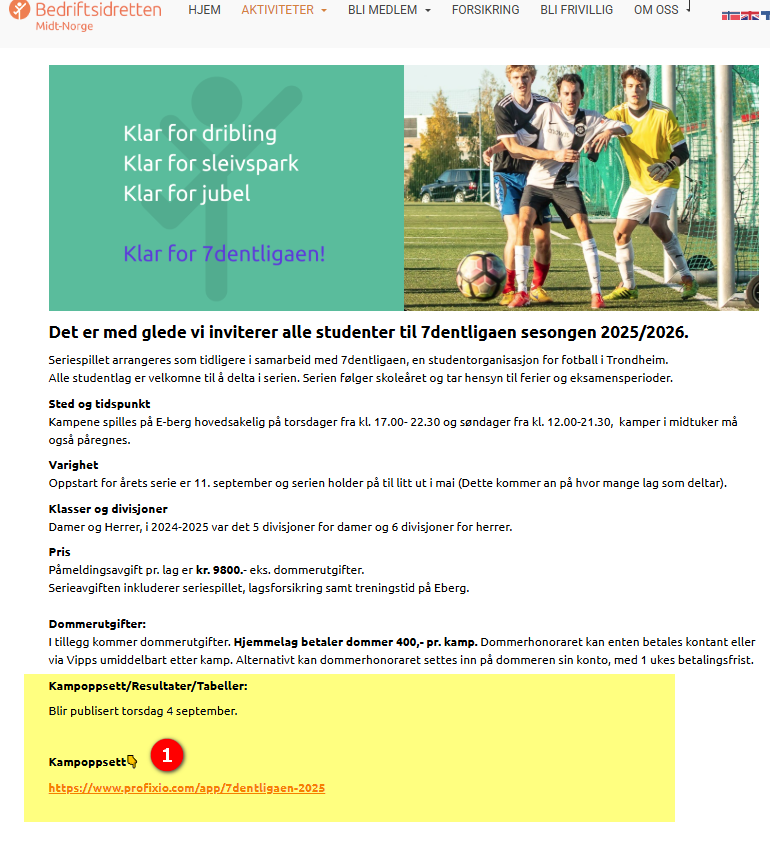
The link to the registration page is the same as the link to the schedule. For simplicity you can therefore have a text such as "Påmelding til serie gjøres her" (register for the series here) with a link to, for example, https://www.profixio.com/app/7dentligaen-2025. Once the schedule is made, you just change the text to "Se kampoppsett for serien her" (see the schedule for the series here), without changing the link to Profixio.
The example comes from links to the schedule placed on bedriftsidretten.no (the Norwegian company sports website).
- How to edit matches (date, time, venue, teams) in PL: see Changing a match date, time, venue and teams.
- Deleting matches in PL instead of only unpublishing them, and the action log: see Deleting matches and the action log.
- What the club administrator does with time setting and match change requests in the app: see Letting clubs set times in the app and Match move requests.
- Generating the schedule before you publish it: see Prepare and generate the schedule.
- Who is notified when a published match changes: see Notifications when a match changes.
See also
Not covered here
Was this page helpful?