Schedule views, the Visualizer and colour codes
The two ways to look at the schedule in Profixio League (by active league or with the match filter), what the Visualizer (PLV) shows and how to filter it on venues, and what each validation symbol on a match means, including overruling a match and including a red match in CUP scheduling.
Looking for something else? Deleting matches and reading the action log
For other roles
The tab "Preparing schedule" shows matches in one out of two ways:
- Matches can be shown by the active league, either divided into groups or with just one group selected.
- Matches can be shown across leagues by using the match filter.
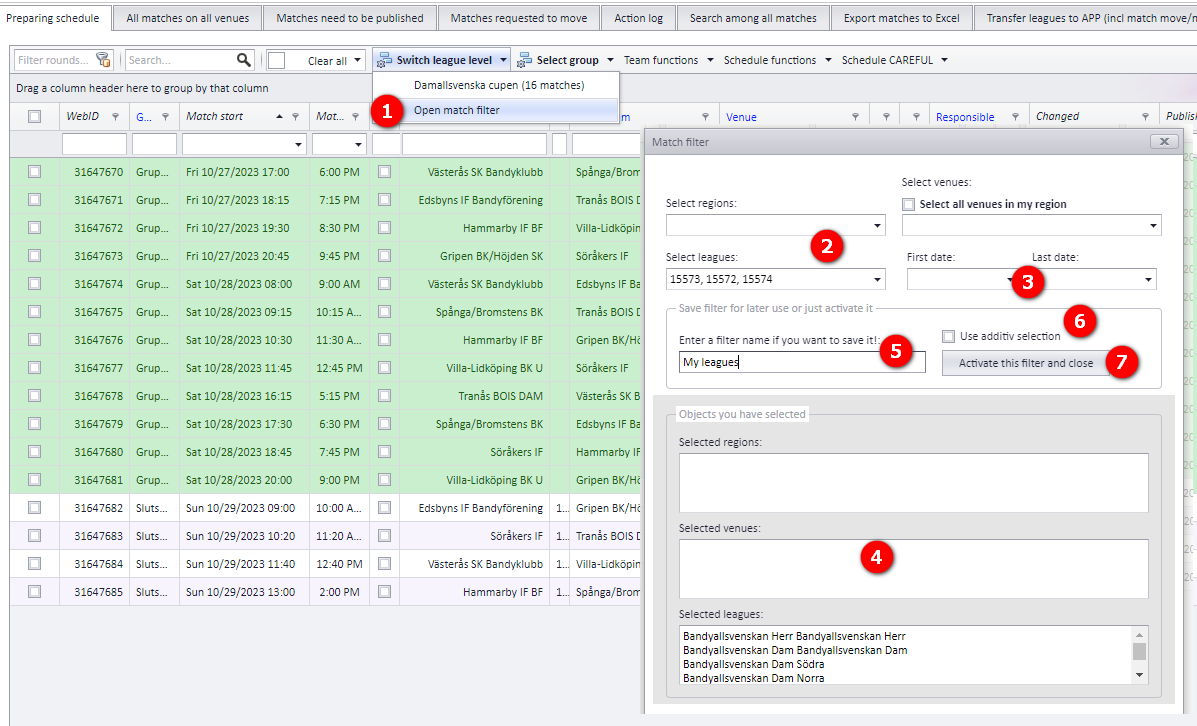
The match filter lets you show matches across leagues in the "Preparing schedule" tab. The numbers below refer to the bubbles in the screenshot.
Note: at least one selection in bubble (1) and/or (2) must be set in order to use the match filter.
- Click to show the popup "Match filter".
- Select matches from regions, leagues and/or venues. Only matches from the active season are shown.
- If you want, enter the first and/or last day of matches.
- All selected items are shown in these boxes.
- If you want to reuse the filter, enter a name for the filter here.
- If you want to use additive selection, that is all selections must be included, check this box.
- Click the button to activate the filter.
If no active league is selected and the match filter is used directly, this has the following consequences:
- The menus "Basic data" and "Play order" are both disabled.
- The menu "Visualizer" is shown with an empty dataset.
To activate any of these three menus, a league needs to be activated under the menu "Hem" (Home).
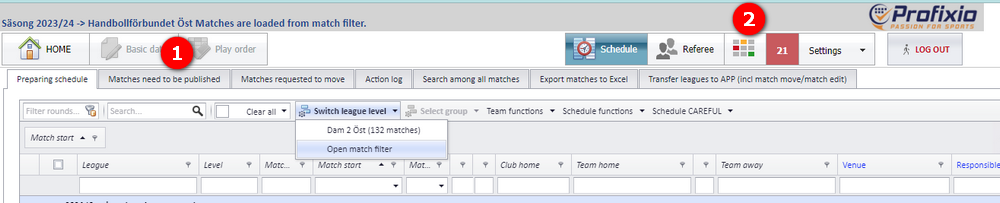
The Profixio League Visualizer (PLV) does not depend on any league being selected: both leagues and/or venues can be freely selected in PLV.
Not every match is shown in the Visualizer. The following criteria must be met for a match to show up:
- The match end time must be later than the match start time.
- Both the home team and the away team must be a legal team, not a vacant team.
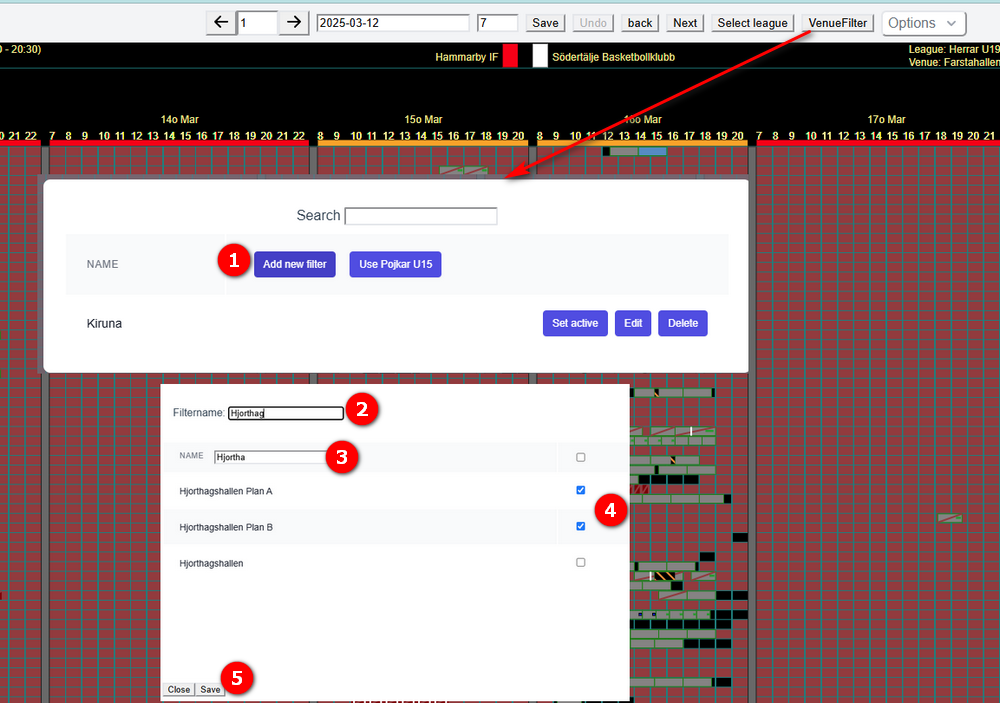
The Visualizer can show all matches on selected venues. Follow this procedure to filter on venues.
Note: be aware of the date set in the toolbar.
Enter the menu "Venue Filter".
- Click "Add new filter". You can also choose to use the venues from a league (in the screenshot, P U15).
- Enter a name for this filter.
- Select venues...
- ...and check the venues on.
- Save this filter. At last, click "Set active" and click somewhere in the Visualizer.
Match validation is done after each save of data in the schedule. No action is needed to activate match validation.
- Validation is done after saving date and time, after saving teams, and after saving venues.
- A symbol is shown for each match, indicating the match status. The section "What each validation symbol means" explains the symbols.
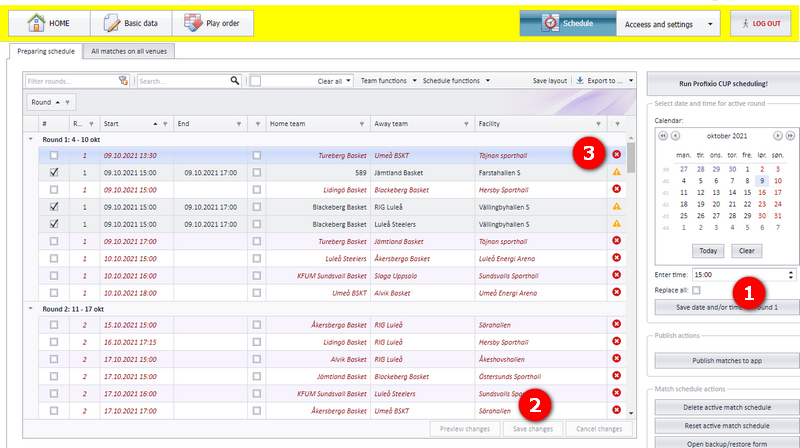
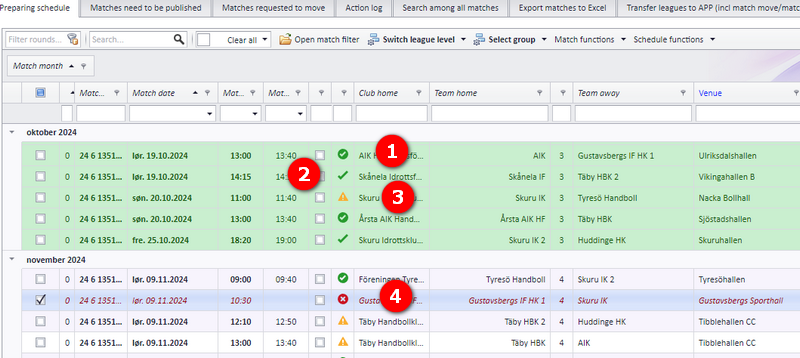
These are the possible symbols for a match. The numbers refer to bubbles 1-4 in the first screenshot.
| Symbol | The match... | Included in CUP scheduling |
|---|---|---|
| 1. Green circle | Is on a legal venue, at a legal time and has no collisions. The match fulfils all criteria. | Yes |
| 2. Green v-symbol | Same as a match with a green circle, BUT is NOT on the home team's list of venues (not scheduled on one of the home team's ordinary venues). | Yes |
| 3. Yellow warning symbol | Is at a position, or partly at a position, where another match is positioned (collision), or is positioned at a venue time that is not allowed (the venue is restricted). | Not stated |
| 4. Red symbol | Has no end time, or has no venue or a temporary venue, or has one or two vacant teams. | No, unless "Include in CUP" is checked |
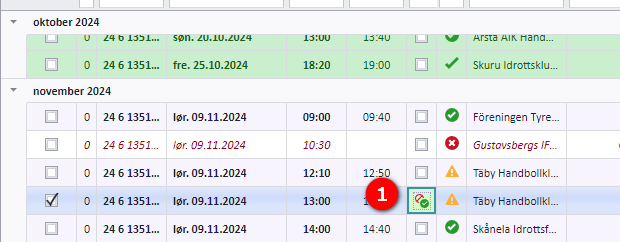
| Red and green circle | Is set to be overruled. There can be other failing validations, but the user has chosen to overrule these so that the match becomes valid. | Yes |
The legend shows the same symbols:
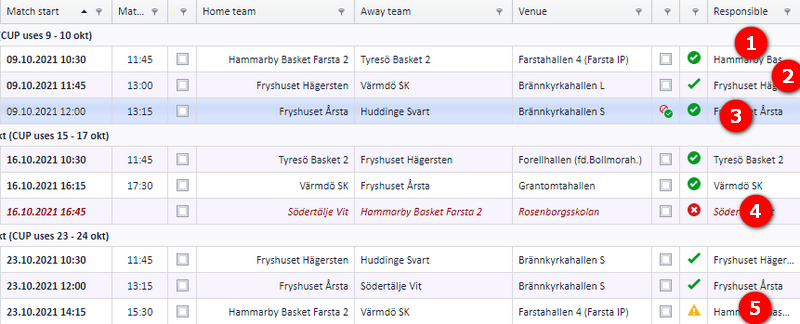
All matches can be overruled, no matter if the match is totally invalid. The match will turn green and will NOT be changed if CUP is running. Both playing time and venue are locked.
Note: a tooltip on the green symbol gives you information about the status of this match.
- Check the match to make it overruled, or uncheck it to make it "ordinary" again.
Be aware that an overruled match can still hold a collision, or be on an unavailable venue, so pay attention.
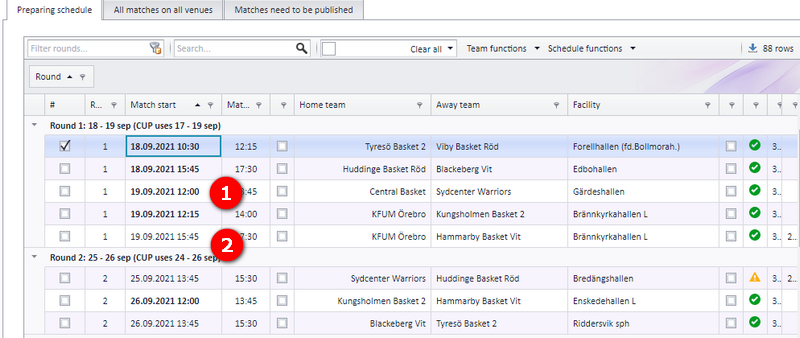
If a match has a warning symbol, enter the Visualizer and see if it is possible to move this match to another time or venue. Or move away the colliding match, which may belong to another league.
The font of the match time tells you whether the match is published as it stands:
- When a match is published, and no changes have been done since, the match date font is bold.
- If a match is changed after it was published, or has not been published, the match start time font is regular.
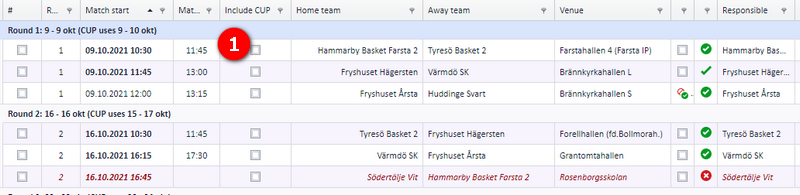
A red match will NOT be included in CUP scheduling. This can be overruled by checking "Include in CUP" on the match.
- If the match has no end time, PL sets the end time of the match from the start time plus the play length.
- If the match is set to be "Overruled", this function is ignored.
- Generating the schedule with CUP and preparing for it: see "Prepare and generate the schedule".
- Venue restrictions and time restrictions that make a venue time not allowed: see "Time restrictions for season, league and teams" and "Venues and team home venues".
- Vacant teams, which keep a match red and out of the Visualizer: see "Vacant teams".
- Moving a single match by date, time or venue: see "Changing a match date, time, venue and teams".
- Publishing the schedule, which turns match times bold: see "Publishing the schedule".
- Which menus and grids exist in PL: see "The PL workspace, grids, archive and backup".
See also
Not covered here
Was this page helpful?