Play order, solutions and playkeys
What Play order is for, how to prepare a league for it, how to run it and compare the solutions it produces, and what playkeys are and how to edit them.
For other roles
In some kinds of leagues, special criteria for the order of matches are very important. In Profixio League (PL) there are about 15 criteria which can be set in "Play order" to produce a correct schedule. A schedule contains a set of criteria such as "Derby", "Anti team", "Breaks" and more. Examples of criteria are:
- Reducing the number of home (also away) matches following each other (called "breaks").
- The first match must be played at the away venue.
- Teams must play each other in certain rounds, and so on.
When you change criteria, or set criteria active or inactive, the active schedule is changed.
Play order is used for leagues with ordinary round-based play. Leagues that use playkeys, and leagues with cross pool play, are scheduled without Play order.
Schedules and solutions
Using Play order gives you a number of solutions based on the criteria that are set. A schedule has zero, one or several solutions. Each solution is a suggestion for matches divided into chronological rounds: matches include only the teams and the week number, and no time and venue. The solution you find best becomes the foundation for your match schedule. Each solution has a value telling how well the criteria are fulfilled.
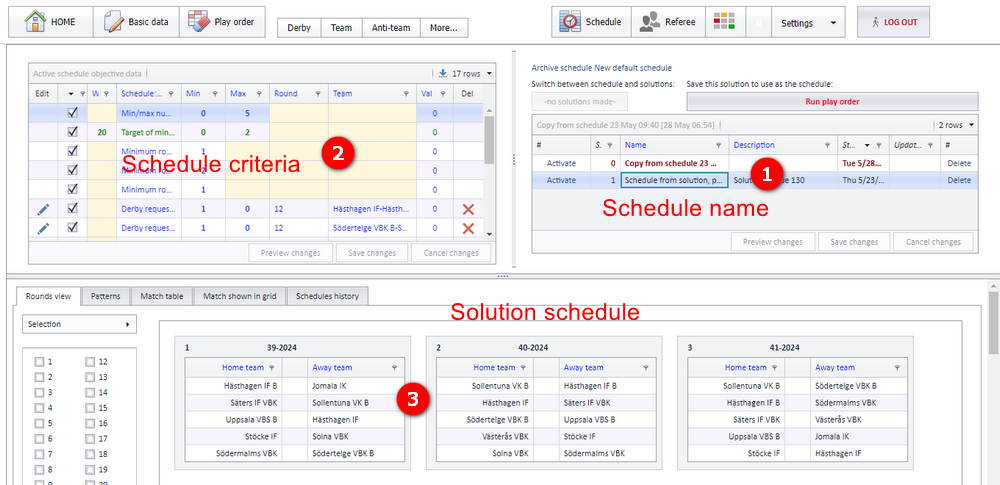
- Area to make new schedules, to see schedules and to see solutions based on the active schedule.
- Each schedule has a set of criteria. All solutions for a schedule have the same criteria but not the same results; some solutions are better than others.
- Each solution places the teams in rounds and is the start of a match schedule. No match times are set in this module; times are set in the "Schedule" module.
Before you can use "Play order", teams must be placed in group(s), the home venue should be set, and the week number for all rounds must be set. All this is done in "Basic data" and its 4 first tabs.
Each match round must be set correctly before Play order can produce a schedule: the number of rounds must be correct and the rounds must be chronological. The round time can be changed after Play order has been used.
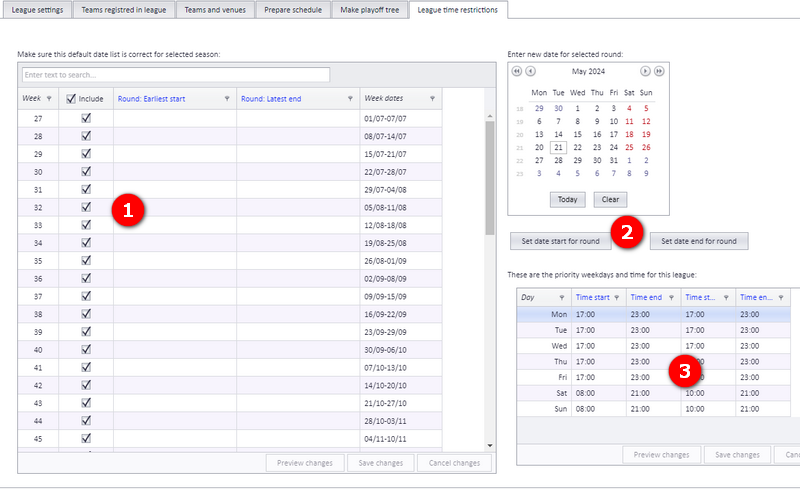
Open the menu "Basic data" - "League time restrictions".
Each organisation can enter overall data for when each round is to be played. This can be overruled for each league; the overrule is done from the menu "Basic data" - "Prepare schedule".
There are three types of overall data:
- Which week numbers are included. For example, the Christmas week is often not playable, so that week number is not included.
- Each week can be set to play only during a certain period. For example, in week 45 Monday and Tuesday can be set as not playable.
- Each day can be set to play during certain time intervals. For example, Mon-Fri playable only from 17:00 to 21:00.
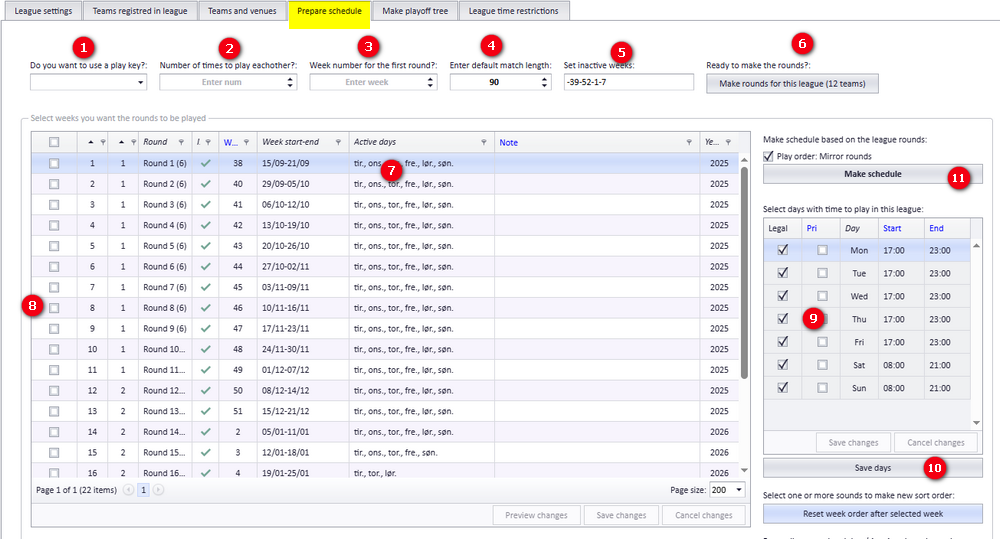
Open the menu "Basic data" - "Prepare schedule".
- If you want to use a playkey, select the playkey here. When a playkey is selected, bubble 2 has no impact.
- Enter the number of times the teams play each other. Most often it is two times, home and away.
- Start week number. For example week 40 if the season starts in the autumn.
- Match length. This is not the real playing time, but the time the match will occupy in the venue.
- Inactive weeks. A typical inactive week is the Christmas week. No rounds are placed automatically in inactive weeks; the administrator can overrule this. Acceptable combinations: for all weeks between two weeks, use "-" (for example 45-48). Use only one "-" per range; 45-48-52 is not an accepted range. Use a comma for single weeks (for example 51,2,4). Example, to ignore 44 to 48 and 52: 44-48, 52
- Make the rounds for this league. Teams must exist in the league before the rounds can be made.
- All rounds are shown here with the active days set by the menu "League time restrictions".
- Select the rounds that are to be changed.
- Here you can change the priority days for the selected rounds.
- Click to save the priority days for the selected rounds.
| Setting | What it does | Where |
|---|---|---|
| Playkey | Locks the league to a playkey; the number of times to play each other then has no impact. | "Basic data" - "Prepare schedule", bubble 1 |
| Number of times to play each other | How many times the teams meet; most often two (home and away). | "Basic data" - "Prepare schedule", bubble 2 |
| Start week number | The week the first round is placed in. | "Basic data" - "Prepare schedule", bubble 3 |
| Match length | The time a match occupies in the venue, not the real playing time. | "Basic data" - "Prepare schedule", bubble 4 |
| Inactive weeks | Weeks no round is placed in automatically. Ranges with one "-", single weeks with commas. | "Basic data" - "Prepare schedule", bubble 5 |
| Priority days per round | Which days a selected round is placed on. Starts from the organisation's "League time restrictions". | "Basic data" - "Prepare schedule", bubbles 7-10 |
A schedule is made from all the criteria set by the user ("anti team" and so on). To make a schedule, follow these steps.
Make sure the correct schedule is activated; the active schedule is shown with blue text colour.
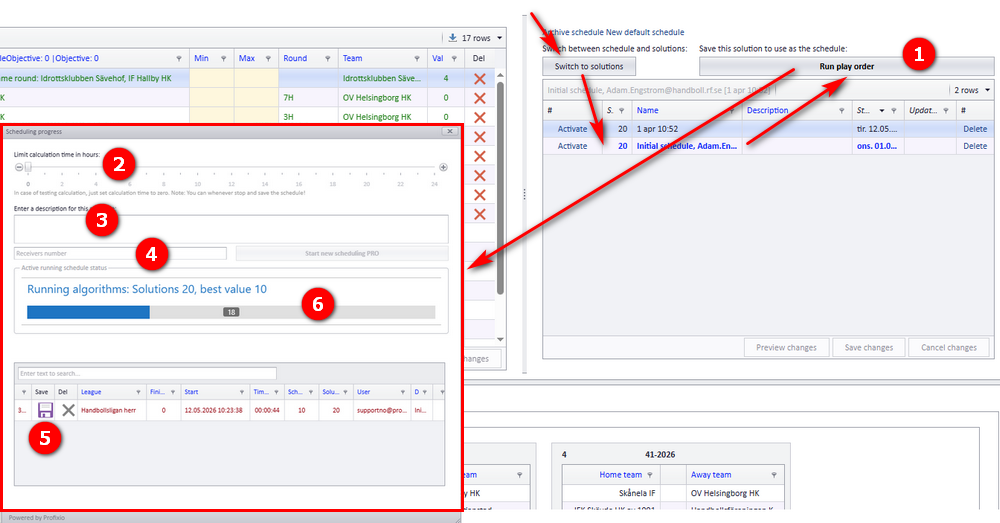
- Click on "Run play order" and a popup window opens.
- Enter the max time for the algorithm to run. If no time is set, it defaults to 60 seconds.
- You can enter a description to make it easier to recognise this schedule later.
- If "Max time" is set to several hours, it is wise to enter a phone number so you are informed when the schedule is finished.
- If you do not want to wait for the schedule to finish, click on the Save button. In this table you find the estimated "Time left". It is set to 60 seconds by default, but is recalculated every time the algorithm finds a better solution.
- This is a progress meter telling you the status of the schedule.
A schedule can result in several solutions. Some solutions can have the same value, telling you they are equal seen from the weight of the objectives. This applies to soft constraints only.
- Click on a solution to activate the data in that solution.
- A view of rounds with teams is filled in based on this solution.
- You can select which rounds you want to see...
- ...or just tick the rounds here.
- Export the data to Excel if you prefer Excel. All matches in the solution are exported, regardless of the selections you have made in bubbles 3-4.
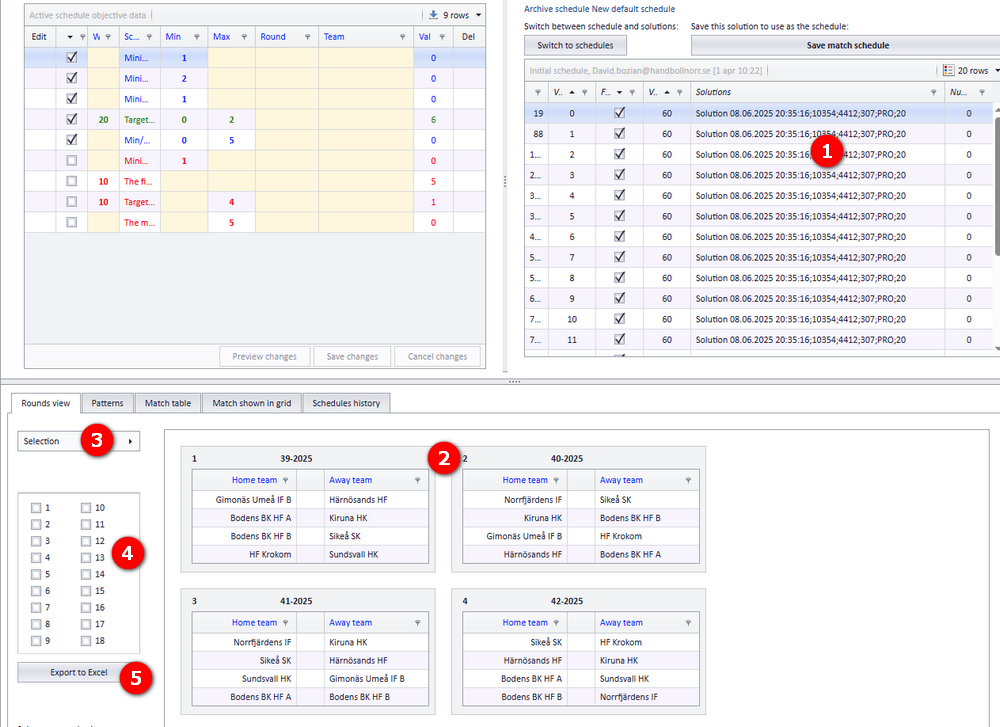
If you are happy with one solution, you can use its data as basic data for the final match schedule: click the button "Save match schedule".
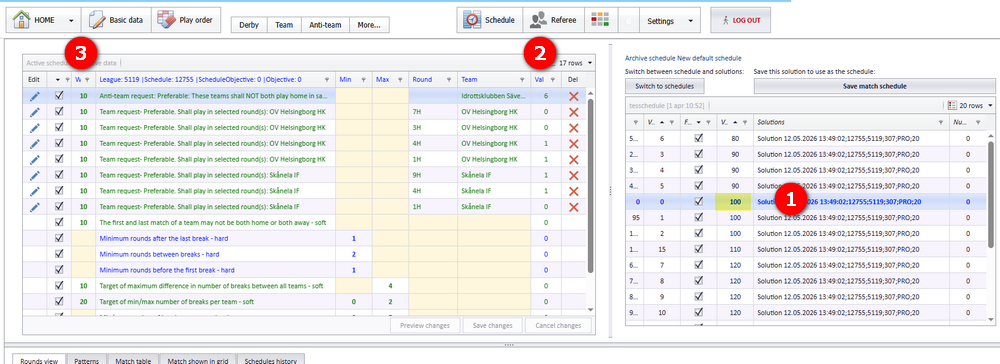
The values shown while Play order is running are progress values from the algorithm. The correctness of a solution is read from the criteria summary for that solution:
- Click on a solution to see the result of the criteria. The summary of correctness is shown in the yellow rectangle beside this bubble.
- This column shows the number of situations that are not correct.
- This is the weight set for each criterion; it influences the total sum for the correctness of the solution.
Using playkeys locks matches to a round, the teams that play, the match order, the referee and the organizer. Referee and organizer are optional. Each federation has its own set of playkeys, sorted per federation.
Video walkthrough: Using playkeys
Venue assigned to a match
When a playkey with an organizer is used, the match home team is set to the organizer club's home team. Otherwise, the home team's venue is always the venue set on the match.
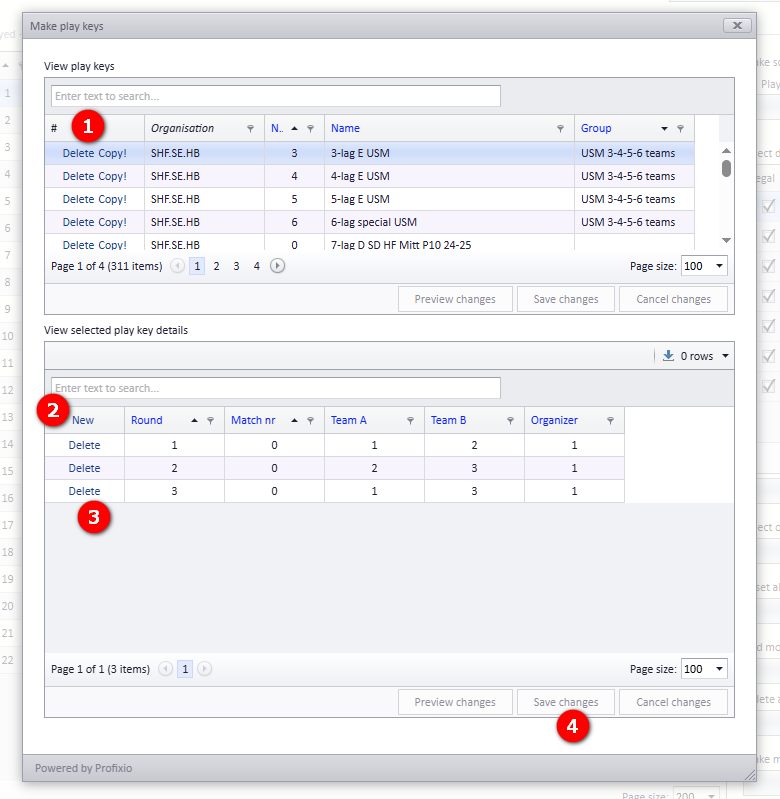
In "Basic data" - "Prepare schedule" there is a button "Open play key window". Be careful when deleting playkeys or playkey details.
- Make a copy of an existing playkey if you want to make a new one.
- Click "New" to make new playkey match rows.
- Delete the rows you do not want to have.
- And always: remember to save.
To use a playkey in a league, select it in "Basic data" - "Prepare schedule" (see "Prepare schedule: rounds, inactive weeks and priority days").
- Time restrictions per season, league and team in detail: see "Time restrictions for season, league and teams".
- Anti teams and connected opponents, which are criteria used by Play order: see "Anti teams and connected opponents".
- Setting match times and venues on the rounds a solution produced: see "Prepare and generate the schedule".
- Importing a schedule or playkeys from Excel: see "Importing a schedule or playkeys from Excel".
- Cross pool play, which is scheduled without Play order: see "Pool play and cross pool play".
- Placing teams in groups and setting home venues: see "Teams in a league" and "Venues and team home venues".
See also
- Anti teams and connected opponents
- Importing a schedule, league levels or playkeys from Excel
- Ordinary group play
- Pool play and cross pool play
- Preparing and generating the schedule
- Schedule views, the Visualizer and colour codes
- Teams in a league
- Time restrictions and priority days
- Venues and team home venues
Was this page helpful?