Editing matches on the match page (graphical timeline and match table)
How a tournament admin works on the match page: filtering and moving matches in the graphical area, filtering the match table, every item under Shortcuts, Addons and Settings, and what you can do with selected matches.
- Generating fixtures, match days and courts, bulk undo, swapping teams and large schedules: Generating and scheduling matches.
- Editing one match and registering results: Editing a match and registering results.
- Appointing referees on the match list: Referee setup: assigning, publishing and restoring referees on matches.
- What hiding a match or a schedule does: Hiding matches, schedules and results from the public.
- Scheduling as a series administrator: Series administrator for a match day.
- Classes, match length and competition format: Classes, groups and competition format.
- Giving people access to the tournament: Giving people access to a tournament.
For other roles
The match page is where a tournament admin builds and repairs the match schedule. Open it from the tournament admin menu with Match Schedule → Matches Graphics. The page has two parts: the graphical area at the top, where days run sideways, courts run down and every match is a box, and the match table below it.
You get the scheduling tools on this page when you have tournament admin, match edit or referee admin rights in the tournament. Visitors without these rights see the graphical area and the table read-only. A series administrator scheduling a match day gets a narrower version, described on Series administrator for a match day. The referee-setup version of the page, with referee tools instead of scheduling tools, is described on Referee setup: assigning, publishing and restoring referees on matches.
The two buttons at the top right of the graphical area fold it away or open it in full screen. Full screen hides the table until you close it again.
The toolbar above the graphical area decides which days, facilities and courts are drawn, and how much you see at once.
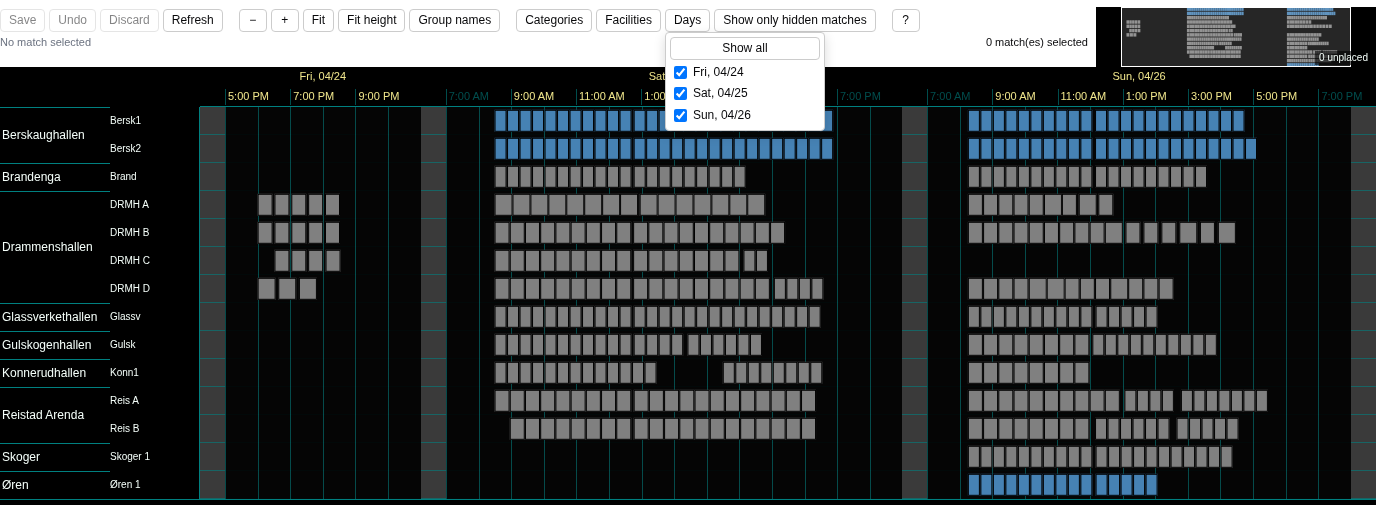
- Facilities lists every facility with its number of courts. Untick a facility to hide it, or click its name to show only that one. Show all at the top of the menu brings every facility back. The same menu holds Show venues with matches, which hides courts with no match on the days shown.
- Days lists the days that have matches. Untick a day to hide it, or click a date to show only that day. Show all days with matches brings them all back.
- Show all venues appears while a facility or court filter is active, and shows every court again.
- Show only hidden matches shows only the matches the public cannot see, and a dashed border marks them. It is shown to users who can move matches.
- Categories highlights every match in the class you pick, and Unmark all removes the highlight. When the tournament has a single class, the button shows the class code instead.
- Show group names shows or hides the class and group name on the match boxes.
To zoom, use the minus and plus buttons, Ctrl + mouse wheel, or drag across an empty area to zoom to it. Click a day header to zoom to that day, and click a facility or court name to show only that one. Show all days fits every day and court into view, and Show all facilities stretches the chart to fill the available height. Show in filter reloads the graphical area with the latest changes, and Ctrl + Space does the same. Help lists the keyboard and mouse shortcuts.
When you can edit the schedule, you move matches straight in the graphical area.
- Click a match to select it. Ctrl/Cmd + click adds more matches, and Shift + drag selects every match in an area.
- Drag one of the selected boxes to the day, time and court you want. Several selected matches move together and keep their spacing. Esc cancels the drag.
- Press Save. Until you do, the button counts your changes, for example ":count matches changed".
Where a dropped match lands. Dropped exactly on the start of another match, the two swap places. Dropped on a free slot, it stays there. Dropped partly over another match, it is placed in front of or after that match, on the side that has room that day. When neither side has room, it stays where you dropped it and shows as an overlap. Start times snap to whole 5 minutes. A match that has a result stays where it is.
With the keyboard. The left and right arrow keys move the selected matches 5 minutes, or 1 minute with Ctrl, and the up and down arrows move them to another court.
Unplaced matches. Matches without a date, time or court wait in the strip Unplaced matches (:count). Drag one onto the chart to place it, and that drop is saved right away. Drag a placed match onto the strip to take it off the schedule again.
- Undo steps back your last unsaved move. With nothing unsaved, it takes back your last save, within five minutes of saving.
- Discard drops every move you have not saved.
- Show in filter reloads the chart, and asks first when you have unsaved moves.
- Moves you have not saved are saved for you when you leave the page.
When others work at the same time. Matches that someone else changes are updated in your chart as you work. If you have an unsaved move on such a match, its tooltip says "Changed by someone else: Save keeps your move, Discard takes theirs". When a move cannot be saved, you see "The match could not be saved" and the match goes back to where it was.
Bulk changes from the table, the rules for days and courts, and tips for large schedules are covered on Generating and scheduling matches.
Right-click a match box in the graphical area to open its menu.
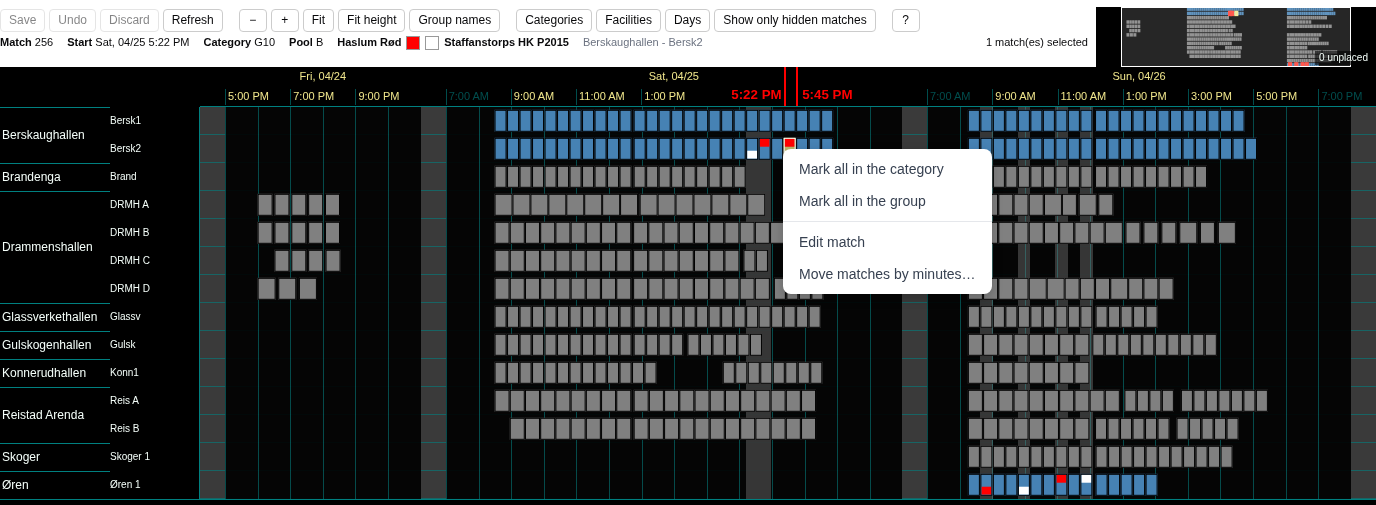
- Mark all in the category highlights every match in the class of that match.
- Mark all in the group highlights every match in its group.
- Unmark all removes the highlight, and is shown while something is marked.
- Edit match opens the match form for that match, described on Editing a match and registering results.
- Make match break from here shifts this match and the later matches of its group on the same day by a number of minutes, on every court. Enter a positive number to move them later or a negative one to move them earlier, and confirm with OK. Before you confirm, the box tells you how many matches will move, how many are skipped because they are finished or live, and how many are outside your current filters. When a match would end up outside the day's start or end time, or on a court that is already taken, nothing is moved and the box names the match in the way. The shifted matches wait for Save like any other move.
Edit match and Make match break from here are shown when you can edit the schedule. Make match break from here needs a match that belongs to a group and has a court.
The table below the graphical area lists one match per row, and two sets of filters narrow it. The filter bar narrows the table, and the graphical area keeps the filters from its own toolbar.
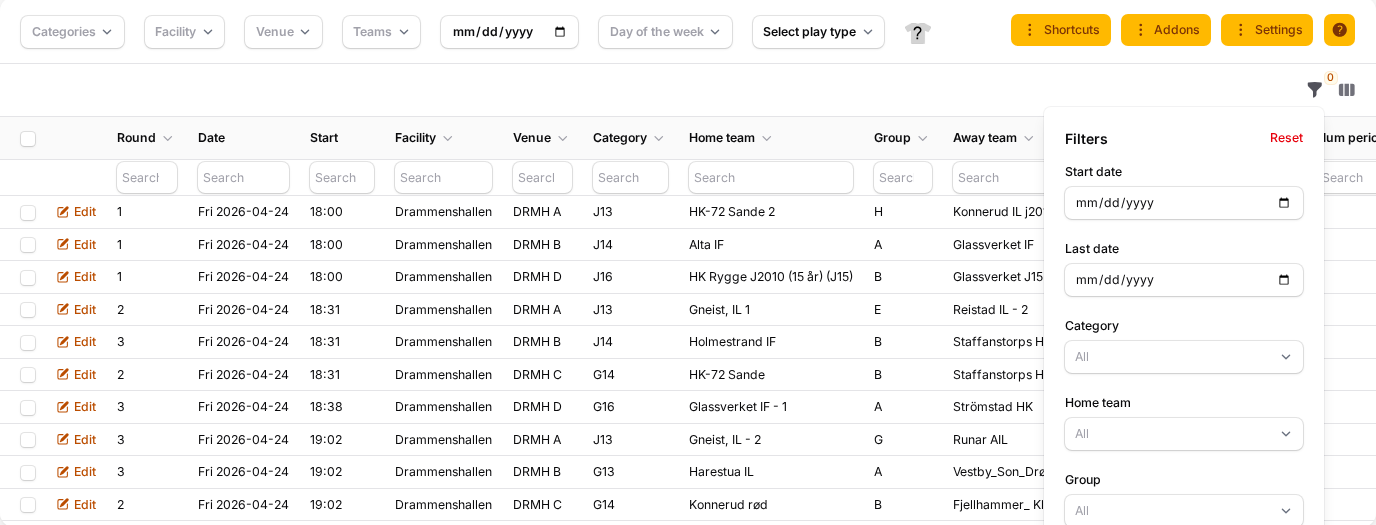
The filter bar above the table. Categories, Facility, Venue and Teams each take one or more values, the date field picks one date, and Day of the week picks one or more weekdays. Select play type chooses between All, Group play and Playoff, and appears when the tournament has playoff matches.
The filter panel. The funnel button opens filters for Start date and Last date, Category, Home team, Group, Away team, Facility, Venue, Include in Final play? and Lock competitors?. The filters apply as soon as you choose them. Most columns also have a search field of their own.
Team colours. The shirt button at the end of the filter bar colours a team in the table: click a home or away team name, then pick a colour. Clear all removes every team colour. The shirt button is shown in the scheduling version of the page.
- Edit at the start of a row opens the match form.
- When matches are hidden from the public, a button above the table shows how many, for example "3 matches hidden". After a confirmation it makes the selected hidden matches visible, or every hidden match when none is selected. It is shown in tournaments that use Use simplified scheduling.
- Columns can be shown, hidden and reordered, and you can show 5 to 100 rows per page.
Shortcuts above the table holds the base data behind the schedule, and each item opens a window over the match page. The items below are shown in the scheduling version of the page.
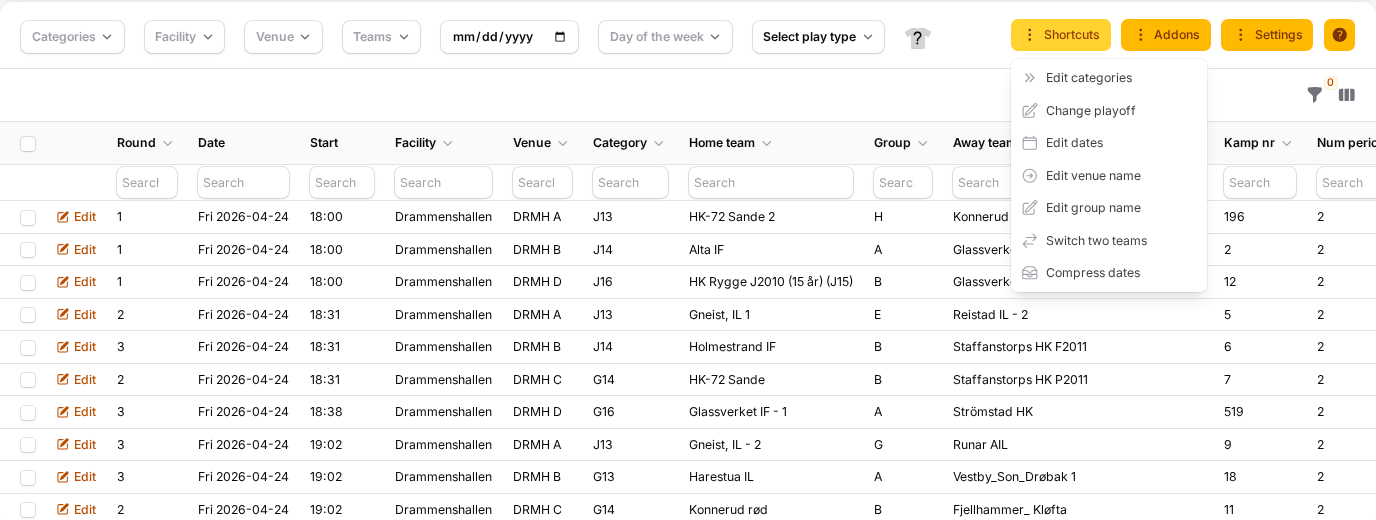
- Edit categories lists the classes, where you edit code, name, match length, number of periods and period length straight in the table, and choose whether a class's table is hidden or the class is closed. Tick several classes to change match length or periods for all of them at once.
- Change playoff lists the playoff series with their number and name, and whether each one is published.
- Edit dates lists the match days with their start and end time, and lets you add a day.
- Edit venue name has two tabs: Facility for the facilities with their name and map location, and Track for the courts with their name and description. Each tab has a button to add a new one.
- Edit group name lists the groups, where you change the name shown and the order.
- Switch two teams lets you pick a level, then one team in each list, and confirm with Switch selected two teams. The two teams exchange their matches from today onwards; read the notes on Generating and scheduling matches before you use it. Clear the filter bar above the table before you use it.
- Compress dates pulls each match day's start and end in close to its first and last match, and reloads the page.
In the referee-setup version of the page the same button is called Referee functions and holds referee tools. Days, facilities and courts in more depth are covered on Generating and scheduling matches.
Addons above the table holds tools for building the schedule, printouts and exports.
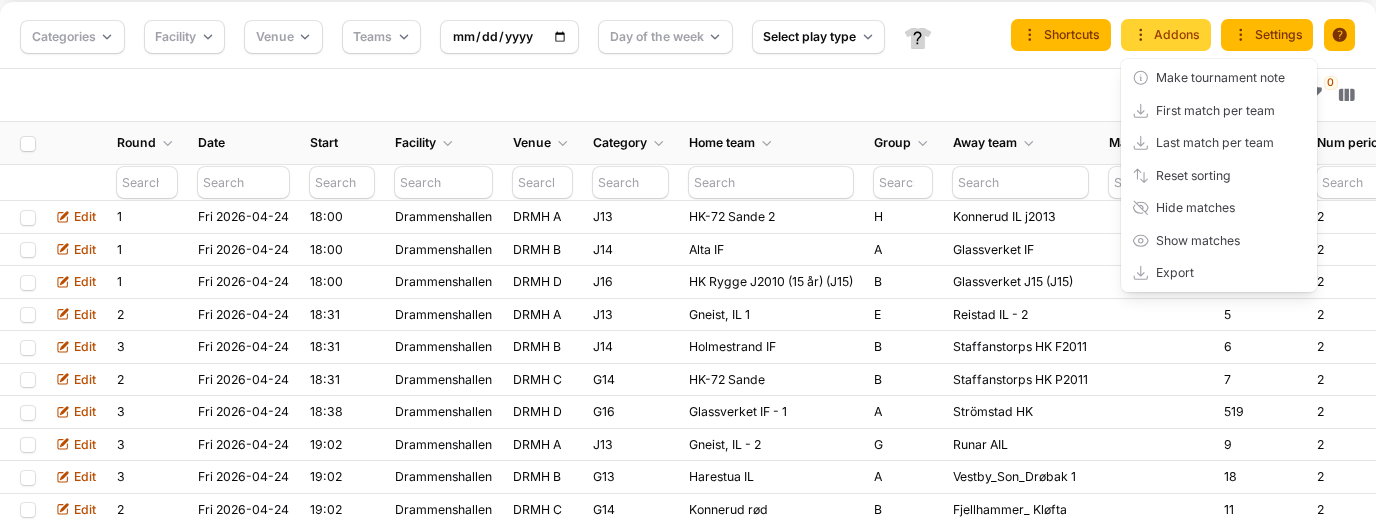
- Scheduling opens the screen for spreading teams over groups and dates in a window, and Make matches opens the window that generates the fixtures. Both are shown in tournaments that use Use simplified scheduling, to tournament admins and users with the match-scheduling permission, and are described on Generating and scheduling matches.
- IsPrep is shown in ice hockey and bandy tournaments. In Plan IsPrep you pick a day, facility and court, add one or more time slots and a note, and press Print report. With e-mail addresses in Emails the plan is sent to them, otherwise it downloads as a PDF.
- Make tournament note holds a text that is shown at the top of the tournament's match schedule pages, and you remove it with Delete.
- First match per team and Last match per team download an Excel file with each team's first or last match, with date, court and facility.
- Reset sorting removes a sort you have set on several columns of the table.
- Hide matches public hides the matches you have ticked in the table from the public, and Show matches public makes them visible again. Both are shown in the scheduling version of the page, and what hiding does is described on Hiding matches, schedules and results from the public.
- The last entry downloads the match table as an Excel file.
Settings above the table holds tournament-wide choices around match changes, and links to two logs. Its items are shown to users with tournament admin, match edit or referee admin rights.
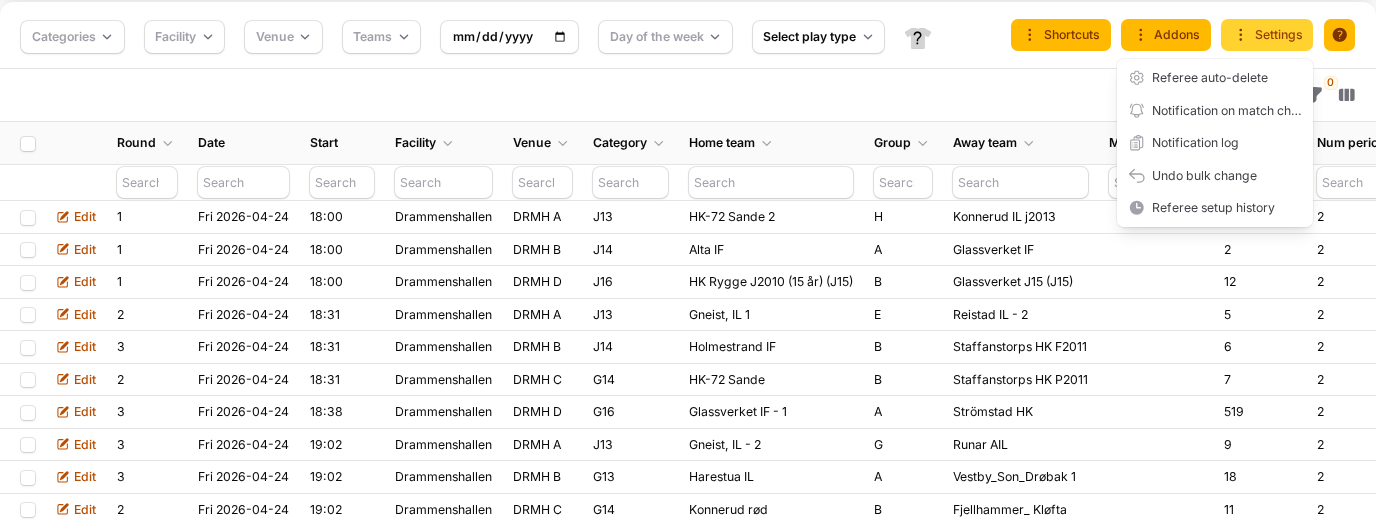
- Referee auto-delete has Auto-delete referees when match is moved, which removes the referees from a match when its date or time changes. Minimum minutes for auto-delete sets how large the time change must be before referees are removed.
- Notification on match change has a part for Team leaders and one for Referees, each with Notify on match changes and Days before match start. When it is on in a tournament with communication enabled, they are notified when a published match they are part of changes and starts within that number of days. Referees can also get Notify on referee assignment changes.
- Notification log opens a list of the notifications about match changes and referee assignments.
- Undo bulk change restores a date, time or court change you made for many matches at once from the table, picked from Bulk schedule changes from the last 7 days. It is not part of the referee-setup version, and how it works is described on Generating and scheduling matches.
- Referee setup history opens the history of referee assignments, described on Referee setup: assigning, publishing and restoring referees on matches.
Tick matches in the table to act on many at once; filter first, then tick the checkbox in the heading to take every match on the page. The table and the graphical area share one selection: matches you click or area-select in the chart are ticked in the table, and matches you tick in the table are selected in the chart. The row under the chart shows how many are selected, for example ":count match(es) selected".
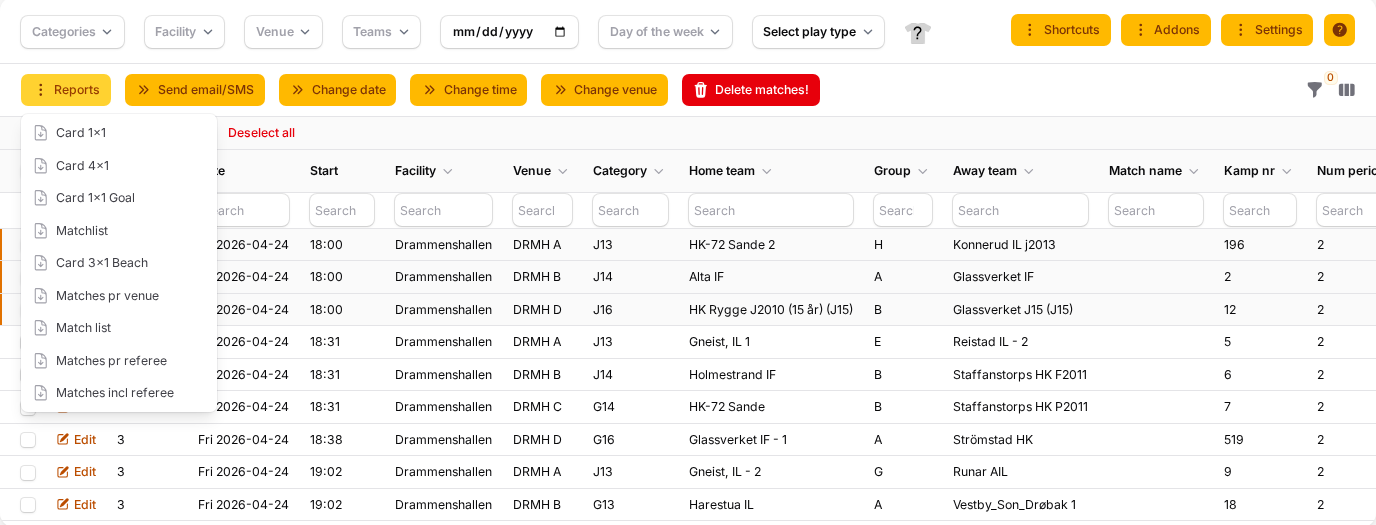
With matches selected, these actions are available above the table:
- Reports lists the PDF reports set up for your organisation, such as match cards, and each one downloads a PDF of the selected matches.
- Send email/SMS writes to the team leaders of the selected matches by e-mail or phone, in approved tournaments with communication enabled; see Messages, e-mail and SMS to teams and participants.
- Change date gives every selected match the date you pick in Match date.
- Change time gives them the time in Match time, shifts each of them by the number of minutes in Move matches, or with Do not use match date and time takes the date and time off, so they wait among the unplaced matches.
- Change venue moves them all to the court you pick.
- Delete matches! deletes the selected matches permanently after a confirmation.
A change of date, time or court asks you to confirm with the number of matches, and the message afterwards has an Undo button. Send email/SMS, Change date, Change time, Change venue and Delete matches! need referee-admin rights. Delete matches! is offered only in tournaments that are not series run from the federation system. Hide matches public and Show matches public under Addons also act on the ticked matches.
See also
- Classes, groups and competition format
- Generating and scheduling matches
- Editing a match and registering results
- Hiding matches, schedules and results from the public
- Messages, e-mail and SMS to teams and participants
- Referee setup: assigning, publishing and restoring referees on matches
- Giving people access to a tournament
- Series administrator for a match day
Was this page helpful?