Match move requests
Turning the apply-to-move function on with the "Kan flytta matcher" date, how club administrators request a move from the match card in the app, where the requests land in PL, and what happens when a district or federation administrator accepts or rejects them.
Club administrators can apply to have a match moved. This is done in the Profixio app ("APP" in PL), on the ordinary match card. When a match move request has been made, the opponent's club administrator gets a message.
Depending on the settings, the match can be changed directly if the teams agree. Otherwise the match move request must be approved by a competition administrator, who handles it in PL.
Only matches with a valid date and time are available for a match move request. Matches without date and time cannot be requested to move this way.
- Changing a match yourself in PL, without a request from a club: see Changing a match: date, time, venue and teams.
- Letting clubs set the time of their own matches directly in the app: see Letting clubs set times in the app.
- The notifications sent when a match changes: see Notifications when a match changes.
- Publishing the schedule to the app: see Publishing the schedule.
- Appointing and removing referees on matches: see Assigning and removing referees on matches.
For other roles
To turn on the match move request function, a date in the future must be set in the menu "Hem" (home), on the tab "Tävlingsinställningar" (competition settings).
- Open the window "Avancerad data för tävlingsnivåer" (advanced data for league levels). The column "Kan flytta matcher" (can move matches) must be set to a date in the future. This turns the function on.
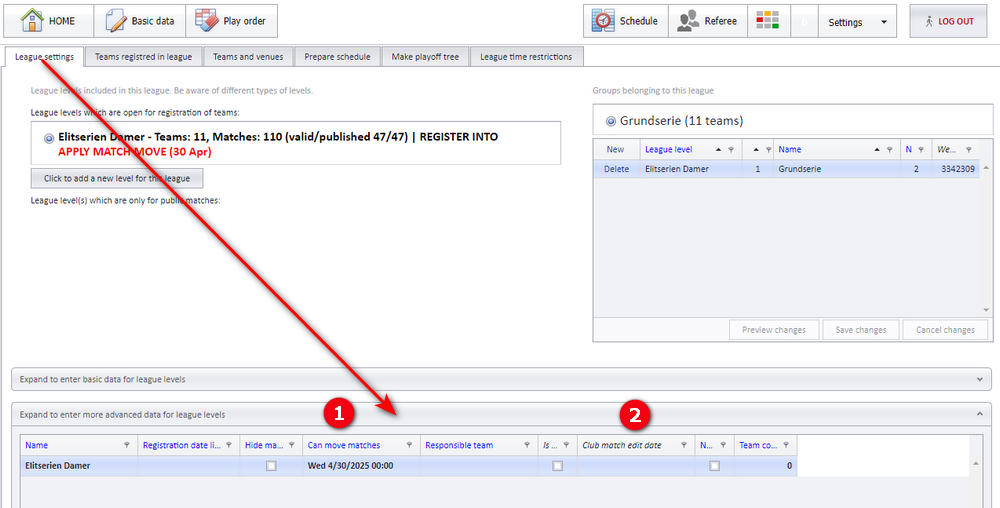
To turn the function off, set a date that has already passed.
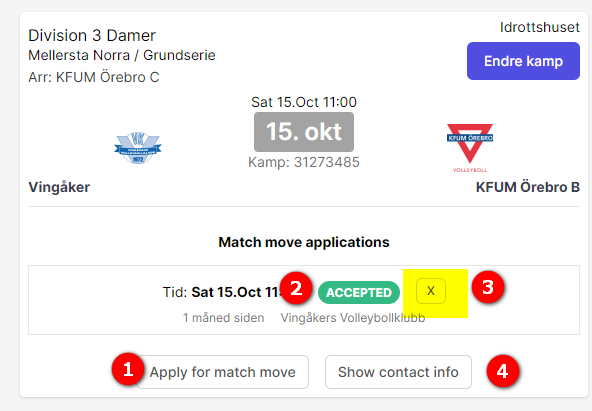
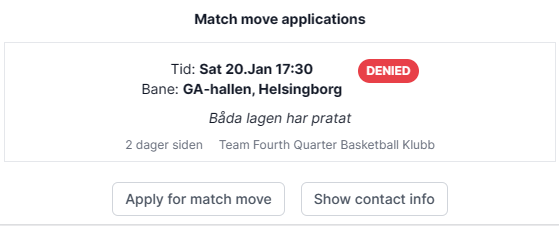
Open the competition's page in the Profixio app and click "Matcher" (matches) so that the match card is shown. Both the home club's and the away club's administrators can apply for a match move. When the request has been made, the match card changes and shows information about the request.
- Click the button "Ansök om matchändring" (apply for match change). A new date/time and/or a new venue must be entered. A comment can also be included, for example the reason for the request.
- The status of the match move request. "Accepterad" (accepted) is shown when the organiser has set match moves to be accepted automatically.
- Button to withdraw the request. It is shown only to the user who made the request, and only while the request has the status "Skickad" (sent).
- This button shows contact information for the teams and the people connected to the match.
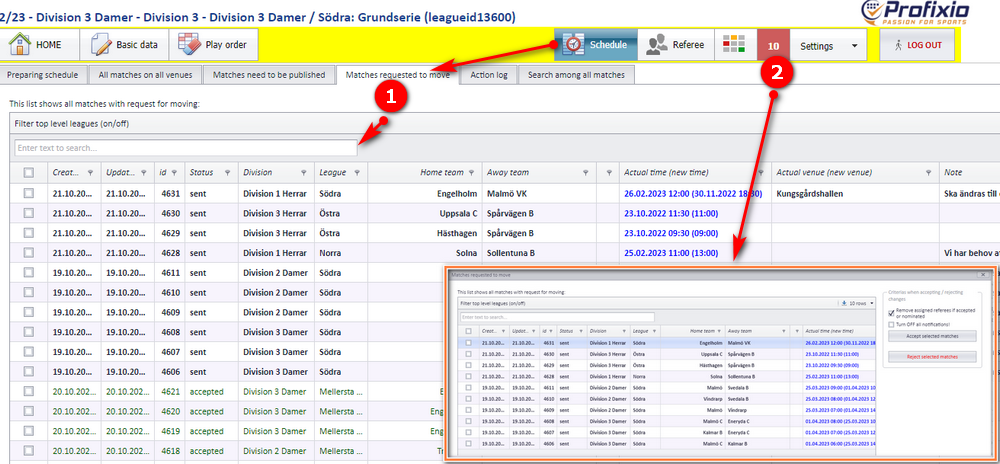
There are two ways to get a list of the match move requests that exist.
- Go to the menu "Spelschema" (schedule) and then the tab "Ansökningar om matchändring" (match move requests). This view shows all matches regardless of their status. Matches waiting for an answer from the competition administrator are shown at the top of the view.
- From the menu button shown in the screenshot. This button opens a popup showing only the matches that have not been handled yet.
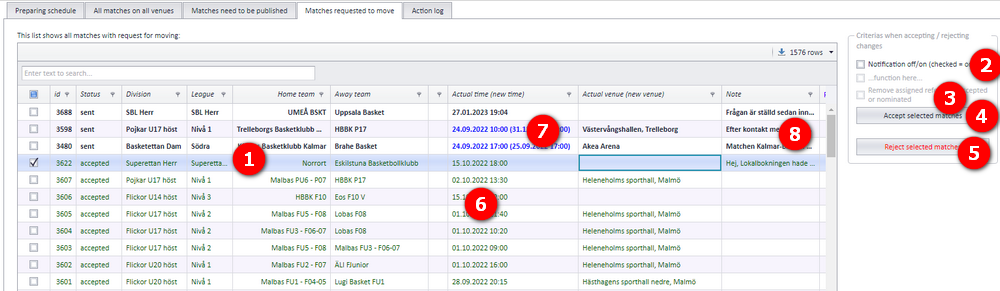
All match move requests are shown in PL when you are logged in as a district or federation administrator. You can change the status of a match at any time: a match move request that has been rejected can be approved later.
- Select one or more matches to approve or reject.
- Turn notifications on or off. Notifications are sent to the teams and the referees of each match.
- Choose whether to remove the appointed referees or not. If ticked, the referees are removed from the selected match(es). If not ticked, referees with the status "Accepterade" (accepted) are set to "Nominerade" (nominated).
- Click "Godkänn valda matcher" (approve selected matches) to approve the request.
- The match is changed in PL. If the match is moved into another round, the match is moved to that round.
- The match is updated in the public schedule in the app with its new date and/or venue.
- The request's status changes and the request disappears from the match card in the app.
- A notification is sent to both teams' club administrators.
- "Neka valda matcher" (reject selected matches): see Rejecting a request below.
- Green text marks approved requests.
- Bold text means the request has been sent but not handled yet. Blue text in the time or venue box means the value has been changed; the new time or venue is shown in brackets.
- If you want, you can add a comment on the approval or rejection. After the comment has been written, it must be saved.
Select one or more matches in the match move request list and click "Neka valda matcher" (reject selected matches) to reject the request.
- The match is not changed in PL or in the public schedule in the app.
- The request's status changes to "Nekad" (rejected) on the match card in the app.
- Contact the clubs yourself if you want to tell them more about the rejection.
A rejected request can be approved later from the same list.
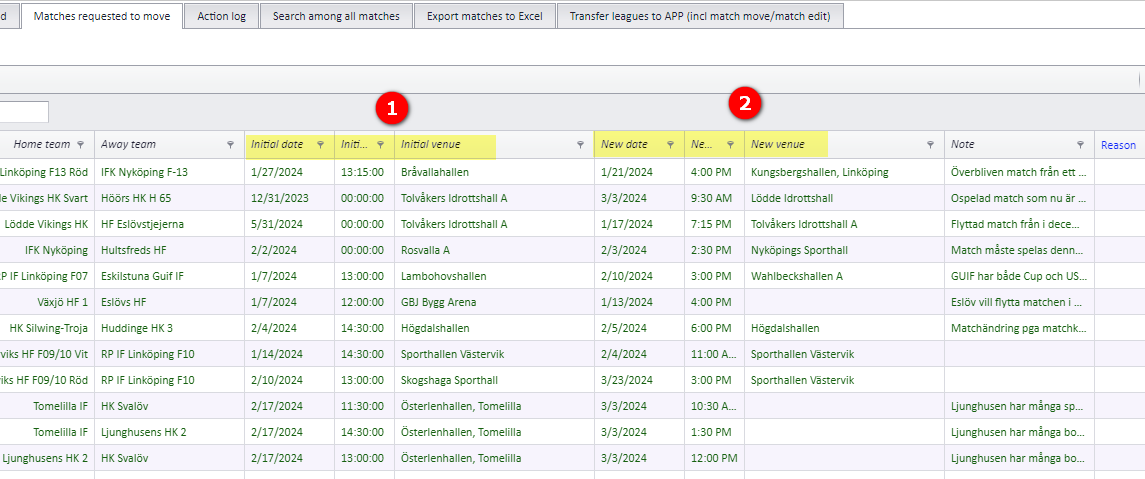
The match move request list has two groups of three columns for date, time and venue, marked yellow in the screenshot below.
- The three columns to the left: for a match that has a request but is not approved, they show the actual time and venue. For an approved match, they show the original date and venue from before the match was approved.
- The three columns to the right: for a match that has a request but is not approved, they show the requested time and venue. For an approved match, they show the new date and venue.
Was this page helpful?