Running a season-long league in the Scheduler
Using TXO for a long-running league where the team leaders themselves enter date, time and venue for their matches: the two settings to change, how the matches are published unscheduled, and what the team leaders do on the web.
Looking for something else? Making the schedule Moving, switching and deleting matches Publishing the schedule, e-mail and SMS Ranking tables and result positions
A league play is typically a long running tournament where the team leaders are responsible for match date, time and venue. A league play can easily be made in TXO.
You make all the matches in the Scheduler and publish them, but you leave date, time and venue open. Each team leader then fills in when and where their own matches are played, on the Profixio web site.
Follow these steps.
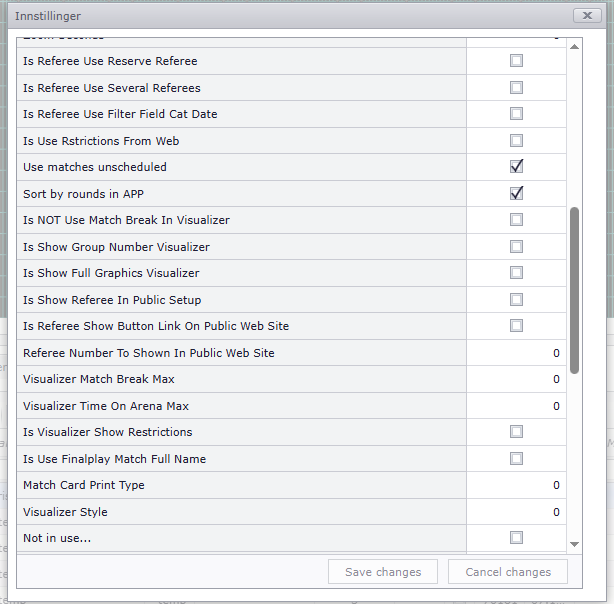
- Change settings to "Use matches unscheduled" and "Sort by rounds in APP".
- Make matches. Because of the settings, they are made unscheduled.
- Publish your schedule.
- In the public schedule view (app), matches show without time and venue. This is because team leaders shall set time and venue for their matches.
- In the admin site, decide if team leaders shall register results on their own matches. This is preferable for some tournaments where the teams are responsible for result registration.
- Enter when matches shall be played as a comment:
- Make a filter on round.
- Check on all matches in that round.
- Click "Set match note".
- Enter a note, typically "During week 4", and save this note. Continue with the other rounds.

| Setting | What it does | Where |
|---|---|---|
| "Use matches unscheduled" | The matches you make get no date, time or venue, so there is something for the team leaders to fill in. | Settings in TXO, before you make the matches. |
| "Sort by rounds in APP" | The published schedule is sorted by round in the app, which is how a league is read when the individual matches have no date yet. | Settings in TXO. The picture below shows the sorting. |
| Team leaders register results on their own matches | The teams themselves enter the result of the matches they play. | The admin site on the web, not in TXO. |
Sorting rounds in APP:
When a team leader logs into Profixio, he or she clicks "My Profixio" and then the button "Update matches". A list with all matches shows up.

The team leader now enters date, time, venue and, if needed, a comment for the match. At the end, save by pressing Enter or clicking the "Save" symbol.

This page covers running a season-long league where the team leaders themselves set date, time and venue, and the settings that make that possible.
It does not cover how the matches are generated, the league play systems you can choose between, publishing and reports, moving or deleting a single match once it has a date, or how the tables are calculated from the results. Those are covered on their own pages.
Was this page helpful?