Moving, switching and deleting matches
Moving a match to another time or field, switching two teams' matches, and deleting matches or a whole schedule in the Profixio Scheduler.
Once a schedule exists, you adjust it in three ways in the Profixio Scheduler: move matches to another time or field by dragging them in the visualizer, switch two teams so that they take over each other's matches, or delete matches you no longer want. Moving and switching are saved with a save button; deleting is final.
Matches can be moved in several ways: as single matches, as several matches at once, and as a whole block.
Moving a single match
Click on a match and drag it to the new position.
Moving several matches
- Press the CTRL key and select the matches.
- Drag one of the selected matches to the new position.
Moving a block of matches
- Press the SHIFT key and drag a rectangle over the matches.
- Drag one of the selected matches to the new position.
Video clips showing these three situations:
After you move matches, the rows in the grid below the visualizer turn red (pinkish red), which tells you that those matches are not saved yet.
Save the moved matches with the save button at the top of the visualizer. Saving also happens automatically along the way.
To undo a move, click the undo button at the top of the visualizer (symbol: an arrow pointing back). You can undo every move made since the last save.
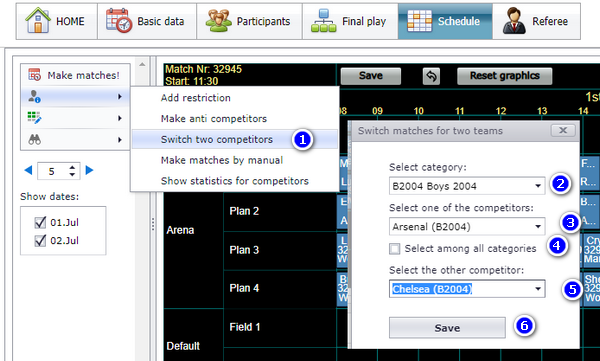
The two selected teams switch matches, and also group and category if these are different.
- Select from the menu as shown in the screenshot.
- Select the category the first team is in.
- Select the first team (only teams from the selected category are shown).
- If you want to choose the other team among all categories, tick this box.
- Select the other team.
- Click "Save".
Deleting matches is final: a deletion cannot be undone.
You do not need to delete matches before scheduling. If you have already scheduled group B12-A and want to reschedule it, there is no point in deleting the existing matches first.
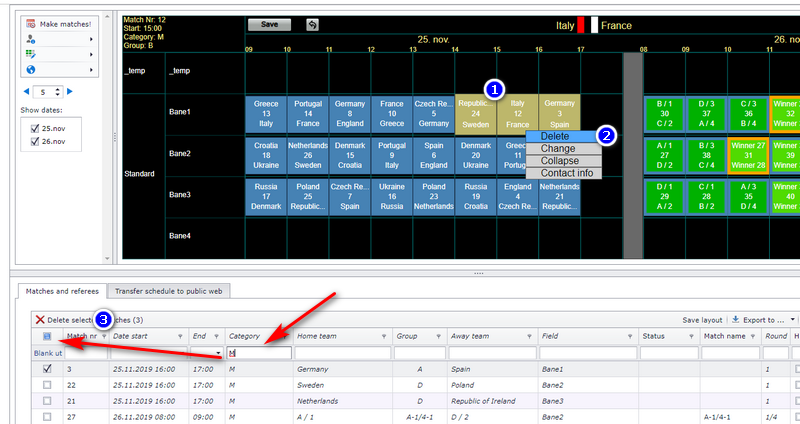
- Select several matches by holding the CTRL key while you left-click the boxes (matches) in the visualizer. Tip: select a block of matches by holding the SHIFT key while dragging a rectangle around or over the matches.
- After selecting the matches, right-click and choose "Delete".
- Matches can also be deleted from the match table below the visualizer. Select the matches with the checkbox in the upper left corner first. Tip: make a filter first if you, for example, want to delete all matches in a category (see the arrow in the screenshot).
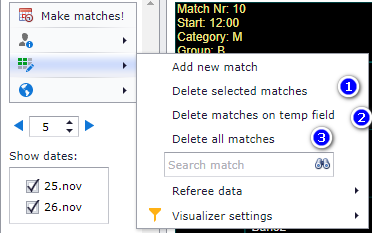
You can delete a whole schedule from the menu shown in the screenshot (bubble 3).
- Generating the schedule in the first place: see "Making the schedule".
- Filtering and reading the match table and the visualizer: see "Reading and filtering the schedule".
- Taking a safety copy before deleting matches or a whole schedule: see "Backup and restore".
- Longer recorded walkthroughs of the program: see "Video walkthroughs".
Was this page helpful?