Managing a registered team
What can be changed about a team after it has been registered in a tournament: name, class, club and logo, contact people, ordered services, documents, the waiting list, streaming opt-out, the team event log, and deleting or withdrawing a team.
Looking for something else? Classes, groups and competition format Generating and scheduling matches Registering teams in a series Live results, live feeds and streaming
Getting a team into the tournament in the first place — the registration wizard, choosing club and class, extra questions and the rules a team accepts: see Registering a team for a tournament.
Players and leaders on the team — adding people, roster limits, guest players, licences: see The team roster (name list).
Invoicing — creating invoices and credit notes, collective invoices, reminders: see Invoicing teams.
Payment follow-up — the ledger, registering payments, who owes what: see The team ledger and chasing payments.
Prices — setting the fee per class, defining services and add-ons, giving discounts to clubs and districts: see Fees, services and discounts.
Writing to the teams — e-mail, SMS and the dialog with a team: see Messages, e-mail and SMS to teams and participants.
Registering teams in a series — series and division registration is a different administration system: see Registering teams in a series.
Rescheduling after a withdrawal — vacant teams and regenerating a group: see Generating and scheduling matches.
Streaming as a whole — which classes are streamed and how the feed works: see Live results, live feeds and streaming.
Club logos — where they come from and who owns them: see Club logo.
Choose your federation to see rules that apply to you
Some of this page depends on your federation. Choose it at the top of the page to see the settings that apply to you.
Most of this page is the same everywhere. These are the exceptions, and they are decided by the federation, not by the individual organiser.
Swedish beach volleyball. Deleting a team removes it completely rather than hiding it, so there is nothing to undelete — treat deletion as final. Waiting-list teams and each team's status are shown on the public registration list, and tournament staff can edit the registration's completion date by hand. The team leader's details are hidden from the registration form for everyone but staff.
Swedish table tennis. Each team's status is shown on the public registration list.
Swedish wrestling. Clubs can order transport for the whole club rather than per team. The Transport card appears on the club's page and on My Registrations for anyone with access to that club, and asks for: number of people, arrival place, arrival and departure date and time, flight/train/ferry number and any other information. The order is billed as a service. Organisers see every club's order on the Transport Overview page, with a calculated transport cost, date filters and a spreadsheet export. The organiser decides per tournament whether transport is offered and what each mode costs.
Series play generally. A team that already has matches cannot be deleted at all, not even by tournament staff — the matches have to go first. Whether clubs may rename their team, change their club logo, or edit their own roster is set by the federation.
For other roles
A team that has been registered in a tournament stays editable — by the organiser, and to a lesser degree by the club or team leader who registered it. Everything is done from a team list, and every list opens the same team panel.
The organiser reaches the lists from the Registrations menu in the tournament administration:
Teams — the main list of registered teams, with search, sorting and, for staff, an edit button on each team.
List teams — the older card-style list of registrations. It shows the same teams with a summary at the top (Registrations:, Waiting list:, Not completed:, Deleted teams:) and a per-team menu.
Registrations Overview — a read-only overview counting teams per class and per club, with waiting-list and payment badges.
There is also an older plain table, titled List of registrations, listing club, team name, Antall spillere, class, waiting list, Created at and Updated at, with a spreadsheet export and a delete on each row. It is not in the Registrations menu — it is reached from the separate legacy Turneringsadministrasjon page, where it is called Registrations ("View and export all registrations").
A club or team leader sees only their own teams, on My Registrations.
All of these open the same panel when you click a team, so it does not matter which list you start from.
Clicking a team name opens a slide-over panel with the team's name as its heading. Depending on the tournament and your access it has up to five tabs:
| Tab | What is on it | Shown when |
|---|---|---|
| Team (Participant in individual sports) | Team name, class, club, logo, waiting list, fee, extra questions, documents, streaming | Always |
| Events | The team's event log | Tournament staff only |
| Services | Services and add-ons the team has ordered | The tournament offers services |
| Persons | Contact people, and the roster if the tournament uses one | Always |
| Economy | Registration fee, service charges, invoices and payments for this team | Always |
Buttons at the bottom of the Team tab are Save, Delete and Cancel. Changes are saved per tab — saving the Team tab does not submit the Services tab and the other way round.
If the team has been deleted, the panel opens with a red Registration is deleted banner instead, offering Undelete the registration.
These four are all on the Team tab, and each has its own rule about who may change it and until when.
Team name. Type the new name in Lag navn (Name of Participant in individual sports) and press Save. The name must be unique among the teams that are still registered in the same class — and in the same level, if the class is split into levels. Tournament staff can always rename a team. In series play, a federation can lock renaming: then a team leader can only rename until the registration deadline, and only while the class is still open for registration.
Class. Pick another class in Lag klasse and save. The fee is recalculated from the new class, and the team gets an e-mail that its registration changed. Note:
- Tournament staff can move a team into any class, including closed ones.
- A club or team leader can only move a team before the registration deadline, and only while the team has no matches. Once the schedule includes the team, the class field is gone for them.
- The class you move to must still be open for registration, otherwise you get The category is not open for registration.
If the class the team was registered in has been deleted from the tournament, the panel shows The category has been removed from the tournament: with the old class code and Please select another category or contact the tournament staff. Pick a new class to fix it.
Club. Endre klubb opens the club search and lets you attach the team to another club. Discounts are recalculated afterwards. The same permission as changing class applies. There is also an older Swap club screen for tournament staff with the wider view all teams access, with Select a new club: and a Swap! button; it does the same thing and records a MovedClub entry in the event log.
Logo. A team's logo is its club's logo. Change club logo opens the club logo uploader. Changing it here changes the logo for that club everywhere in Profixio, not just for this team — see the club logo page. In series play, administrators of that club and tournament staff with team-editing rights can change it. If the federation has turned off club logo changes, ask your federation or district administrator how a logo is changed.
A team is put on the waiting list automatically when it is registered, or when it is moved into another class. Profixio puts it there if any of these is true:
the tournament is marked as having a waiting list,
the class is marked as having a waiting list,
the tournament has reached its maximum number of teams,
the class has reached its maximum number of teams, or
some other team is already on the waiting list for that class — so teams keep their order and nobody jumps the queue.
The team sees The tournament is full. or The class is full. on its registration, and a Waiting list badge in the public lists.
Taking a team off, or putting one on. Tournament staff get a waiting-list field on the Team tab with three choices:
Laget er ikke på venteliste — not on the waiting list,
Laget er på venteliste pga turnering er full — on it because the tournament is full,
Laget er på venteliste pga klassen er full — on it because the class is full.
Set it and press Save. Once you have set it by hand, Profixio stops recalculating it for that team — your choice sticks even if the class later fills up or empties.
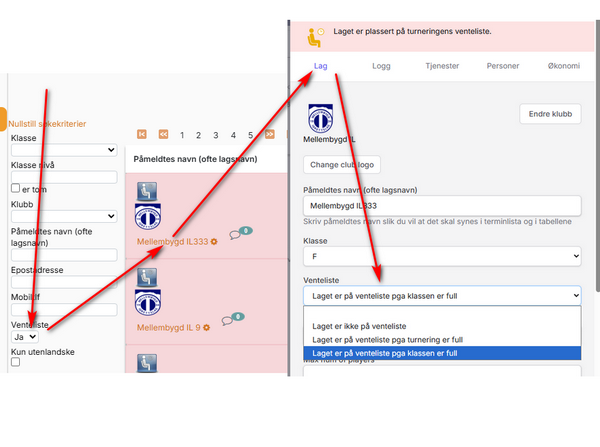
Each change is written to the team's event log as Team put on waiting list or Team removed from waiting list, and the team is e-mailed ("Your team was moved to the waiting list" / "Your team is no longer on the waiting list") if the tournament sends registration e-mail to the registrant at all.
While a team is on the waiting list its panel shows The registration has been put on a waiting list.
Every team carries a status. Profixio sets it automatically every time the team is saved.
| Status | Shown as | Set when |
|---|---|---|
| Complete | Ok | Nothing is outstanding |
| Not completed | Ikke fullført | The tournament requires the registration fee to be paid online first, and it is not paid |
| Needs approval | Trenger godkjenning | The tournament requires services to be ordered, and the team has not finished ordering them |
| Partner wanted | Makker ønskes | A player on the team has asked for a partner (player-based registrations) |
When a registration shows as not completed, the team is told why on its own registration: that the registration fee is unpaid (with a pay link), that required services have not been ordered, that no participant card has been ordered, or which required fields are still empty.
The moment everything is in order the status flips to complete and the completion date is stamped on the team. Fix the underlying cause — register the payment, order the missing services, fill the missing fields — and the status corrects itself.
Incomplete teams are not hidden. They appear in the team lists, in the counts and in the tournament's public registration list like any other team, marked as not completed. The List teams page shows how many there are under Not completed:.
The Persons tab holds the team's contact people under Contact persons. These are the people who can log in and manage the team, and who receive the e-mail Profixio sends about it. A team can have several. The team leader sees the same list on their own team page, headed Your team administrators.
Adding one. Press the add-contact button and fill in e-mail, name and phone, then Add contact to the team.
- If the e-mail already belongs to a Profixio user, the name and phone are filled in for you and locked — you cannot rename somebody else's account from here.
- If the e-mail is unknown, Profixio creates an account for that person and e-mails them their login details.
Removing one. Open the person and press Remove the admin user. This removes their access to the team; it does not delete their Profixio account. The removal is recorded in the team's event log.
Resending the details. Send login info (on the team leader's own page: Send team information) re-sends the registration confirmation e-mail to that person, with the team's details and how to log in. Email sent confirms it went out. Use this when a team leader says they never received anything.
Note that the contact people are edited here and only here — the organiser's Team tab deliberately does not contain the team leader and contact fields, so that the two screens cannot overwrite each other.
See the checklist section for the full list of who can edit a team.
Services and add-ons — accommodation, meals, participant cards, extra passes — are changed on the Services tab of the team panel. Set the number of each service and save. Setting a number to zero removes the order line.
From the older List teams page the same thing is reachable from the team row as Order services, Order more services or Change services; when it is too late to change, the link reads Show services instead.
Who may change what, and until when. Tournament staff can always change a team's order. A club or team leader can only change it until the tournament's service deadline has passed; after that they get Service deadline reached and the tab is read-only for them.
If the team has already been invoiced or given a payment link. Reducing an order after an invoice exists needs the money side undone first:
If there is an unpaid online payment link for the team, cancel it with Cancel payment on the team's Economy tab (or on the team's row in the list). Profixio cancels the link with the payment provider and, where applicable, produces a credit note.
Change the numbers on the Services tab.
Issue a new invoice from the ledger.
Invoicing, credit notes and payment follow-up are covered on their own pages — this page only covers changing what the team has ordered.
Saving the service form is recorded in the team's event log as Service form saved, and can trigger a new invoice for the difference.
Two values on the Team tab let tournament staff override, for one team only, what the class says.
The fee. The team's participation fee is shown and can be typed over. That overrides the class fee for this one team — useful when a team joins late, is a guest team, or has agreed a special price.
Max num of players. Sets a squad limit for this team. If it is empty, the class's limit applies; if it has a value, that value wins for this team. Only tournament staff see this field — a team leader cannot raise their own limit.
If a discount has been given to the team, its amount and reason are shown next to the fee but cannot be edited here: discounts are granted on their own screen, per team, per club or per district, and are recalculated whenever the team's club or class changes. When a discount actually changes the team's amount, the team is e-mailed that its price changed.
The Economy tab shows the whole money picture for the team: what the registration fee is, what services cost, what has been invoiced, what has been paid and what is left. Tournament staff with economy access can register a payment there.
Setting fees for a class, running invoices and chasing payments are separate topics with their own pages.
An organiser can require teams to upload documents as part of the registration — a dispensation, a signed form, proof of insurance. The organiser defines the document types (name, description, whether it is mandatory, and the order they appear in) in the tournament settings.
Uploading. The team uploads on the Team tab of its own registration, one field per document type. Mandatory types have to be filled in before the registration can be saved. Accepted files are PDF, JPG, JPEG, PNG, DOC, DOCX, TXT, XLS, XLSX, PPT and PPTX.
Replacing. Uploading again for the same document type replaces the file. The previous file is kept and can still be reached under Previous versions, so nothing is lost when a team sends a corrected version.
Collecting them. Tournament staff get a Team documents page listing every team that has uploaded something, with one column per document type. From it you can:
- download a single team's files with Download all documents for this team, or
- download everything at once with Download all documents.
Both produce a ZIP file. The page is only in the menu when the tournament actually has document types defined.
Profixio collects and stores team documents, and the organiser decides whether they are acceptable.
When a class is set up to be streamed, each team in it can opt out. The Team tab then shows a banner:
This class is set up for streaming — the team's matches may be streamed. The button is Reserve team against streaming.
This team is reserved against streaming — the team has opted out. The button is Remove streaming reservation.
Both ask for confirmation first ("Team matches will not be streamed" / "Matches may be streamed again").
Either the organiser or the team's own leader can set it. The reservation applies to the whole team and is checked before any individual player's filming reservation, so it is an absolute switch: reserve the team and none of its matches are marked for streaming, whatever the players' own settings say. Because a match needs both teams to be clear, reserving one team also takes its opponents' matches against it off the stream. Removing the reservation puts them back in scope.
The choice is only offered where it makes sense: the class must be marked for streaming, and must not be marked as being of general public interest. Classes of public interest are always streamed and the registration screen says so — "This class is designated as public interest. Matches will be streamed and streaming reservations will not apply."
Whether a class is streamed at all, and whether it is of public interest, is not a tournament setting: it is set per class by the federation on its Streaming page, and only exists for federations whose sport is enabled for streaming.
The Events tab is a full history of what has happened to the team, newest first. It is shown to tournament staff only.
Each entry gives the event, the details, when it happened and — where Profixio knows it — Who did it? with that person's e-mail address.
What ends up in the log:
Team saved, and every change to the roster (Player created, Player updated, Player deleted) with the exact fields that changed, before and after.
Team put on waiting list and Team removed from waiting list.
Deleting, undeleting and deleting the team's matches.
Admin user removed when a contact person is taken off the team.
Service form saved when the team's order changes.
One entry for every e-mail Profixio sent about this team — registration confirmation, changed registration, waiting-list mail, discount mail, service confirmation, payment receipts — including the addresses it went to. If sending failed, the entry is prefixed ERROR.
Two aids at the top: a Search by data box that searches both the event names and the details, and a Show only player logs switch that hides everything except roster changes.
This log is the first place to look when someone asks "who changed this?" or "did the team get the e-mail?". It is not editable and entries cannot be removed.
A team that pulls out is deleted from the tournament. Use Delete on the Team tab, or Delete in the team's menu on the list. You are asked to confirm.
What deleting does.
The team is removed from the lists, from the counts and from the public pages. Tournament staff can still find it by filtering on deleted teams.
The team's roster is deleted. This is not undone by undeleting the team — the players have to be entered again.
Its matches are not touched. They keep pointing at the team.
An e-mail is sent about the deletion ("This registration has been deleted:") with the team's details. If the tournament has a message stored for deleted registrations, it is included under Melding fra arrangør.
The deletion is written to the team's event log.
Undoing it. Open the deleted team; the panel shows Registration is deleted and Undelete the registration. Only tournament staff can undelete a team — a club or team leader who deletes their own team cannot bring it back themselves. Remember that the roster is not restored.
The team's matches. Once the team is deleted and it has matches, the panel shows The team has matches. Do you want to delete these matches? with a Delete matches button, for staff who may also edit matches. This is permanent — the confirmation says so — and the tables for the affected classes are recalculated afterwards. Leave the matches alone if the team may be replaced.
Who may delete a team.
Tournament staff can delete any team in a tournament. In series play they can only delete a team that has no matches.
A club or team leader can delete their own team only before the registration deadline, and only while the team has no matches.
A team that is already deleted cannot be deleted again.
After the schedule is made. Withdrawing a team has to be done here, in the tournament administration — it cannot be done inside the scheduling tool. Reload the participants in the scheduling tool afterwards. The withdrawn team's matches are then held by a vacant team rather than deleted, so a replacement team can be dropped straight into them. If you are rescheduling the group instead, turn on the option to delete vacant teams before scheduling.
A club or team leader who is signed in sees their teams on My Registrations and can open each one. What they may change is deliberately narrower than what the organiser may change, and most of it is bounded by the tournament's deadlines:
| What | Until when |
|---|---|
| Team name | Not deadline-bound, except in series play where the federation has locked renaming — then until the registration deadline and while the class is open |
| Class | Until the registration deadline, and only while the team has no matches |
| Club | Same rule as class |
| Contact people | No deadline |
| Ordered services | Until the tournament's service deadline |
| Roster (players and leaders) | Until the player deadline, unless the federation has turned off roster editing for team administrators |
| Team documents | Same as the rest of the registration form |
| Streaming reservation | No deadline |
| Delete the team | Until the registration deadline, and only while the team has no matches. Cannot be undone by them |
What they never get: the waiting-list field, the fee, the maximum number of players, and the event log. Those are tournament staff only.
If a team leader needs something changed after their deadline has passed, the organiser can still do it — deadlines do not apply to tournament staff.
Everything an organiser can pull out about registered teams:
| Export | Where | Contains |
|---|---|---|
| Registration Excel | Registrations menu | All registrations with their economy data |
| Registrations Deleted | Registrations menu | The same, for deleted registrations |
| Download team admins | Registrations Overview | The teams' contact people |
| Export players | Teams list | The roster, in tournaments that use the multi-player name list |
| Export Registrations | Legacy Turneringsadministrasjon page | The List of registrations table as a spreadsheet |
| Export | Transport Overview | Arrival and departure details per team, with calculated cost |
| Download all documents / Download all documents for this team | Team documents | The uploaded files as a ZIP, for all teams or one team |
The team lists themselves can also be narrowed before you read or export them. List teams filters on class, level, club, team name, contact e-mail, contact mobile, waiting list, district, foreign clubs only, deleted teams and unfinished registrations, with Reset søkekriterier to clear them and an Items per page setting.
These are the settings that decide what can be changed on a registered team, and where they live.
| Setting | What it does | Where it is set |
|---|---|---|
| Registration deadline | After it, a club can no longer change class or club, or delete its team. Tournament staff are unaffected | Tournament Deadlines page |
| Class registration deadline | A class that has closed cannot be moved into, and in federations that lock renaming it also stops team-name changes | Class settings |
| Service deadline | After it, only tournament staff can change a team's ordered services | Tournament Deadlines page |
| Player deadline | After it, only staff can change the roster | Tournament Deadlines page |
| Venteliste on the class | New teams in that class go onto the waiting list — "If checked, the next registrations will be added to the waiting list." | Class settings |
| Max lag on the class | When reached, further teams go onto the waiting list. The class page also shows how many are registered and how many are waiting | Class settings |
| Maximum teams on the tournament | Same, but for the tournament as a whole | Tournament settings — ask support if you cannot find it |
| Waiting list on the tournament | New teams go straight onto the waiting list, whatever the class says | Tournament settings — ask support if you cannot find it |
| Payment before registration is final | Teams that have not paid stay Ikke fullført | Tournament settings, payment |
| Display services right after registering a team? | Set to "Yes, display the services, and require at least one (random) service to be chosen." and teams that have not ordered stay Trenger godkjenning | Meld på lag settings, section Team Details Fields |
| Team document types | Which documents teams must upload, and which are mandatory | Meld på lag settings, section Team documents |
| Skjul paameldinger | Hides the registrations overview from everyone but tournament staff. Staff who open it anyway are told "The list of registrations is hidden for this tournament." | Meld på lag settings, section Team Fields — also reachable as Home settings |
| Class is set to be streamed | Enables the per-team streaming reservation | The federation's Streaming page, actions Enable streaming / Disable streaming |
| Class is of general public interest | Removes the streaming reservation option — those matches always stream | The federation's Streaming page, actions Enable streaming (public interest) / Disable public interest |
| Allow team name changes after deadline | In series play, whether clubs may rename a team after the deadline | Contact Profixio support to change it. |
| Allow club logo changes | When off, clubs and tournament staff cannot change a club logo — contact Profixio support to change it. | Contact Profixio support to change it. |
| Allow team admins to edit players | When off, team contacts cannot add or remove players | Contact Profixio support to change it. |
Access is controlled by tournament roles, not by these settings: a team view role gives read-only access to the lists, team edit gives full edit rights including the waiting list, the fee, the maximum number of players and the event log, match edit is additionally required to delete a deleted team's matches, and economy edit is required for the money side. Giving people these roles is covered on the tournament roles page.
"I get 'You do not have access to edit this team'." Profixio lets someone edit a team if they are any one of these. Check them in order:
- An administrator of the tournament.
- Signed in with a tournament role that includes editing teams.
- Listed as a contact person on the team.
- Signed in with the e-mail address entered as the team's contact e-mail.
- Signed in with the e-mail address your club has registered for you.
- Registered as a team administrator for that club in the federation's club register.
If none of these is true, the fix is to add the person as a contact person on the team, or to give them a tournament role.
"The team is not in the list." Was it deleted? Deleted teams are hidden by default; switch the deleted filter on in List teams, or look at Registrations Deleted. If the team is genuinely gone, check whether it was registered in a different tournament, or whether the registration was never completed.
"The class field is missing." The registration deadline has passed, or the team already has matches. Both remove the class field for everyone except tournament staff.
"I cannot rename the team." Series play where the federation has locked renaming, plus a passed deadline or a closed class. Tournament staff can still rename it.
"The Delete button is not there." The team already has matches (which blocks deletion for clubs entirely, and for staff in series play), the registration deadline has passed for a club user, or the team is already deleted.
"The Services tab will not save." If the team's class has been deleted from the tournament, service editing is refused outright. Give the team a class first.
"The team says it is not completed but everything looks fine." It is one of three things: the registration fee is not paid in a tournament that requires payment first, mandatory services have not been ordered, or a required field or document is empty. The team's own registration page names the reason.
"The team did not get the e-mail." Open the Events tab and look for the send entry and the address it went to. An entry prefixed ERROR means sending failed. No entry at all usually means the tournament is set not to send registration e-mail to registrants.
See also
Was this page helpful?