Loading registration data from the web
How the registered teams and their data are pulled down from profixio.com into the Profixio Scheduler (TXO) at login, how to reload them while you are logged in, and what happens when a team is replaced after registration changes.
Looking for something else? Dividing teams into groups and seeding Importing and exporting data
Teams and their registration data are downloaded into the Profixio Scheduler (TXO) from your tournament's registration page on profixio.com. Teams are created, changed and deleted on the tournament's admin page, not inside TXO. We recommend letting team leaders make their own changes there, and that new teams are also entered there.
Registration data is loaded when you log in to TXO. Every time you sign in, TXO starts with the current registration data from profixio.com.
If you need to load data while you are already logged in, you can do so as follows:
- Enter the tab shown in the screenshot below.
- All registration data will be downloaded.
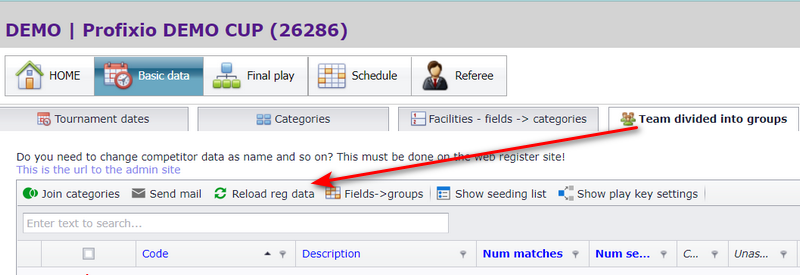
If a team is deleted on the admin page, and a new team is registered in the same category, the new team automatically switches places with the deleted team when the registration data is loaded. The new team takes over the place the deleted team had, so your group setup and any matches already placed keep their structure.
The old instruction video "Deltagere" (participants) starts from registration data and walks through dividing the downloaded teams into groups. Its transcript, translated from Norwegian:
- Teams are downloaded from your registration page. Before you start, note that creating, changing and deleting teams is done on the tournament's admin page - we recommend entering new teams there too.
- The "Deltagere" (participants) screen collects all the categories you have. Earlier in the walkthrough they were divided by number of players.
- Now divide the teams into groups. Select the category you want to divide into groups. Teams that are not yet placed in a group are shown here.
- The fastest method is to click "Tilordne lag til puljer" (assign teams to groups) in the menu bar. Enter the number of teams you want in each group; a number of groups is then created from that. TXO avoids placing teams from the same club in the same group.
- To move a team from one group to another, drag the team over and drop it on the orange top row. To swap two teams, drop the team onto the team you want to swap it with.
- Finally, set the number of matches each team is to play. If you leave 1 in the column "Antall serier" (number of series), everyone plays everyone once.
- Repeat the same procedure for the other categories.
- Sometimes you get groups with different numbers of teams. The system then distributes the teams by the number wanted in each group. Change the number of groups with the "øk" (increase) button, which adds a new group, or the "reduser" (decrease) button, which removes one.
- When the group setup is finished, you can send an e-mail to the team leaders telling them that the groups are now divided.
- Moving teams between groups, seeding and play keys in detail: see "Dividing teams into groups and seeding".
- Vacant teams and how clubs and teams are shown in TXO: see "Teams, clubs and vacant teams".
- Logging in to TXO for the first time: see "What TXO is and signing in".
- Where the instruction videos live: see "Video walkthroughs".
- Importing and exporting data by file rather than from profixio.com: see "Importing and exporting data".
Not covered here
Was this page helpful?