Teams, clubs and vacant teams
How the competitor list and the club register behind it reach the Scheduler, how vacant teams hold a slot and its matches, and what happens when a team is withdrawn after the schedule exists.
Looking for something else? Dates, categories, fields and match length Making the schedule Moving, switching and deleting matches
Teams (competitors) are registered on the web, on the registration site at profixio.com/reg. The Scheduler works from that list; the only competitors you create inside the Scheduler yourself are vacant teams.
- Open the window "Participants" (Norwegian: «Deltakere») to bring in every change made to teams on the registration site. The same refresh happens when you activate a tournament.
- The first time you activate a tournament, all teams are downloaded from the registration site and placed in group A of their category.
- Every competitor is downloaded, including withdrawn teams and teams on the waiting list.
- Team details, including the team name, are changed in your admin site in the app, and the Scheduler shows them as they are registered there.
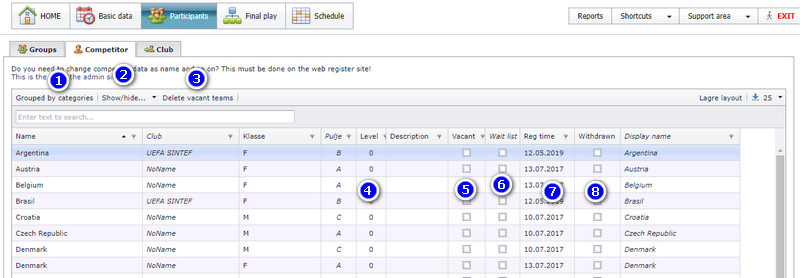
Every competitor belongs to a club, so each team in the Scheduler carries a club with it.
- Clubs come from the web and all clubs are downloaded every time team data is refreshed. Club details are maintained on the web, and the Scheduler shows them as they are there.
- When a club is deleted on the web, it is removed from the Scheduler at the next download.
- If the registration site holds no clubs, the Scheduler makes one fictive club, named after the tournament, and assigns the competitors to it. That fictive club is also transferred to the web.
A vacant team is a placeholder competitor, made inside the Scheduler, that holds a slot and its matches until a real team takes it over.
- A vacant is connected to a fictive club, and that club has the same name as the tournament.
- A new vacant is assigned to a category but to no group. Drag it from the unassigned group over to the correct group.
- Matches with vacant teams are shown with a light blue rectangle.
- On the web, a vacant appears as an ordinary team in the match schedule. It is not counted among the registered teams there.
- A vacant team that has no matches can be deleted inside the Scheduler, from the menu "Participants" - "Group".
- Moving a vacant that already has matches out of its group deletes all matches with that vacant. This holds both when you move it back to unassigned and when you move it into another group.

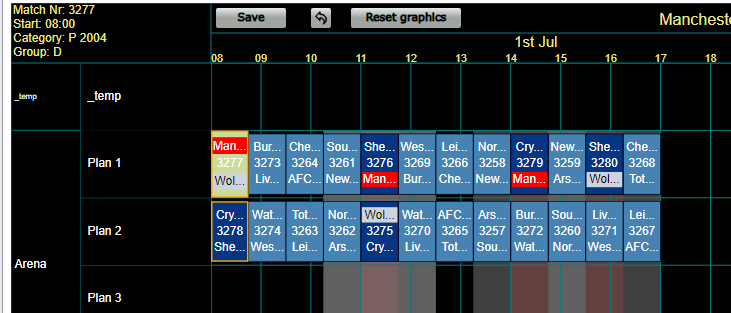
A team is withdrawn in your admin site on the web, and the Scheduler then picks the withdrawal up and keeps the matches. In the example below, Man United withdraws its team in P 2004 and already has 3 matches in the schedule (the red rectangles).
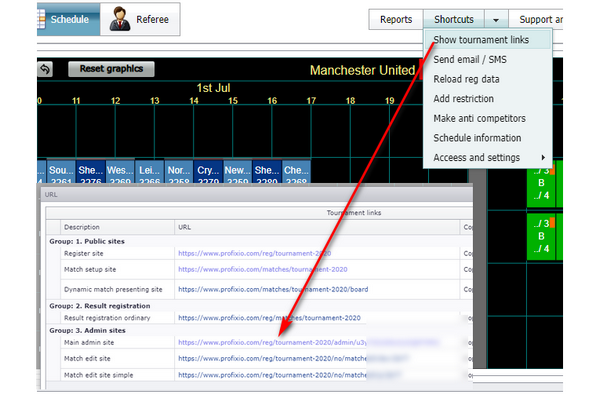
In the Scheduler, enter "Show tournament links" and click on your admin url.
In your admin site, find the team, click on the team name, and select "Delete team".
Back in the Scheduler, enter the menu "Participants". Data about all teams is reloaded, including the fact that Man United is withdrawn.
All of Man United's matches are now replaced with a vacant team, and the matches themselves are not deleted. If you get a replacement team, the Scheduler switches the vacant team for the new replacement team.
A competitor deleted on the web is still downloaded into the Scheduler. It arrives set as withdrawn, with no group and no matches of its own, and its matches get a vacant team instead. Those matches keep showing in the visualizer and on the web, marked with a vacant competitor.
To re-schedule only the group the withdrawn team was in, turn ON "Delete vacant teams before schedule".

When a new competitor is downloaded from the registration site and a vacant team is standing in the match schedule, the Scheduler suggests switching the two competitors. After the switch the real team holds the matches and the vacant is deleted.
- The suggestion is made for a vacant that is in a group and has matches. A vacant that has no matches, or that is still in the unassigned group, is not suggested.
- A competitor that is undeleted on the web is downloaded into the Scheduler again and arrives unassigned; if a vacant with matches exists, the switch is suggested.
- You can also switch a vacant with a real competitor yourself.
Competitors on the waiting list are downloaded to the Scheduler and are checked with "WithDrawn".
When a competitor is moved off the waiting list on the web, "WithDrawn" is removed and the competitor is shown as unassigned in the category. If a vacant team is already in a group, the Scheduler offers the switch described under "Switching a vacant for a real team".
If a competitor is moved from the sharp list on the web to the waiting list and that competitor has matches, all the matches are replaced by a vacant.
When a competitor that has matches is moved to another group, the competitor's matches are replaced by a vacant, so no matches are deleted.

To take a team off the waiting list on the web: open the team and click Change team (1), set Wait list to "Team not to the waitlist" (2), and click Save (3).
- Creating the categories, fields, dates and match length the teams are scheduled into: see "Dates, categories, fields and match length".
- Dividing teams into groups and seeding them: see "Dividing teams into groups and seeding".
- Getting registration data into the Scheduler in the first place: see "Loading registration data from the web".
- Generating or re-generating the schedule, and estimating how many matches and hours you need before you build it: see "Making the schedule".
- Moving, switching and deleting single matches: see "Moving, switching and deleting matches".
Was this page helpful?