Restrictions and anti-teams
How to block the dates and times a club, team or category is allowed to play, and how to keep two teams that share players out of the same match and the same time slot.
Looking for something else? Dividing teams into groups and seeding Moving, switching and deleting matches
A restriction says that a club, a team, a category or another object must not play inside a given time period on a given date. You set restrictions before you make the schedule.
The restriction page is opened from the menu "Shortcuts", and the page is always available no matter which menu you are working in.
- Restrictions are very important in order to get a correct schedule.
- Remember to read the notes from the team leaders about the restrictions they ask for.
- You must not restrict so much that a schedule is impossible to make.
- Restrictions are additive: restricting for a club adds to the restrictions for a category.
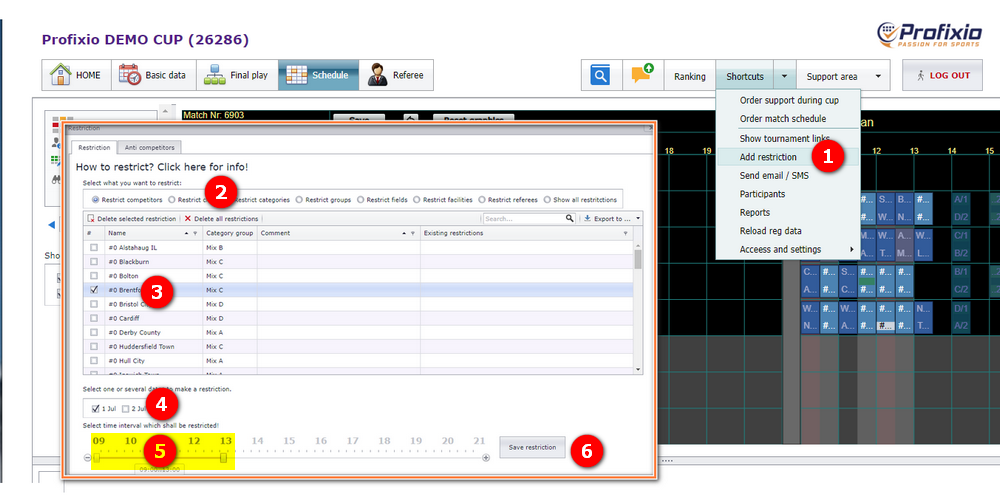
- Go to the menu "Shortcut" - "Add restriction".
- Select the type of restriction. For example, select "Categories" to restrict all teams in a category to play on Sunday.
- Select the object you want to restrict by clicking it, and set the check box active. In the example below, a team is the object being restricted.
- Select the date you want to restrict. You can select several dates, for example if you want to restrict a team to not play before 10AM any day because of travelling distance.
- Select the time period to restrict. In the example below, the selected team cannot play on July 1 before 3PM.
- Save the restriction when you are finished.
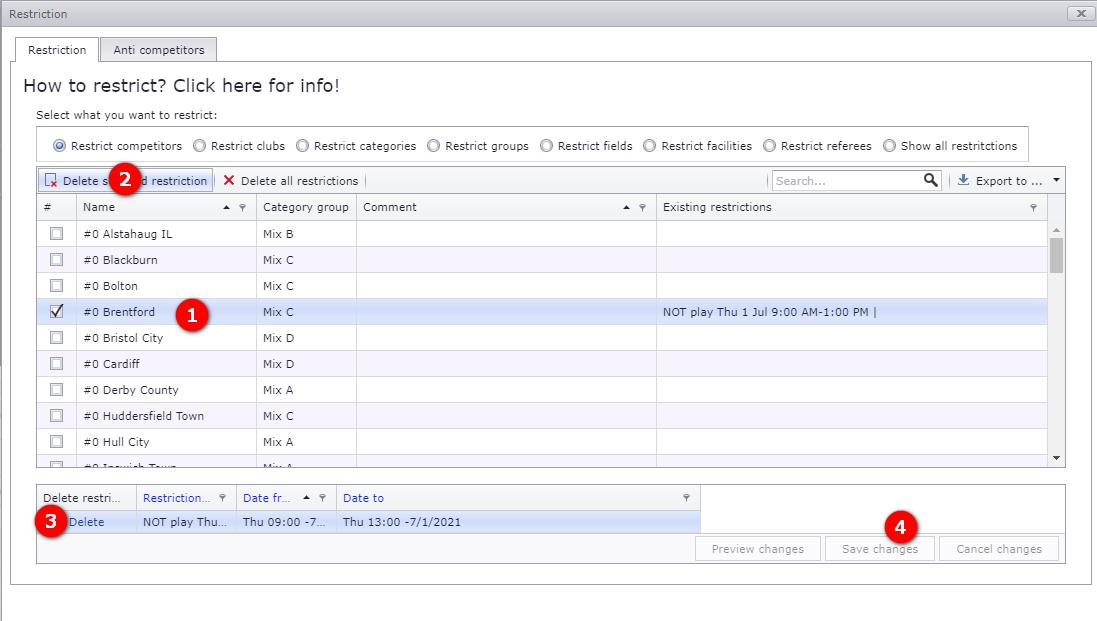
- Click, as shown at (1) in the picture below, on the object whose restriction you want to change.
- Click "Delete selected restriction".
- All restrictions for this object are shown. Delete the restriction which is wrong.
- Remember to save your changes when you are finished.
Tip: you can delete all restrictions in the active type (club, competitor, category, etc.) by clicking the button "Delete all restrictions".
Sometimes two teams from the same club have to share players in order to field two teams. Those two teams should then preferably not play against each other, and the answer is to make them anti-competitors.
By doing this, the Scheduler keeps teams that depend on borrowing players from each other from playing at the same time, and from meeting each other in a match.
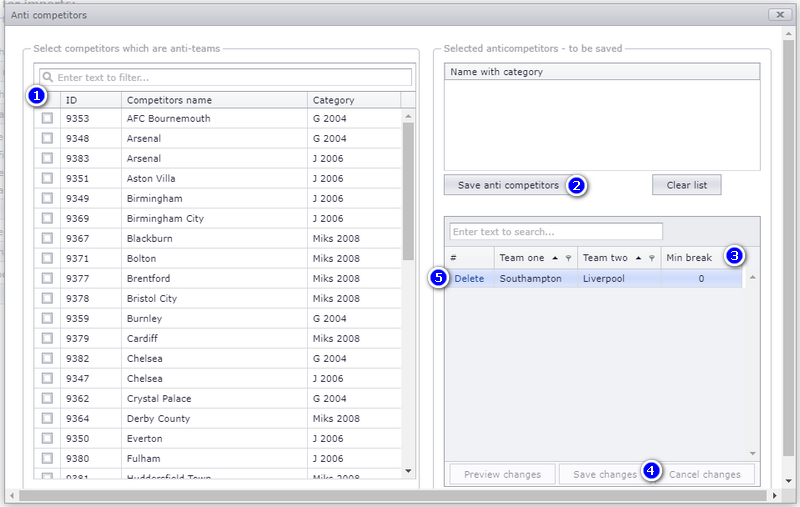
To create anti-competitors, click "Genveje" (Shortcuts) - "Opret antikonkurrenter" (create anti-competitors).
- Select the competitors that are anti-competitors.
- Click "Gem anti-konkurrenter" (save anti-competitors) when you want these to be anti-competitors.
- Remember to add the minimum pause between the teams. Minimum pause means the number of matches of pause.
- Remember to save when you are finished.
- If you do not want two teams to be anti-competitors any more, click the delete button.
This page covers blocking when an object may play, and keeping two teams apart. It does not cover creating the dates, categories and fields the restrictions refer to, registering the teams and clubs themselves, generating the schedule once the restrictions are in place, or moving an individual match afterwards. Those are covered on their own pages.
See also
Was this page helpful?