Letting clubs set times themselves (Administer matches)
Handing a league level over to the clubs so they set date, time and venue in the app ("Administrera matcher" / club match edit), what comes back into PL from the app, how to reset to the ordinary public view, and which notifications are sent.
Looking for something else? Deleting matches and reading the action log
For other roles
A schedule, or just some of the matches in a schedule, can be transferred to the app (the public Profixio site, called "APP" in PL) so that the clubs themselves set the date, time and venue for the matches they are responsible for. In PL this is called "Administrera matcher" (administer matches); in the notification texts it is called "Club edit match". As soon as the club administrator has set a time and venue for a match, the public pages are updated.
Every match has a time limit for how long the club administrator can set times. The league administrator sets this time limit when publishing the matches for club match edit. All matches within the same league level must have the same time limit.
Two roles are involved:
- The responsible club for a match is set in PL, in the "Spelschema" (schedule) menu.
- The club administrator who does the editing is set up in FX (the club administration site).
When a schedule is published this way it is hidden on the public pages. Only club administrators and federation administrators can see the schedule until it is published as an ordinary schedule again.
Note: this feature is not the same as "Begäran om matchändring" (match move requests). They are two completely different functions, see Match move requests.
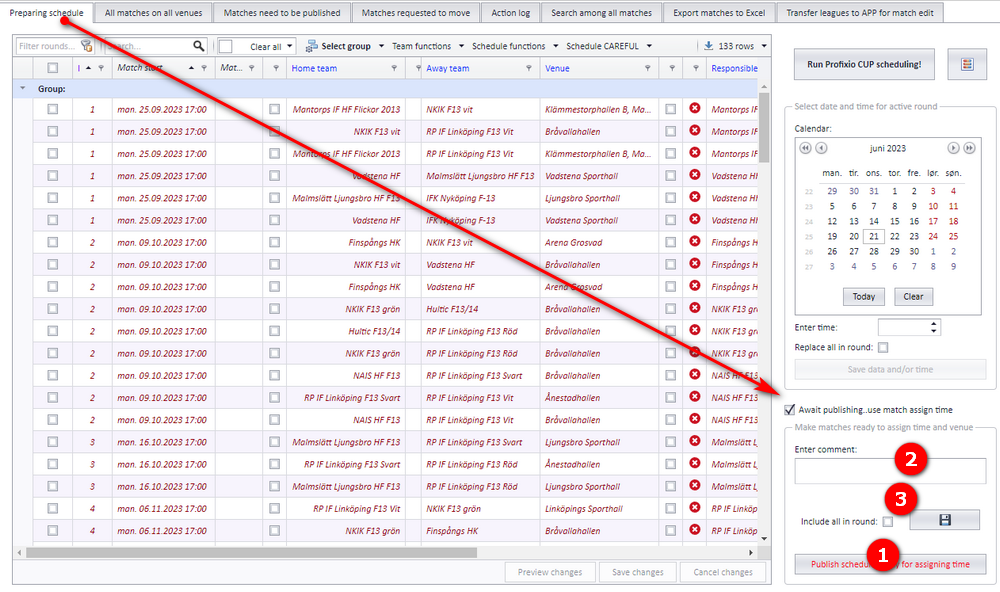
Activate "Administrera matcher" by ticking "Väntar på publicering..använd Administrera matcher för tidsättning" (waiting for publishing, use Administer matches for time setting), see the arrow in the screenshot below.
The matches do not have to be valid. Matches without an end time, without a venue, without a responsible team, or with a vacant team are also published.
- Transfer the matches to the app by clicking the button "Publicera spelschema för tidsättning med Administrera matcher" (publish schedule for time setting with Administer matches). Selected matches are transferred. If no matches are selected, all matches are transferred.
- A comment can be entered for a match. This comment is only shown to the responsible team.
- Save the comment directly to the app by clicking this button.
To save time, several league levels can be transferred at the same time. You find this in the "Spelschema" (schedule) menu on the tab "För över matcher till APP" (transfer matches to APP).
This view only lists league levels that meet both of these criteria:
- Matches have been created.
- The level has not been published to the app.
- Filter by district to find the league levels that are to be transferred to the app more easily.
- Select the levels to transfer.
- Enter the last date on which the clubs can use "Administrera matcher".
- Click this button to transfer the matches to the app.

When a club logs in to the app and opens "Admin" and then "Administrera matcher" (administer matches), the club sees every match where it has been set as the responsible team. The club can set the time for all of these matches. Every change is saved automatically and sent to both the app and PL.
- Once the last date for setting the time of a match has passed, that match is no longer shown in the list.
- Only venues that are connected to the club via FX (the club administration site) can be chosen.

To see whether a venue is free on a given date and time, hold the mouse over the time box. A list of the matches already scheduled at that venue is then shown (see point 1 in the screenshot below).

You can switch the schedule back to the ordinary public view in the app at any time.
- Untick "Väntar på publicering..använder Administrera matcher för tidsättning" (waiting for publishing, uses Administer matches for time setting).
- Publish the schedule.

In the "Hem" (home) menu, where all leagues are listed, the leagues that use "Administrera matcher" are marked with green rows. If a league has several levels and only some of them use "Administrera matcher", the league is still marked with a green row.

A match without a responsible club is not listed for any club in the app, and the responsible club can be decisive for other partners who use this information. Open the menu "Matcher som behöver publiceras" (matches that need to be published).
- Tick "Saknar ansvarig förening" (missing responsible club).
- Select the matches you want to correct.
- If you are sure that the team listed as home team should also be the responsible club, select those matches and click the button "Tilldela och publicera" (assign and publish). The matches are first updated in PL with the responsible club, and the responsible club is then transferred to the app. The matches are then removed from this list. No notifications are sent.
- If you assign a responsible club to a match manually, you can transfer those matches after you have clicked "Spara ändringar" (save changes). The matches are set as not published until you publish them.

A match can be changed from the public site (the app). Match date and time, venue, referees, result and comments are among the data that can be changed. Depending on the user's permissions, a user changes a match by clicking the "Redigera match" (edit match) button in the app. The pop-up lets you change the data marked in the screenshot below. Remember to save at the end.
- Result
- Comment
- Match date and time
- Venue
- Home and away team

Of the changes made in the app, these are fetched into PL:
- Match date and time
- Venue
- Result
Every time a user opens the "Spelschema" (schedule) menu, PL checks whether matches have been changed in the app. Changed matches are saved in PL and from then on appear in every PL window.
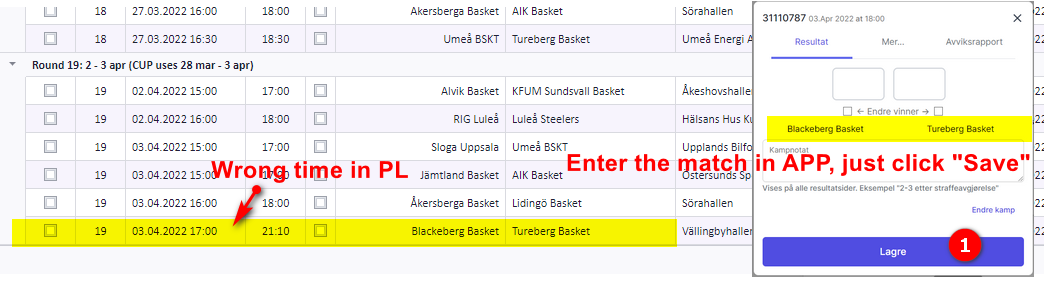
To make PL fetch a match's time and venue from the app, open the match in the app and click "Spara" (save), see bubble 1 in the screenshot below. Nothing more is needed: the next time you open the "Spelschema" menu in PL, PL fetches the match time (and the venue) from the app and PL then shows the same values as the app.
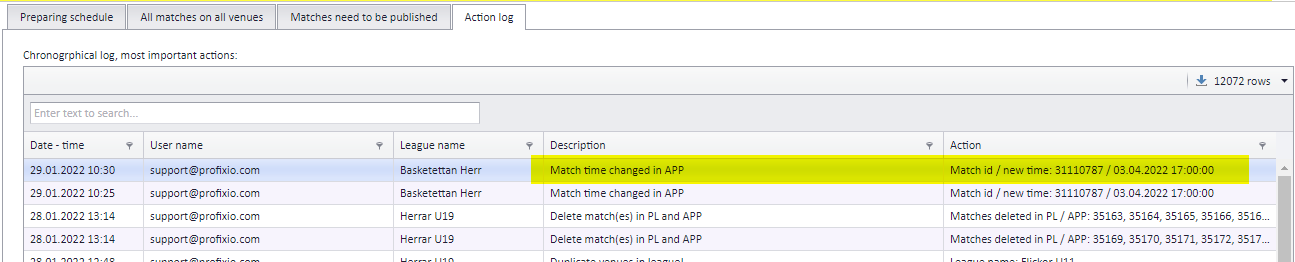
Open the tab "Ändringslogg" (change log). This window shows all changes that have been made.
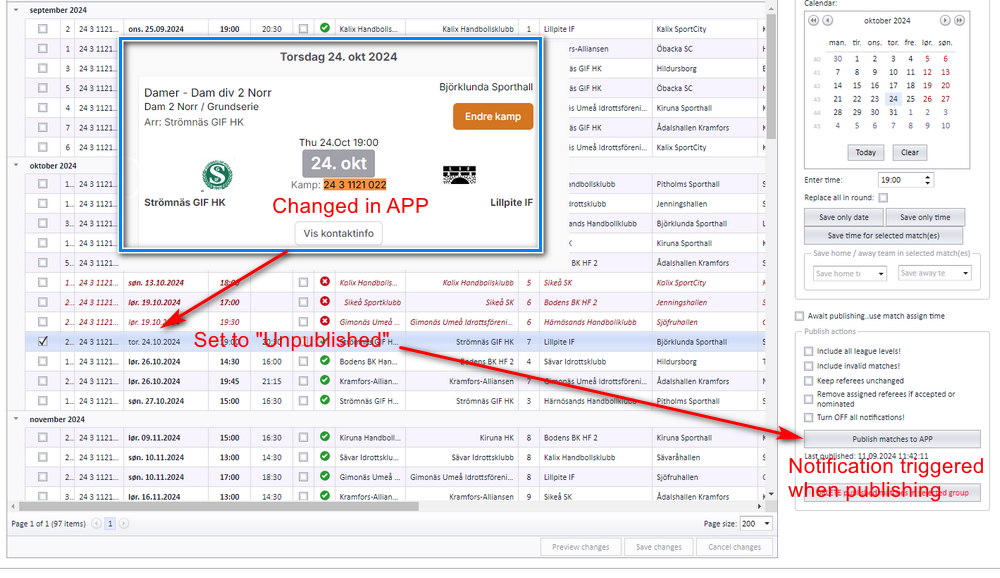
A match can be changed in the app by an organisation administrator. When PL has detected the change, the match is set as "Need to be published" in PL.
Note: if "Club edit match" ("Administrera matcher") is activated and the time limit for changing the match has not passed, the club-set times follow the flow described under "What the responsible club sees in the app" on this page instead.
To send a notification for a match changed in the app, publish the match as an ordinary match from PL. Publishing triggers the notification system.
- Ordinary publishing of a schedule to the web, see Publishing the schedule.
- Clubs asking to move a match ("Begäran om matchändring"), see Match move requests.
- Which notifications are sent when a match is changed in PL, see Notifications when a match changes.
- Changing a match's date, time, venue or teams from inside PL, see Changing a match date, time, venue and teams.
- Registering venues and connecting them to clubs, see Venues and team home venues.
See also
Not covered here
Was this page helpful?