Changing a match: date, time, venue and teams
Editing one or many matches in PL, changing the venue, swapping the teams or home/away, setting a match unscheduled or without date and time, what happens to referees and team notifications, and what a locked schedule or match blocks.
- Generating the schedule in the first place: see Prepare and generate the schedule.
- Publishing matches to the app after a change: see Publishing the schedule.
- Deleting matches, and the log of what was changed: see Deleting matches and the action log.
- Setting up venues and team home venues: see Venues and team home venues.
- Editing a single playoff match in the playoff tree: see Editing a playoff match.
- Assigning and removing referees on matches: see Assigning and removing referees on matches.
- The notifications sent when a match changes: see Notifications when a match changes.
- Requests from clubs to move a match, and letting clubs set times themselves: see Match move requests and Letting clubs set times in the app.
- Vacant teams and what they do to a schedule: see Vacant teams.
- The visualizer and colour codes in the schedule views: see Schedule views, visualizer and colour codes.
For other roles
A match can be changed whenever you want, with regard to date, time, venue and teams. The challenge is usually to find alternative times and venues that are valid.
When a match date or time is changed, the change is only saved in PL. To make the change reach the app ("APP" in PL), the schedule must be published.
Only matches that your login has credentials for can be changed.
PL offers two places for this work:
- the Schedule grid, where you change date, time, round and venue on selected matches, set matches unscheduled and switch home and away team;
- the "Kampvisning" (match view) window under the menu "Kampoppsett" (schedule), which is made for adjusting a schedule that is already generated and perhaps published: changing venue, date and time on many rows at once, changing the teams on a match, removing date and time, and hiding matches while you work.
Changing the date or time of one or more matches does not change their round or venue.
- Select one or more matches.
- Click on the new date..
- ..and enter the new time.
- Tick the checkbox if all matches in the active round shall be changed.
- Save the changes.
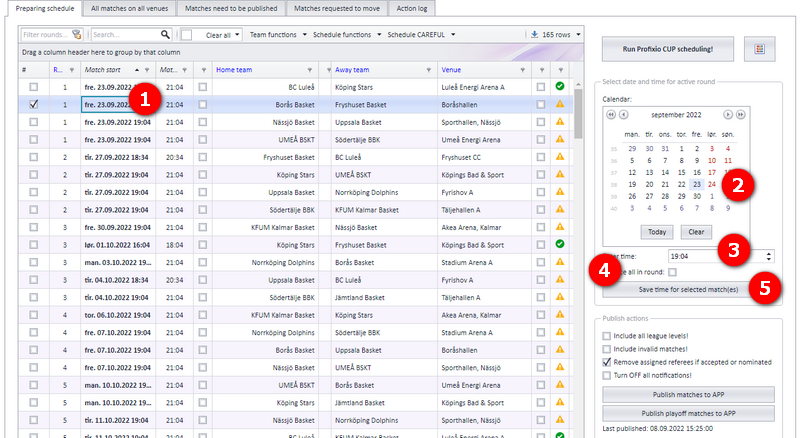
A match is valid when its end time is also set, and a valid match can be published. Some criteria must be fulfilled for a match to be valid:
- None of the teams in the match can be a vacant or deleted team (that is, a missing team).
- The match end must be after the match start.
- The match venue must be a valid venue (if the organisation is using official venues).
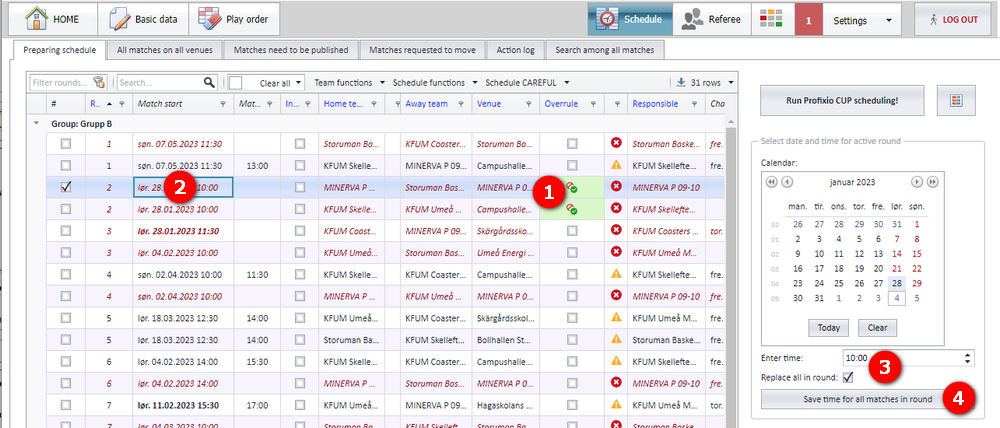
You can overrule the criteria for a valid match on selected matches:
- Tick the checkbox "Overrule" for the matches in question and click "Save changes".
- Click on the start or end column for the match you want to change.
- The match date and time are now filled in the calendar to the right, and you can change the date and/or time. Tick "Replace all in round" if you want all the matches in the active round to be changed.
- Click the save button to finish.
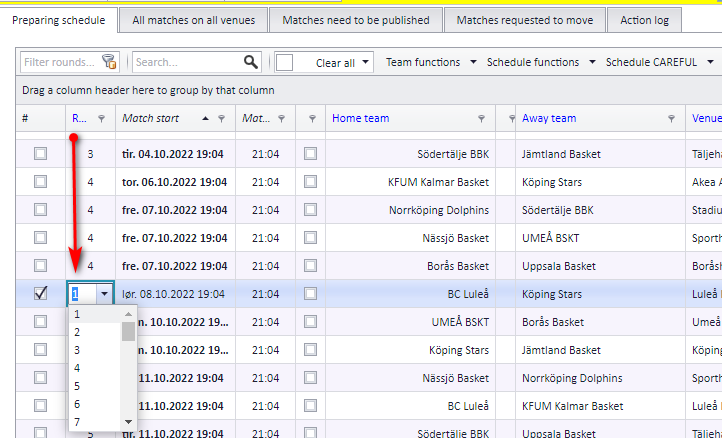
When a match is moved, the round it belongs to can be changed manually, as shown below.
A match must be assigned a venue. Venues are set up in Profixio FX. A match can also be assigned a temporary venue.
Set the venue for a selected match
- Click in the venue cell so you get a dropdown list, and select the venue from the dropdown. You can search the dropdown list by starting to type the name of the venue.
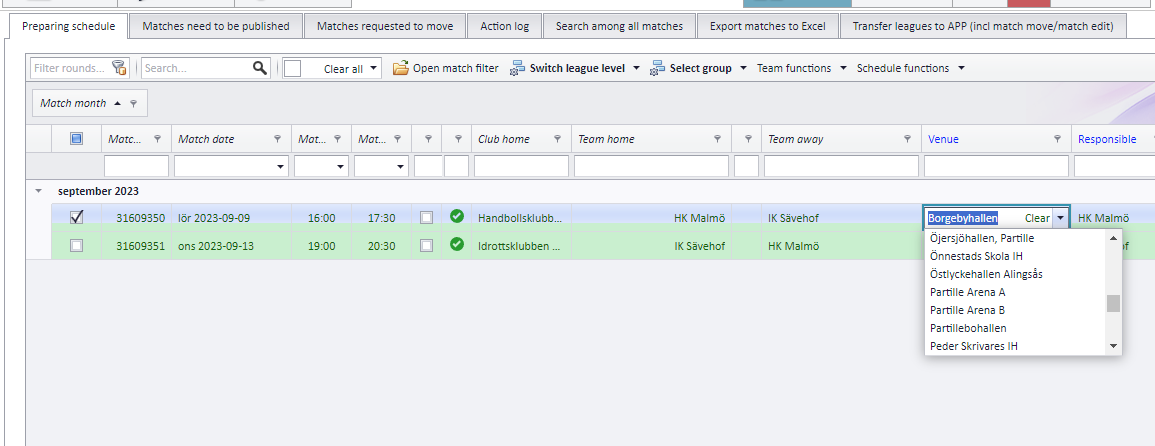
Set the venue for several matches
- Select the matches you want to assign a venue to.
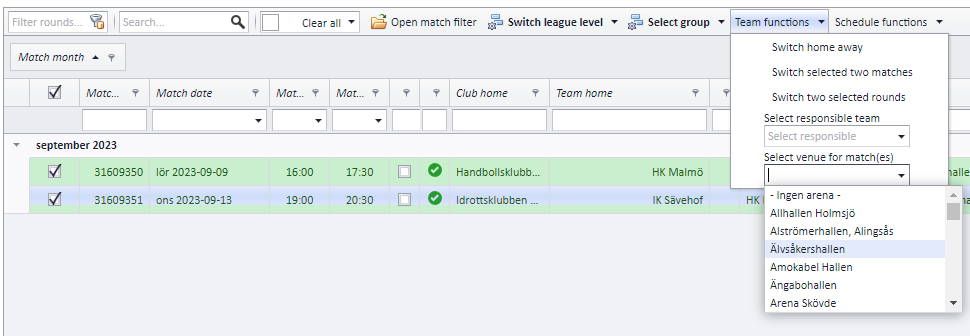
- Use the menu "Team functions" and select the venue from the dropdown list. You can search the dropdown list by starting to type the name of the venue.
To tell the team leaders about a changed time or venue, send them a message via the button "Send epost/sms" (send e-mail/SMS). Remember to mark the matches in question first.
If the time of a match changes, the referees on the match are removed and an e-mail is sent to them. If only the venue changes, the referees are kept and no message is sent to them.
Whether referee assignments are removed automatically when the time changes is a setting you control:
Go to the menu "Kampoppsett" - "App - skjemalegging" (schedule - app scheduling).
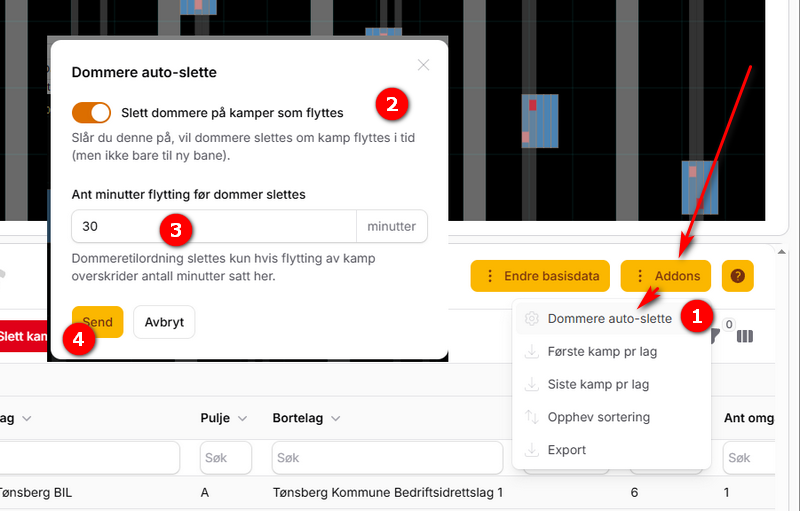
- Click the button "Addons" and then "Dommere auto-slette" (referees auto-delete).
- Switch on or off whether referee assignments shall be deleted when a match changes time.
- If a match is moved by only 10 minutes it may be unwise to delete the referee assignments, so here you can set the minimum number of minutes a match must be moved before referee assignments are removed.
- Remember to save at the end.
Once a schedule is generated, and perhaps published to the app as well, it usually needs adjusting. PL has a window tailored for this. The schedule itself is built either in TXO or in PL, but making small changes there during the season can be cumbersome, so we recommend the "Kampvisning" (match view) window for adjustments.
For a quick introduction, see this video: Video showing how to change a schedule
Opening the window
- Here you find the window "Kampvisning".
- You can minimise the graphical area, as it is usually best to only use the list view.
- Here you see the list view area.
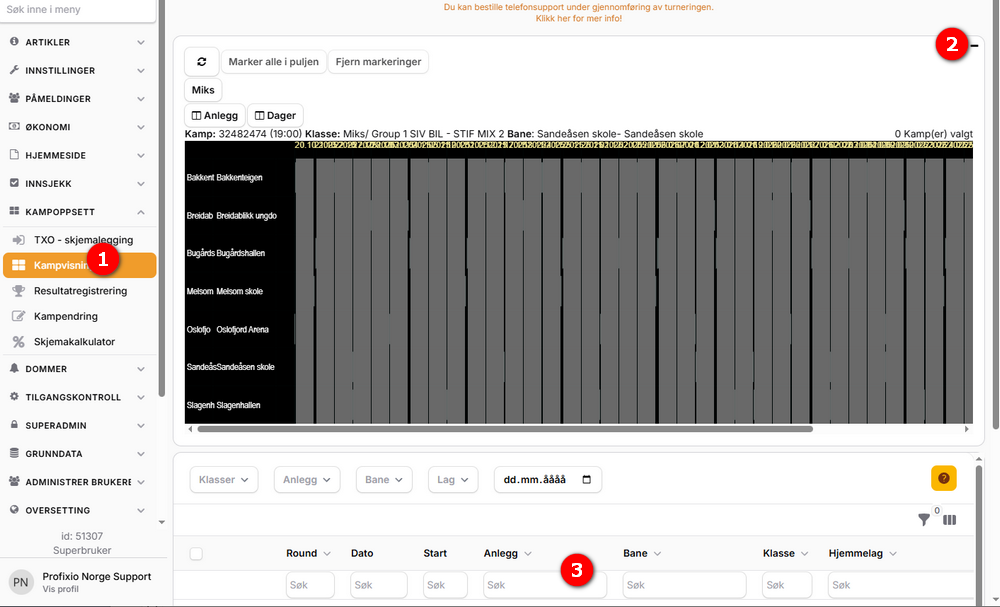
- Matches that were not given a position are shown without a start time. These must be handled manually.
- Tick the rows you want to change.
- You can change venue, date and time on the selected rows. Changing the date or time affects the referees on the match — see "Referees when a match changes".
- Here you find filters to more easily see the matches you want to work with.
- Export to Excel is found here.
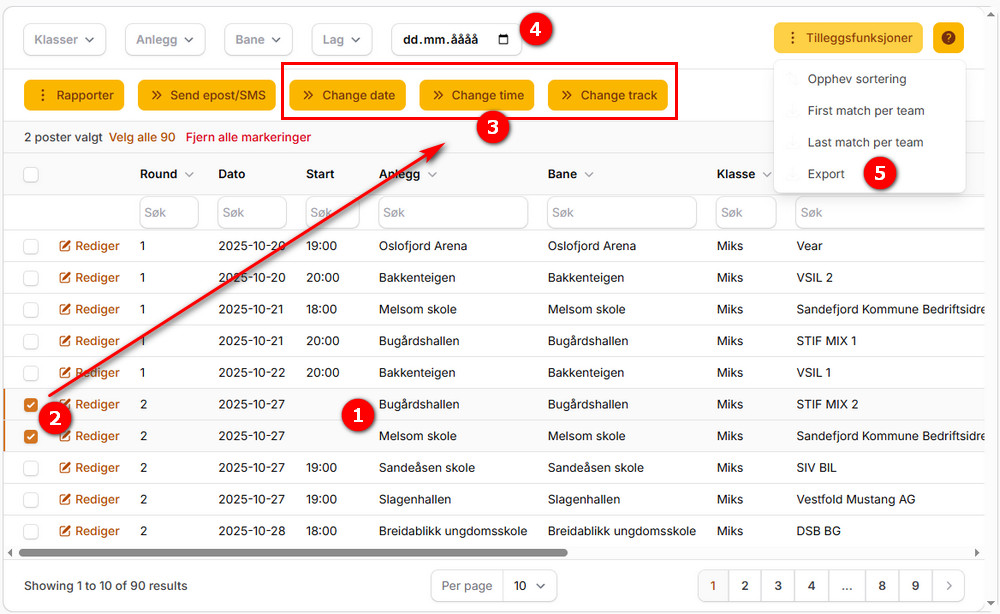
Go to the menu "Kampoppsett" - "App - skjemalegging" (schedule - app scheduling).
- Make a filter on date if you want to change the venue for all matches on a particular date.
- Mark all the matches.
- Click the button "Endre bane" (change venue)...
- ...and select the new venue for the marked matches. Click "Send" to save.
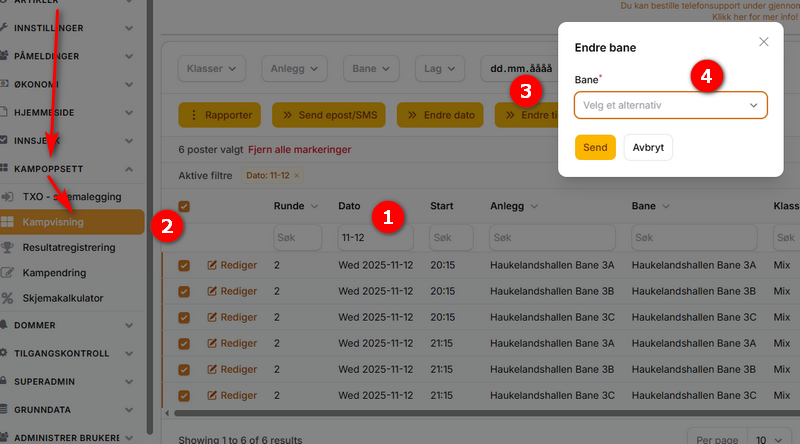
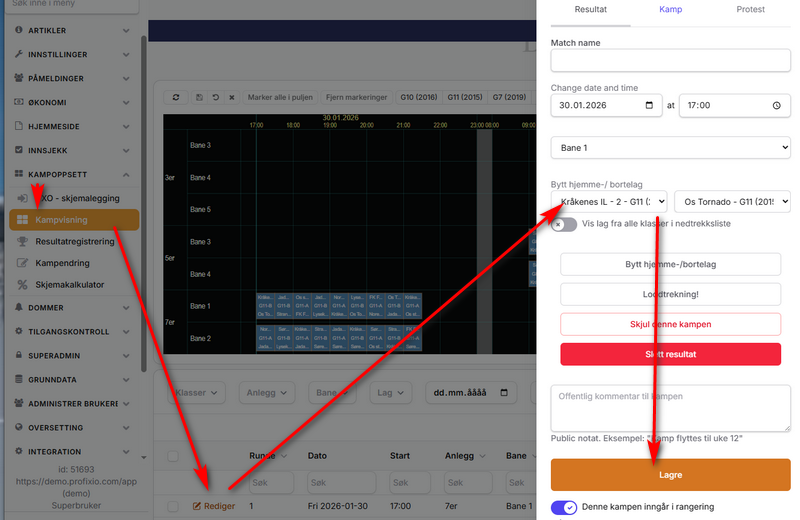
Go to the menu "Kampoppsett" - "App - skjemalegging" (schedule - app scheduling).
- Find the match and click "Rediger" (edit).
- Select the correct teams in the dropdowns and click "Lagre" (save).
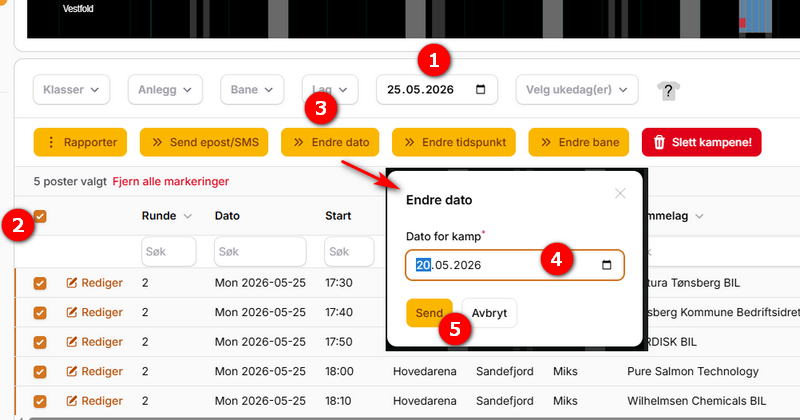
Example: matches have been placed on a date that turns out to be wrong, and you want to move them to another date but keep the kick-off times.
Go to the menu "Kampoppsett" - "App - skjemalegging" (schedule - app scheduling).
- Select the date in question in the dropdown list here. It works as an ordinary filter.
- Tick the rows with the matches you want to move. Click the topmost checkbox to select all matches on this date.
- Click the button "Endre dato" (change date).
- Select the new date you want to move the matches to. The times are kept.
- Remember to save when you are done.
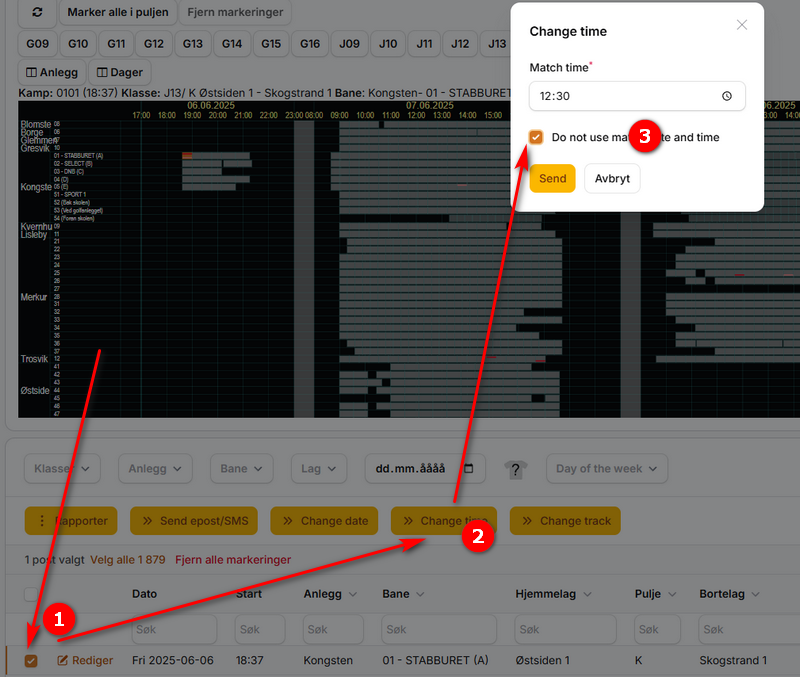
A match is normally scheduled with a venue and a time. If a match must be moved but the new time is not decided, you can make it "tidsløs" (without time). The match is then still shown in the match view for visitors, but without date and time.
- Mark the match or matches.
- Click "Endre tidspunkt" (change time).
- Switch on "Ikke bruk dato og tid" (do not use date and time).
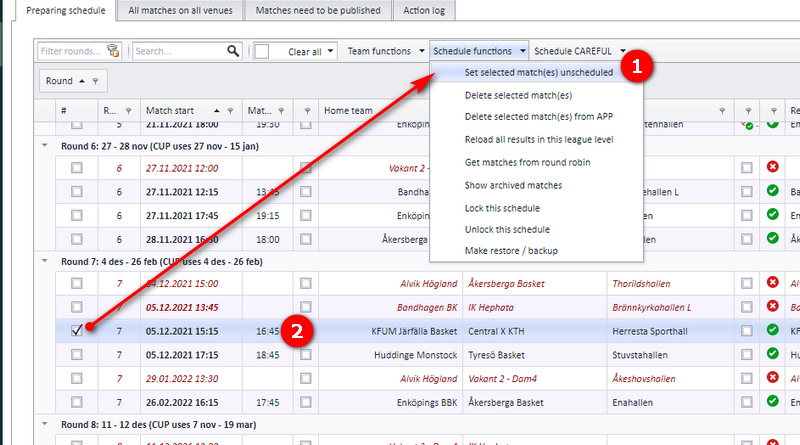
A match can be set as unscheduled from the menu "Schedule". An unscheduled match keeps its start time, but the end time is set to nothing. The match shows up as red, and it cannot be published.
If the match is not set as "Club match edit", an unscheduled match is updated on the public web (the app) to have no match time, without needing to be published. If the match is set as "Club match edit" and the date for "Club match edit" is after today, the match in the app is not updated.
How to
- Select one or several matches and enter the menu "Set selected match(es) unscheduled".
- After a match is unscheduled, the end time is set to nothing and the match turns red.
Consequences
- The match end date is set to nothing.
- The match turns red and cannot be published.
- The match is not deleted in the app, but its start and end time are set to nothing.
- If referees are assigned to the match, all of them are removed from the match, no matter which kind of assignment.
Who is notified
- Team contact persons
- Tournament contact person
- Referees
- Referee responsible
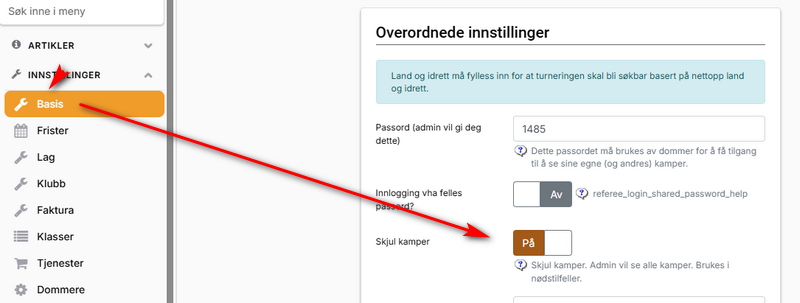
You can work on the schedule without team leaders and others seeing it. To do so, the button "Skjul kamper" (hide matches) must be switched on.
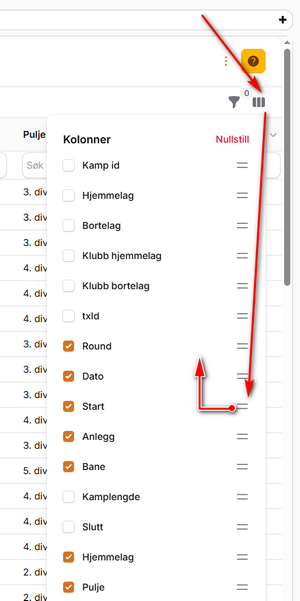
You can choose the order of the columns in the list view yourself, see the picture below.
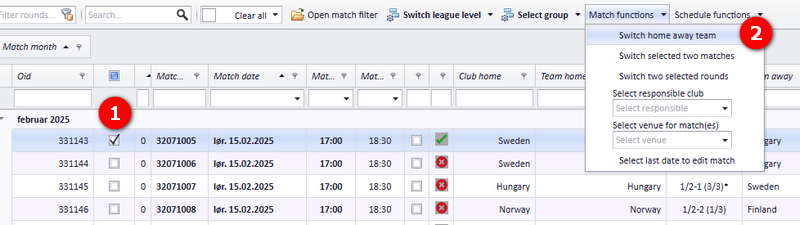
The teams in a match can be switched unless a result is set on the match. It does not matter whether the match has child matches.
- Select one or several matches.
- Enter the menu "Match functions" - "Switch home away team".
The match is then set as unpublished. To make the change appear in the app, the match must be published.
Teams in playoff matches can be edited in several ways. All edit functions are shown in the menu "Teams in playoff matches":
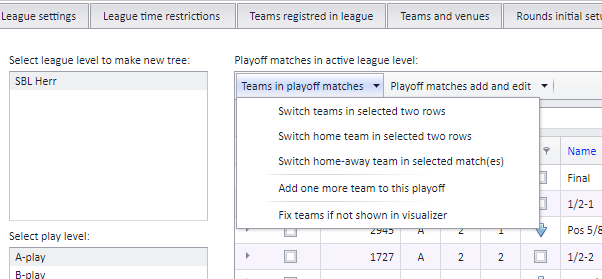
| Function | What it does |
|---|---|
| Switch teams in selected two rows | The two selected matches switch teams completely. For example, 1/4-1 switches with 1/4-2. |
| Switch home team in selected two rows | The home teams of the two selected rows switch. For example, the home team "Group 1, pos 5" switches with "Group 1, pos 3". |
| Switch home-away team in selected match(es) | Home and away team switch inside each selected match. |
| Change team name | Sets a custom team name for a playoff match — see "Setting a custom team name in a playoff match". |
| Add one more team to this playoff | Listed in the menu. |
| Fix teams if not shown in visualizer | Repairs a team that is missing from the visualizer. |
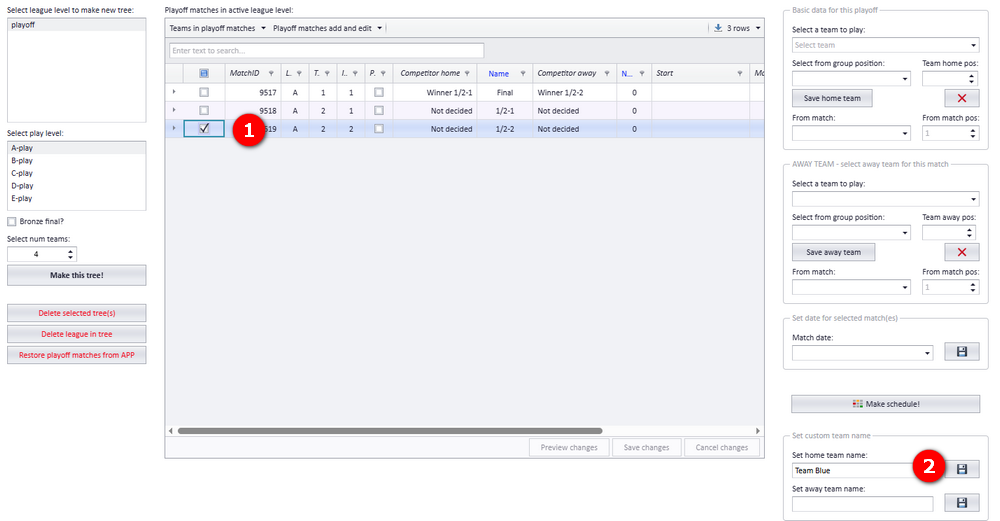
You can set a custom team name for a playoff match. The matches must be made before a custom team name can be set.
- Select one row with a playoff match (the ordinary match must exist).
- Enter the custom team name.
When a playoff is published to the app, the teams in a match are decided by the preceding matches. For example, the teams in a 1/8-final are calculated from the matches in the 1/16-finals.
The teams can be changed only if no result is set on the match. If the teams must be changed on a match with a result, the result must first be deleted in the app. An example is deciding that "TeamX" shall play in 1/16-1.
To avoid mistakes, editing matches is restricted in some ways. Matches that use third-party data are restricted once they have a result.
A match is read-only (cannot be changed) when its league level is locked:
- If Genius is used in the league, all league levels are locked once all matches are finished and the last match date is before today's date.
- If Genius is not used, a league level must be locked manually.
See also
- Applying to move a series match
- Assigning and removing referees on matches
- Deleting matches and reading the action log
- Editing a playoff match
- Letting clubs set times themselves (Administer matches)
- Notifications when a match changes
- Preparing and generating the schedule
- Publishing the schedule
- Schedule views, the Visualizer and colour codes
- Vacant teams
- Venues and team home venues
Was this page helpful?