Assigning and removing referees on matches
Putting a referee on a match in PL, taking one off, what happens to the referees when the match is set unscheduled, and building the match filter you need before any of it.
For other roles
Referees can be assigned only to published matches. The one exception is playoff matches: a playoff match can be assigned before it is published, as long as the match's club edit date is today or later.
Assigning a referee in PL is the first of two steps. The assignment stays in PL until you nominate it; nominating is what makes the mission show up in the calendar of each referee. From that calendar, the referee can accept or deny the mission. How to nominate is described on the page "Nominating, accepting and buy and sell".
The active league has nothing to say when assigning referees. Instead, you make a match filter based on league, venues or regions (or a combination of these). It is absolutely necessary to make a filter of matches before you can assign referees.
Only matches which are published (that is, exist in the app) show up, and only matches in leagues which you have credentials to.
The filter toolbar above the match list:
- Click this button to open a popup where you build the filter. See "Making a filter" on this page.
- If you already have a filter, activate it from this dropdown. All filters which have a name show up in this dropdown. A filter can be deleted by clicking the red (x).
- If you want to restrict matches based on start and/or end date, enter the dates here.
- If you want certain matches, enter the match id here. For several matches, use a comma between them, with no spaces. Example: 32456,32457,43221.
- You must activate the filter and the dates by clicking this button.
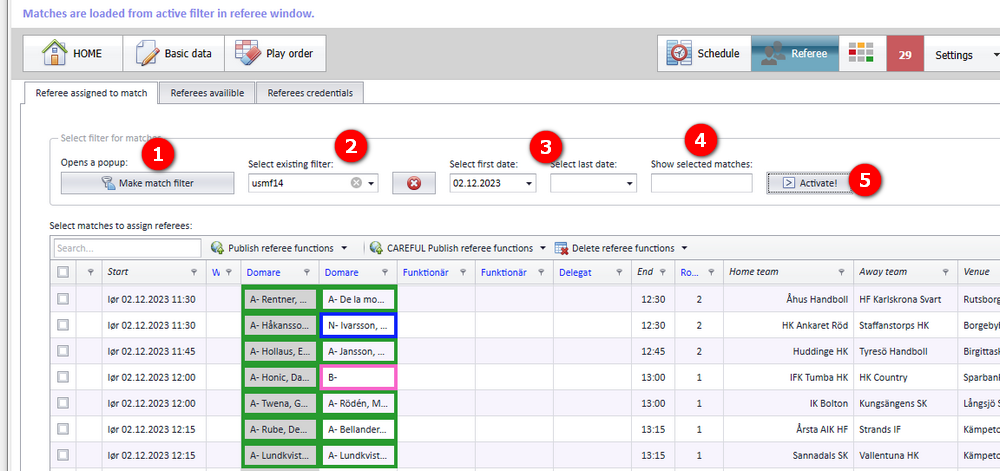
The "Make a filter" popup opens from the filter button above the match list.
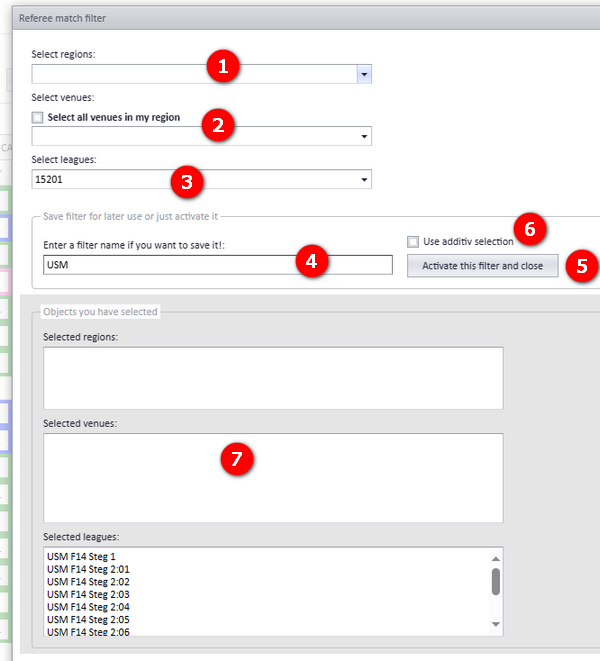
- Select among all regions for this organisation and season.
- Select among venues for this organisation and season. TIP: an effective way to get matches is to select all venues in your region.
- Select among leagues for this organisation and season.
- Enter a name for the filter if you want to use it several times. If no name is set, the filter only lasts until you make a new one. Such a no-name filter is named "Temporary".
- Click this button to activate the filter and thereby load the matches.
- Tick "Use additiv selection" ("Använd additivt urval") if you want to fetch matches from several selections added to each other.
- Your selections are shown in these memo boxes.
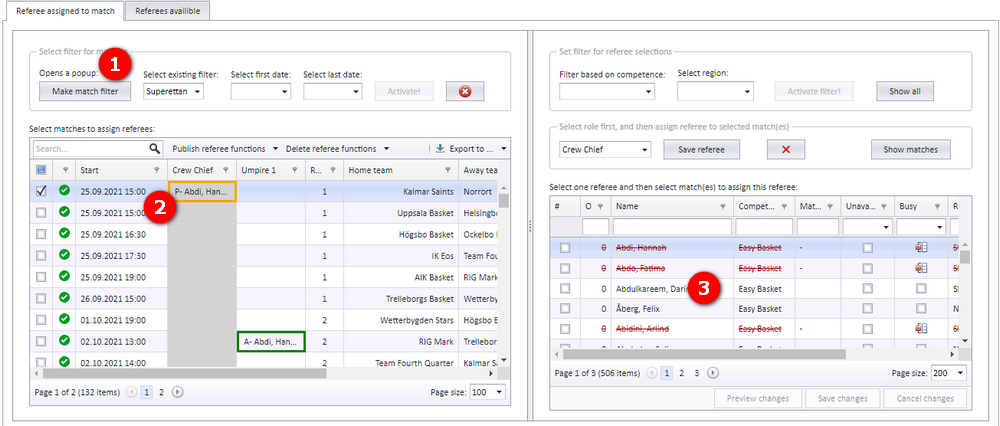
The assignment screen has three parts, used in this order: first, matches are fetched from a selection of venues, leagues and/or regions (see "Filtering the match list first" on this page); second, one or more matches are selected from the match list; third, a referee is selected from the referee list.
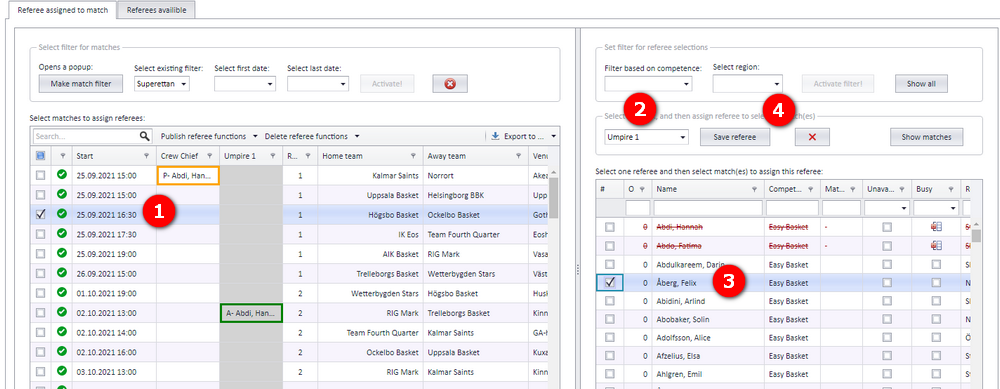
To assign a referee:
- Select one or several matches in the match list. Do not select matches which run in the same time period; a referee cannot referee two matches at the same time. If a selected match already has a referee in the active role (accepted or nominated), that referee is deleted and replaced with the referee you select. If you are using notifications, the deleted referee receives a notification.
- Select the role for this referee, that is the type of role the referee shall have in the selected matches.
- Select one referee. Referees shown with a strike-through are not available and should be avoided. It is possible to select a referee who is unavailable for personal reasons, but not one who is already assigned to a match in the same period.
- Save this referee.
TIP: Click on the referee name to fast-assign the referee to the selected match.
When a referee is saved to a match (with a role), a warning appears if there is something to warn about. Look for the column "Warning". For example, if a referee is busy, the name of the referee is shown with a light red background and an explanatory text.
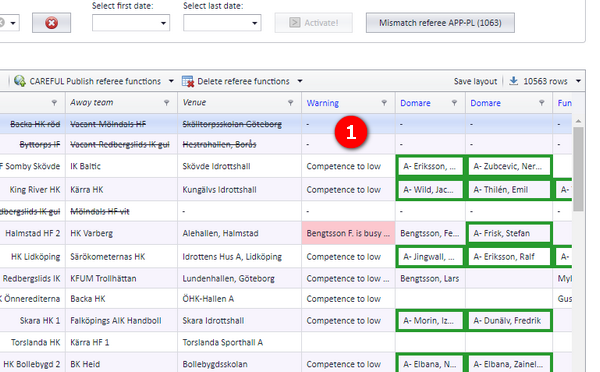
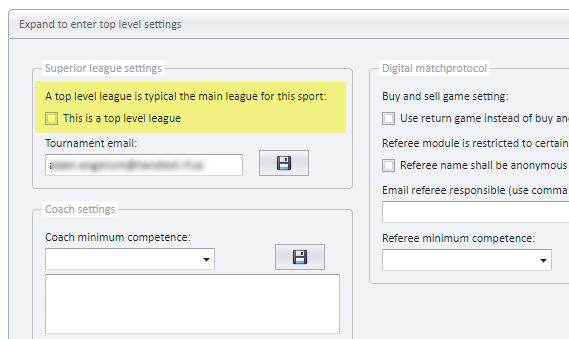
For a match in a top level league, you can select a referee who is already taken by a match in a lower level league. Check for double bookings in lower level leagues before you nominate. If a referee is nominated to a top level match, it is the referee's responsibility to remove themselves from the matches in lower leagues which duplicate it.
A league is set as a top level league in the league settings:
A referee can be removed from a match in several ways:
- deleting the referee ordinarily, within their role, on the match (described here);
- deleting the match (see "Deleting matches and the action log");
- setting the match to buy and sell (see "Nominating, accepting and buy and sell").
A referee can be deleted from a match without any restriction on the match: whether the match is played, has results, is not played, and so on. When a referee is deleted, the notification system includes this match and referee, and the referee can be notified (see "Notifications when a match changes").
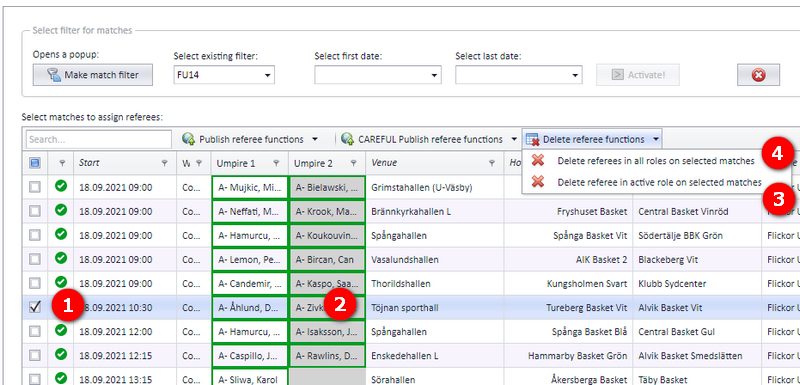
- Select the matches (that is, tick the row).
- Click on the correct role (the active role).
- Use the button "Ta bort domare från aktiv roll i valda matcher" (delete referee in active role in selected matches) to delete the referee in the active role.
- Or use the button "Ta bort domarna från alla roller i valda matcher" (delete the referees in all roles in selected matches) to delete all referees in all roles in the selected matches.
A short video showing how to delete a referee in PL: screencast.com/t/S93HELLwwBxE.
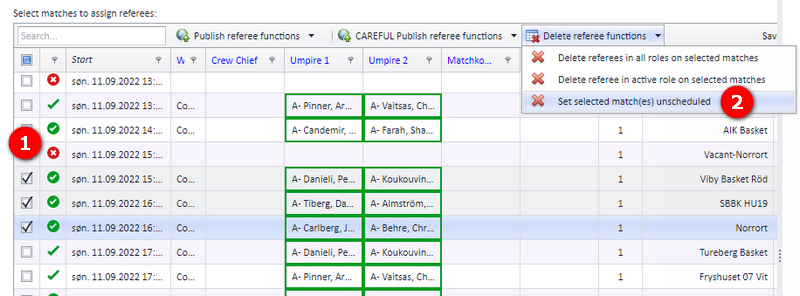
Referees on a match can also be changed by match actions. When a match is set to unscheduled, the referees in all roles are deleted from the match, both in the app and in PL. Notifications to the referees are NOT sent; a notification is sent to the team responsibles.
- Select one or several matches.
- Open the menu "Set selected matches unscheduled".
- Nominating assignments so referees see them, accepting and denying, and buy and sell: "Nominating, accepting and buy and sell".
- Who can open the referee appointment part of PL and where it sits: "Referee appointment overview and access".
- Referee calendars, groups and pairs: "Referee groups, pairs and calendars".
- What a referee change in PL means for the web referee module: "Keeping PL and the web referee module in sync".
- Which notifications go out when a match changes: "Notifications when a match changes".
- Publishing matches so they show up in the match filter: "Publishing the schedule".
- Deleting matches: "Deleting matches and the action log".
See also
- Deleting matches and reading the action log
- Keeping PL and the web referee module in sync
- League levels, groups and activation
- Nominating, accepting and buy and sell
- Notifications when a match changes
- Publishing the schedule
- Referee appointment: overview and who may appoint
- Referee groups, pairs and calendars
Was this page helpful?