League levels, groups and activation
What a league, a league level and a group are in Profixio League, when to create a new level, how to add, edit and delete levels, the level settings including economy level, and how to activate a league.
Looking for something else? Deleting matches and reading the action log
For other roles
All divisions are made in Profixio FX before the season starts. Once made, they are all shown inside Profixio League (PL). PL is where you make the match schedule.
- A division contains several leagues.
- One league, for example "Basketligaen", can contain several league levels such as "Easy", "Medium" and "Hard".
- One league level can in turn contain one or several groups (not shown in the image below).
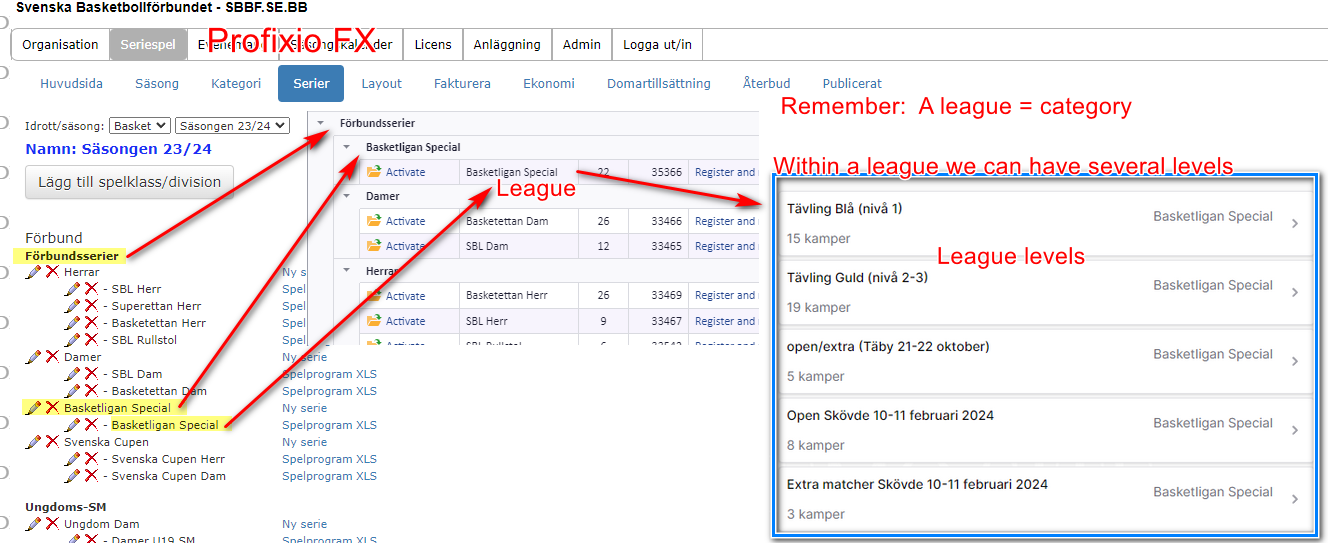
A league can be divided into one or several league levels. For example, M19 can be divided into M19 North and M19 South; North and South then become league levels of their own, just like M19. When a team is registered, it registers in its league level. The league administrator can at any time divide the teams into groups, which are used in match scheduling.
Important to know: there is a difference between levels that teams can register into and levels that only contain a match schedule. The league level settings tab is where you activate a league level; see "The league level settings tab" on this page.
The question is when you need to make a new level (1), when it is enough to tick "Has playoff" (2) in the basic league level settings, and when you should only make new groups (3).
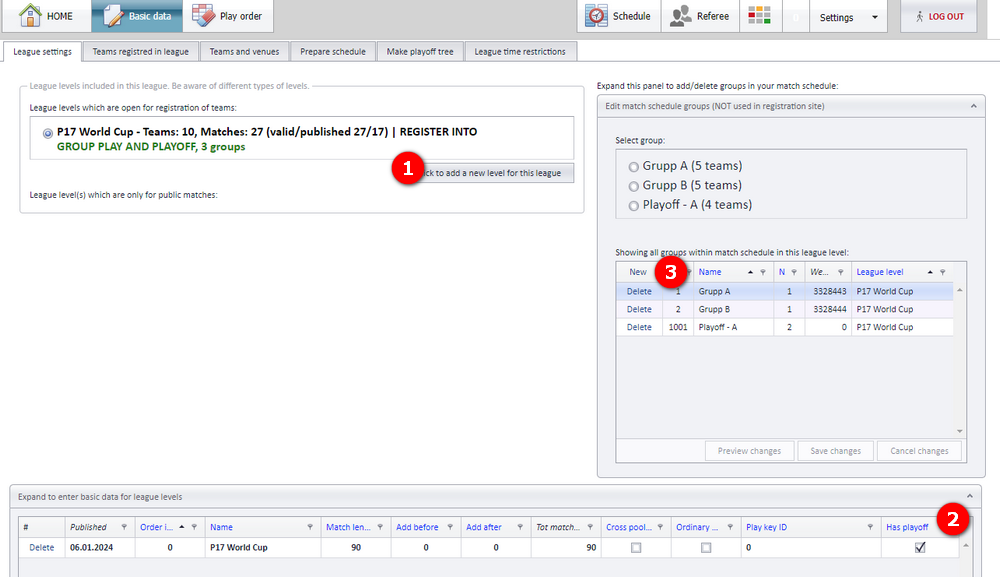
Example 1: teams register nationally and are split by region later. You want teams from all over the country to register to the league "Champleague", but the teams shall later be divided into "Champleague North" and "Champleague South". Make two new levels and then select the teams into "..North" or "..South".
Example 2: an ordinary playoff for an existing league. All teams in the playoff are taken from the existing league. It is enough to tick "Has playoff" for the league.
Example 3: dividing registered teams into ordinary groups. You want to divide the teams into groups after they have registered to a league. You do not need new levels: add groups to the level and select the teams into the groups.
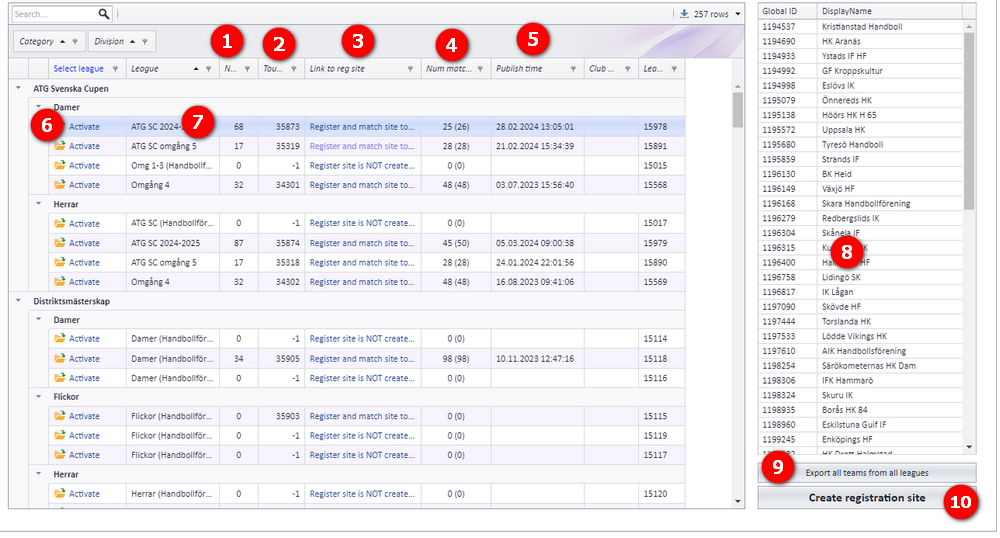
Depending on organisation, season and your credentials, PL shows all leagues available to you. The numbers refer to the screenshot below.
- Number of teams registered
- The id of the official tournament site
- Link to the tournament admin site. This is created after clicking button (10)
- Number of matches in the schedule / number of matches published
- Time when the matches were published to the public site
- Click to activate a league
- Click to show the teams registered in this league
- All teams from the registration site in APP (the public web site)
- Export teams to Excel
- Click to create a tournament admin site (a new popup form opens)
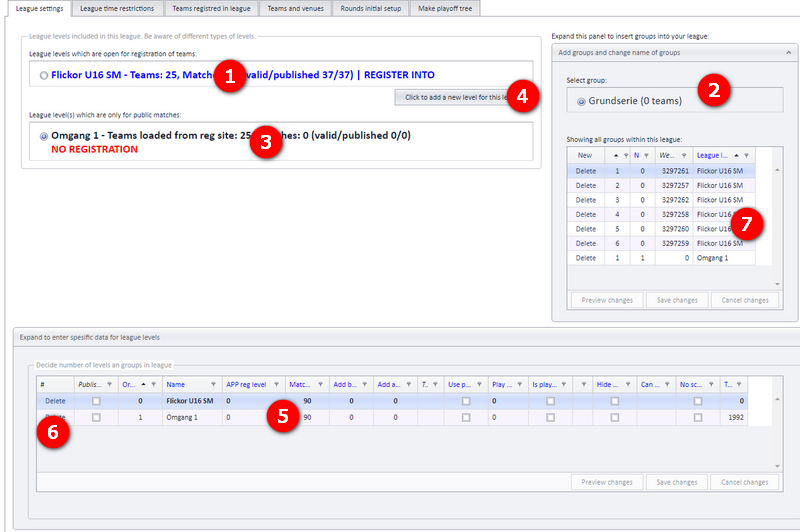
The league level settings tab lists the levels of the active league. The numbers refer to the screenshot below.
- Your league level(s) which teams can register into. They are shown in blue. Each league level is shown with data about matches and status, written in capitals.
- Expand the group panel to add a new group or edit an existing one. Groups are only used in match scheduling and not in the registration site.
- Your league level(s) which cannot be registered into and are only used in match scheduling. They are shown in black. Each league level is shown with data about matches and status, written in capitals.
- The button for adding one more level. Each league can be divided into several league levels, and you can change a level name at any time. When the registration site for the league is made, the number of levels is set.
- All levels for the active league. The columns are described under "Level settings reference" on this page.
- Delete a level. See "Deleting a level" on this page for what happens.
- If a group belongs to the wrong league level, change it here. All teams and matches are moved to the correct level.
The names you give the league levels are shown in the public web match site (APP) like this:
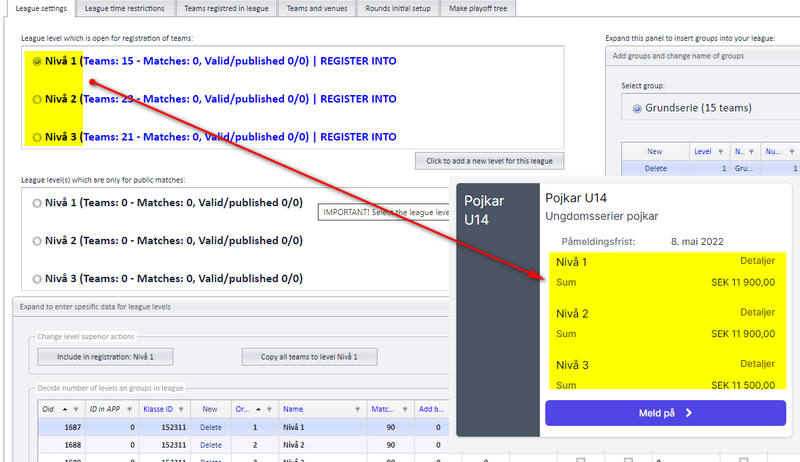
When a league is set to have a registration site, made by "Create registration site", you can choose not to include levels. For example in Basket Sweden, "Basketettan Herr" has no levels; teams can then only register to the league itself, not to a level in it.
In PL you can still divide such a league into levels, for example "Basketettan Herr North" and "Basketettan Herr South", and choose whether the new level shall be open for registering new teams or only used for making a schedule.
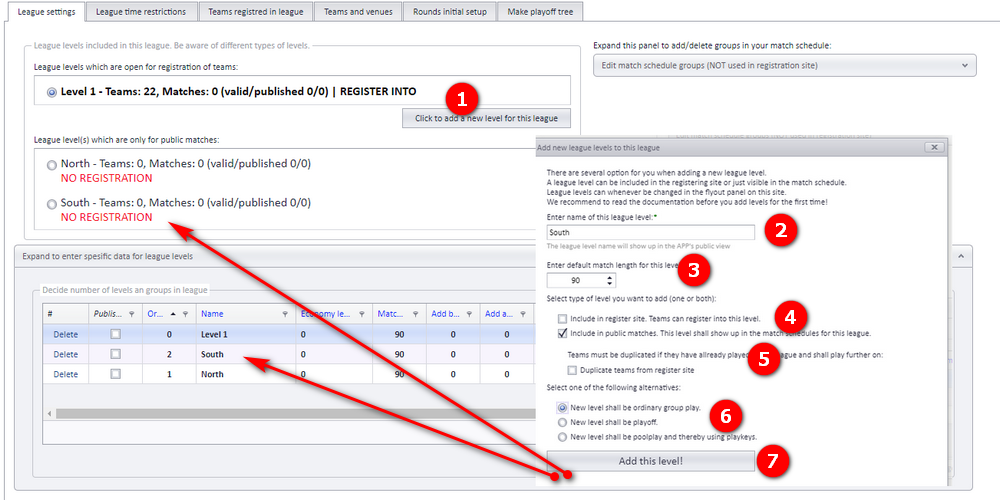
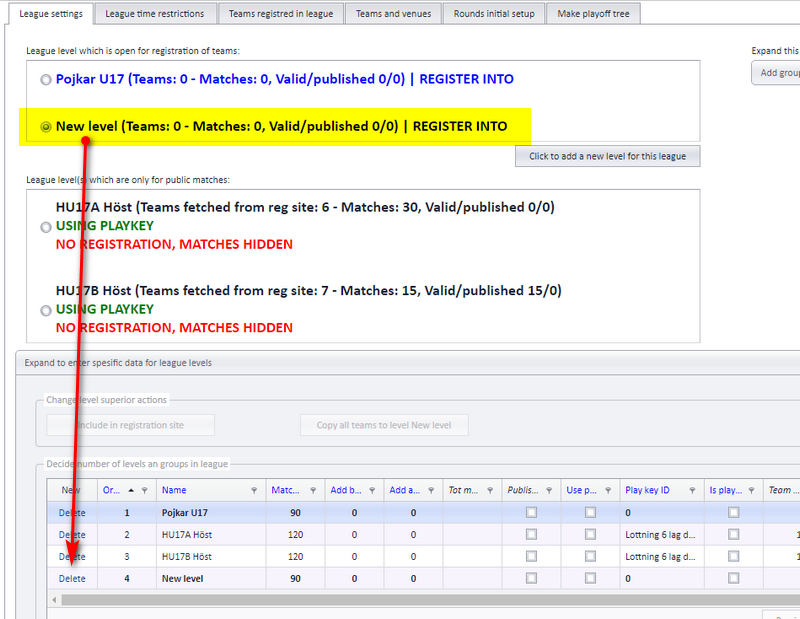
- Click the button "Click to add a new level for this league". A new window (form) opens.
- Enter the name of the level. It must be different from the existing levels. This name is shown everywhere.
- Enter the default match length.
- If the level shall show in the registration site, select "Include in register site". If the level shall also be used in the match schedule, select "Include in public matches".
- If teams shall be duplicated, select the duplicate checkbox. Typical scenario: teams first play in the level "South"; later in the season all teams shall play a playoff. Then you must duplicate the teams, because they shall participate in different levels. One team (with its unique id) can only participate in one level; a duplicated team gets a new unique id.
- Select the type of play you want for this league. You do not need to choose a play type if you have only selected "Include in register site".
- Click the save button. The page reloads and shows the new level as a new row in the levels table.
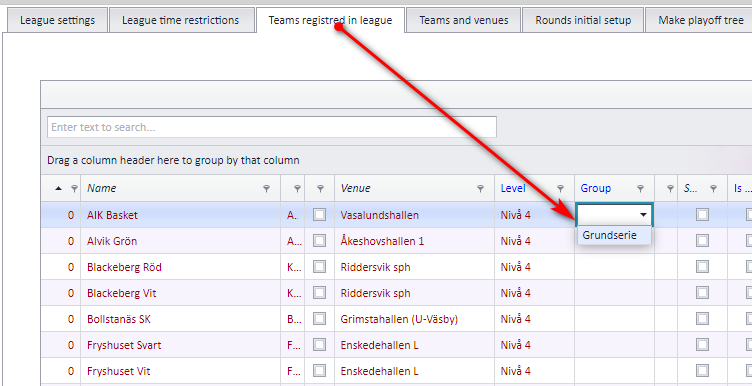
After a level is made, you must define which level the teams shall play in. Assign both the correct level and the correct group to each team that shall be included in the new level, as the image shows.
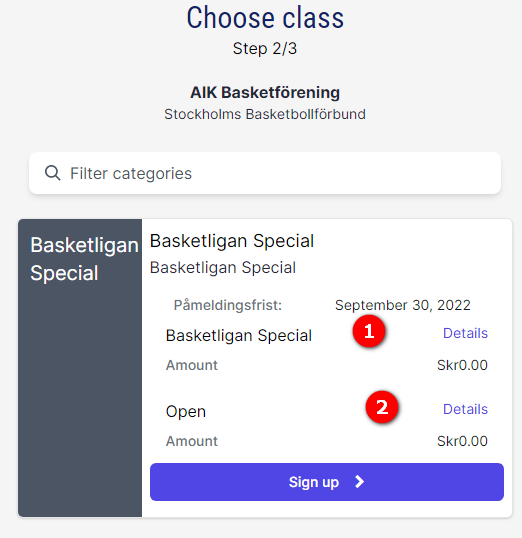
When a team is registered, it is possible to choose among the levels whose registration date has not expired. As an example, "Basketligaen Special" (1) was made as a registration level; adding a new level makes it show up in the category registration detail popup (2).
League admins always see all levels as open and active for registration, so that they can add teams to inactive levels.
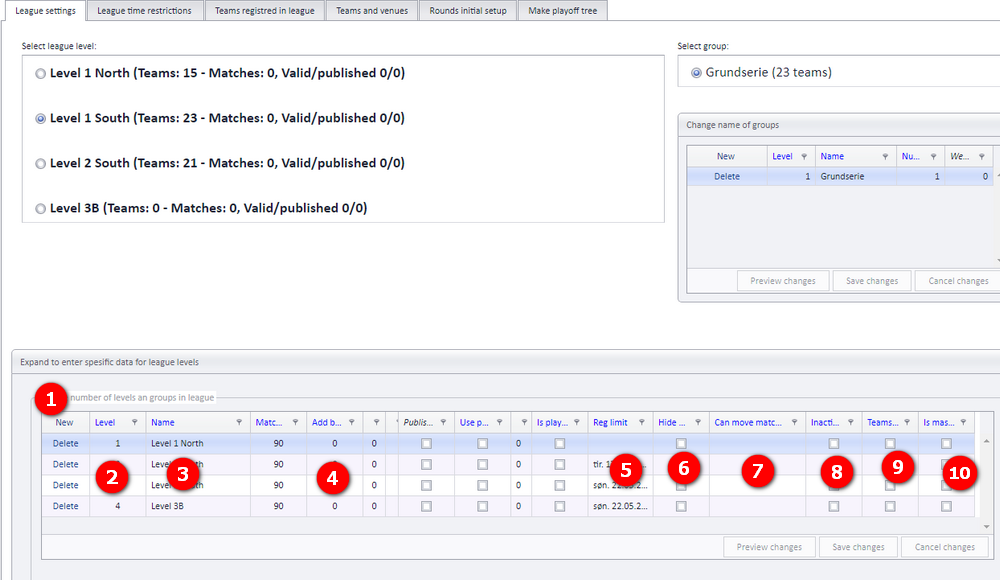
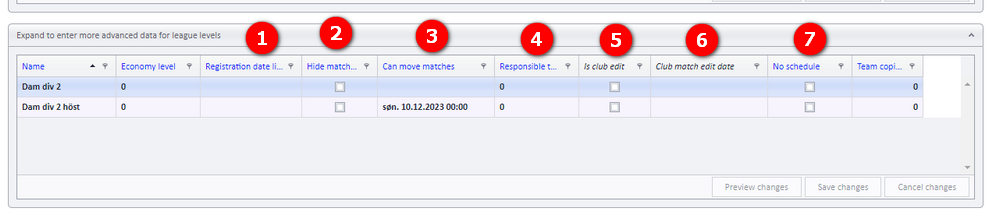
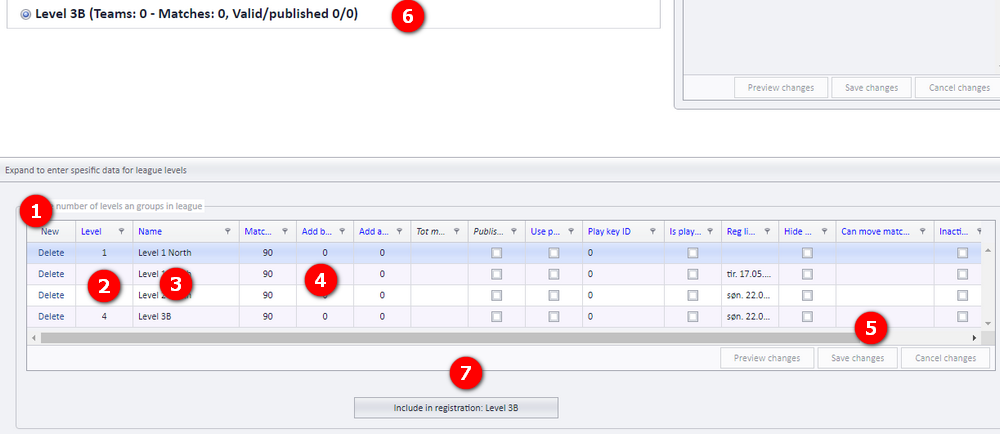
The levels table on the league level settings tab has one row per level. Click "New" to make a new row. Remember to save after editing. Screenshot A shows the levels table, screenshot B the settings for registration and matches; the "Where" column refers to the numbered callouts in them.
| Setting | What it does | Where |
|---|---|---|
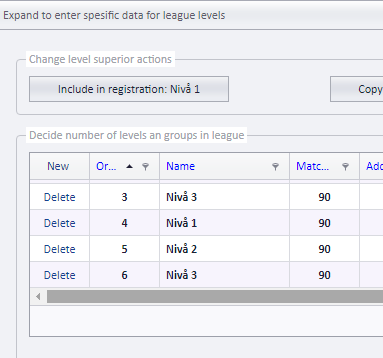
| "Level" / "Ordering" | The ordering number of the level (X). Levels are shown in this order. | A2, and the "Ordering" column |
| Name | The name of the level. It is shown in the registration site in APP and everywhere else the level appears. | A3 |
| Play length columns | The playing length data for matches in this level. | A4 |
| "Reg limit" | The last date on which a team can register to this level. Enter yesterday, or clear the date, to stop registration to the level. League admins can always register teams regardless of this date. | A5, B1 |
| "Hide matches" | Turn on to hide the matches of this level from public view. Team owners (match owners) and league admins can still see the matches. | A6, B2 |
| "Can move matches" | Set a date in the future if team owners (match owners) shall be able to ask for a match move (time or field). The opposing team must respond to the proposal. In leagues set to "must approved", the league owner must approve the change; in other leagues the match is changed when both team owners agree. The league responsible can accept or deny a request. | A7, B3 |
| Responsible team | If all matches in this league shall have one and the same responsible team, select that team here. | B4 |
| Home team club admin may set match time and venue | Tick this checkbox if the home team's club admin shall be allowed to set match time and venue. | B5 |
| Last date for match change | If the checkbox above is ticked, enter the last date on which the match can be changed. | B6 |
| No schedule | Tick this checkbox if the league shall not have a schedule. It is the same as setting the category to closed in APP: nobody except admins sees the category or its matches in APP. | B7 |
| "Inactive" | Turn on if the level shall not be visible at all in APP. | A8 |
| "Teams copied" | Read-only. Shows whether teams are copied from another level into this level. Mostly used in pool play and playoff. | A9 |
| "Is master" | When on, this is the master level from which teams are copied. | A10 |
| "Economy level" / "App reg level" | The level a team pays license for. See "Economy level and license cost" on this page. | Levels table |
Screenshot A, the levels table:
The "Ordering" column:
Screenshot B, settings for registration and matches:
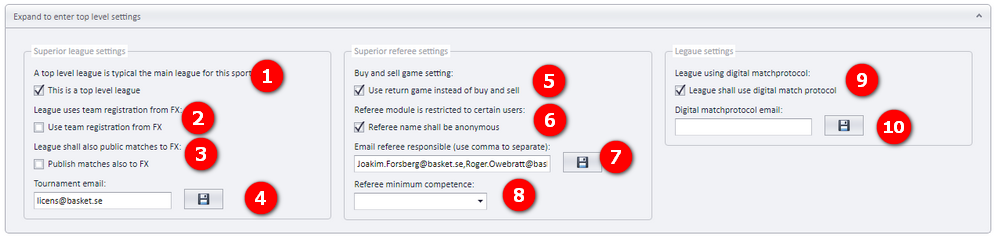
The top settings of a league level are numbered in the screenshot below.
- Set the league to be a top level league to influence referee assigning.
- Use team registration from FX if teams are registered only in FX (and not in APP).
- Tick this if you want the possibility to publish matches also to FX.
- A tournament email address, used in APP and FX. It is not used anywhere in PL.
- Tick this if you do not want to use buy and sell matches for referees.
- Tick this if the referee names in this league shall be anonymous. Only logged-in users with the correct credentials then see the names of the referees.
- A referee responsible who gets a copy of the notification emails, the same notifications that are sent to the referees.
- The minimum competence for referees in this league. All referees are shown and can be selected, but you get a warning if the competence does not match.
- Whether the league shall use the digital match protocol.
- The email address of the recipients of the digital protocol. Only used in APP.
Top level leagues, buy and sell and anonymous referee names are described on the referee pages of this help center; see the related pages at the end of this page.
All leagues where the participating teams shall be invoiced must be set up with an "Economy level". This level decides the cost to participate. For example, "Stockholm PU16" can be assigned economy level "Level 1". Later, when a registration site is made, a category can be assigned to an economy level, and the cost for the teams is fetched from that economy level.
Setup in Profixio FX: economy levels must be assigned to registration levels.
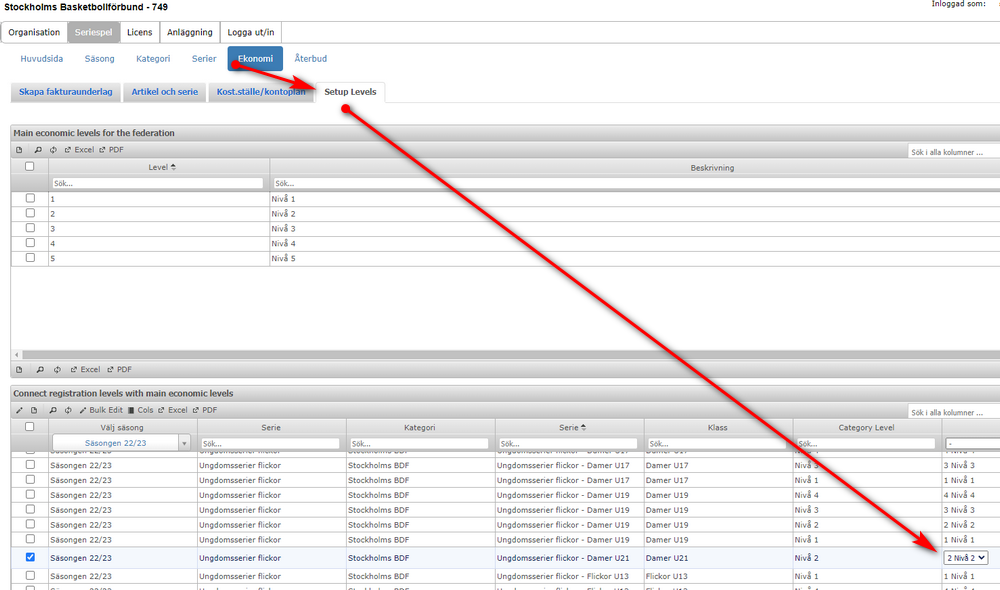
A team can be registered into one level, for example "Level 1", but play in "Level 2A". The team shall pay license according to the level it plays in. To get this right, set the correct level in the league level settings, column "Economy level" (also referred to as "App reg level").
- Select the correct level from the drop-down list. Remember to save.
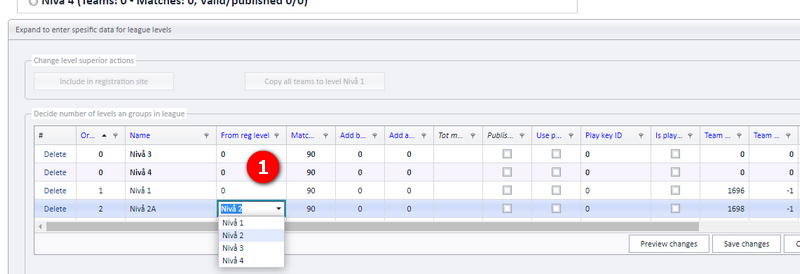
Situation: PU14 Stockholm basket, season 22/23. The registration site is made with 3 levels, and none of the registration columns in the levels table are ticked.
A. Change the name of a level and close registration
- Enter the new name of the level.
- Clear the column "Reg limit", or set the date to before today. This closes the registration choice for this level.
- Remember to save.
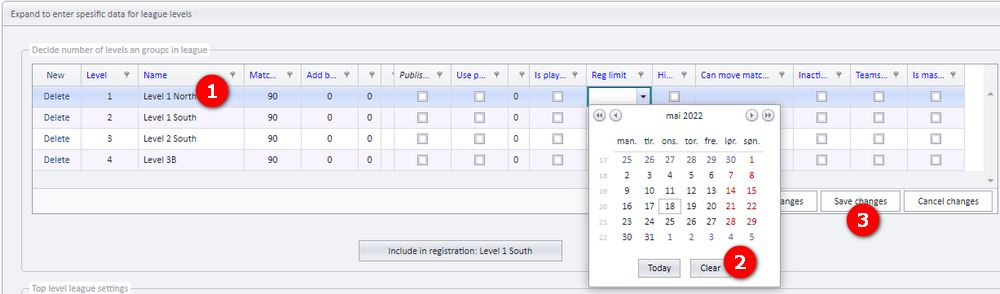
The level then no longer appears as a choice on the public registration site.
B. Get a team from another level
- Change the team's level from the tab "Teams registered in league" (select from the dropdown).
- Remember to save.
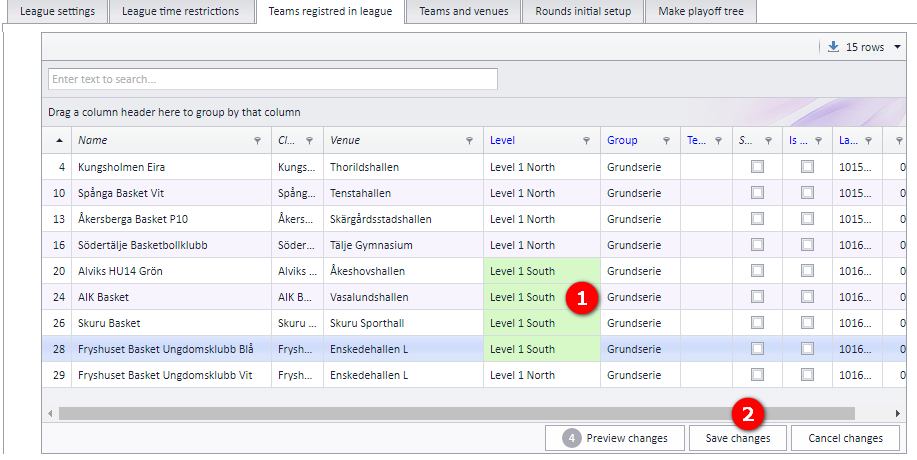
The summary of teams per level in the level list is updated.
C. Make a new level "Level 3B" and make a registration site for it
- Click "New".
- Set the correct level number (levels should be in order, so this one is set to 4).
- Enter the name...
- ...and the playing length data.
- Remember to save.
- To make the level available for registration in APP, activate the level (if not already done).
- Then use the button shown to make the registration site.
A league level can only be deleted when no matches are published to APP. If matches exist in the level, delete them first. A level cannot be deleted if it is the only or the first level in the league: one level must always remain.
When you delete a level:
- The level is also deleted from the registration site in APP. Teams registered in this level in APP are moved to the top level of the registration site; the teams are removed from the level but are not deleted from the registration site.
- Matches scheduled in PL but not published are deleted.
- Creating the organisation and season the league belongs to: organisation and season setup.
- Creating and editing the registration site itself: the league registration site.
- Registering, replacing, moving and deleting teams in a level: teams in a league; replacing, deleting and moving teams.
- Group play, pool play and playoff scheduling: ordinary group play; pool play and cross-pool play; from group play to playoff.
- Match move requests and letting clubs set times: match move requests; letting clubs set times in the app.
- Top level leagues, buy and sell, referee competence and anonymous referee names: referee appointment overview and access; nominating, accepting and buy and sell; referee competence and publishing referees.
- Publishing the schedule to APP: publishing the schedule.
See also
- Applying to move a series match
- Going from group play to playoff
- Letting clubs set times themselves (Administer matches)
- Nominating, accepting and buy and sell
- Ordinary group play
- Organisation and season setup
- Pool play and cross pool play
- Publishing the schedule
- Referee appointment: overview and who may appoint
- Referee competence and publishing referees
- Replacing, deleting and moving a team
- Teams in a league
- The series registration site
Not covered here
Was this page helpful?