The series registration site
Creating and changing the registration site a series uses in Profixio League (PL), how team registrations arrive in PL when a league is activated, and changing how many series a team plays.
Looking for something else? Publishing the schedule
- What PL is and when to use it: see "What PL is and which solution to use".
- Setting up the organisation and the season the league belongs to: see "Organisation and season setup".
- Working with levels and groups once the teams are in PL: see "League levels and groups".
- Managing the teams in a league, and replacing, deleting or moving them: see "Teams in a league" and "Replacing, deleting and moving teams".
- Play types, group play and moving from group play to a playoff: see "Ordinary group play" and "From group play to playoff".
- Publishing the schedule to the app: see "Publishing the schedule".
For other roles
To register teams and show a match schedule, a registration site must be made from Profixio League (PL). The registration site becomes part of the Profixio app (APP) site, where team leaders manage their teams and where matches are shown publicly. When the site is made, teams can register.
Only organisations that use the app to register teams can create a registration site.
The person responsible for the league in PL can make several league levels and upload these levels to the registration site. It is also possible to change which of these league levels a team participates in, directly in PL. The registration site and the actual league levels used for showing the match schedule can be completely different.
Two types of registration site can be made in PL:
- Single level registration. It is only possible to register into one level, for example "Boys19" or "PU16". Teams can then only register in that level.
- Multi-level registration. It is possible to choose among several levels, for example "Boys19" - "North", "South". The sub levels are shown on the registration site as "Category levels", typically "PU16" - "North".
Whatever type of registration is chosen, the match schedule can be divided differently. For example, "Boys19 - North" can be divided into "Group A" and "Group B" in the match schedule. Teams can be put in any match scheduling level, independent of the level they registered into.
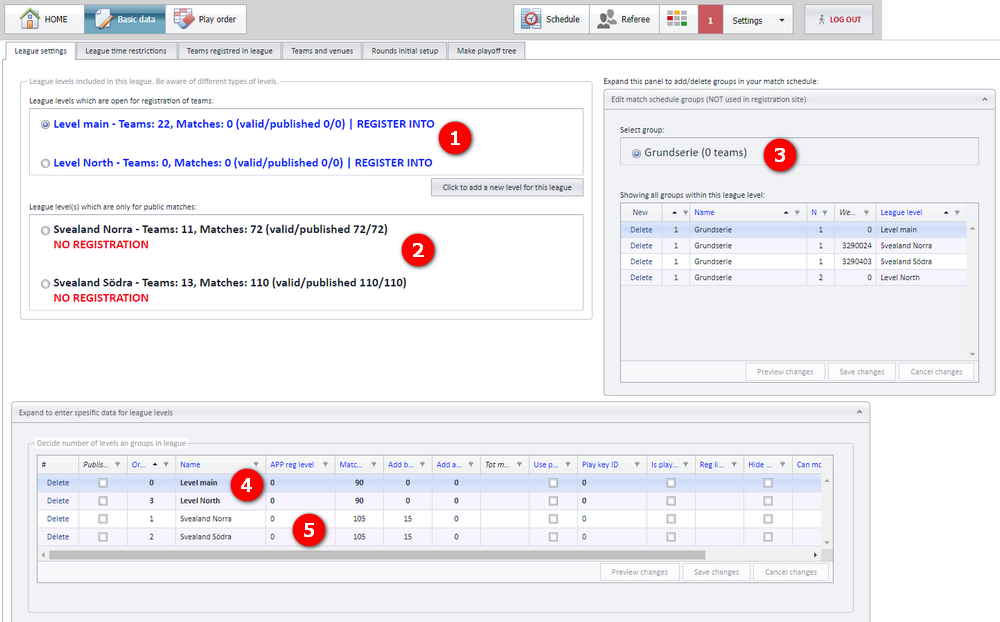
In the screenshot:
- Area showing the levels it is possible to register into
- Area showing the levels used in match scheduling
- Groups used in match scheduling
- Data for the specific levels; bold rows are registration levels, the other rows are match scheduling levels
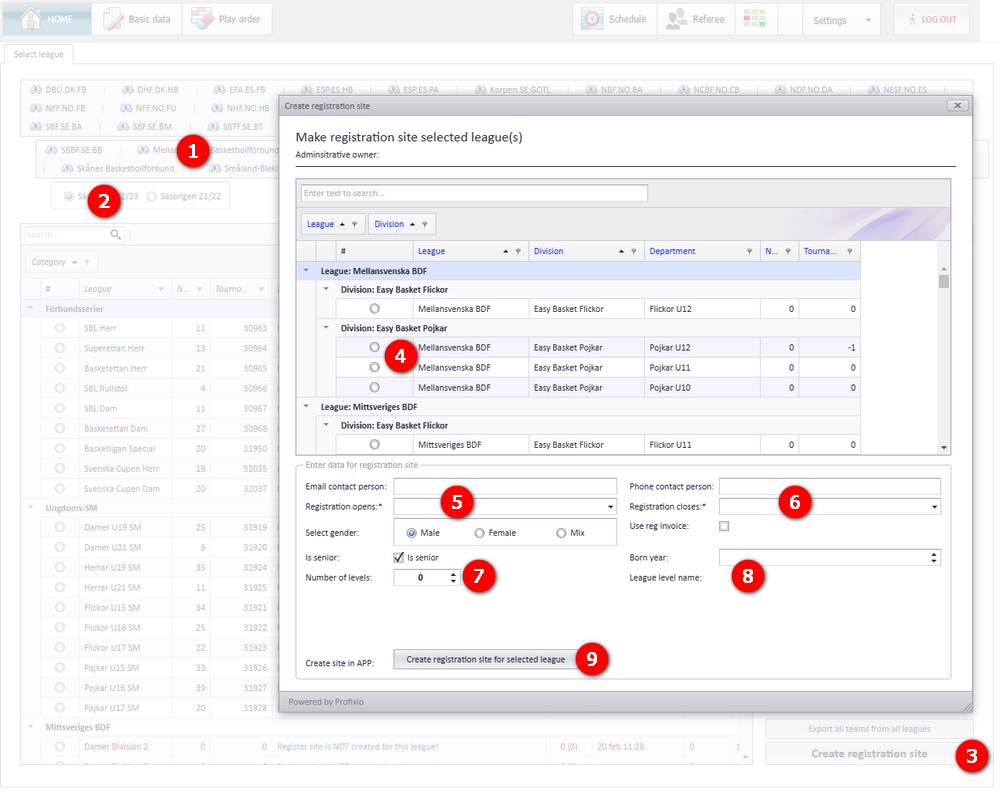
A registration site is made from PL, menu "Home".
- Select the type of organisation...
- ...and the season.
- The button "Create registration site" is now available.
- Select the tournament (league) you are making the registration site for.
- Enter "Registration opens" and "...closes". This is the registration period, but it can be changed later in the app admin site.
- Same as step 5, for the closing date.
- If you want the teams to register in several levels, enter the number of levels here. They show up on the registration site as "Category levels".
- If you enter 1 or more levels in step 7, all levels must be given names.
- Click the button to create the registration site. After you close this window, the list of leagues in the "Home" window updates, and you can activate the league to work with it, or click to see the registration site.
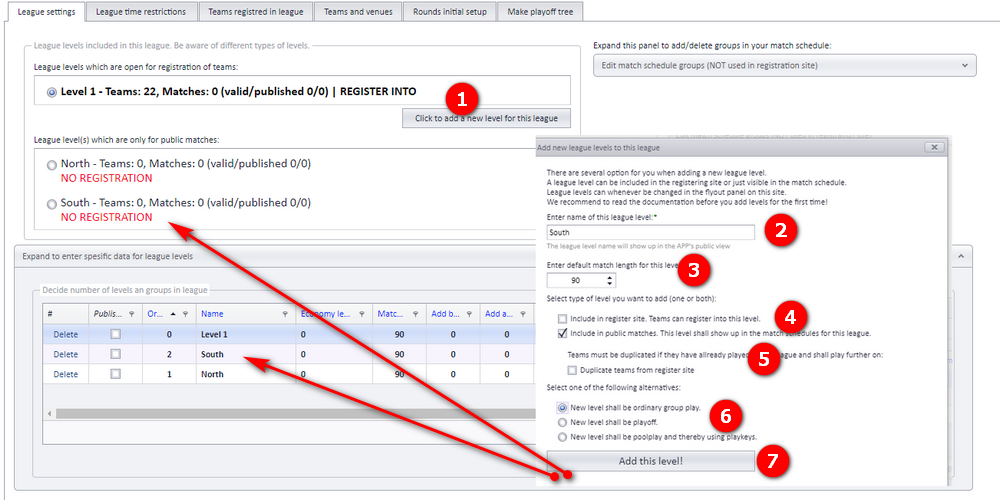
When the registration site has been made, it is possible to edit it from the menu "Basic data", tab "League settings". Adding and deleting the levels of the league is described in "Adding a level" and "Deleting a level" on this page.
- To add a new level, click the button "Click to add a new level for this league". A new window (form) shows up.
- Enter the name of the level. It must be different from the existing levels. This name is shown everywhere.
- Enter the default match length.
- If the level shall show on the registration site, select "Include in register site". If the level shall also be used in the match schedule, select "Include in public matches".
- If the teams shall be duplicated, select the duplicate teams checkbox. Typical scenario: the teams first play in level "South". Later in the season, all teams shall play a playoff. Then you must select to duplicate the teams, because they shall participate in different levels. One team (with its unique ID) can only participate in one level. When a team is duplicated, the duplicate gets a new unique ID; it is a copy of the existing team and all its data is duplicated.
- Select which type of play you want for this league. It is not necessary to choose a play type if you have only selected "Include in register site".
- Click the button to save the new level. The page reloads, showing the new level and a new row in the levels table.
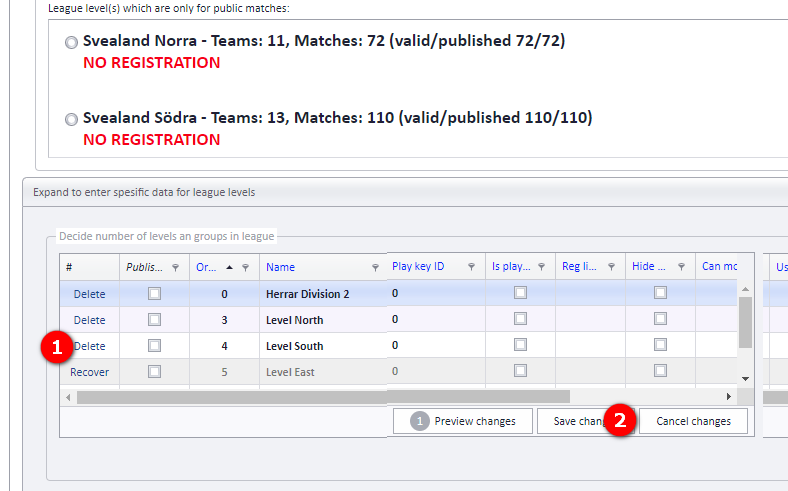
To delete a level, click the button "Delete" and remember to click "Save changes".
A level can be deleted as long as it is not locked, is not the only level, and has no matches in the app.
When a level is deleted:
- The app is updated without further action.
- If there are teams in the level, they are moved out of the level (they are not deleted).
- If there are matches in PL that are not in the app, these matches are deleted.
A category can be divided into several sub levels. This is done in the app, from the menu "Categories". Each sub level is shown in PL with data from the app. Changing a name in the app is reflected in PL.
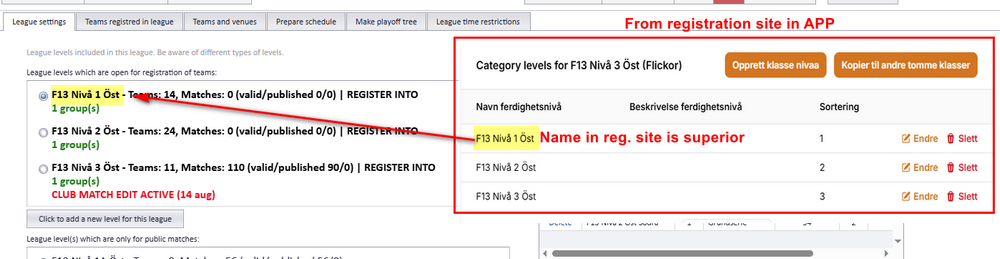
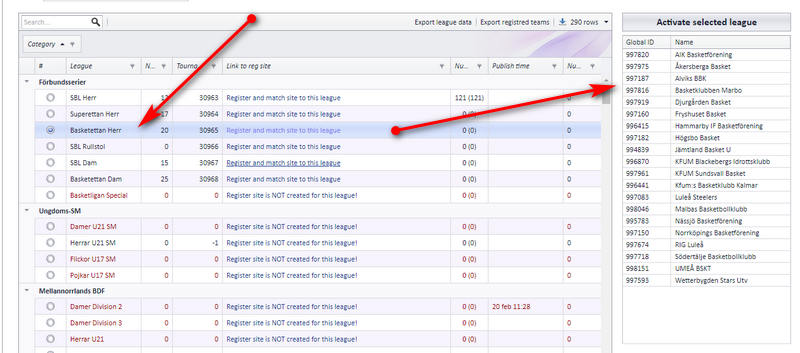
When you activate a league in PL, all teams are downloaded from the app into PL. This is what happens when a league is activated:
- All category data is downloaded from the app and updates the data in PL. If a league level is missing in PL, it is made.
- If teams are deleted in the app, they are deleted in PL.
- Teams registered in the app that do not exist in PL are made in PL with basic data. Later, the person responsible can change the league level or group for all teams, regardless of the registration data.
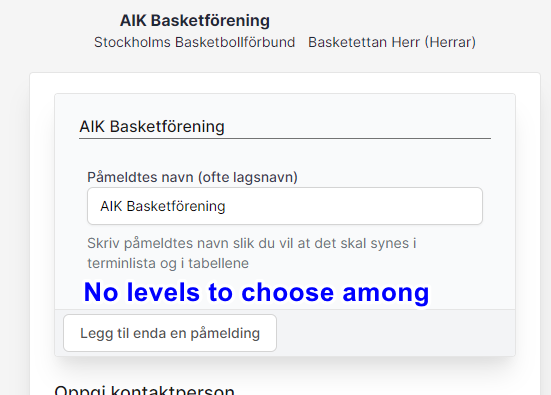
If the registration site has no levels to register in (as the screenshot shows), all teams are saved into the main league. The main league is flagged as "Master".
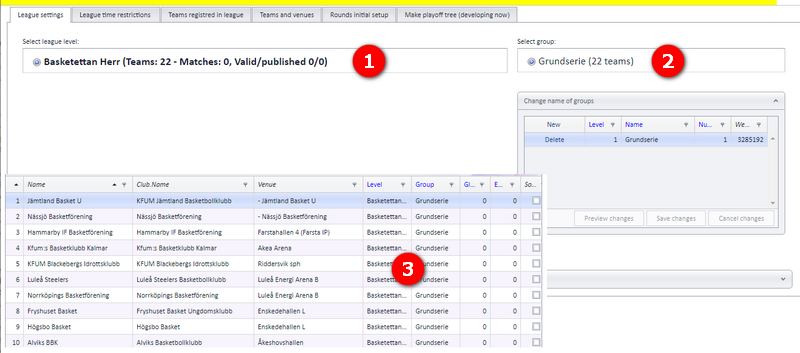
Every new team that has registered and is not saved into PL yet shows up in the Master league. All teams are by default placed in group number 1 (if they do not already belong to another group).
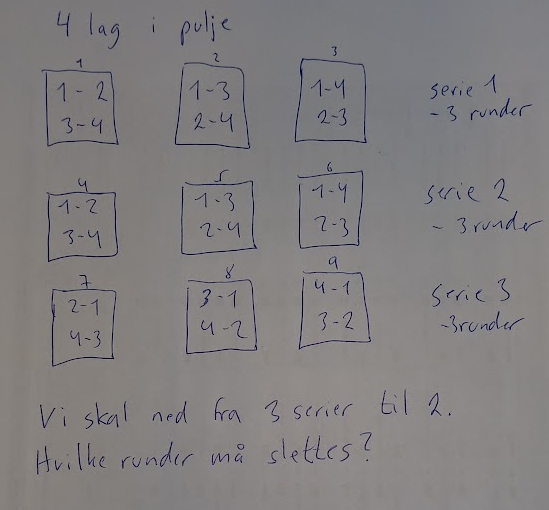
The number of series each team plays in a pool can be changed. Example with 4 teams in a pool: change from 3 to 2 series.
| Setting or button | What it does | Where |
|---|---|---|
| "Create registration site" | Opens the window for making the registration site; available once organisation type and season are selected | Menu "Home" |
| "Registration opens" / "...closes" | The registration period; can be changed later in the app admin site | Create registration site window |
| Number of levels | How many levels teams can register in; shown as "Category levels" on the registration site; every level must be named | Create registration site window |
| "Click to add a new level for this league" | Opens the form for a new level | Menu "Basic data", tab "League settings" |
| Level name | Must differ from existing levels; shown everywhere | New level form |
| Default match length | Default length for matches in the level | New level form |
| "Include in register site" | The level shows on the registration site | New level form |
| "Include in public matches" | The level is used in the match schedule | New level form |
| Duplicate teams | Copies the teams into the new level with new unique IDs | New level form |
| Type of play | The play type for the level; not needed when only "Include in register site" is selected | New level form |
| "Delete" + "Save changes" | Removes a level that is not locked, not the only level and has no matches in the app | Menu "Basic data", tab "League settings" |
| "Categories" | Divides a category into sub levels that PL shows with data from the app | In the app |
See also
Not covered here
Was this page helpful?