Organisation and season setup
Creating the season, the base data PL needs from the organisation (referee competences and roles, venues, ranking scale) and organisation-wide match numbering.
- What PL is and how it relates to the Profixio web administration: What PL is and which solution to use.
- Setting up the levels and groups (divisions and departments) of a league after the season is loaded: League levels and groups.
- Registering venues and their available times: Venues and team home venues.
- Referee competences, roles and hiding referees from public view: Referee competence and publishing referees; referee pairs: Referee groups, pairs and calendars.
- How ranking scales are applied in standings: Standings and ranking criteria.
- Publishing the schedule, which is when custom match numbers are assigned: Publishing the schedule.
Choose your federation to see rules that apply to you
Some of this page depends on your federation. Choose it at the top of the page to see the settings that apply to you.
In this example, the match number layout is split into 5 parameters:
AB C DE FG HIJ
The parameters in bold are set by the system and cannot be changed. The other parameters (D, E, F, G) must be decided by the competition administrator and set in the app and in PL.
| Parameter | Example | Meaning | Set by |
|---|---|---|---|
| AB | 24 | Season 2024-2025 becomes 24 (2 digits) | System |
| C | 6 | District | System |
| D | 0 | Category (USM) | Competition administrator |
| E | 1 | Women (Flickor) | Competition administrator |
| F | 3 | Division 3 – level + group ("Steg 1" + "Grupp A") | Competition administrator |
| G | 1 | Norra (north) | Competition administrator |
| HIJ | 003 | The match's specific number | System |
Use this menu to enter the data for the parameters set by the administrator:
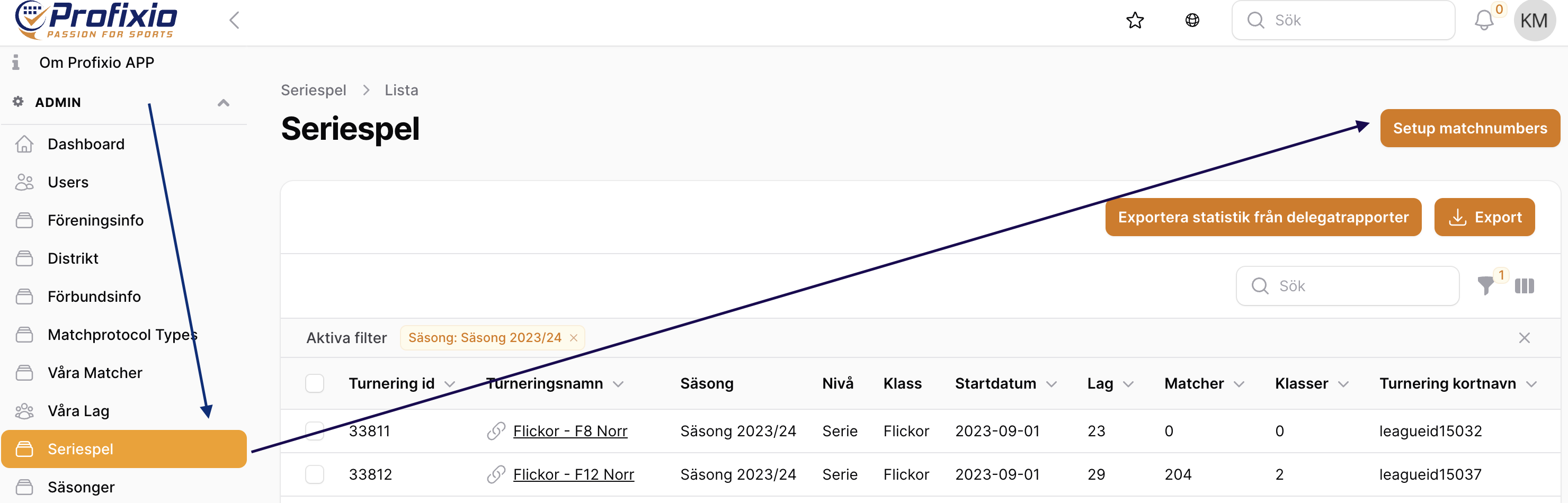
Parameters set in the app (2 fields):
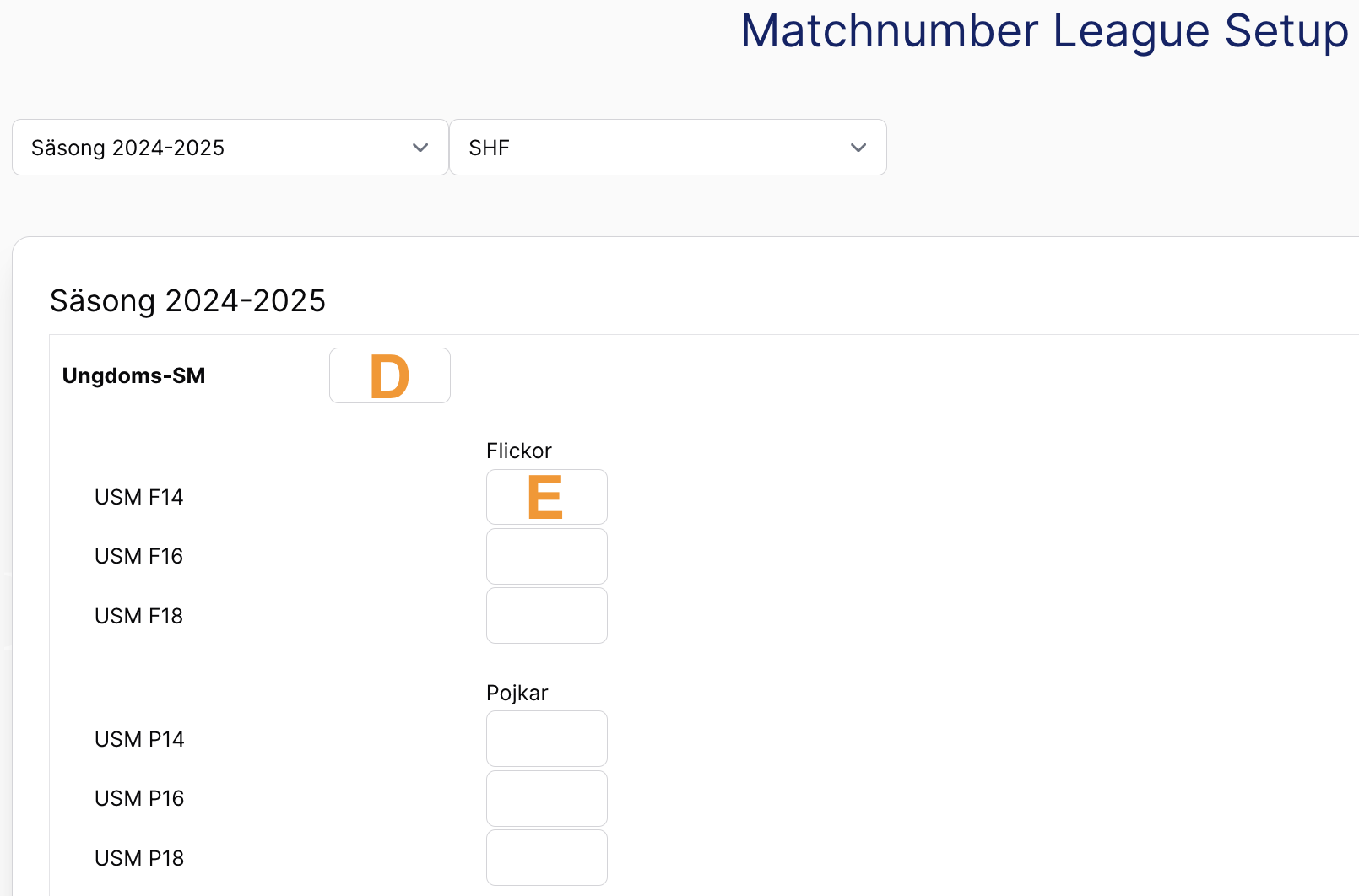
Parameter set in PL (1 field):
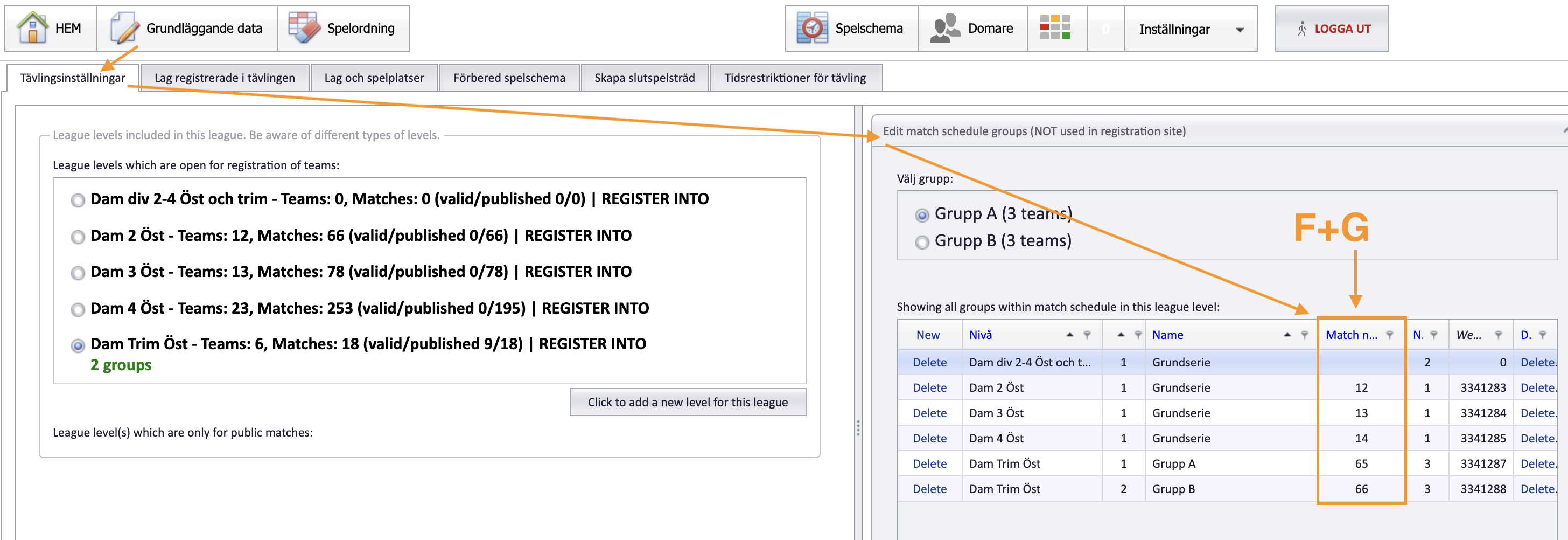
- Once a match has been assigned a custom match number, that number is never used by another match, even if the match is deleted.
- A custom match number is assigned only at publishing.
- If any of the data D, E, F or G is missing, the match is shown with its standard id only.
- The column showing the parameters is red when any of the data is missing.
For other roles
When you start a new season, some data must be registered in PL for your organisation before the season's leagues can be run:
- The referee competence list (for example "Elit", "level 4").
- The referee roles (for example "Crew chief", "Umpire 1").
- A way for the system to hide referees from public view.
- All referees imported from the organisation's data.
- Venues set up with available times.
Referee competences, roles and hiding referees from public view are described on the page Referee competence and publishing referees. Venue availability is described on Venues and team home venues.
A season is created in FX (the Profixio web administration), with its from and to dates. These dates matter: they are the dates PL uses when it fetches the season's data.
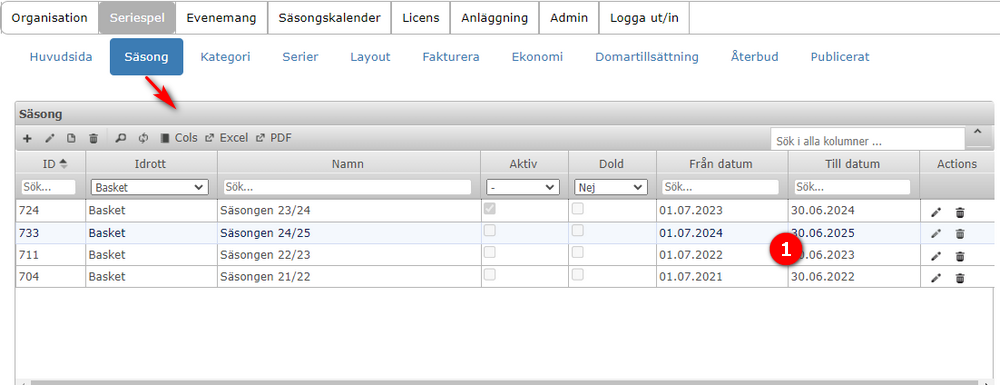
- PL fetches the season data from FX. Once fetched, the data can be edited inside PL.
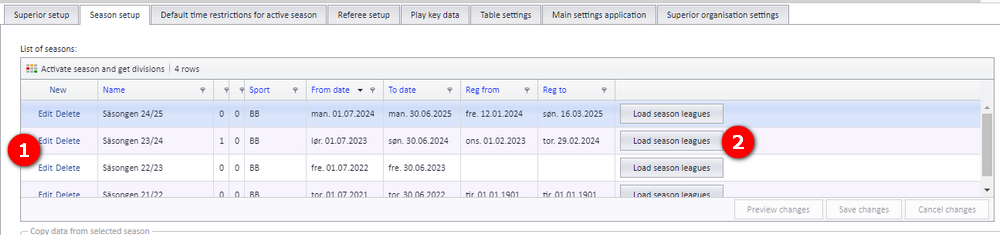
- Click "Load season leagues". This is necessary once for each season. It will:
- import all leagues made in FX,
- update the referee competence data,
- assign referees to competences based on this season (competence can vary from season to season),
- copy referee pairs from last season.
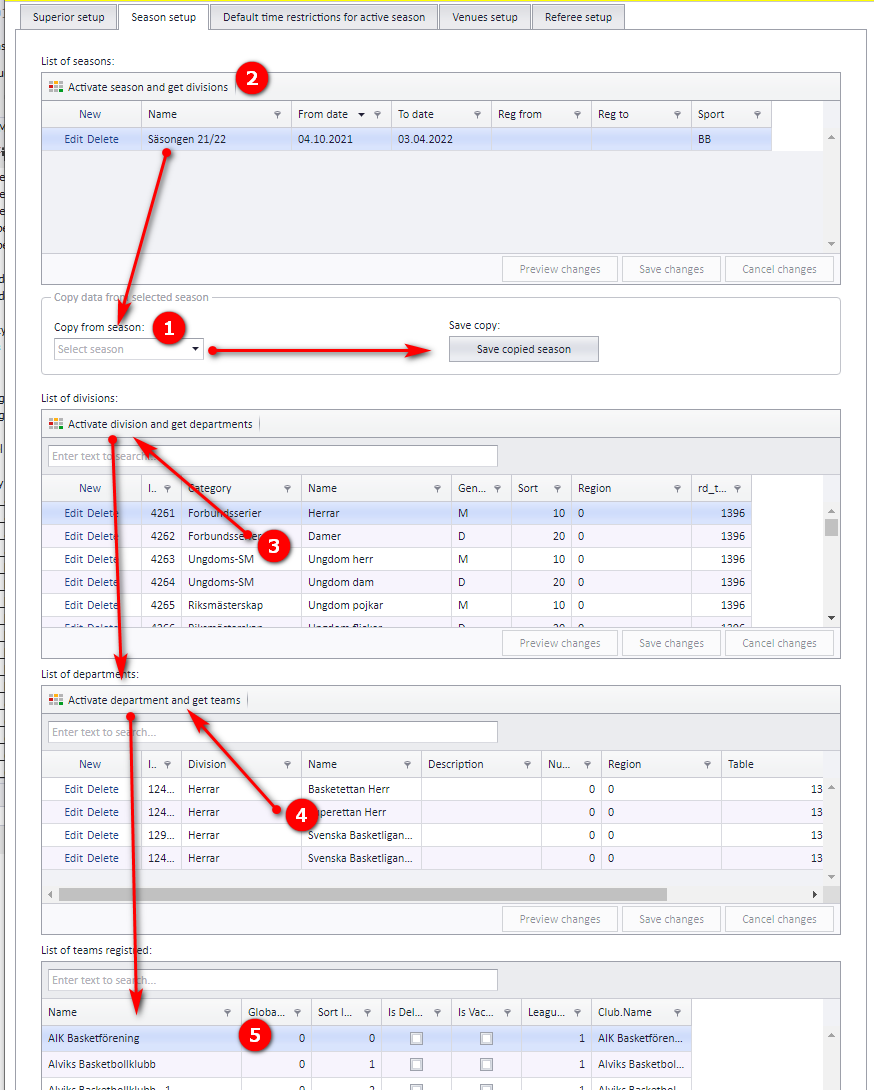
To simplify setup, you can copy divisions and departments from a preceding season to a new one, typically the upcoming season.
First, the new season must be created in FX. It can then be chosen as the season to copy to.
- Select the active season and select the season you want to copy from. Save the copy by clicking the button shown in the screenshot.
- Activate the divisions of the season by clicking the button "Activate season and get divisions" ("Aktiver sesong og få inndelinger" / "Aktivera säsong och hämta divisioner").
- You can then select one division, activate its departments and see all registered teams.
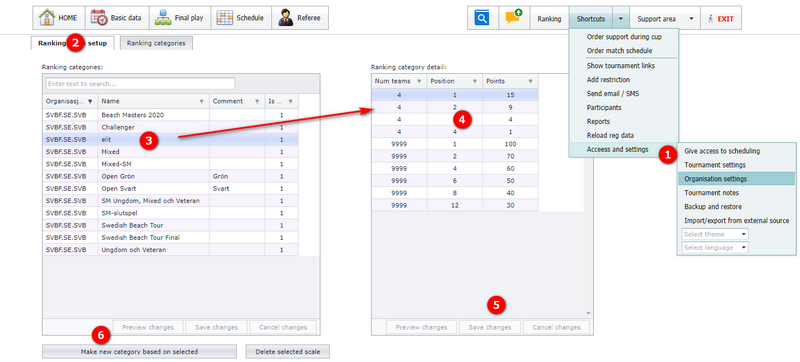
Ranking scales are maintained under Organisation settings.
Do not delete or edit ranking scales that have been used in tournaments. That impacts the whole ranking point system. When you need different values, make a new ranking scale for future use instead (bubble 5 in the screenshot, step 6 below).
- Open the menu "Shortcuts" – "Access and settings" – "Organisation settings" («Snarveier» – «Tilgang og innstillinger» – «Organisasjonsinnstillinger»).
- Click the tab "Ranking scale setup" («Oppsett av rangeringsskala»).
- The ranking scales are shown in the left grid; the details of the selected scale are shown in the right grid. Click a scale to show its details.
- In the detail grid you can change the values that make up the ranking scale.
- Remember to save your changes.
- To make a new scale for future use, select an existing scale and make a copy of it (an easier start than an empty scale). The name of the copy starts with "-> Copy of..." so you can easily spot your new ranking scale. Change the name and enter the correct values in the detail grid.
By default, a match number is the same as the id PL gives the match. This can be changed at organisation level: each organisation can have its own system for match numbers.
Custom match numbering is switched on per organisation; your federation arranges it with Profixio support. Once it is enabled, the organisation's competition administrators decide the values of the parameters that make up the number and enter them in the app and in PL. An example layout is described in the section Example match number layout.
Was this page helpful?