Pool play and cross pool play
How to set a league level to pool play from playkeys, schedule it, run cross pool play with or without a playkey, make pools and round robin matches without playkeys, and what custom playtype 1 is.
For other roles
Pool play is a scheduling variant in Profixio League (PL) where the schedule is built from a set of playkeys instead of from the "Play order" criteria. Each match is locked regarding home team, away team and the round it is played in (and, if set in the playkey, the organizer). The venue of the home team is used as the match venue.
In ordinary pool play, teams play each other inside the same group. Only one group is necessary: all teams and all matches are then assigned to that single group. A league level can also have several groups, but all groups in the level must use the same playkey.
A pool play that includes cross-group matches needs the correct playkey to be chosen. If the playkey does not exist yet, import it from an Excel file (see "Importing a schedule or playkeys from Excel").
When a league level uses pool play, the menu "Play order" is hidden, because the playkeys define all matches, so there is no reason to run the Play order algorithm.
A league level uses either pool play from playkeys or straight round robin for all of its groups. If some groups should play a straight round robin, make a separate league level for those groups.
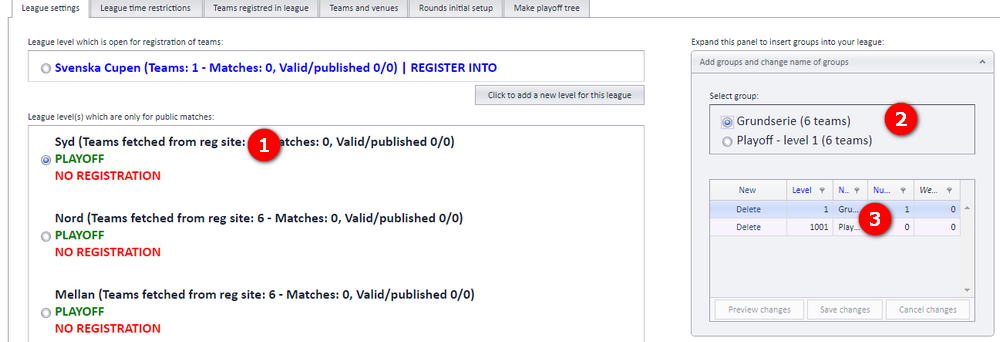
Open the menu "Basic data" and the tab "League settings".
- When pool play is set, the league level shows this information in its level info.
- Check the "Use pool play" checkbox. This is the most important step.
- Select the correct playkey.
- Click "Save changes".
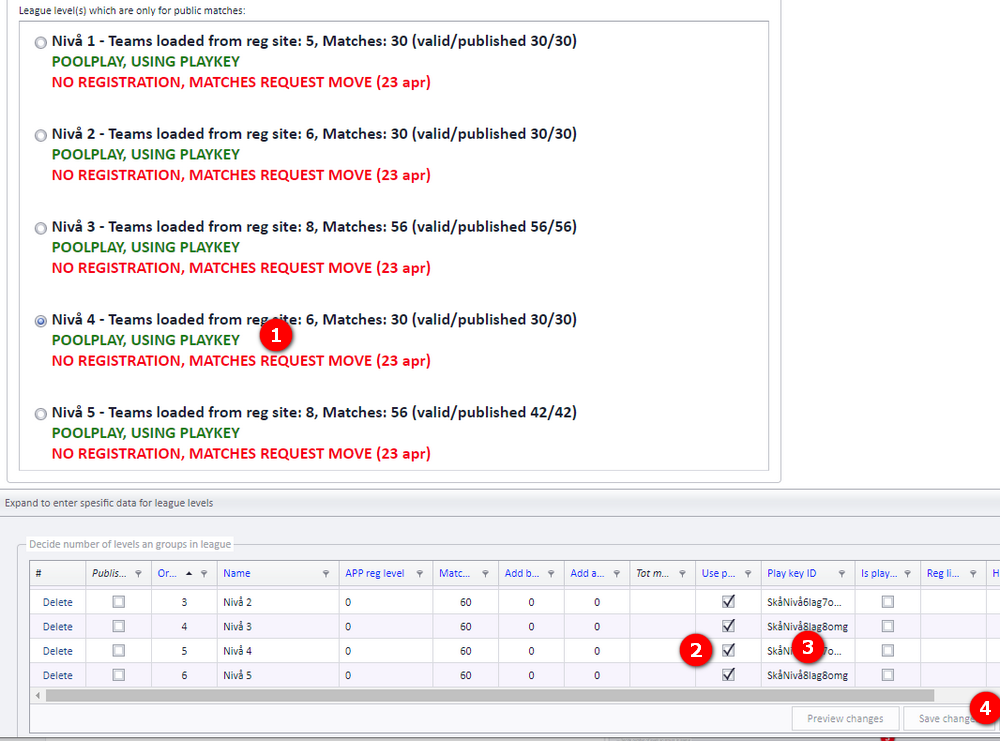
Playkeys are imported from Excel; see "Importing a schedule or playkeys from Excel" if the playkey set you need is not in PL yet.
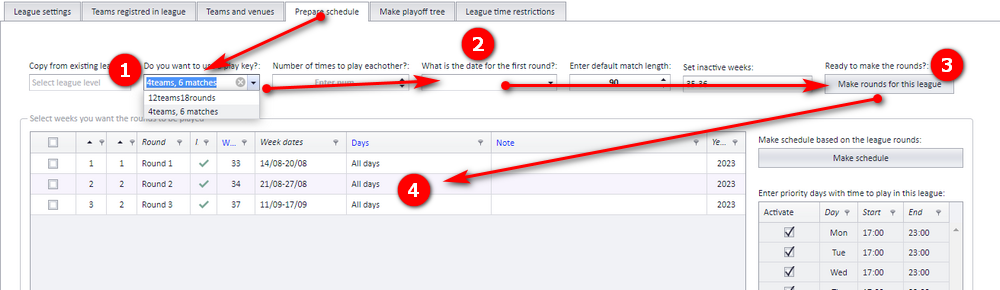
Before scheduling, the rounds need to be time restricted so the scheduler knows in which time interval each match can be played. Open "Prepare schedule" and set the rounds:
Making the matches
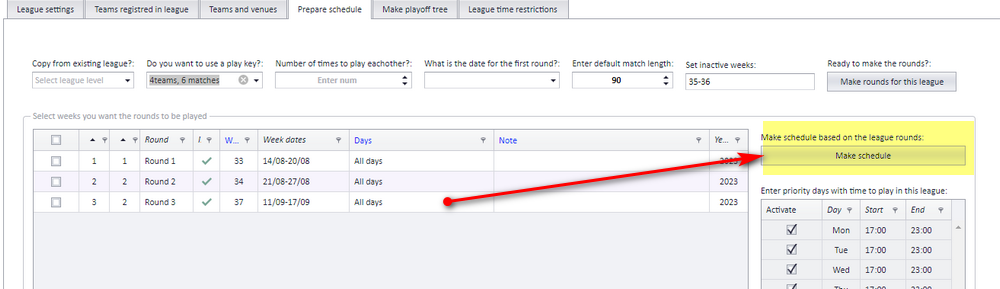
After the rounds are made, the matches must be made. Use the button "Make schedule". All matches are made from the playkey set.
Improving the schedule with the Profixio CUP algorithms
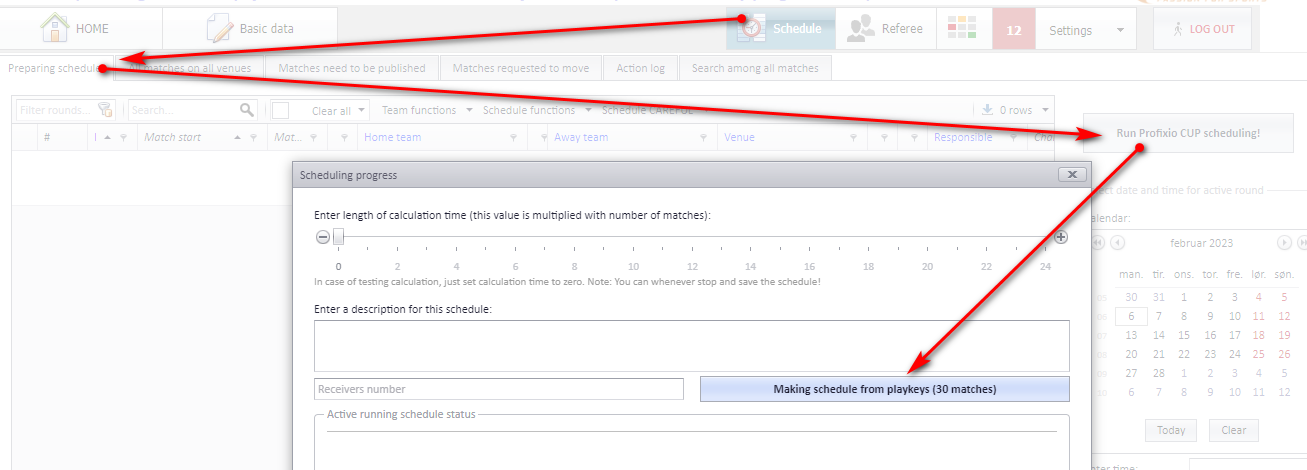
After the pool play schedule is made, you can improve it by running the Profixio CUP algorithms. As usual, green matches are not changed. To force a match to be scheduled by CUP, check "Include this match in CUP" on the match.
Resetting the schedule and rerunning pool play with playkeys
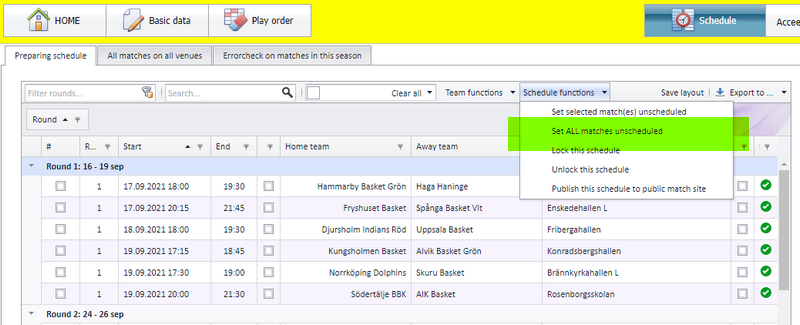
To make a complete new schedule, for example after the playkey set has been changed, use the function "Delete this schedule" before running CUP. CUP then deletes all matches and makes all matches from scratch from the playkey set, using "pool play CUP".
"Cross pool play" is a special type of pool play. Teams are divided into groups, and each team plays against teams from the other group or from its own group. You can run it either with playkeys (the most common choice) or without.
With playkeys, the playkey defines the number of matches and thereby the number of series. Most often each team meets another team only once. Only a playkey whose name includes "cross" can be used for cross pool play.
Without playkeys, each team meets the teams in its own group twice and, in addition, the teams in the other group once. Running cross pool play without playkeys requires exactly two groups.
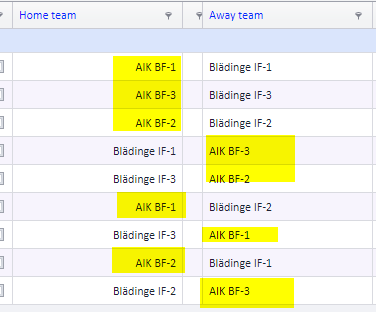
This schedule shows typical cross matches. Teams inside the yellow rectangle are in group A and the other teams are in group B. As the picture shows, the teams in group A do not meet each other in this example.
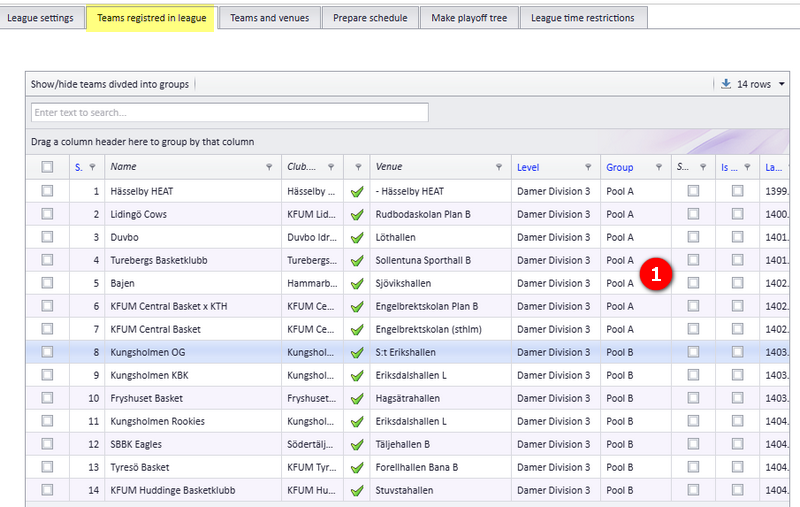
First of all, make the two groups for the league level (see "League levels and groups"). Then place each team in its group:
- Open the tab "Teams registred in league" and select the correct group for each team.
- Select the league level that shall use cross pool play. When everything is done, the league level info shows the status in green text.
- Check that two groups exist for this level.
- Check "Cross pool play".
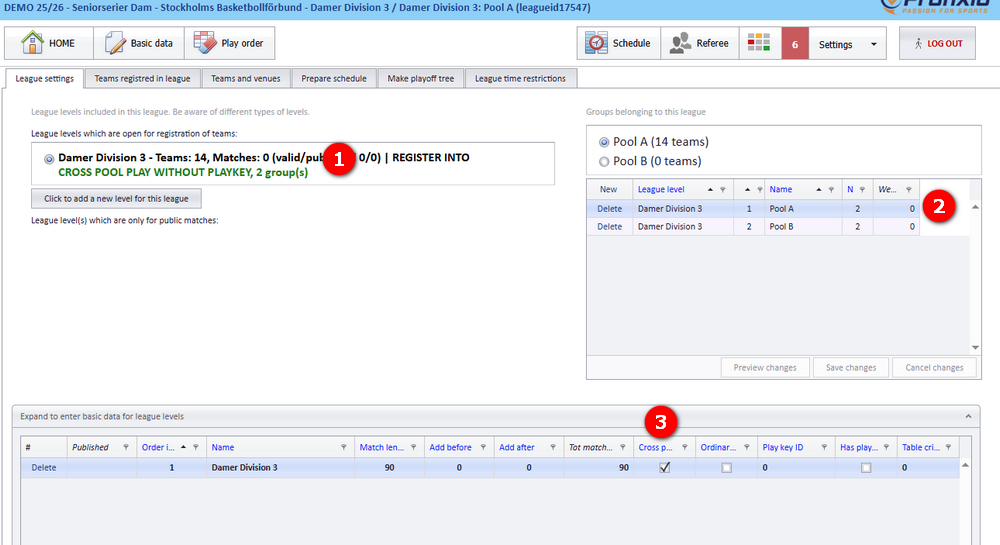
Only a playkey whose name includes "cross" can be used.
- Check "Cross pool play".
- Select the playkey. The key MUST include the name "cross".
- The league level now shows a text saying that it uses cross pool play with a playkey.
Leave "Ordinary pool play" unchecked: cross pool play requires that checkbox to be off.
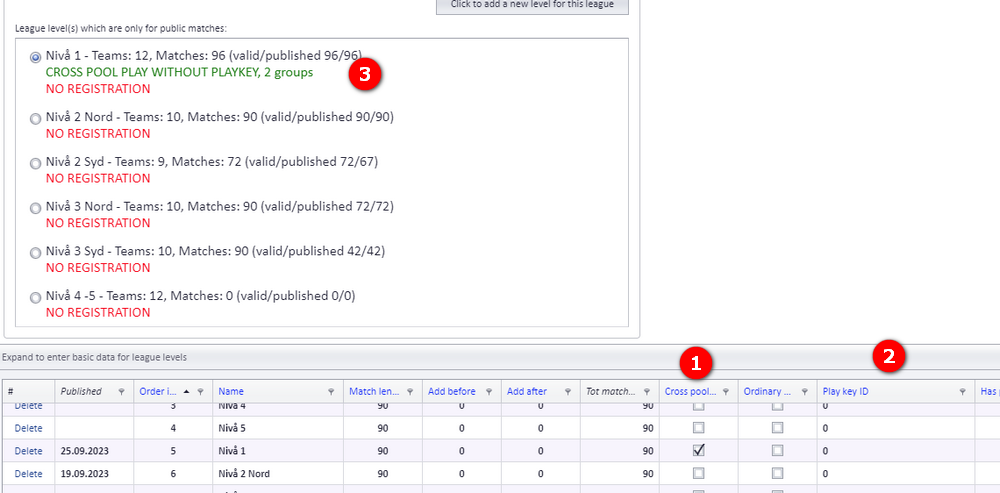
Teams must be divided into their correct groups, and the initial setup of the rounds must be set, so that PL knows when the rounds are to be played. After this data is set, open the menu "Schedule" directly. There is no point in using the menu "Play order", because the playkey defines all the matches.
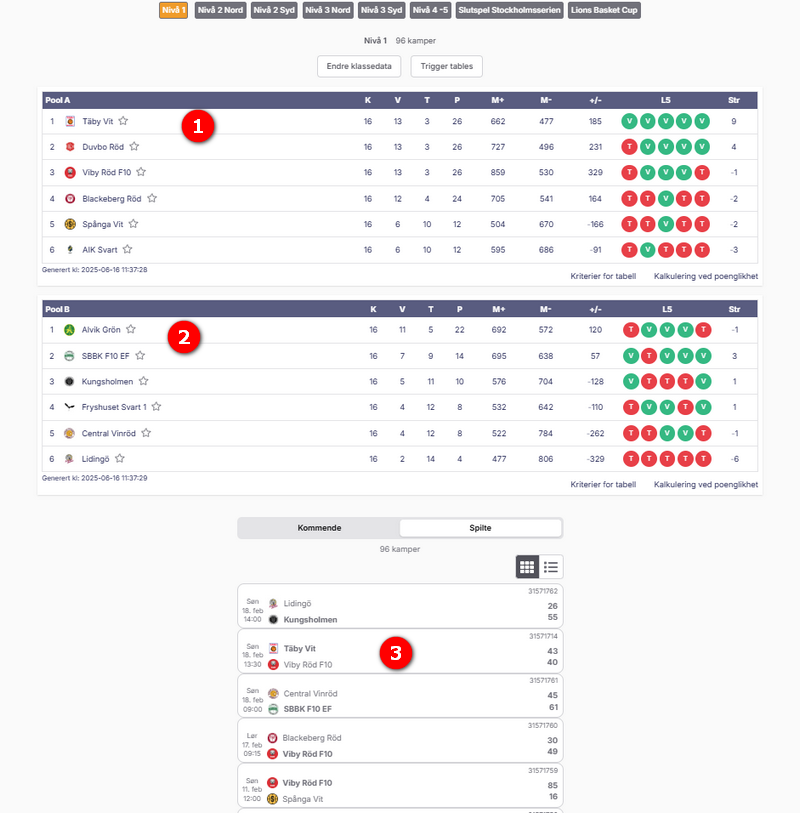
Publishing is done as usual to the app (see "Publishing the schedule"). In the app, a ranking table is shown for each group, while all matches are shown in one single list independent of the groups:
- Table for the teams in pool A.
- Table for the teams in pool B.
- All matches in both pools, joined into one list.
Teams register on the league level; the registration site does not offer pools to register on. The person responsible for the schedule divides the teams into pools inside PL. This is the procedure:
- Make the number of pools you want.
- Select the correct pool for each team.
- Preferably check or assign venues for all teams in the level.
- In the schedule window, run "Get matches from round robin". The matches in the pools can now be saved into the scheduling grid.
- Enter date and time (and venue) for each match.
- Publish the schedule.
Managing the pools
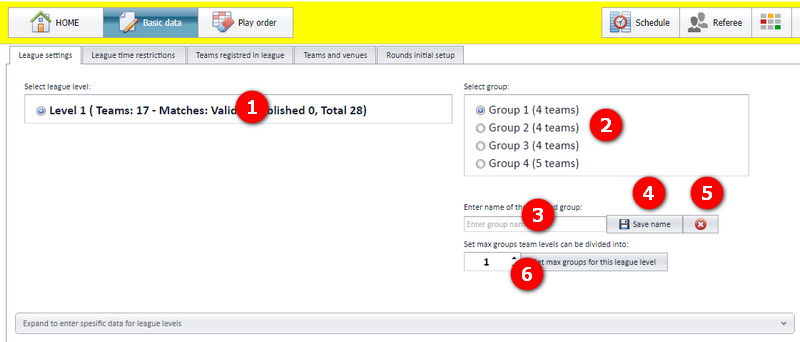
- Activate the correct league level.
- This is the list of the pools in the selected league level.
- A pool name can be changed to any name. Enter the name in this text box...
- ...and click "Save name". The pool name is also changed on the public site (app).
- Pools can be deleted. All pools with a level higher than the selected pool are deleted together with it: if you activate "Group 2" in this example and click the button "Delete", "Group 3" and "Group 4" are also deleted. Teams in a deleted pool are moved to the first pool in the league level; no teams are deleted. Assign the teams to their correct pool afterwards.
- Expand the number of pools as you wish. If you have 4 pools and set "2" in the spin edit box, no pools are made. If you set 6 in the spin edit box, two new pools are made.
Making the matches for the pools without the Profixio PRO algorithms
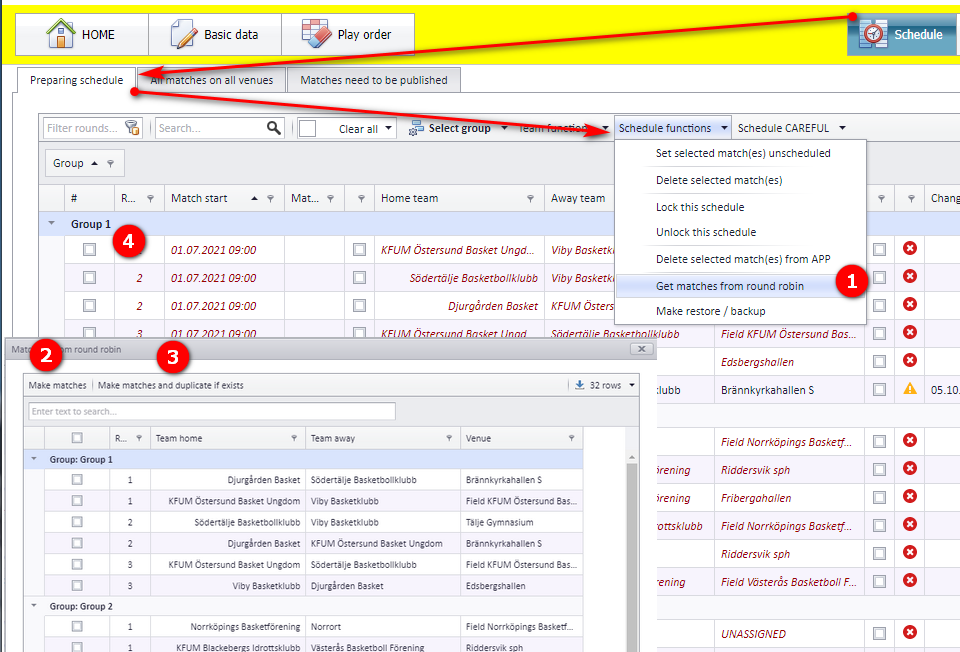
Matches for all pools can be made without using the Profixio PRO algorithms. Open the menu "Schedule" as shown below.
- Run "Get matches from round robin".
- A new window opens with all matches filled in. By default a round robin single league is shown. Click the button "Make matches" to make these matches in PL.
- The button next to it is "Make matches and duplicate if exists".
- These matches show up in the match schedule grid and can be treated as a usual schedule.
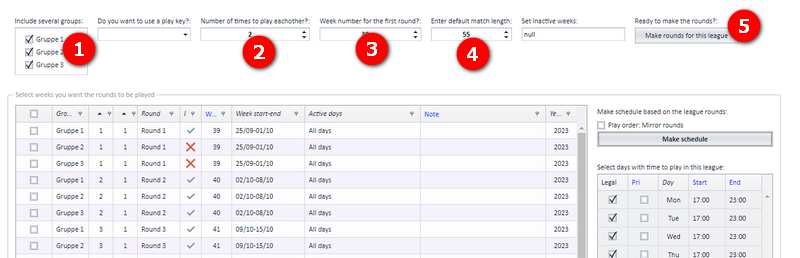
Custom playtype 1 is a schedule divided into two parts, with all teams divided into groups. It is switched on per league level.
- First: each group plays an ordinary round robin with a double series. Example: group A has 6 teams, group B 4 teams and group C 4 teams. Group A gets 15 x 2 matches, group B and C get 6 x 2 matches each.
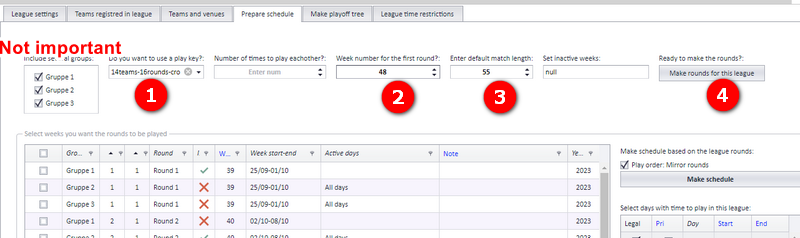
- Second: the teams play against each other across the groups.
Make the ordinary round robin
Make the extra cross play matches
- Making and editing playkeys, and the "Play order" menu used for ordinary schedules: see "Play order, solutions and playkeys".
- Importing a playkey set from Excel: see "Importing a schedule or playkeys from Excel".
- Creating league levels and groups: see "League levels and groups".
- Registering teams and placing them in groups: see "Teams in a league".
- Time restrictions on rounds, leagues and teams: see "Time restrictions for season, league and teams".
- Straight round robin without pools: see "Ordinary group play".
- The Prepare schedule tab and the Profixio CUP run in general: see "Prepare and generate the schedule".
- Publishing the schedule to the app: see "Publishing the schedule".
- Ranking tables and how they are calculated: see "Standings and ranking criteria".
See also
- Importing a schedule, league levels or playkeys from Excel
- League levels, groups and activation
- Ordinary group play
- Play order, solutions and playkeys
- Preparing and generating the schedule
- Publishing the schedule
- Standings and ranking criteria
- Teams in a league
- The series registration site
- Time restrictions and priority days
- Venues and team home venues
Was this page helpful?