Importing a schedule, league levels or playkeys from Excel
The Import from Excel page in PL: importing a schedule produced outside PL (often in Sporting Client) and preparing it for the app or an XML export, moving a league level into a new league, and importing playkey sets.
For other roles
PL can take in data prepared outside it from an Excel file. The import is opened from the menu "Settings" - "Import from Excel" (in Swedish "Inställningar" - "Importera från Excel"). This page covers three tasks:
- Importing a match schedule that was made outside PL, often in Sporting Client, so the matches can be shown in the app or exported as an XML file to an external customer.
- Moving an existing league level into a new league.
- Importing playkeys (match-order templates) from an Excel sheet.
Each task has its own steps below.
If a schedule is made in Sporting Client, that schedule must be imported into PL in order to show the matches publicly in the app, or to make an XML file for an external customer. The team external ID must be set so the customer's system can join each match to the correct team.
Such a schedule can only be imported at organisation level, not at a specific league level.
The work is done in this order:
- Prepare the organisation for imported matches.
- Import the schedule using layout 1 or 2.
- Adjust start times in "Schedule" if necessary.
- Assign team external ID, team numbers ("Sort index") and competition ID before making an XML file.
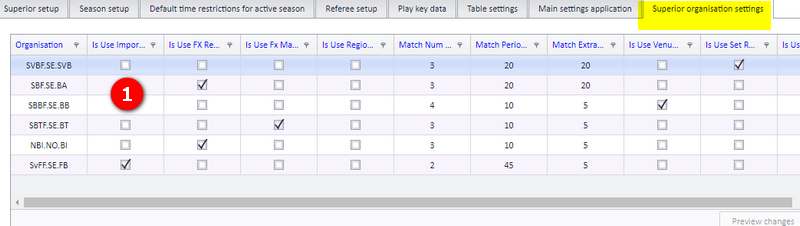
- Enter "Superior organisation settings" and tick the column shown in the screenshot, which marks the organisation as using imported matches from Excel.
- Also check "Match periode length" (match period length), as this value is used to set the match end time of the imported matches.
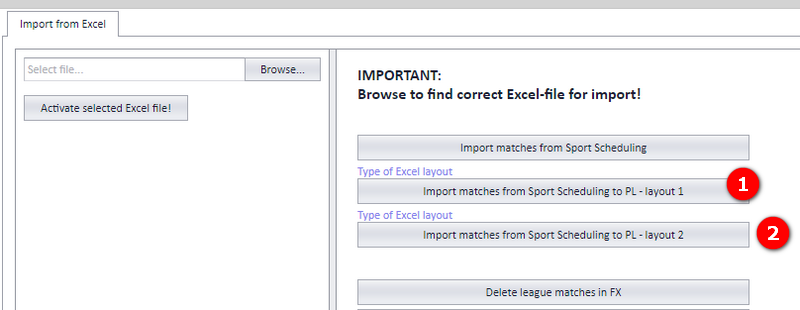
Click "Type of Excel layout" to find the correct layout for the Excel import file. Schedules are imported using layout 1 or 2.
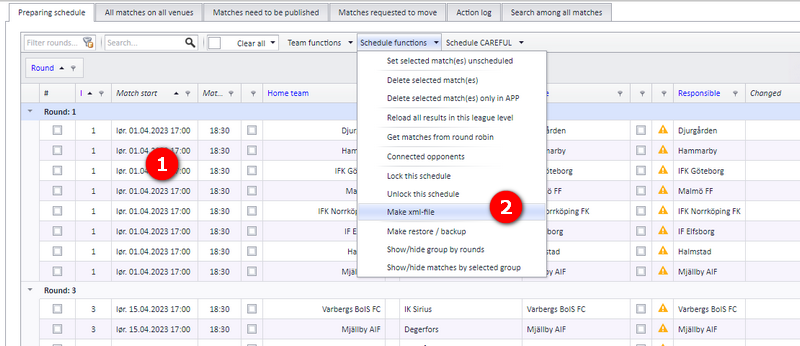
- Enter the menu "Schedule" and adjust match start times if necessary.
- Before you make an XML file, it may be necessary to assign a correct team external ID (based on the customer's requirements) and a competition ID. Both are described in their own sections on this page.
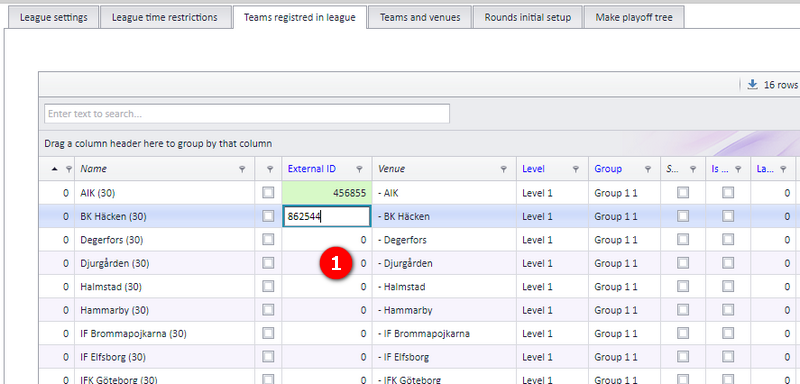
Enter the team external ID for each team as shown in the screenshot. The external ID is what the customer's system uses to join a match to the correct team.
All teams must have a unique number starting from 1. This number is set in the column "Sort index".
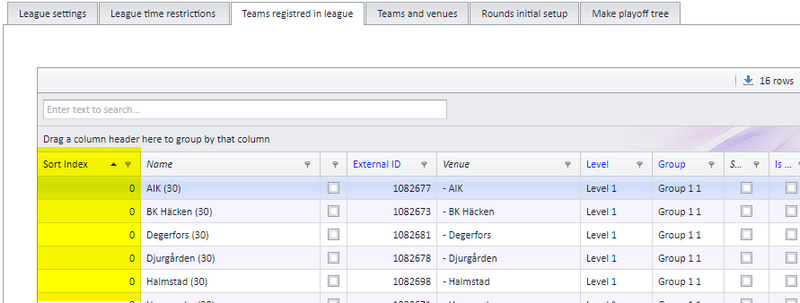
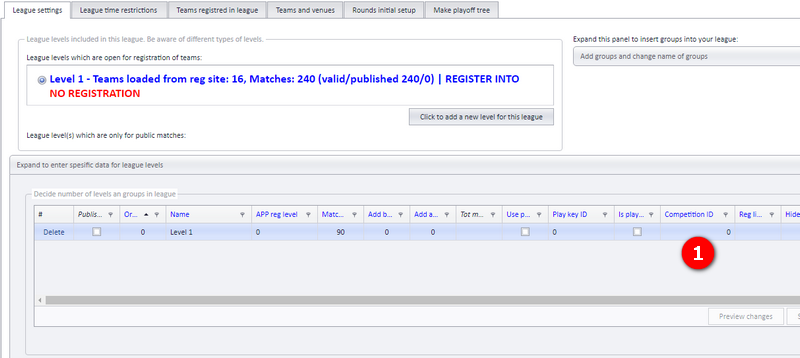
Set the competition ID as shown in the screenshot. The competition ID is needed together with the team external ID before an XML file is made for an external customer.
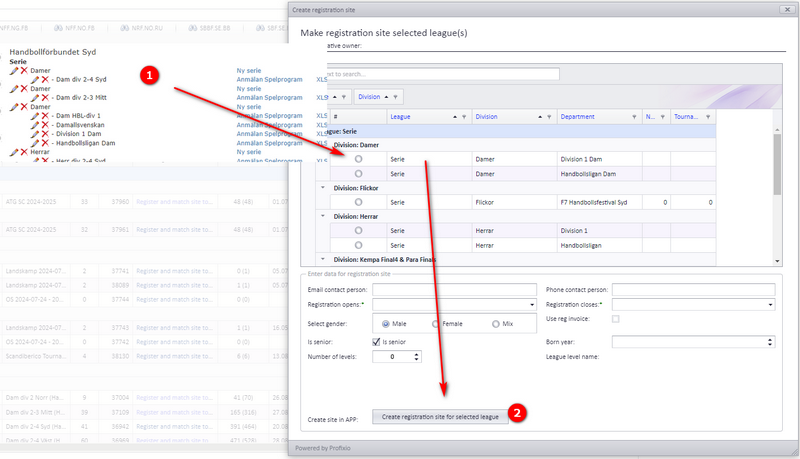
It is possible to move a league level into a new league. The new league must be made in FX first. This move cannot be undone.
Step 1. Make the new league in FX and then make a registration site for it in PL.
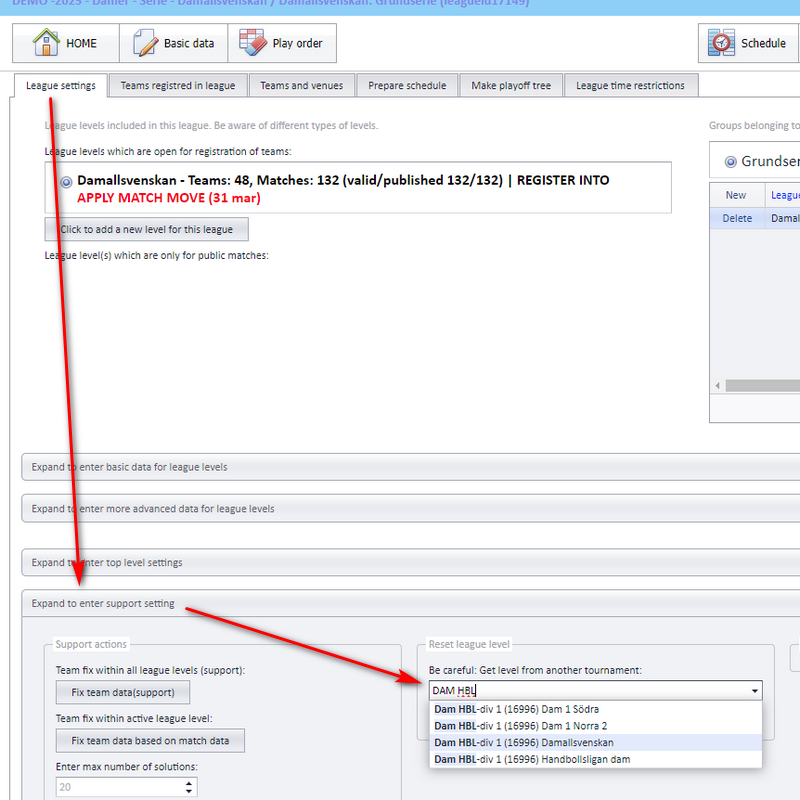
Step 2. Activate the new league in PL and select the league level which shall be moved into this league.
Playkeys are imported from the menu "Settings" - "Import from Excel" (in Swedish "Inställningar" - "Importera från Excel").
Playkeys are only shown for the organisation they are imported into. For example, SBBF does not see playkeys imported by SVBF.
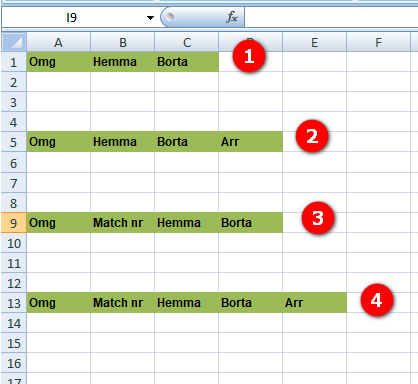
- The Excel file must follow the chosen layout with regard to column order (you must use the columns in the same order as the layout).
- The names of the columns are not important, only their order, except for the column with the match number (see the layout note below).
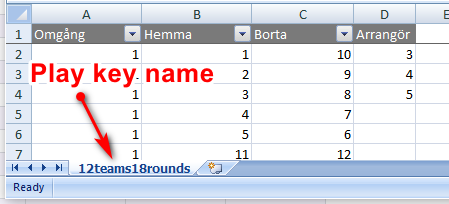
- The name of the playkey is the name you give the sheet: the playkey name is fetched from the sheet name.
- If the playkey already exists, its details are replaced by the import.
- You can only have one playkey in each Excel file.
Layout types. Four different layouts can be used. With layout 3 or 4, the column with the match number must start with "Match" (a column named "Match nr" is fine).
Name. The playkey name is taken from the sheet name in the Excel file.
- Using playkeys once they are imported, and running Play order: see "Play order, solutions and playkeys".
- Creating and organising league levels and groups: see "League levels and groups".
- Generating a schedule inside PL: see "Prepare and generate the schedule".
- Changing dates, times and venues of matches after import: see "Changing a match date, time, venue and teams".
- Organisation settings in general: see "Organisation and season setup".
- Making a registration site: see "The league registration site".
- Publishing the schedule to the app and the web: see "Publishing the schedule".
Was this page helpful?