Preparing and generating the schedule
What must be in place before Profixio League can generate matches, how rounds and playing days are prepared, the scheduling window, adding matches to an existing schedule, changing match rounds, and the schedule functions that must be used with care.
For other roles
Before Profixio League (PL) can make the matches for a league level, some data must be set. In short:
- Teams must be assigned to a league level and to a group (if the level has several groups).
- All rounds must be made, and each round must be set to a week number.
- At last, the matches are made by clicking "Make schedule".
Rounds, week numbers and playing days are set up under "Schedule" - "Prepare schedule"; see "Preparing rounds and playing days" on this page. Assigning teams to levels and groups is covered on the pages League levels and groups and Teams in a league.
Each match is connected to a round. A round has an index (the round number), a phase and a start and end date. A round also has a parameter that says whether the round is valid.
The main reason for using rounds is to ensure that the matches in the same round are played in the same time interval. By default, rounds cannot overlap, but this can be overridden. After an initial schedule is made with correct rounds, matches can be moved in time without restrictions from the rounds.
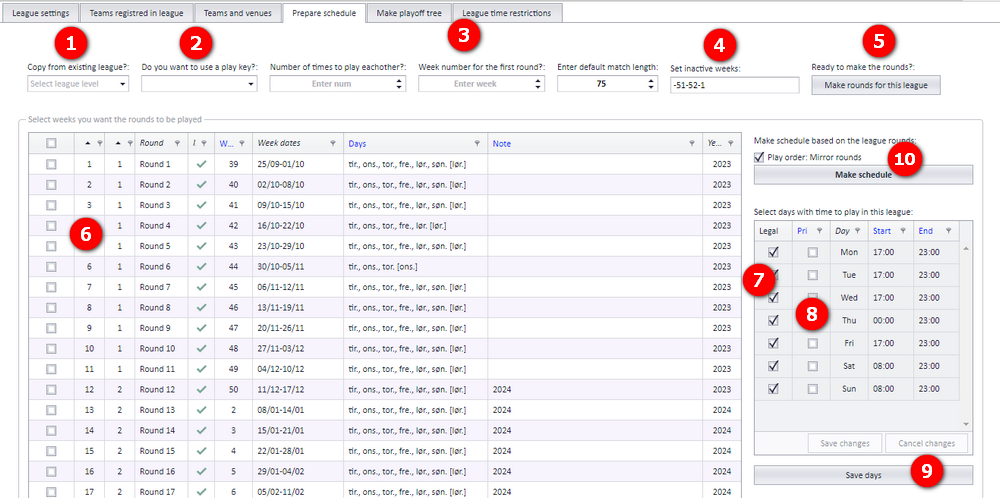
Open "Schedule" - "Prepare schedule". The numbers below refer to the screenshot.
- Either you copy all rounds with their starting dates (must be an equal number of teams)...
- ...or you use a play key, if one exists...
- ...or you enter the number of rounds, the start date for the first round and the default match length.
- Enter the weeks that shall not be used for rounds in the schedule:
- Use a hyphen (-) for a continuous range of weeks, e.g.
45-48. - Use a comma (,) to separate several weeks or ranges, e.g.
45-48,52. - Several ranges cannot be chained with hyphens, e.g.
45-48-52. - Example: if no rounds shall be played in weeks 44-48 and week 52, enter
44-48,52.
- Use a hyphen (-) for a continuous range of weeks, e.g.
- Click to make the rounds.
- Each round can be assigned playing dates, both available days and priority days. Select the rounds you want to assign to the selected playing dates.
- Select the days that shall be available for the selected weeks.
- If some days shall be priority days, select them here. Priority days are presented to clubs when they assign time and venue for their matches, and they are used by the Profixio CUP scheduling system.
- Save available and priority days after the selection.
- And at the end: make this schedule.
Tick "Play order: Mirror" if round number 2 shall be mirrored to round number 1 regarding when the teams play each other and which team is home and away.
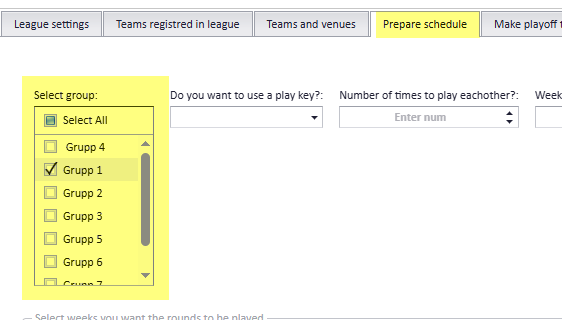
It is possible to select several groups when preparing a schedule. The main reason for this is to save time when several groups shall play at the same time. Groups can be filtered out after they are prepared, if group data shall be deleted or changed.
After the rounds are prepared, enter the menu "Schedule" and assign each round the correct start date and/or time before publishing.
Available days and priority days can be changed whenever wanted, also after the matches have been presented to the clubs for assignment. After changing them, the league level must be published as usual.
The round grid in "Prepare schedule" has a set of functions for rounds that are already made. The numbers refer to the bubbles in the screenshot.
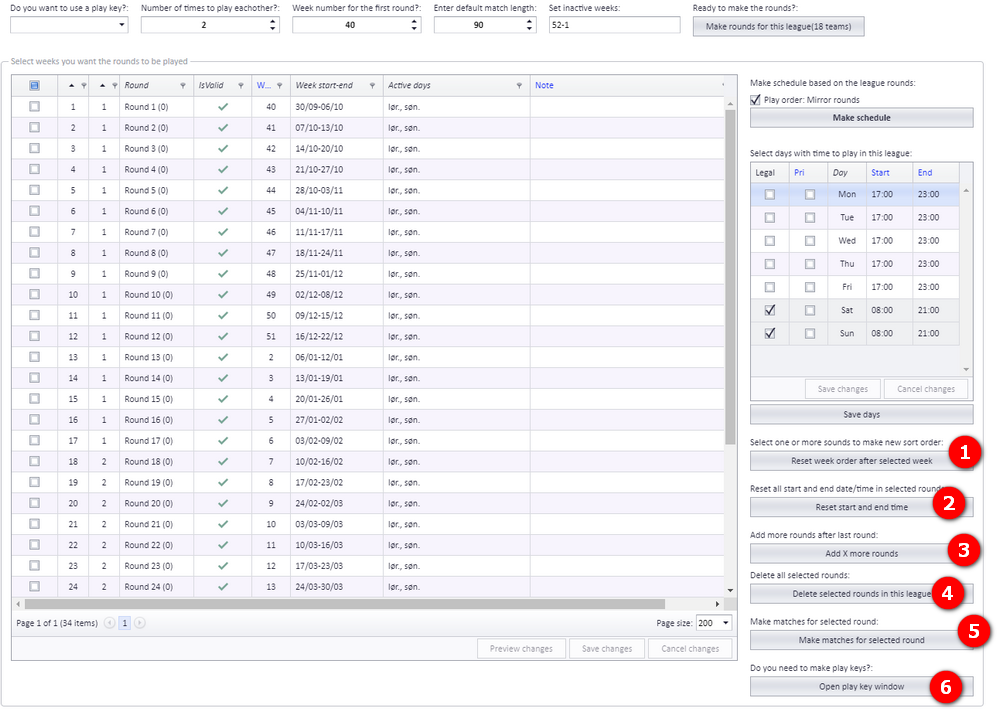
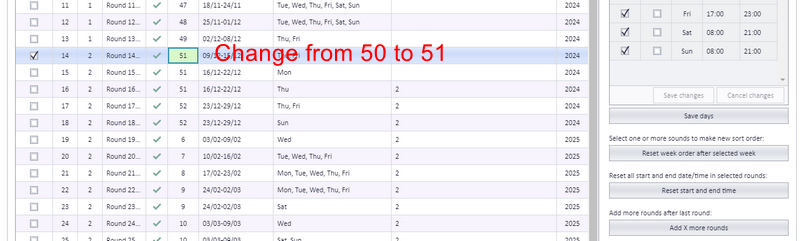
1. Reset week order after selected week. Example: change week 50 to 51, that is, no play in week 50.
- Enter the new week number and click "Save changes".
- With the row still selected, click the button "Reset week order after selected week".
The other functions in the same menu are 2. Reset start and end time, 3. Add x more rounds, 4. Delete selected rounds in this league, 5. Make matches for selected rounds and 6. Open play key window. Play keys are covered on the page Play order and playkeys.
When a league level is made, the priority days are fetched from the default priority days made for the season, which is the master for all organisations. The priority days for an organisation can then be changed in the menu "Organisation setup". When a new league level is made, the priority days are copied from the organisation into the league level, and it is then possible to change the priority days for each league level.
League levels that are finished and mapped into Genius software cannot be edited in PL.
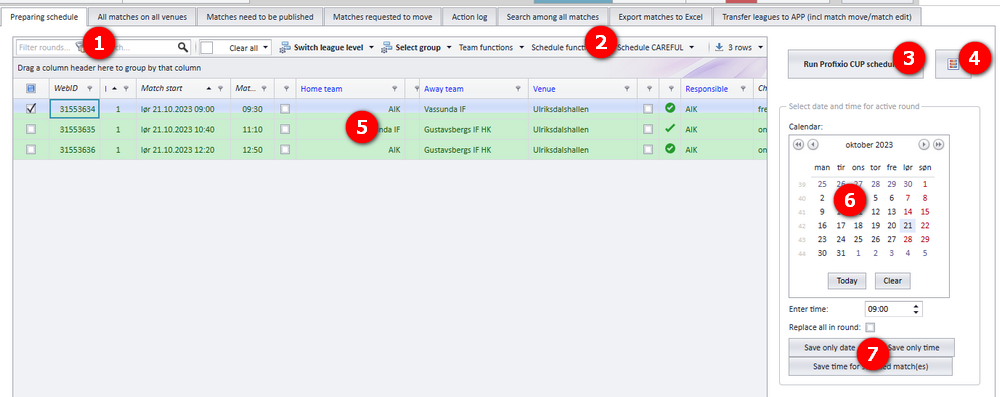
The main areas of the scheduling window, numbered as in the screenshot:
- Filter boxes for filtering on rounds and free text. In addition, a dropdown to colour teams, which makes it easier to see their matches.
- Several functions for teams and the schedule. These are described under "Schedule functions" on this page and on the pages linked at the end.
- A valid match schedule must be made by using the Profixio CUP algorithms. This makes a schedule that positions matches on legal venues and times, based on several rules.
- Make matches using ordinary round robin, without any algorithms.
- All matches in the selected league level are shown in this grid. Red rows indicate matches that have not been run through the schedule algorithms; check yourself that their venue and time are legal.
- Use this calendar to manually set the date, the time or both on a selected match.
- Use "Replace all" to change all matches in the selected round.
The colour codes used in the schedule are explained on the page Schedule views, visualizer and colour codes.
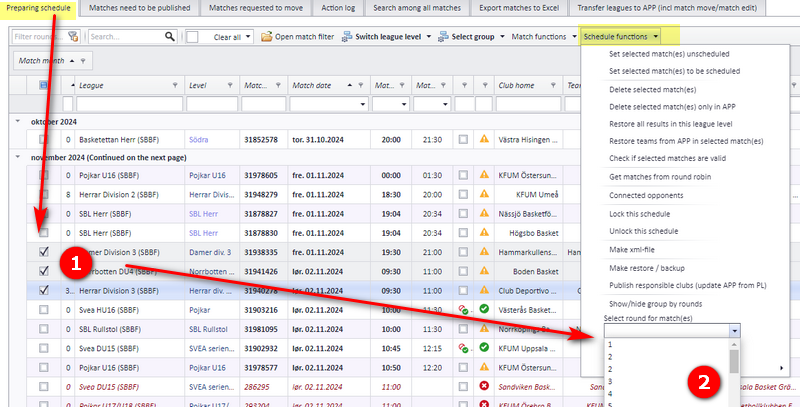
It is possible to change the round index (the round number) of matches in a schedule. If the match is published, the app is changed directly as well. The matches are NOT set to unpublished, and no notifications are sent.
Enter the menu "Schedule" - "Prepare schedule".
- Select the match or matches to be changed.
- Select the correct round number. Confirm the change.
Matches can be added to the schedule whatever the status of the schedule. The typical use is to add matches for a team that has been registered after the schedule was made; it is then more effective to add matches for the new team than to schedule the whole league from the start.
NOTE: matches are made for all teams registered in the active league level.
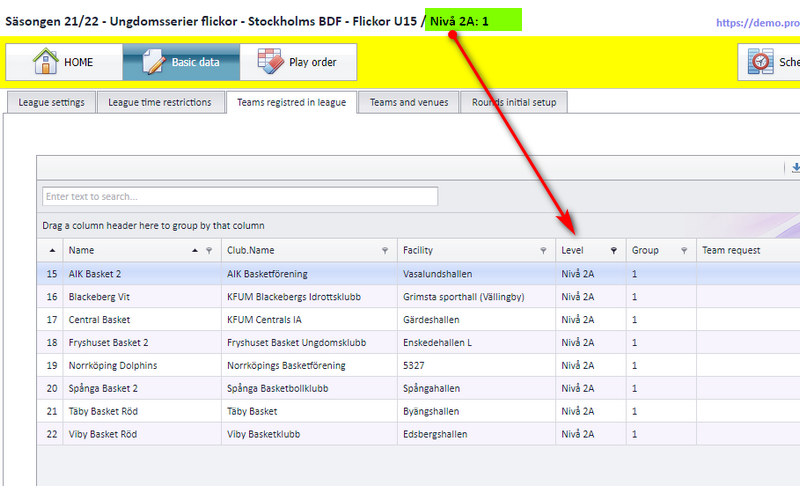
Add the team(s). The new team must be registered on the Profixio registration site on the public web (the app). Then the league level must be activated. During activation, all data from the registration site is reloaded into all levels of the active league.
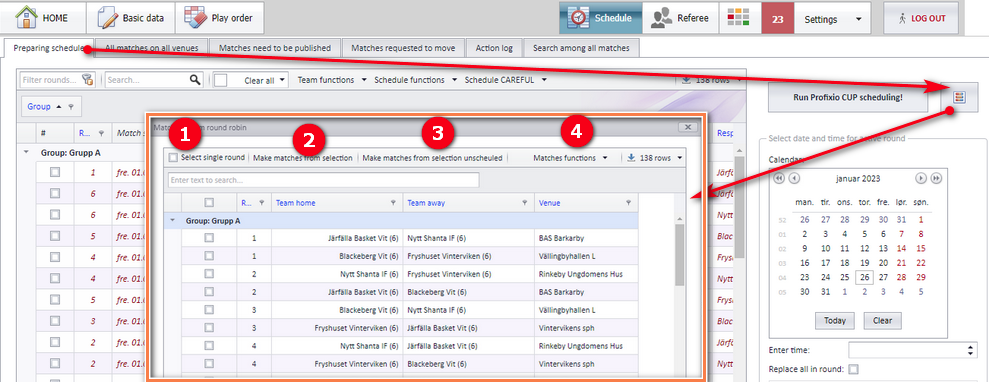
Add the match(es). Click the button "Get matches from round robin". A popup shows all possible matches made from the teams that are in the league. The numbers refer to the screenshot.
- Tick this checkbox if you only want to make a single round. The default is to make a double round, with home and away team switched in round two.
- After selecting, click this button to make the matches.
- Make unscheduled matches by clicking the button "Make matches from selection unscheduled". The round and the match end time are then left empty.
- Some further functions: "Switch Home-Away team" and "Duplicate matches if exists".
Match data. The new matches get:
- Start time set to the start date of the round, time 09:00 (AM).
- End time set to nothing.
- Venue set to the home venue of the home team.
- Status set to "Invalid" (because the end time is nothing).
All functions regarding the schedule are in the grid menu row of the scheduling window. The schedule functions are divided into two parts: the first part is more harmless, the other must be done with 100% carefulness. Look up a function by the menu text as it appears in PL.
The match symbols shown in the grid are explained on the page Schedule views, visualizer and colour codes.
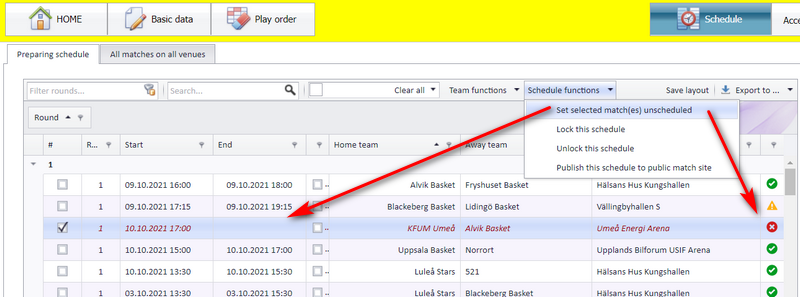
Use "Set selected match(es) unscheduled" in the ordinary schedule functions.
- When a match is set unscheduled, the end time of the match is deleted.
- The match becomes invalid and gets the red symbol.
- The match does not take a position in the schedule and therefore does NOT restrict other matches.
- When running CUP, all unscheduled matches are included.
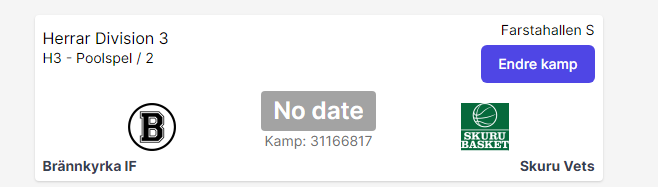
- If the match exists publicly (that is, in the app), the match is set to unscheduled there too, with date and time set to zero.
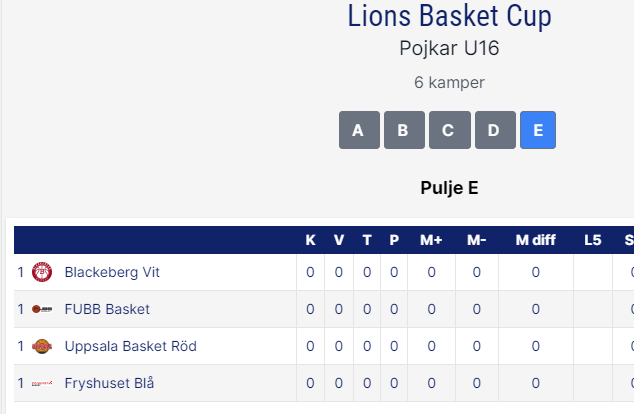
This is how an unscheduled match is shown in the app:
Locking a schedule prevents matches from being edited, deleted or inserted. This is typical when a schedule has been sent to other persons and must not be changed. Use "Lock this schedule"; to unlock it again, use the menu "Unlock this schedule".
While the schedule is locked:
- All match-changing functions in the menu "Schedule" are disabled.
- It is not possible to make a match schedule from the menu "Play order".
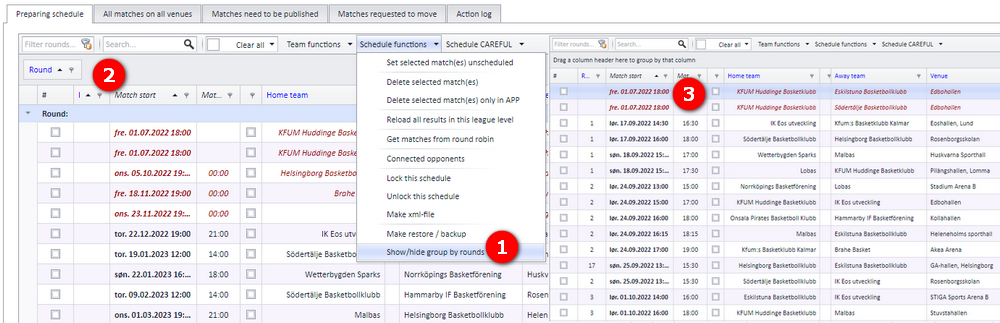
You can choose to show the matches divided into rounds, or just sorted by match start. The layout you choose is remembered for you as a user until you switch again.
- Use the function "Show/hide group by rounds" from the menu, as shown.
- With group by rounds on, the matches show up in groups.
- With it off, the matches show up in a chronological list.
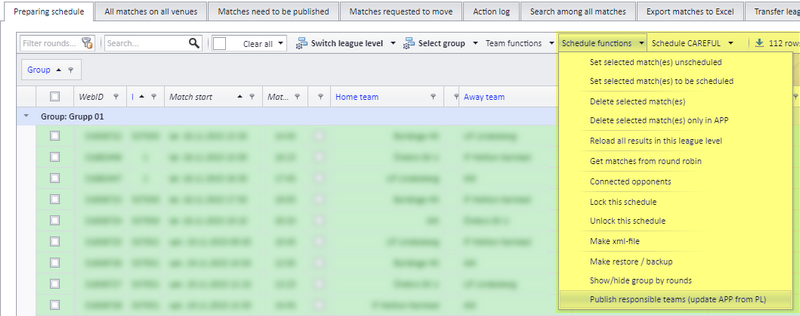
If the responsible team is missing in the app but exists in PL, use "Publish responsible teams". All matches in the active league level are checked, and no other data is changed. Each changed match shows up in "log history".
Matches included are those that are:
- already published, and
- have a responsible team.
The second part of the schedule functions menu holds the careful functions: functions that shall only be used with the correct intention. Most of these functions cannot be undone.
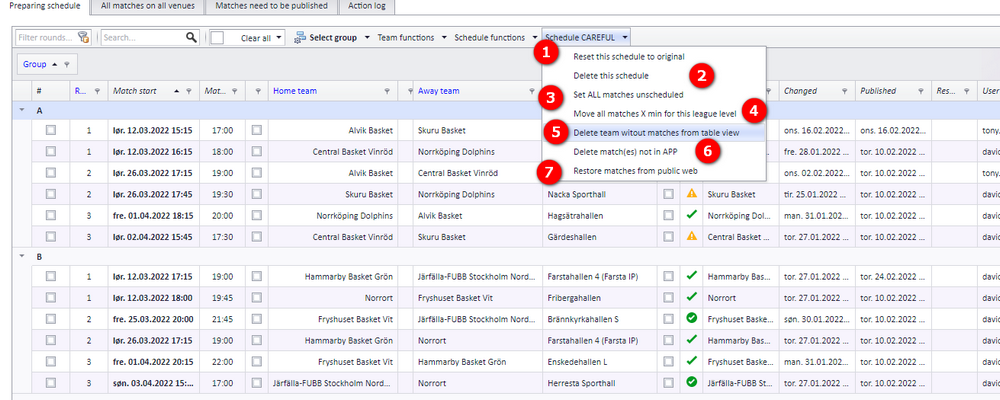
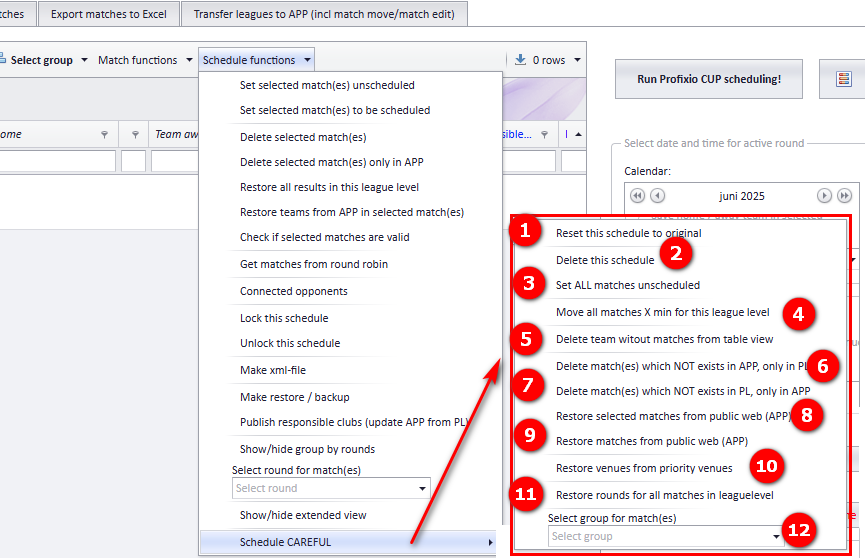
The functions described on this page are "Delete this schedule", "Delete team without matches from table group view" and "Restore matches from public web". Deleting individual matches and the action log are covered on the page Deleting matches and the action log.
If a team is wrongly shown in a group table, typically a team without any matches in the group, use "Delete team without matches from table group view". All groups in the active league level are checked and fixed where needed. No teams are deleted in PL; they are only removed from the team group table.
There are two places in PL where all matches in all groups in the active league level can be deleted. "Delete this schedule" in the careful functions is one of them; the other is the menu "Play order", when a schedule is made from a solution.
With this function it does not matter whether you have selected matches or not: all matches in all groups in the active league level are deleted in PL. A backup is made before the matches are deleted.
NOTE: the matches are NOT deleted in the app, so PL and the app will be out of sync.
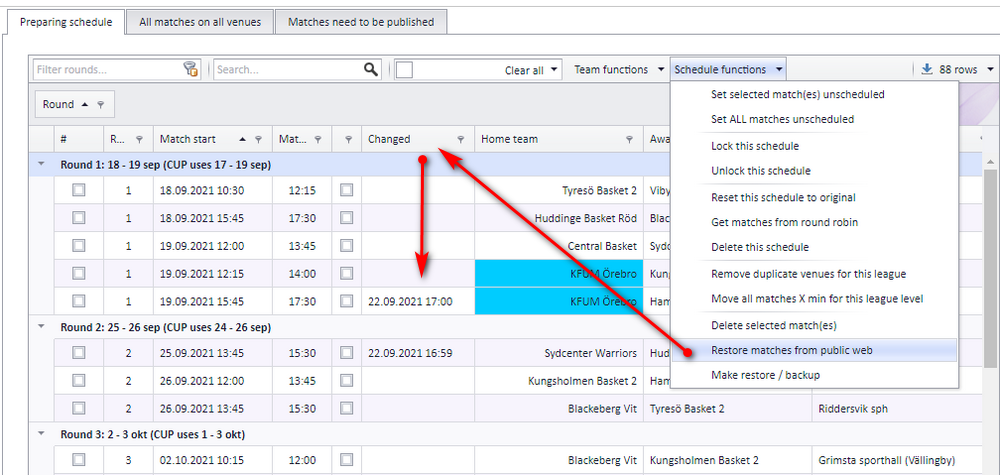
If a match has been changed on the public web (venue, time, team and so on) and the matches in the app are the correct ones, use "Restore matches from public web" to sync PL against the app. This is what happens:
- All matches from the public web in the selected league level are downloaded into PL, and each downloaded match is checked against the matches in PL.
- If the downloaded match is not found in PL, a new match is made with the data from the downloaded match.
- If the match is found in PL and has been changed on the public web, all data from the downloaded match is used: the PL match is made equal to the downloaded match. Match start, end, venue, round, teams, responsible team and result are updated in PL.
- After the restore, the matches in PL are updated against valid date, venue and collisions.
- New and changed matches are shown with an updated timestamp in the column "Changed". This column is positioned at the right side of the grid, so it helps to move it and expand it.
- Play keys, play order and making a schedule from a solution: Play order and playkeys; Ordinary group play.
- Colour codes, match symbols and the visualizer: Schedule views, visualizer and colour codes.
- Moving a single match in date, time, venue or teams: Changing a match date, time, venue and teams.
- Deleting matches and the action log: Deleting matches and the action log.
- Publishing the schedule to the app: Publishing the schedule.
- Letting clubs set times on priority days in the app: Letting clubs set times in the app.
- Importing a schedule or play keys from Excel: Importing a schedule or playkeys from Excel.
- Time restrictions for the season, league and teams: Time restrictions for season, league and teams.
- Creating and activating league levels, registering teams: League levels and groups; Teams in a league; The league registration site.
- Priority days at organisation level and backups: Organisation and season setup; The PL workspace, grids, archive and backup.
See also
- Changing a match: date, time, venue and teams
- Deleting matches and reading the action log
- Importing a schedule, league levels or playkeys from Excel
- League levels, groups and activation
- Letting clubs set times themselves (Administer matches)
- Ordinary group play
- Organisation and season setup
- Play order, solutions and playkeys
- Publishing the schedule
- Schedule views, the Visualizer and colour codes
- Teams in a league
- The series registration site
- The PL workspace: grids, archive and backup
- Time restrictions and priority days
Was this page helpful?