Nominating, accepting and buy and sell
How to nominate an assigned referee from PL so the task reaches the referee's calendar for accepting or declining, set a deadline for the answer, accept or delete a status on the referee's behalf, and put a match on the buy and sell board.
Looking for something else? Referee competence and publishing referees
- Assigning referees to the roles on a match, which must happen before nominating: see "Assigning and removing referees on matches".
- Who has access to the "Referee" menu and how the appointment screens fit together: see "Referee appointment overview and access".
- How referee statuses and buy-and-sell applications travel between PL, FX and the app: see "Keeping PL and the web referee module in sync".
- Publishing matches, which is required before they can be nominated: see "Publishing the schedule".
- Vacant teams, which keep a match out of buy and sell: see "Vacant teams".
- Referee groups, pairs and calendars: see "Referee groups, pairs and calendars".
For other roles
Nominating is the step that makes a referee assignment visible outside PL. When you assign referees to matches in PL, the assignment is not visible to anyone other than the PL users, and the referees see nothing in their calendar. It is after nominating in PL that the assignments show up to the referees.
Everything on this page is done from the main menu "Referee" in PL, and all screenshots are from that menu. At the top of the page, "Select filter for matches" lets you pick the matches to work with ("Make match filter", "Select existing filter", "Select first date", "Select last date" and "Activate!"). Below it, the grid "Select matches to assign referees" has one column per referee role (for example "Crew Chief", "Umpire 1" and "Umpire 2") and the menus "Publish referee functions" and "Delete referee functions".
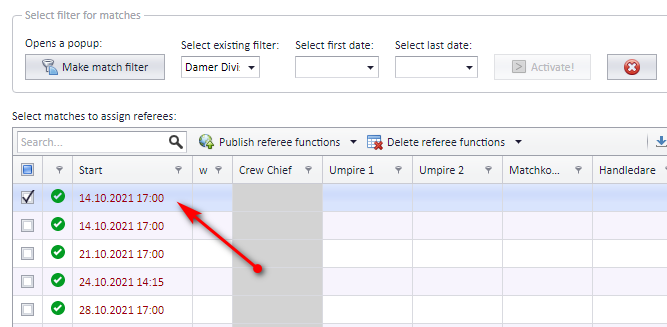
Before you nominate:
- A referee must be assigned to at least one role in the match before it can be nominated.
- Only published matches can be nominated. Non-published matches are shown with a red date; referees can be assigned to them, but not nominated.
Nominating can be turned off on organisation level, so that referees are assigned directly without a nomination step (direct assignment).
After nominating from PL, the referee's calendar is updated with these matches. In FX (the web referee module) or the app, the referee decides whether to accept or decline the task.
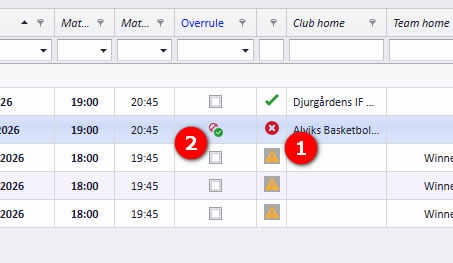
Only valid matches can be nominated. An invalid match is shown with a symbol (x) in the grid (bubble 1 in the screenshot). To make such a match possible to nominate, tick "Overrule" (bubble 2) and remember to "Save changes".
To nominate:
- Select one or more matches by ticking the checkbox.
- Set the active role by clicking inside the role column (for example "Umpire 1").
- From the "Publish referee functions" menu, select "Nominate referees in active role" or "Nominate referees in all roles", depending on what you want.
- After confirming this action, FX is updated, the match gets a blue border and the cell starts with the letter N (for Nominated).
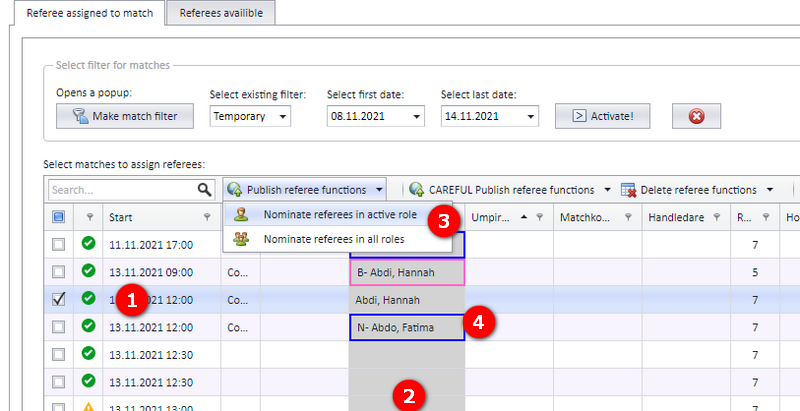
The grid has two tabs, "Referee assigned to match" and "Referees availible"; nominating is done from "Referee assigned to match".
If you want to limit the time a referee has to accept or decline a nomination, enter a date in the "Nominate referee" dialog that opens when you nominate. The dialog asks "Do you want to nominate referee(s) on selected 1 match(es)?", shows the active role ("Active referee role is: Crew Chief") and has the date field "Enter date if you want to limit nomination".
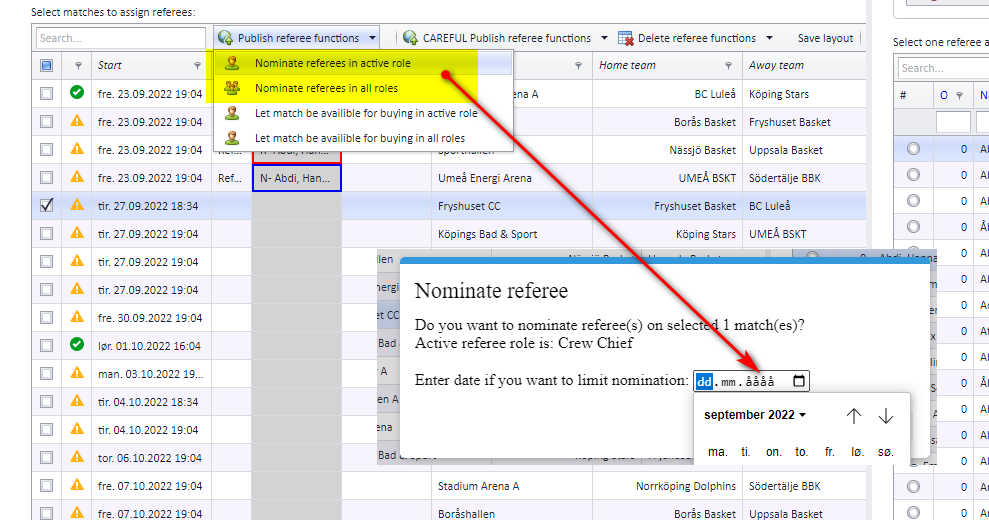
This date is shown on the match card for referees who are signed in to the app.
If a referee does not answer a nomination within the date limit, the nomination is changed to "Rejected". The cell then shows R*- with a red border; the asterisk shows the reason: the date limit has passed.
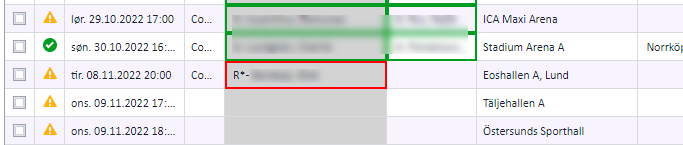
Normally the referee accepts the nomination themselves. When the referee has accepted to referee a match, the match turns green in PL.
A competition administrator or referee appointer in PL can also force matches to be accepted. The referee then has no influence on this task. Only valid matches can be set to "Accepted" from PL; a valid match is a match with a valid start and end time, valid teams and a valid venue.
- Select one or more matches by ticking the checkbox.
- Set the active role by clicking inside the role column.
- From the "CAREFUL Publish referee functions" menu, select "Set referee to accepted in active role" or "Set referee to accepted in all roles", depending on what you want.
- After confirming this action, FX is updated, the match gets a green border and the cell starts with the letter A (for Accepted).
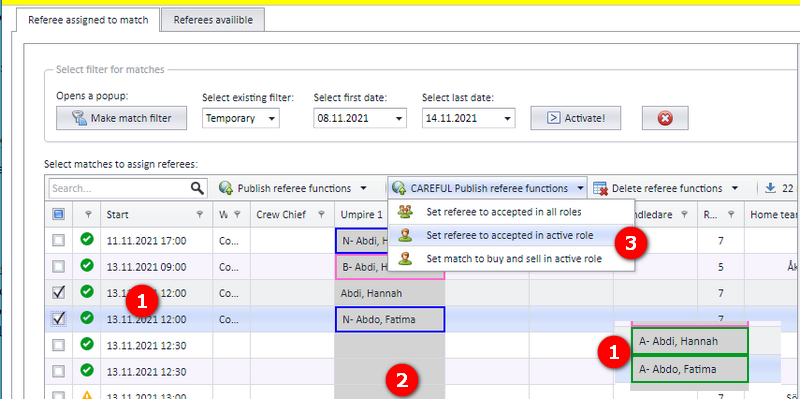
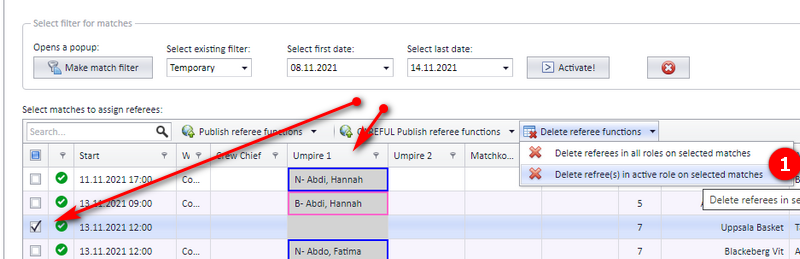
All referee task statuses can be deleted from PL. Take care: if the status has already been sent to other systems, deleting it can leave incorrect data showing there.
- Select one or more matches by ticking the checkbox.
- Set the active role by clicking inside the role column.
- From the "Delete referee functions" menu, select "Delete refree(s) in active role on selected matches" or "Delete referees in all roles on selected matches".
- After confirming, FX is updated immediately.
When the "Referee" page ("Domare") in PL is loaded, data from the app is loaded into PL and updates the referee status for all referees in all matches.
A match can be set to be available for buy and sell (B&S). The list of available matches for buy and sell is updated from PL; further management of the buy and sell system is done inside FX. Referees can apply to buy a match in both FX and the app.
Only matches with a valid end time, real teams (not vacant or deleted teams) and a venue are transferred to buy and sell.
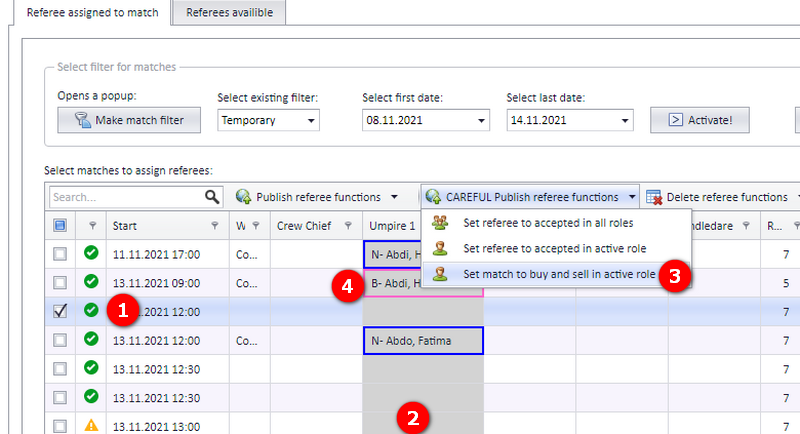
- Select one or more matches by ticking the checkbox.
- Set the active role by clicking inside the role column. A match can be set to buy and sell without any referee assigned.
- From the "CAREFUL Publish referee functions" menu, select "Set match to buy and sell in active role".
- After confirming this action, FX is updated, the match gets a pink border and the cell starts with the letter B (for Buy and sell). The task is now available to the referees in buy and sell.
If a referee was assigned to the match before it was put on buy and sell, the referee's name stays in the cell in PL, but the referee is removed in FX: the task is taken out of the referee's calendar and off the public pages until a new referee is assigned.
When a referee is signed in to the app, the list of matches for buy and sell is available under the "Buy/Sell" tab, next to "Kommende" (upcoming) and "Historikk" (history). Each match card has a "Buy and Sell list" with a button per open role, for example "Apply for Crew chief".
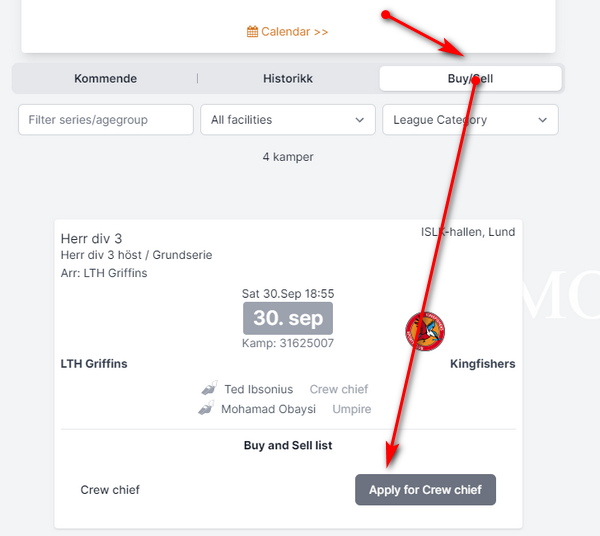
When a referee applies for a referee role in a match, the application is shown only in FX and can be accepted by the referee appointer in the district (region) or federation (organisation).
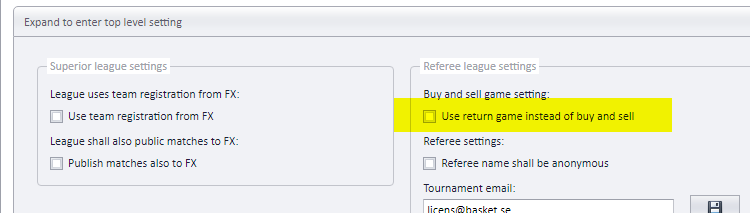
To turn off buy and sell, select the competition it should be turned off in, open "Expand to enter top level setting" ("Expandera för inställning för högsta nivå") under "Hem" (home), and under "Referee league settings", "Buy and sell game setting", tick "Use return game instead of buy and sell" ("Använd återbud istället för köp och sälj").
See also
Not covered here
Was this page helpful?