Giving access to new users
How to give another user access to your tournament in the Scheduler, and what the Referee module, Schedule module and API access levels let them do.
Looking for something else? Importing and exporting data Ordering a schedule or support
If more people want to work with the tournament in the Scheduler, add them as users. Several users can work in the Scheduler at the same time.
Go to Shortcuts → Access and settings → Give access to scheduling.
This is how access is created:
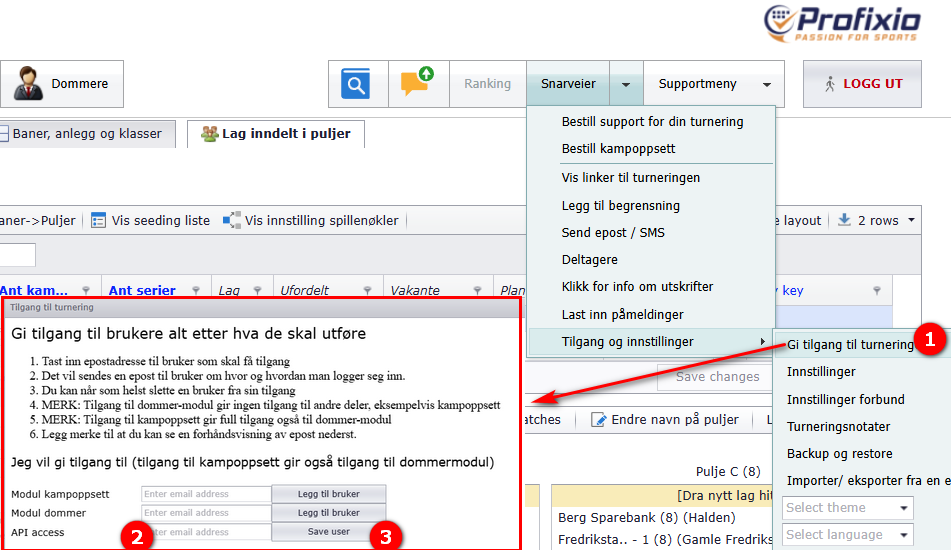
When you give access to a new user, you choose what they need to work with. In the access window:
- Enter the e-mail address of the user who should get access.
- An e-mail is sent to the user about where and how to log in.
- You can remove a user's access at any time.
- An e-mail preview is shown at the bottom of the window.
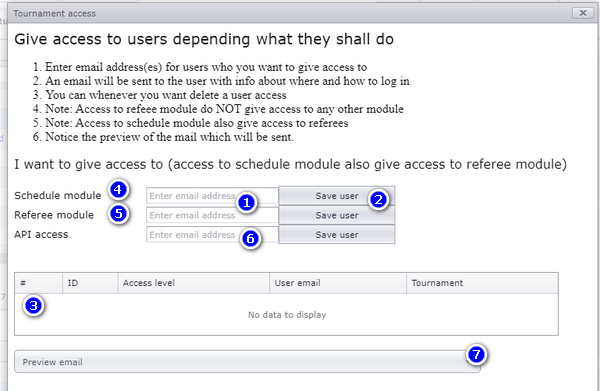
Callouts (4), (5) and (6) in the screenshot are the three access levels; see "What each access level gives".
The access window offers three access levels:
| Access level | What it gives | Where |
|---|---|---|
| Referee module | Access to the referee module only. It gives no access to other parts of the Scheduler, for example match scheduling. | Shortcuts → Access and settings → Give access to scheduling |
| Schedule module | Full access to scheduling, and also to the referee module. | Shortcuts → Access and settings → Give access to scheduling |
| API access | Read access to the tournament's data through the API: teams, matches, results and more. | Shortcuts → Access and settings → Give access to scheduling |
API access can be given for tournaments that have been created and have a registration solution. Access is given to one tournament, not to all tournaments.
If more people need API access for the tournament, add each of them as a user in the access window and give them API access.
API documentation: https://www.profixio.com/app/docs
- Signing in to the Scheduler yourself, and what the Scheduler is: see "What the Scheduler is, and signing in".
- Working in the referee module once a user has referee access: see "Assigning referees in TXO".
- Changing the interface language or the visual theme, and getting data in and out of the Scheduler by file: see "Importing and exporting data".
- Asking Profixio for help with access: see "Ordering a schedule or support".
Not covered here
Was this page helpful?