Importing and exporting data
The Excel import templates in the Profixio Scheduler, how to import matches, referees, teams and other data from an Excel file, how imported teams are matched against the registration site, and where the export buttons are. Also how to make and restore a backup, change the language and pick a visual theme.
If you already have matches or referees in an Excel file, you can use the import function in the Scheduler instead of entering them by hand. The file must be an XLS or XLSX file; these are the standard Excel file formats.
The Scheduler offers several types of import template, one per kind of data: matches, referees, referees to matches, teams, and a few special ones. The Scheduler only reads files that follow one of its supported templates, so build your file on the matching template and make sure the data in it is correct before you import it.
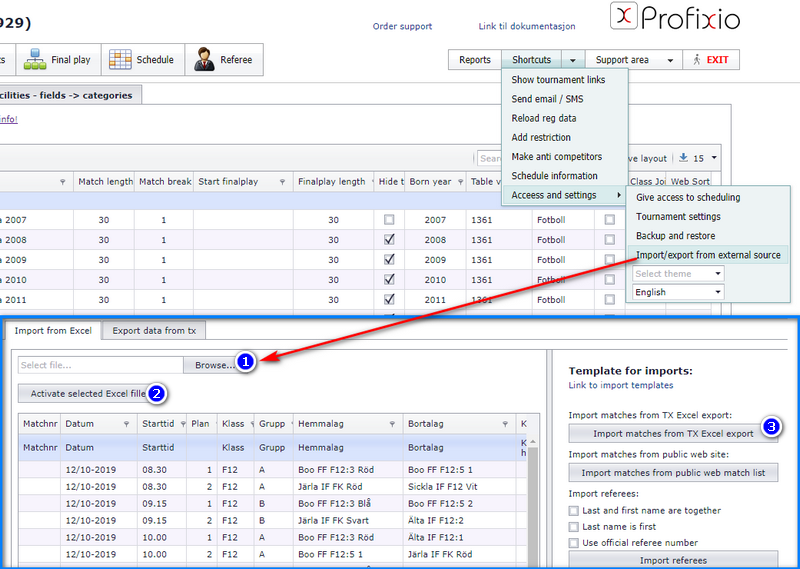
Go to Shortcuts → Access and Settings → Import / Export from an external source. The Import from Excel tab opens.
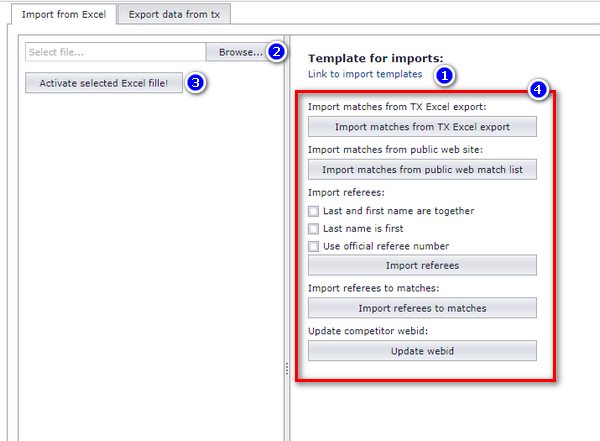
- For the Excel file to work in the Scheduler, it must be built on one of the templates for import. You find them by clicking Link to import templates at the top of the Template for imports panel; there are templates for the import of referees, referees to matches, teams and matches (what each one needs is listed under Import templates).
- Upload the file to the Scheduler by pressing Browse... and choosing your Excel file.
- Press Activate selected Excel file!. The file is previewed in the area below this button.
- In the Template for imports panel, press the button for the right type of import, for example Import matches from TX Excel export when the file contains matches.
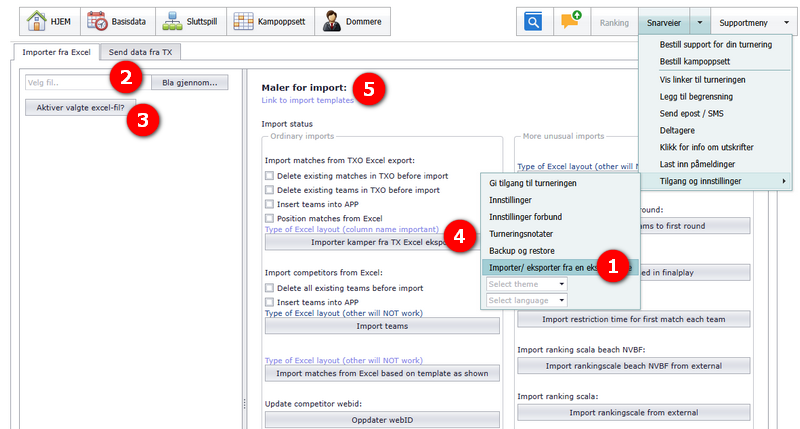
The same steps in the Norwegian layout of the Scheduler, numbered in the screenshot below: 1 the menu item Importer/ eksporter fra en ekstern kilde (Import / export from an external source) under Snarveier → Tilgang og innstillinger, 2 Bla gjennom... (Browse), 3 Aktiver valgte excel-fil? (Activate selected Excel file), 4 the button that imports the matches, 5 Maler for import (Templates for import) with the link to the templates.
All teams in the Scheduler are downloaded from the registration site on the web. When you import matches, the Scheduler tries to match every team name in the Excel file with a team from the registration site, so all team names in the file must match the name on the registration site exactly.
- A team that is not found gets an asterisk (*) behind its name, showing that this team is not registered on the web. Such a team is not shown in the Profixio app.
- The import panel has a tick box for deleting existing teams before the import (Delete existing teams in TXO before import in the screenshots). When it is ticked, existing teams that are not registered on the web are deleted before the import runs.
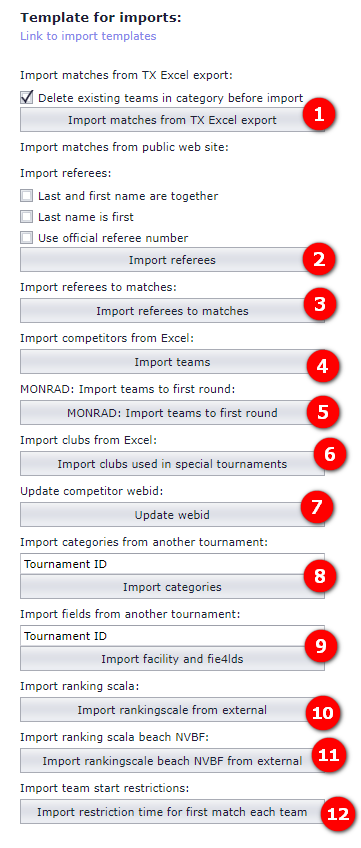
Every import needs a file built on the matching template. Open Link to import templates at the top of the Template for imports panel to get them. The numbers below refer to the buttons in the screenshot of the panel.
Download the templates here; the same files are behind Link to import templates in the Scheduler.
| Template | Button in the panel | Required columns | Notes |
|---|---|---|---|
| Matches — txotemplate-matchesimportexcel.xlsx | 1 Import matches from TX Excel export | C, D, E, F, G, H | Every team name must match the name on the registration site (see How imported matches are matched to teams). Referees can be entered with first name + last name in columns I–M. |
| Referees — txotemplate-refereeasperson.xlsx | 2 Import referees | B | If first name and last name are split, use column C for the last name. Tick boxes above the button: Last and first name are together, Last name is first, Use official referee number. |
| Referees to matches | 3 Import referees to matches | A, B | |
| Teams — txotemplate-teamsimport.xlsx | 4 Import teams | A, B | The category must be exactly the same as the category code on the registration site. If column C is filled in, the teams are put in the correct group. |
| Teams to the first round of a Monrad tournament — template txotemplate-monrad-first-round.xlsx | 5 MONRAD: Import teams to first round | ||
| Restriction for each team's first match — template txotemplate-team-restrictions.xlsx | 12 Import restriction time for first match each team |
The column headings in the template files are in Norwegian. This is what each column holds, so you can fill the files in without guessing.
| Template | Columns |
|---|---|
| Matches | A Oid, B Match nr (match number), C Dato (date), D Tid (time), E Klasse (category), F Pulje (group), G Hjemmelag (home team), H Bortelag (away team), I Bane (field), J–N Dommer 1–5 (referee 1–5). The file contains an example row marked "DETTE ER EKSEMPELRAD. SLETT DENNE!" (this is an example row, delete it) — delete it before you import. |
| Referees | A Dommernr (referee number), B Fornavn (first name), C Etternavn (last name), D Klubb (club), E Adresse (address), F Postnr (postcode), G Sted (city), H Land (country), I Kommentar (comment), J Epost adr (e-mail), K Telefon nr (phone), L Fødselsdato (date of birth), M Kontonr (account number). |
| Teams | A Klasse (category), B Navn (team name), C Pulje (group), D Klubb navn (club name), E–H club contact person: fornavn, etternavn, epost, tlfnr (first name, last name, e-mail, phone), I–L team contact person: fornavn, etternavn, epost, tlfnr, M Kommentar (comment), N Farge skjorte (shirt colour), O Farge shirts (shorts colour). |
| Monrad first round | A Klasse (category), B Pulje (group), C Nr (number), D Kl (time), E Bane (field), F Hjemme (home), G Borte (away). |
| Team restrictions | A ID, B Navn (name), C Klasse (category), D Pulje (group), E–H Begrensning 1–4 (restriction 1–4). |
Next to the Import from Excel tab there is an Export data from tx tab, where you export data out of the Scheduler. The Import matches from TX Excel export button is made for files that the Scheduler itself exported, so an exported match list can be edited in Excel and imported again.
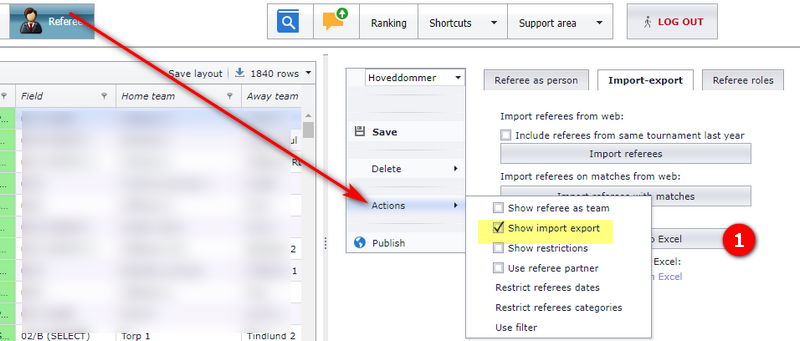
Referee data has its own export button in the referee module. Open Actions and tick Show import export; the Import-export tab then appears with the export-to-Excel button (marked 1 in the screenshot), next to Import referees and Import referees with matches from the web.
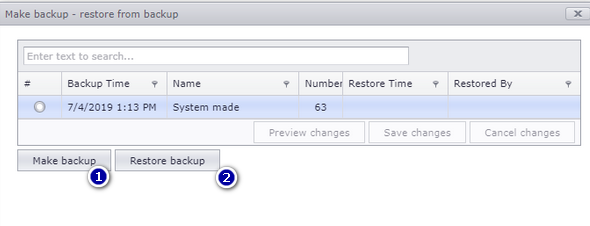
Sometimes you may want to back up the tournament for safety reasons, for example before a large import or before someone else starts editing. If a mistake is made, you can restore the data as it was before the changes were done, so it is a good idea to know how to take a backup. The backup includes both matches and referees.
Go to Shortcuts → Access and Settings → Backup and Restore. The Make backup - restore from backup dialog opens with a list of the backups taken so far.
- Press the Make backup button. A new row comes up in the list with the backup file, with information about when the backup was taken (Backup Time). If you want to give the backup a name of your own, tap into the Name cell and change it.
- To restore a backup, tap the row with the backup you want to retrieve and tap Restore backup.
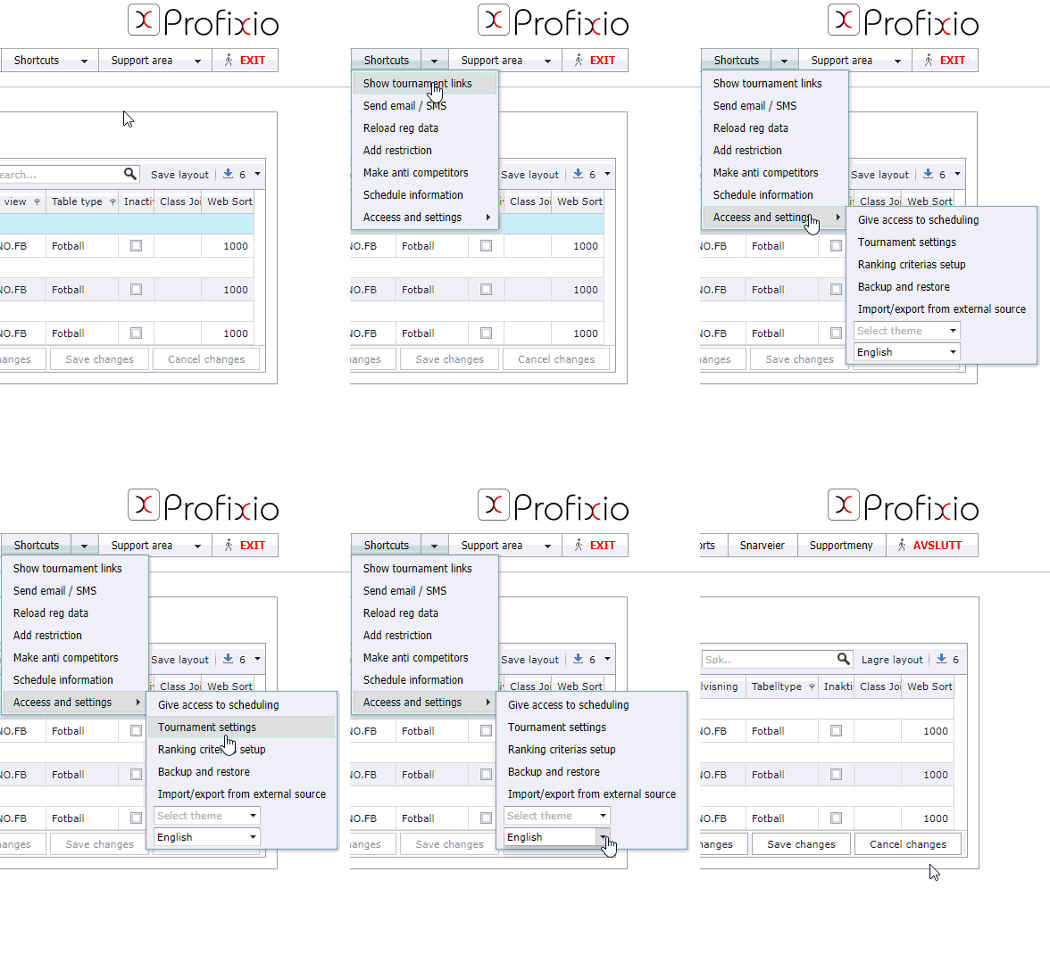
The Scheduler starts in the language of your operating system, which is usually also your browser's language. You can change this to any of the supported languages shown in the language list. The choice affects both the language of the screens and the date and time format.
- Go to Shortcuts → Access and Settings.
- Select the language from the list at the bottom of the submenu; the list holds Norway, Sweden, Spanish, German, Danish, Finish and English. To go back to the language the Scheduler picks by itself, select Default in the same list.
You can select another theme than the default one, which is called "DevEx". A theme changes the look of all pages in the Scheduler.
The theme is remembered by your browser, so on the same computer it is kept until you clear the browser's cache or change to another theme. Another computer or browser uses its own theme setting.
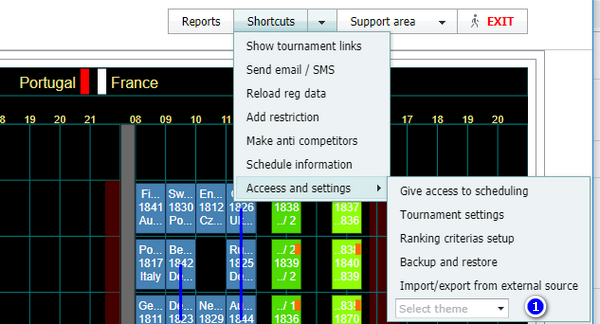
To change theme, open Shortcuts → Access and settings and pick a theme in the Select theme list at the bottom of the submenu (marked 1 in the screenshot).
You can have a look at the themes before you choose one on the DevExpress theme preview page.
- Getting the registered teams, categories and fields into the Scheduler from the web: see Loading registration data from the web.
- Giving other people access to the Scheduler for your tournament (the Give access to scheduling item in the same submenu): see Giving access to new users.
- Signing in and finding the Shortcuts menu: see What TXO is and signing in.
- Assigning the imported referees to matches inside the Scheduler: see Assigning referees in TXO.
- Team restrictions and anti-teams once they are in the Scheduler: see Restrictions and anti-teams.
- Monrad and other special play systems: see Playtypes and special play systems.
- Ranking scales and result positions: see Ranking tables and result positions.
- Teams, clubs and vacant teams in the Scheduler: see Teams, clubs and vacant teams.
- Ordering a schedule or asking Profixio support for help: see Ordering a schedule or support.
See also
- Assigning referees in the Scheduler
- Loading registration data from the web
- Ordering a schedule or support
- Play types and special play systems
- Ranking tables and result positions
- Restrictions and anti-teams
- Teams, clubs and vacant teams
- What the Scheduler is, and signing in
- Giving access to new users
Was this page helpful?