Ordering a schedule or support
Asking someone in the Scheduler's list to build your schedule and accepting their offer, ordering a schedule from Profixio support with the information they need, and ordering phone support while the tournament is running.
Looking for something else? Building the final play Dates, categories, fields and match length Making the schedule Restrictions and anti-teams
A match schedule can be ordered both from Profixio support and from other people with the necessary skills. This page covers three things you can order:
- An offer from a scheduler in the Scheduler's own list. Inside the Scheduler you find a list of people who offer their help to build your schedule. You ask one or more of them for an offer and, when you accept one, the person gets access to your tournament. See "Requesting an offer from the scheduler list" and "Accepting an offer".
- A schedule made by Profixio support, at a fixed price per match. See "Ordering a schedule from Profixio support" and "Information to include in your order".
- Phone support while the tournament is running. See "Ordering phone support during the tournament".
If you want to build schedules for other organisers yourself, see "Offering your help as a scheduler".
In a list inside the Scheduler you find the people who offer their help to make your schedule. You can tick one or more of them and ask for an offer on a match schedule.
- Tick the person or persons you want to ask.
- Tick the box if you want to preview the e-mail. You can edit the e-mail yourself before you send it.
- Click to request an offer for a schedule.
- Here you see the status of your request.
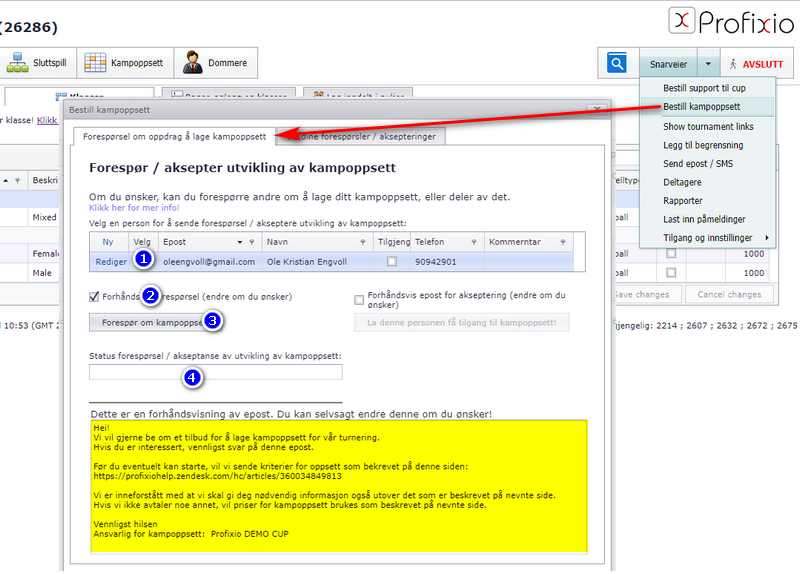
Profixio has a standard page that defines the requirements and criteria for a scheduling assignment. It is followed unless something else has been agreed between you and the scheduler.
When you have received an offer, you can choose to accept it. The chosen person then gets access to your tournament automatically.
- Select the person you want to give the assignment to.
- Tick the box to see a preview of the e-mail (edit it if you wish).
- Click "La denne personen få tilgang ..." (Let this person get access ...). The person now receives an e-mail from the system, and from here on the two of you communicate outside the Scheduler.
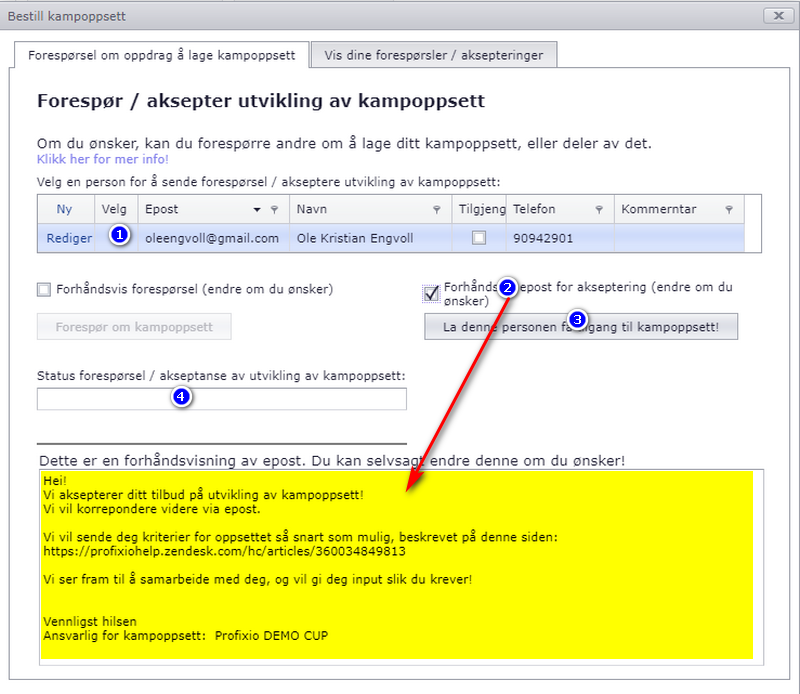
If you want to take on scheduling assignments for other organisers, this is what you need to know:
- Register yourself with your name, optionally a phone number and optionally a comment. You do this inside the Scheduler; the screenshot under "Requesting an offer from the scheduler list" shows where.
- The e-mail address you sign in to the Scheduler with becomes your contact address.
- Only you can change your own data, such as whether you are available, or delete yourself from the list.
- When you receive a request, your reply must state your criteria for the assignment, for example time frame, costs and terms.
- Unless something else is agreed, Profixio's standard page of requirements and criteria applies to the assignment.
- You receive an e-mail with login details if the tournament organiser accepts your offer.
Price for a schedule made by Profixio: NOK 2500 per 100 matches.
- Expect an additional charge for major changes after the schedule has been made, or for complicated criteria.
- Information about teams (time limits and so on) is taken from the team leader's remarks field, not from the messaging system.
- As organiser, expect to give input and make choices in situations that need local knowledge.
- Important: keeping the registration data up to date while the schedule is being built is entirely the organiser's responsibility. Check that the categories are correct, that teams that do not want to take part are deregistered, and that every team is in the correct category.
To order, answer every point in the list under "Information to include in your order" and send it to [email protected].
Answer all seven points and send them with your order.
| # | What to include | Example |
|---|---|---|
| 1 | Tournament dates, including the earliest start and the latest stop. Include information if some facilities have time limits. | Friday 22.01 17.00–21.00, Saturday 23.01 09.00–21.00. The facility "BigHall" cannot be used on Friday. |
| 2 | Every category with its match length, and the match length including the break until the next match (the match slot length). | "B10 1x18 minutes playing time, each match starts every 20 minutes" (or, shorter: "B10 18/20 minutes, a match every 20 minutes") |
| 3 | Every category with the number of matches each team plays in group play. | G14 4 matches each. G16 all against all. B16 3 matches each. |
| 4 | Every category with time limits, if you want a category to play only at a certain time in group play. | B10 only Friday 18.00 to 21.00 |
| 5 | Type of playoff (only for categories with a playoff), how many teams go to the playoff, and a description if the playoff is special. | B16 8 teams, including bronze final. B18 12 teams, no bronze final. |
| 6 | Fields (venues) for each category, with additional information if needed. | G18 field 1–4. G20 venue 1–6. Field 6 cannot be played on Friday. |
| 7 | Additional information: clubs that cannot play at certain times, teams that must not meet, or whether you want a very compressed schedule. | "Club A cannot play before 10:00 on Saturday". "Team A cannot meet team B". "Every team should spend as little time as possible at the venue". |
Ordering phone support gives you access to Profixio's support staff outside normal working hours; without an order, support is available in normal working hours only. In a stressful moment it can be nice to just pick up the phone and get an answer within seconds.
Support is ordered inside the Scheduler. Click as shown in the screenshot.
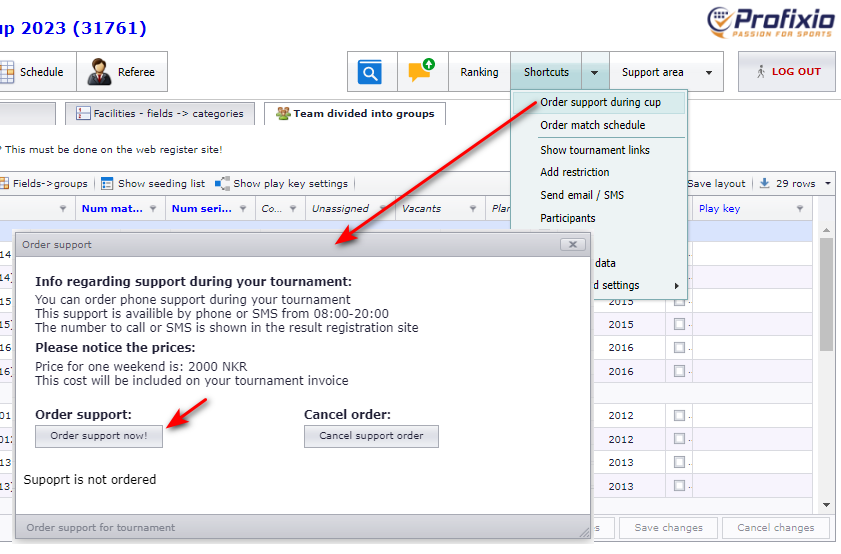
You can also order by sending an e-mail to [email protected] and simply telling us that you want support.
The price is shown in the order-support window. Note the actual opening hours of the support phone; they are shown in the same window.
The phone number to call is shown in the same place where the matches are presented.
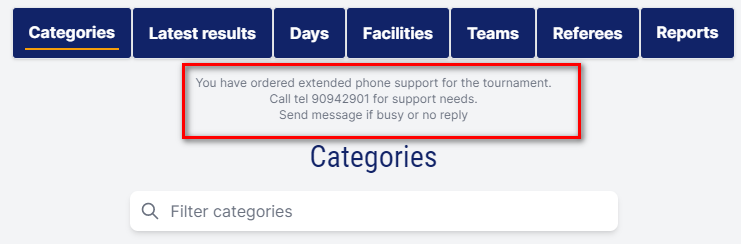
- Signing in to the Scheduler and giving other users access: see "What TXO is and signing in" and "Access, language and theme".
- Keeping teams and categories up to date before you order (deregistering teams, moving teams between categories): see "Loading registration data from the web" and "Teams, clubs and vacant teams".
- Setting up dates, fields, match lengths, time limits and anti-teams yourself in the Scheduler: see "Dates, categories, fields and match length" and "Restrictions and anti-teams".
- Building the schedule and the final play yourself: see "Making the schedule" and "Building the final play".
See also
Was this page helpful?