Making the schedule
How to run the schedule calculation in the Profixio Scheduler: estimating how many matches and hours you need, which groups to include, the settings the calculation uses, round-based schedules with one round per date, what decides how compact a schedule can be, and how to add or change matches by hand.
Looking for something else? Assigning referees in the Scheduler Moving, switching and deleting matches Publishing the schedule, e-mail and SMS Video walkthroughs
Once all the data is in place, it is time to create a match setup. By all data is meant everything from how long matches are played, division into groups, assignment of fields, time limits and possibly end-game setup.
This page covers the calculation itself: how to estimate how many matches and hours you need, how to select the groups the calculation is to cover, the settings the calculation uses, round-based schedules with one round per date, what decides how compact a schedule can be, and how to add matches by hand afterwards.
The scheduling window shows the whole schedule and holds the buttons you work the schedule from.
- You can schedule new matches (group and playoff) or just make a single match.
- It is possible to delete single matches, a group of matches or by a filter.
- It is absolutely recommended to move match(es) by using the graphical "visualizer". Just click on a box (a match) and move to the wanted position. You can select several matches before moving.
- Be aware of color codes. They give a lot of information.
- Remember to save changes. Changes are not saved automatically: the Scheduler runs in the browser, so save your work before leaving the page.
Tip: use "Restrictions" to restrict teams, categories and venues to play only certain intervals. See Restrictions and anti-teams.
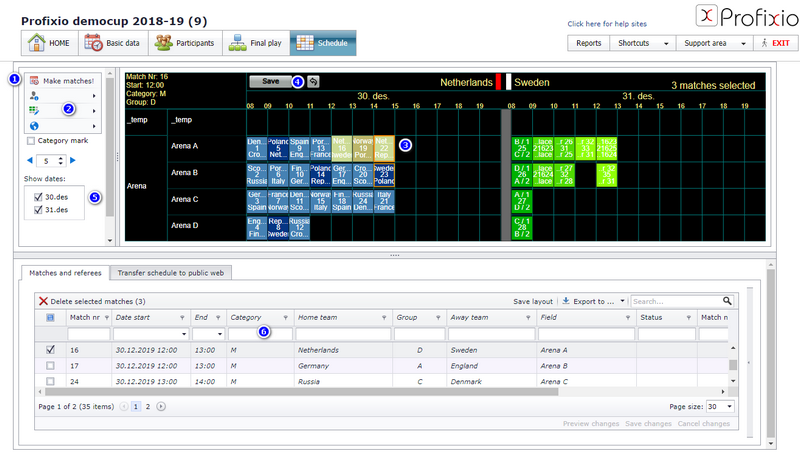
The basic function areas of the window, numbered as in the picture below:
- Button to start making matches (groups or playoff).
- Menu including functions to change match, publish and a lot more.
- Visualizer, where you can select a match before moving, deleting or changing teams.
- Most important button: SAVE! You can also undo your changes which are done AFTER the last saving.
- Show or hide dates, in order to make the matches more visible and easier to work with.
- Table with filter row to search matches by filtering in the top row.
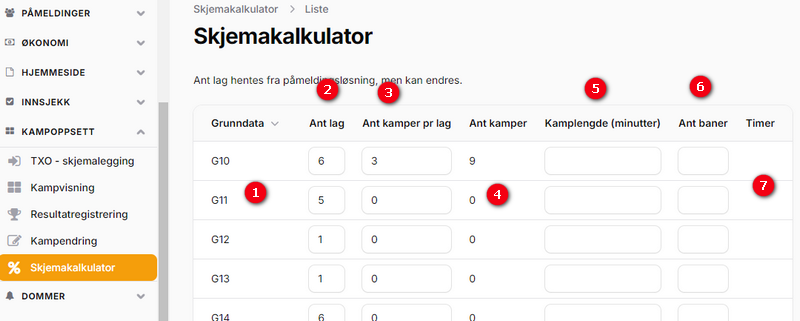
This is a simple schedule calculator. You will calculate number of matches and number of playing hours. The numbers below match the bubbles in the picture.
- Categories are fetched from your registration site.
- Enter number of teams (the default number is fetched from your registration site).
- Enter number of matches each team (for example 4).
- Out from the data in bubble 1 and 2, number of matches is shown here.
- Match length is the total time in minutes a match will consume. If playtime is 17 minutes, but every match starts every 20 minutes, enter 20 here.
- Number of venues you can play on for the active category.
- Number of hours you need to have available.
Note: the number of hours is in real life often higher, because teams can have restrictions and therefore cannot use all the free time.
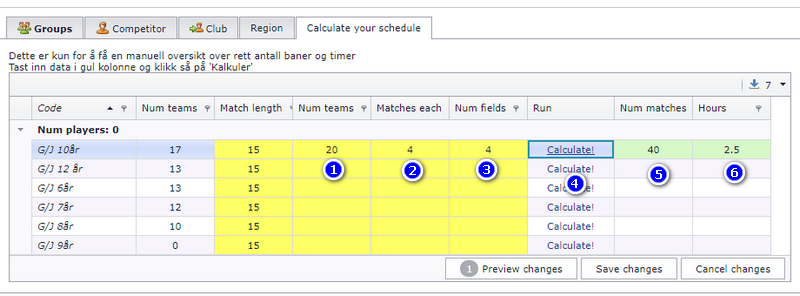
The scenario calculator gives a quick estimate from three numbers. The numbers below match the callouts in the picture.
- Enter number of teams.
- Enter number of matches each team.
- Enter number of fields available.
- Click "Calculate".
- Here you will see number of matches you will get.
- And how many hours you need.
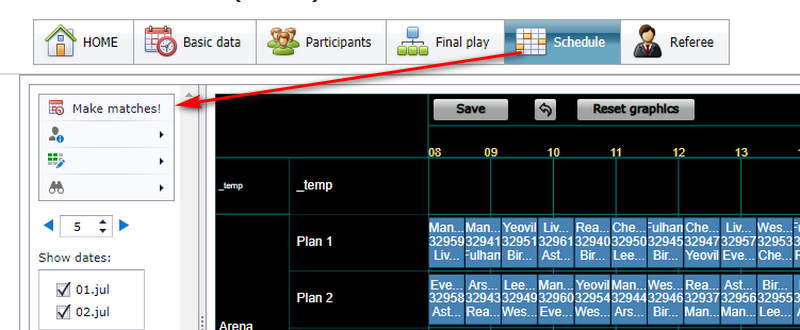
First, go to menu "Schedule" and then click "Make matches!".
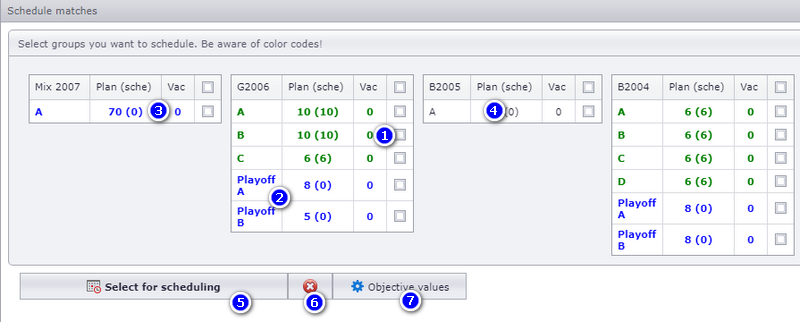
The first step of the calculation is choosing which groups it is to cover. The numbers below match the callouts in the picture.
- Choose the groups which you want to make a schedule for. Start with those who are playing first. We recommend to choose max 5-19 groups at the time. Then it is simpler to adjust the matches later.
- Here are the playoff matches. You make their schedule in the same way as the group schedule.
- Color codes:
- Blue: groups are not scheduled yet.
- Green: groups are scheduled and have correct number of matches.
- Red: groups are scheduled but do NOT have correct number of matches. This can happen if you delete one match by manual.
- Groups without any color are missing teams and can not be scheduled.
- When selected groups are done, click this button to go to next level.
- This button just unselects all your chosen groups.
- Here you will find data used by the schedule engine.
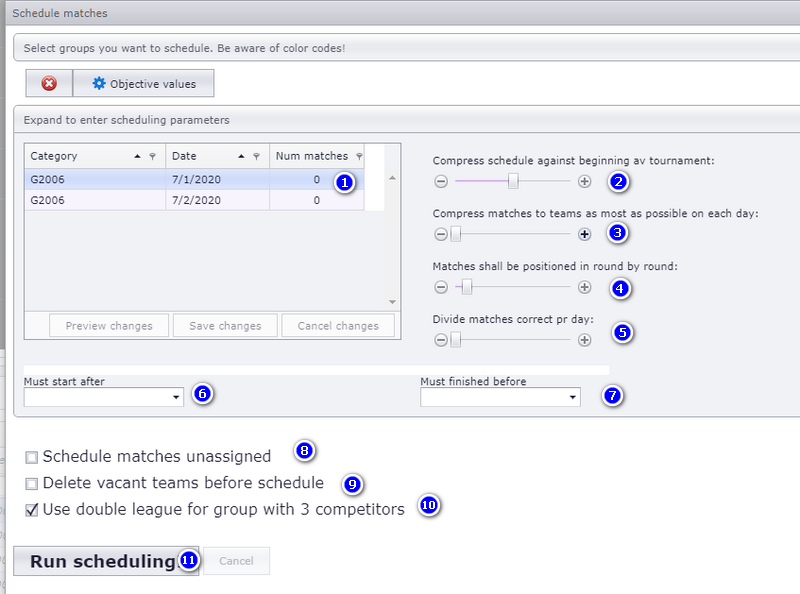
The second step is the settings the calculation uses. The numbers below match the callouts in the picture.
- If you want each team to play a certain number of matches on certain days, you can enter it here.
- How much you want to emphasize that matches should be compressed as much as possible against the start of the tournament. This means that you get the shortest possible tournament.
- How much you want to emphasize that matches for each team should be compressed as much as possible against the number of matches paused.
- If you want the matches to go round by round. This often gives a more structured layout. If teams have time constraints, this parameter will not have much to say.
- How much you want to emphasize that matches for each team should be distributed correctly over the number of days you have set. NOTE: If set to greater than zero, (2) will be set to 0. Nr (2) and (5) CANNOT be combined.
- Here you can enter the earliest time when the matches can start ...
- ... and be done by date and time.
- If you create matches unscheduled, the matches will be placed on the temp venue and you will have to move them in the right venue and time in the match setup window (visualizer). Just use drag and drop on the matches (boxes).
- Delete vacant teams before match setup. If vacant teams exist and you do not delete them, they will be included in the match setup.
- Use double series for 3-layer pools. If you have a class with 3 teams in the pool, you will want these pools to play double series to get enough matches.
- When you are satisfied with your settings and are ready to create the match layout, press Run scheduling. TXO creates a layout based on all data entered.
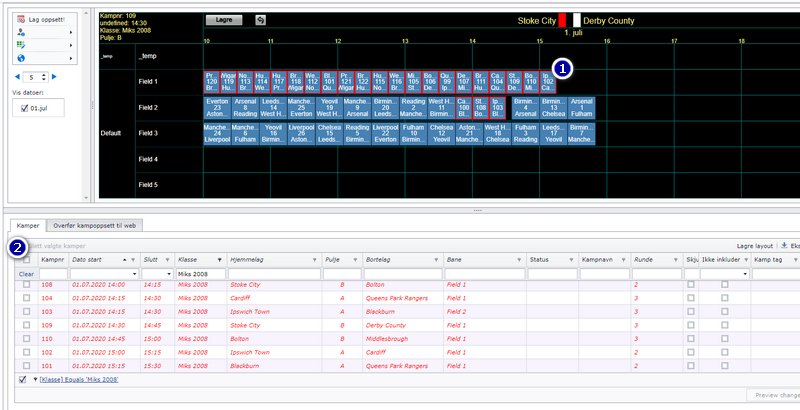
As the figure below shows, now all matches are placed with time and fields. The days are displayed horizontally and fields vertically. Matches appear in the form of boxes, where the blue ones are group games and end-games are green boxes.
- Matches that have been recently made or moved will have a red outline in the match box.
- The matches also appear in the list below.
There are almost endless variants of league setups. One variant is round-based matches, where a round is played to the end on one day.
Here is an example with 6 teams that are to play a 4-double series and have 5 fields available. This gives each team 20 matches. Even though 5 fields are available, they will only need 3 of them (3 matches per round).
Some criteria must be met to use this variant:
- Every day must be usable consecutively. Even if a team has a time restriction on one of the days, the team will get matches set up that day.
- With an odd number of teams in a group, one team necessarily has to sit out a match. A team can get match day X but with a break both the match day before and the match day after. There will never be a break of two match days.
How to do it:
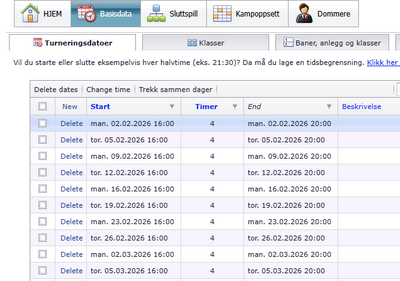
- All playing dates must be entered, fields must be created, and teams must be divided into groups.
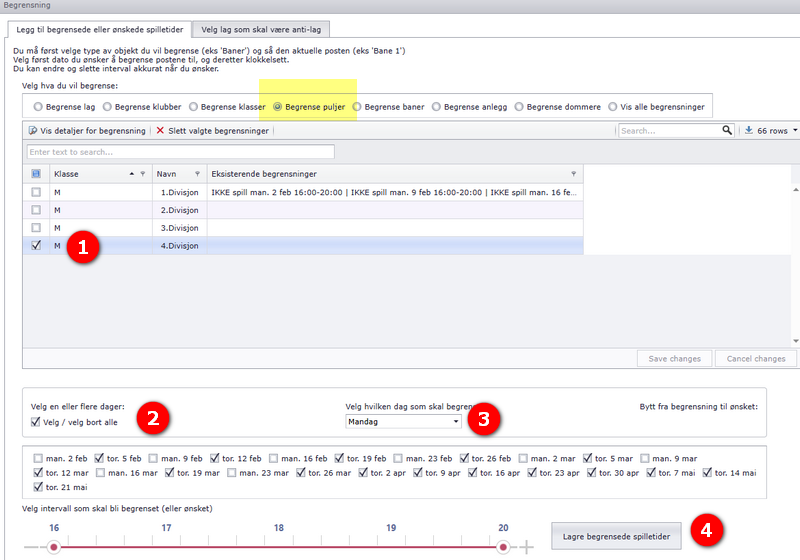
- Enter a restriction for which days this group is to play.
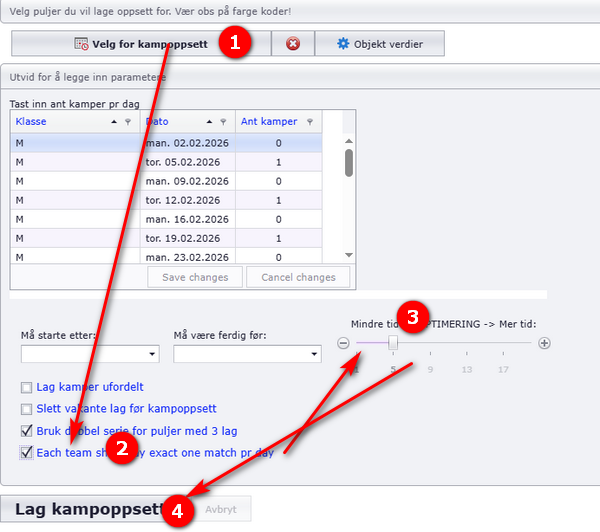
- Then click "Lag oppsett" (make schedule). Choose the category/group and then tick "Hvert lag skal spille eksakt en kamp pr dato" (each team is to play exactly one match per date).
What happens if:
- Playing days are missing? Then matches for rounds without a date are placed on the temp field.
- A team is time-restricted so that it cannot play on the day the round is set up? The match for that team is placed on the temp field, but on the round's date.
Many organisers want each team's matches played as close together as possible, with a required break of 1 match between them. Whether that can be achieved depends on the teams and the constraints in the pool, not on a setting. Take an example with a category of 5 teams in one pool. Each match is played for 50 minutes and matches start every full hour (a 10-minute break on the field). The matches are played on one day and 4 fields are available.
Three situations make a fully compact layout impossible:
- The number of teams in the pool is odd and the number of matches each team plays is odd. For example 5 teams in the pool and 3 matches per team. When the rounds are set up for a pool of 5, team 1 plays team 2, team 3 plays team 4 and team 5 has to sit out the round. This means team 5 sits out 3 matches (1 match break + the match itself + 1 match break). In the picture below the red team has to sit out round 2 and therefore gets 3 hours until its next match. The same applies to the white team. In such a case 2 teams get long breaks (number of rounds - 1 = 2). This cannot be avoided. Note: with an odd number of teams in the pool and an odd number of matches per team, one team will always get one match more than the others.
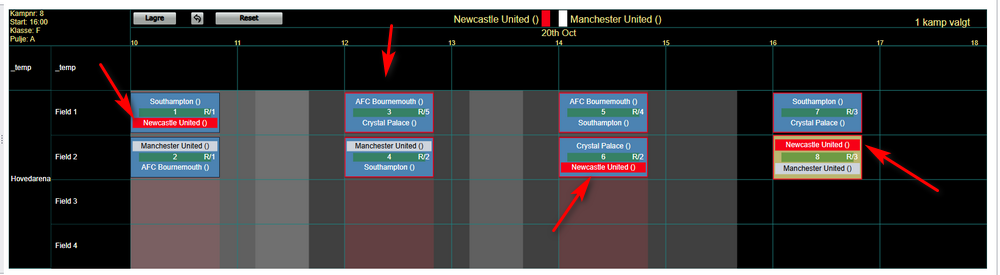
- Two teams are anti-teams and cannot play at the same time. For example 4 teams in the pool where 2 of the teams cannot play at the same time. In the picture below Newcastle and Crystal Palace cannot play at the same time. This leads to a layout with extended breaks for teams.
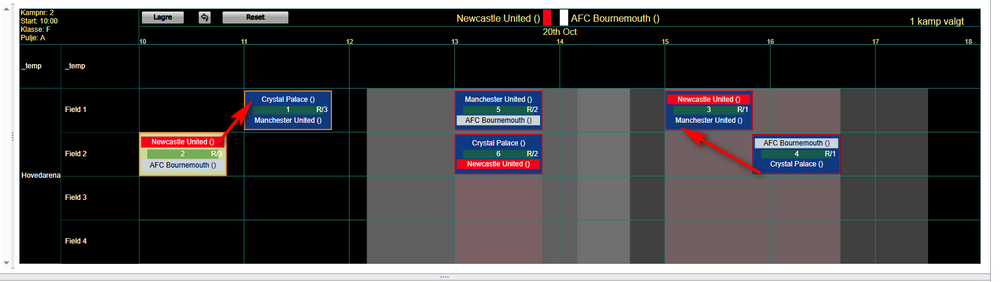
- Teams have a time restriction and cannot play outside a given range. This usually affects the schedule negatively for every team other than those whose wishes are met. We recommend accommodating as few such wishes as possible.
What you can do when a compact layout with a one-match break for every team is out of reach:
- Try to avoid an odd number of teams in each pool. This can be done if you have a waiting list, so that you can admit the correct number of teams.
- Limit anti-teams as much as you possibly can. Remember that every team leader who gets their wish met contributes to other team leaders getting a worse layout.
- Accept that some teams get 2 matches in a row, but this is terribly unpopular.
- Accept that the match day is extended, which means fields will stand empty at times. Then you can get somewhat fewer long breaks, even though not all of them can be avoided.
This functionality is mainly for groups with a large number of teams which only play a limited number of matches. Be aware so you do not end up with teams with too few matches.
A typical scenario:
- The category is set to play 3 matches each team.
- There are 5 teams in group 1.
By default, you can not decide who shall meet and not meet. One important criteria for the system is to avoid team from same club to meet.
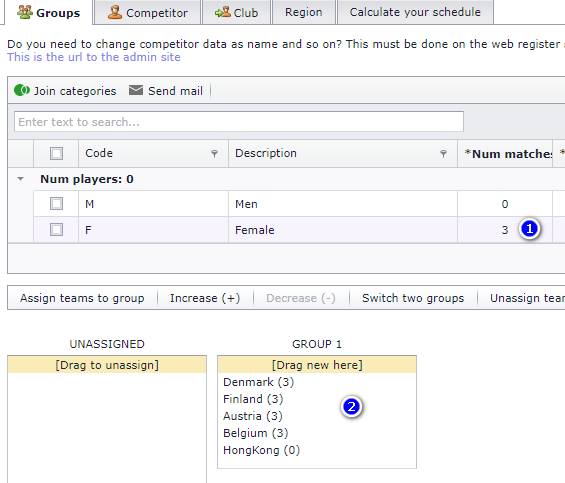
To choose the meetings yourself:
- Select from menu as shown "Make matches by manual".
- Select category and group.
- Matches with teams which have not met eachother are shown in green text color. The number is number of matches which exists for the team.
- Select the matches you want to make.
- Click on this button to make the matches.
- You can also delete matches from here.
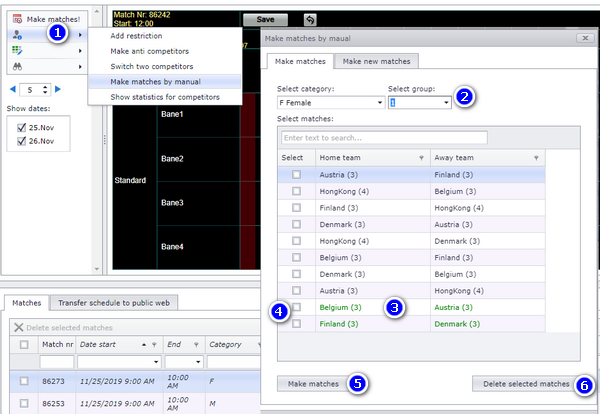
We recommend to make matches by the button "Make matches". But if you want extra matches or want to decide by your self who shall meet eachother, you can by manual make matches.
- You can make new matches with teams from different groups and even from different categories.
- When you make a new match by manual, it will be positioned on the temp field. You must later drag it to the correct position.
- Start from menu as shown. Select category...
- ...and group. This match will be placed in the selected category and group.
- Select home team (this must exist in the selected category and group).
- Select away team. This can be selected from whatever category and group. But remember; the match will anyway be placed in group selected in (2).
- If you want to select the away team among all teams, independent of category, check this box.
- If the teams are in the same group, you can switch if they shall be home or away teams. If they are NOT in the same group, you must select the teams correctly in (3) and (4).
- Click to save this match. The match will be positioned in the temp field.
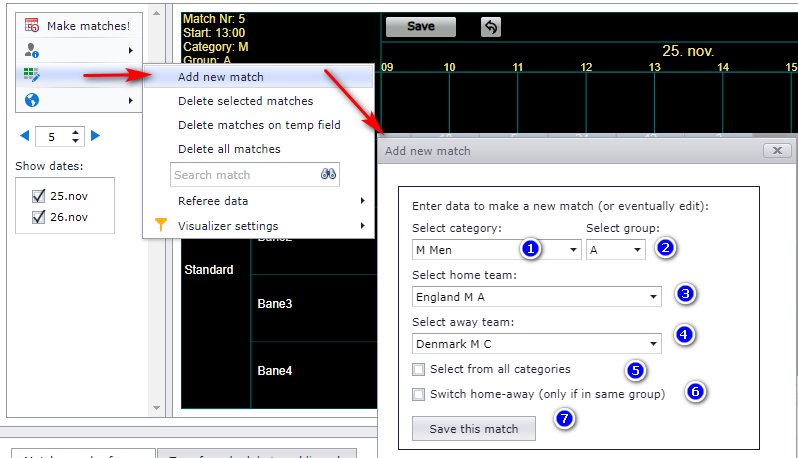
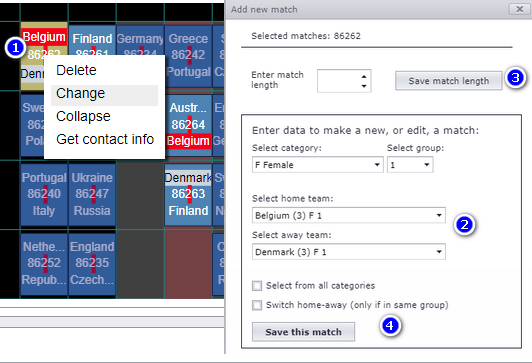
This is almost the same popup as the one under Making a single match by hand.
- Right click on the match and select "Change".
- Select the teams you want to change.
- You can also change the match length here.
- Remember to save!
- Moving, switching and deleting matches once the schedule exists — see Moving, switching and deleting matches.
- Reading the schedule, the match list and its filters — see Reading and filtering the schedule.
- Restrictions and anti-teams, which decide when a team, club or category may play — see Restrictions and anti-teams.
- Playing dates, categories, fields and match length — see Basic data: dates, categories, fields and match length.
- Dividing teams into groups and seeding them — see Dividing teams into groups and seeding.
- Play types and the structure of the final play — see Playtypes and special play systems and Building the final play.
- Season-long leagues — see Running a season-long league in TXO.
- Referees on the matches — see Assigning referees in TXO.
- Publishing the schedule and printing reports — see Publishing messages and reports.
- The videos the old articles pointed to — see Video walkthroughs.
See also
Was this page helpful?