Building the final play
How to build a playoff in the Profixio Scheduler: making and editing the tree, reading the marks on the tree screen, position matches, intermediate play, "Best of" places instead of locked group positions, and hidden playoffs.
Looking for something else? Moving, switching and deleting matches Publishing the schedule, e-mail and SMS
A playoff is the tree of matches you build on top of the group play, and it is made individually for each category.
In the playoff window you build the tree only, no matches. Matches for the trees are made in the same place as you made the matches for the groups, that is from the menu "Schedule".
All teams are moved into their correct positions in the tree automatically as the results are entered for the group play.
Click the button "New tree" to show the popup.
- Select the category you are making a playoff in. It is best to handle one category at a time.
- Select type of play (A, B or whatever you use). Start building from the A play and continue later with B and so on if that applies.
- Select how many teams. If you start at the 1/4-finals you must have 8 teams. The Scheduler also builds a correct tree if you, for example, start at the 1/4-finals and only want 6 teams.
- Select if you want to include a bronze final.
- And at the end, make this tree. Close the popup to see the tree.
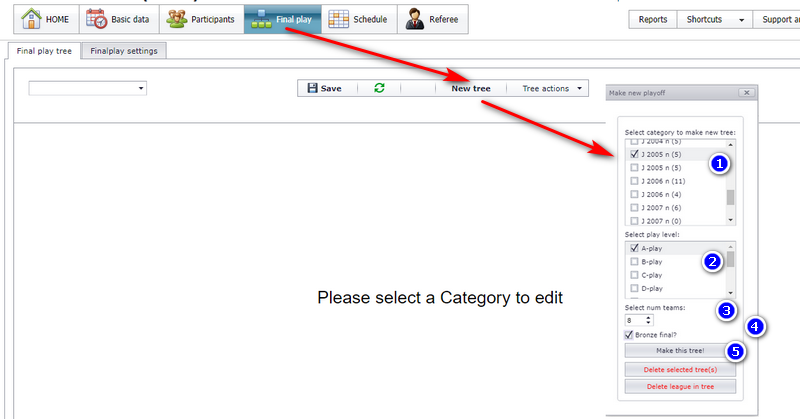
After the tree is made you can edit it as you wish.
You delete a tree from the same popup you make it in - see the red text at the bottom of the popup "Make new playoff".
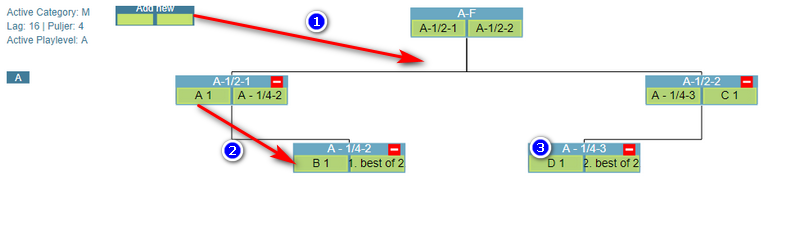
- To make a new match, drag the box "Add new" to the position you want.
- To switch two teams' positions, just drag and drop.
- To delete a match, right click and delete.
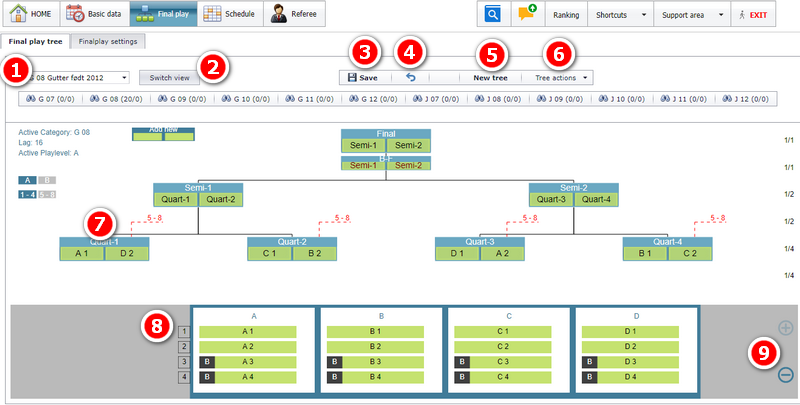
The numbers below match the numbered marks in the screenshot.
- Dropdown (or use the buttons below it) to select a category.
- Toggle button to switch between the default tree view, which you can edit, and a tree just for getting an overview.
- Use the save-button when you are done with your changes. Changes you have not saved are lost.
- This is the undo button.
- To make a new playoff, click this button and follow the further assistance.
- Several tree actions, such as delete playoff and make positioning matches.
- Each match is shown as a box. A box becomes a real match when you make the schedule for this playoff. The red lines tell you that the loser of this match plays in their own 5-8 playoff.
- Area for the participants in this playoff. The data is fetched from the menu "Basics" - "Teams divided into groups".
- If there are too many groups, you can reduce or increase the number of groups shown in this area.
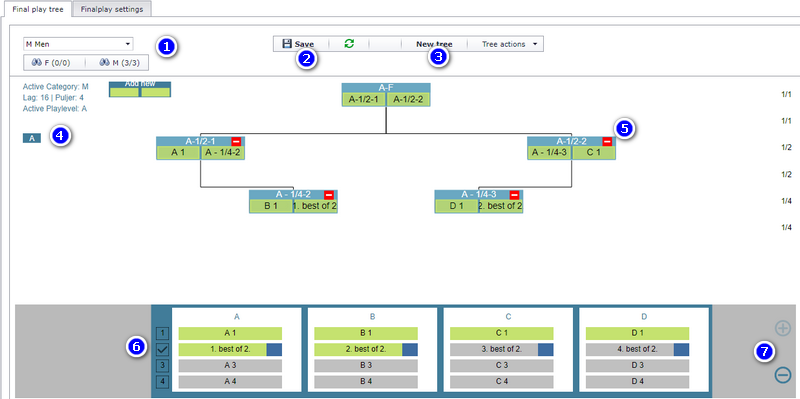
You can have up to 5 levels of playoff, and the letter on the screen shows which level is active. The numbers below match the numbered marks in the screenshot.
- Dropdown or buttons to activate a category.
- It is important to save your changes. Here you also find a reload button, which gets your last saved playoff tree.
- Button to make a new tree (and also delete a tree).
- This letter is showing which playoff level you have active. You can have up to 5 levels of playoff.
- This little red square is showing if the loser of this match is playing a positioning match at the end.
- This is the group area, where you see your groups and the teams. If you use "Best of", this is shown by the symbol "v" in the left margin.
- Buttons to make this area bigger or smaller in height.
An intermediate play ("mellomspill") inside the playoff is made by first showing the placeholder for intermediate play, then clicking the + sign as shown in the image below. Teams that are to take part in the intermediate play are dragged up into the intermediate play boxes - here simply named "League 2" and "League 1".
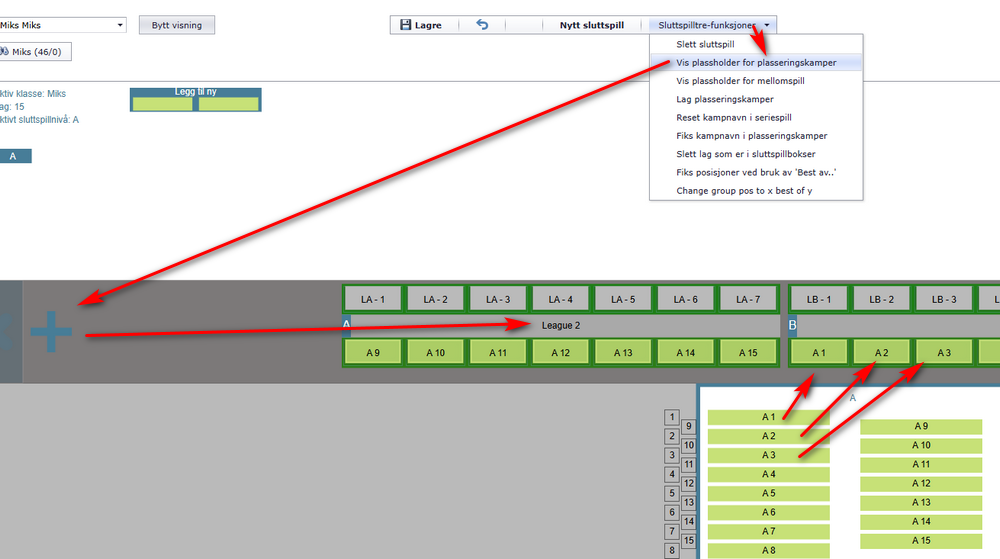
Playing a double series in the intermediate play
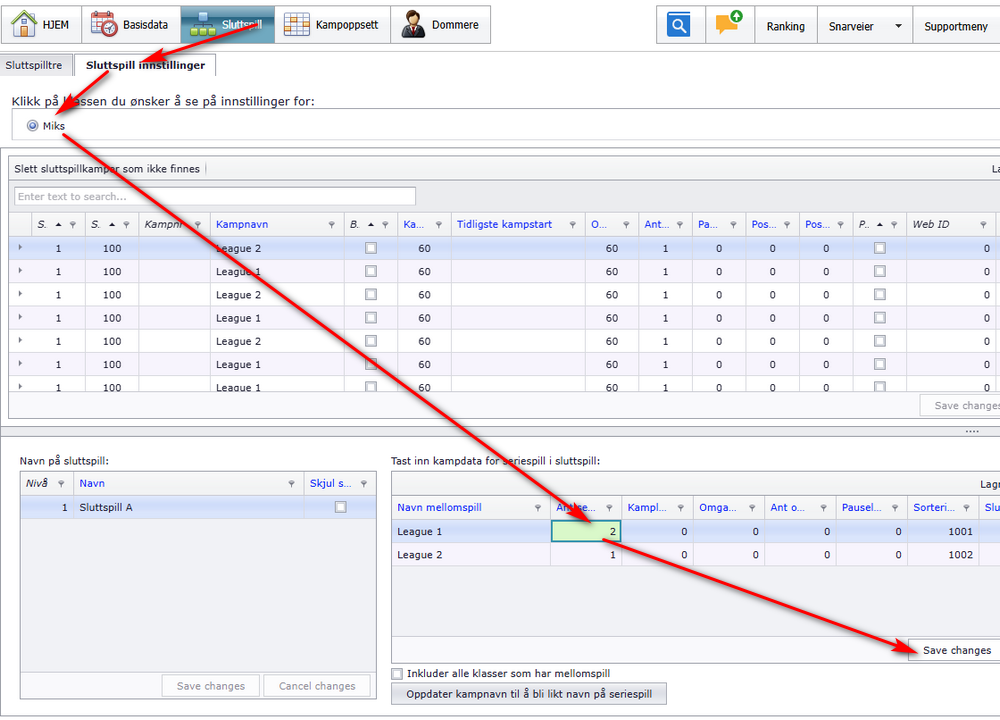
By default everybody plays everybody once in such an intermediate play. You can change this so that everybody plays everybody a chosen number of times. It is done as shown below, and afterwards you just make the match schedule in the usual way.
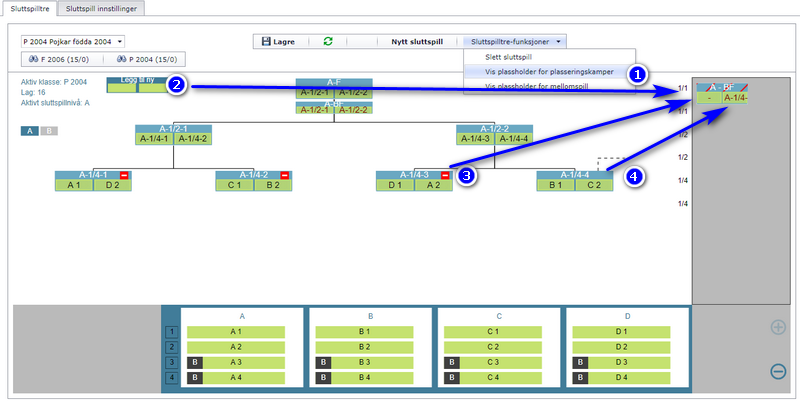
It is possible to make position matches - for example a position match between the losers of a 1/4-final match.
Position match from a loser in the playoff tree
- Select the menu "Show placeholder". Now you get a grey area to the right.
- Drag the match box to the placeholder area.
- Drag the red rectangle from one 1/4-final and drop it onto the match box from step 2.
- ...and do the same with the team from the other 1/4-final.
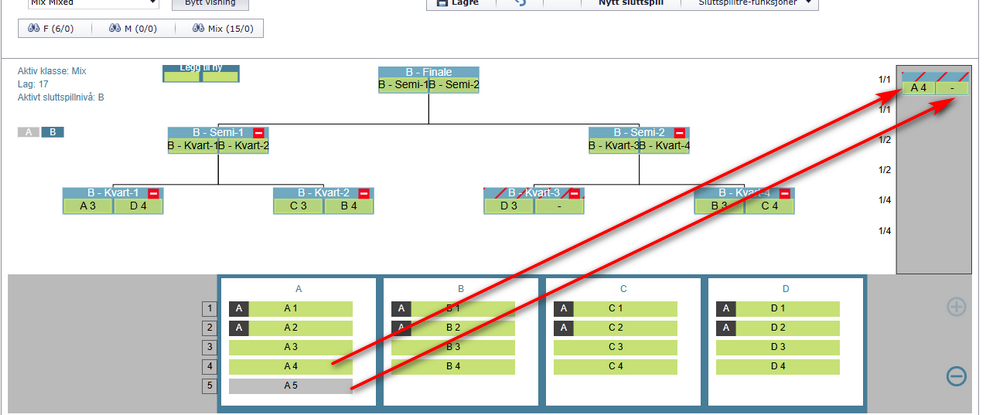
Position match from a team in a group
- Select the menu "Show placeholder". Now you get a grey area to the right (see the image above).
- Just drag the group positions up into the home and away team placeholder.
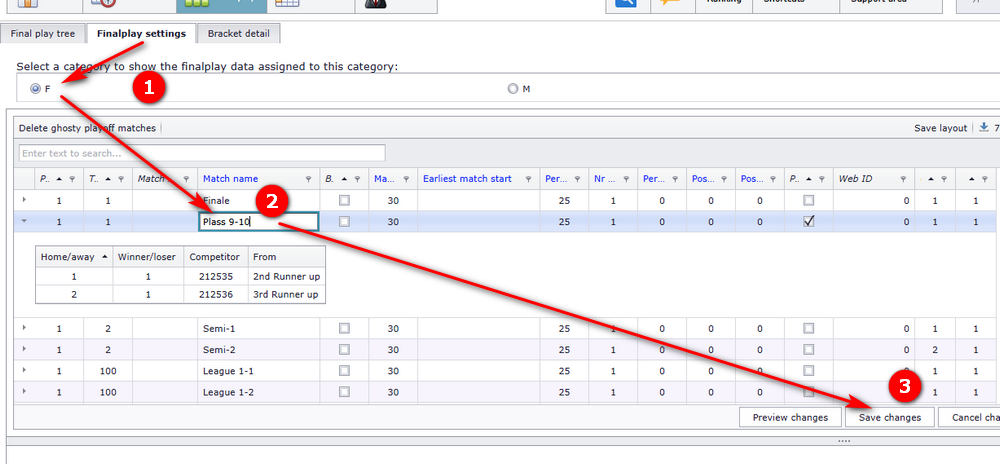
Enter the menu "Finalplay settings".
- Select category.
- Enter the name of the match.
- ...and click Save as always.
Publish the schedule to show your new name in the public view (the app).
Most usually, the positions of the teams in the tree are calculated out from the position in the group: the winner of group A is playing the semi-final against number two in group B. But this can be unfair in some situations. As you can see in the image, 4 teams are going into the playoff, and it will be unfair if the winner of group A is chosen. Instead, it is better to use "Best number two in all groups".
This of course also works the opposite way, that is turning a locked position into an "x best of" position.
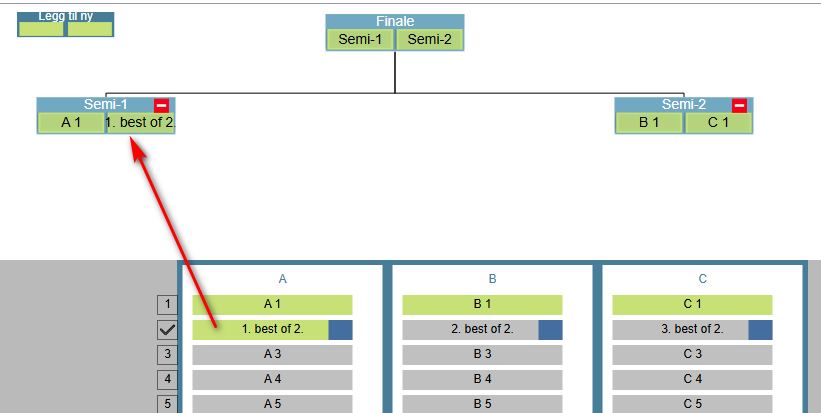
You can change a place from "Best of" to a locked position once all the team cells are grey. In the image below, "1. best of 2" is green, and that is why it can not be changed yet. Drag all the "x best of" boxes from the semi-finals and so on into an empty area - see the arrow to the left.
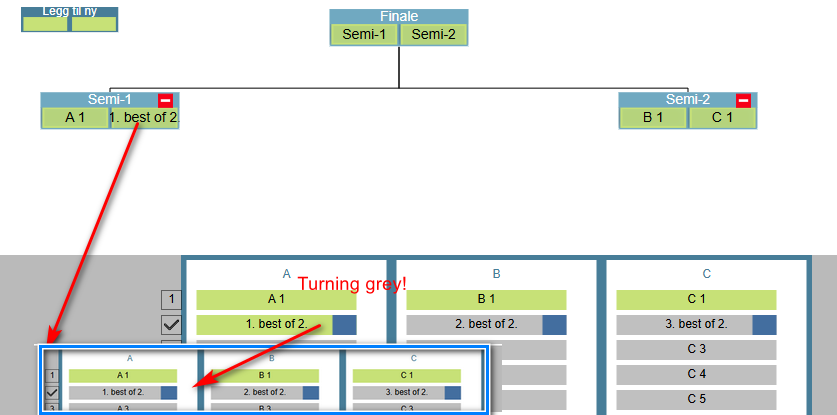
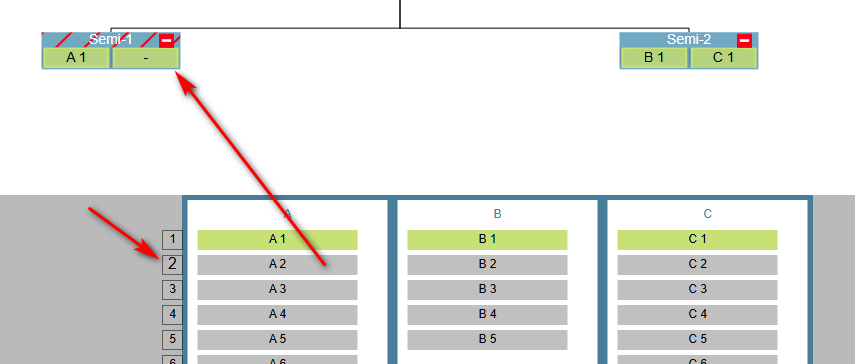
Now you can click the little symbol "v" and it changes to a number (left arrow). And then you can drag Number two in group A into the playoff tree, here the first semi-final (right arrow).
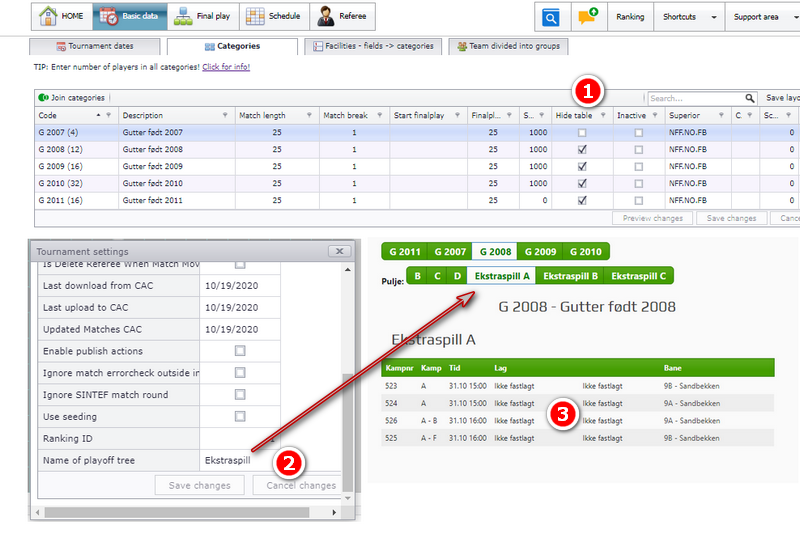
This page covers building the playoff tree, editing it, position matches, intermediate play, "Best of" places and hidden playoffs.
It does not cover making the matches for a finished tree, how group positions and result positions are calculated, dividing the teams into the groups the tree reads its participants from, special play systems, or publishing the schedule so the public view is up to date. Each of those has its own page.
See also
Was this page helpful?