Dividing teams into groups and seeding
How a category is split into groups in the Profixio Scheduler, how teams are moved, swapped and positioned by hand, and how seeding and play keys decide who meets who.
Looking for something else? Building the final play Making the schedule
A team can only be scheduled once it is divided into a group, so splitting each category into groups is the step that makes the match schedule possible. Seeding puts teams in chosen positions in chosen groups, and play keys decide which of those positions meet each other in each round.
The number of matches a team plays is set at category level, not per group. If a category is set to one league (all against all once), every group in that category plays the same way. The one case that differs is a group of 3 teams: there TXO suggests a double league (all against all twice).
Teams themselves are added, edited and deleted on the registration admin site, not in the Scheduler. TXO picks those changes up and reflects them. Vacant teams are the exception - you can add those in the Scheduler to fill a group with more teams.
- Click on a row to select a category.
- Enter the number of matches each team is to play, or the number of series. This makes it possible to set each team to play 4 matches even if there are 10 teams in the group. TXO avoids letting teams from the same club meet each other where it can.
- Divide the selected category into groups, based on how many teams each group is to hold. TXO avoids placing teams from the same club in the same group where it can.
- The category is then divided into that number of groups.
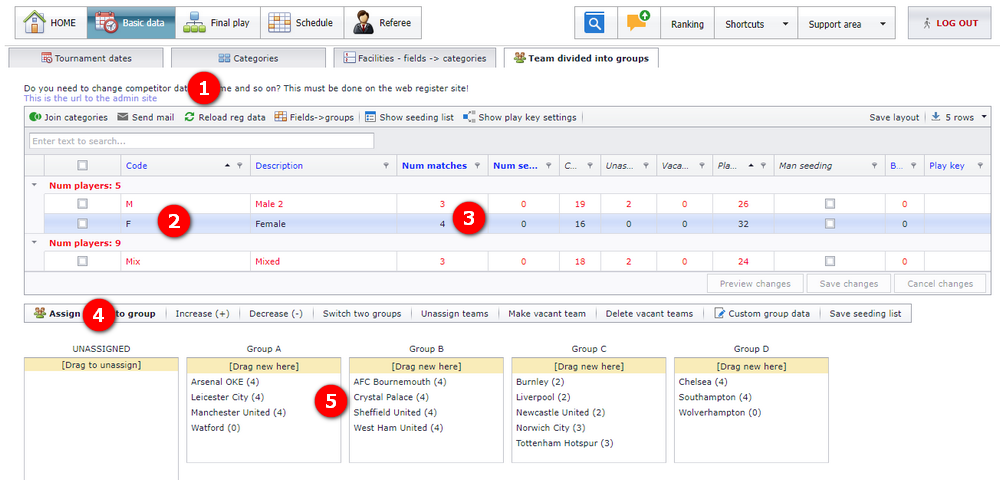
The screenshot below shows a category after the groups have also been changed by hand.
| Action | What it does |
|---|---|
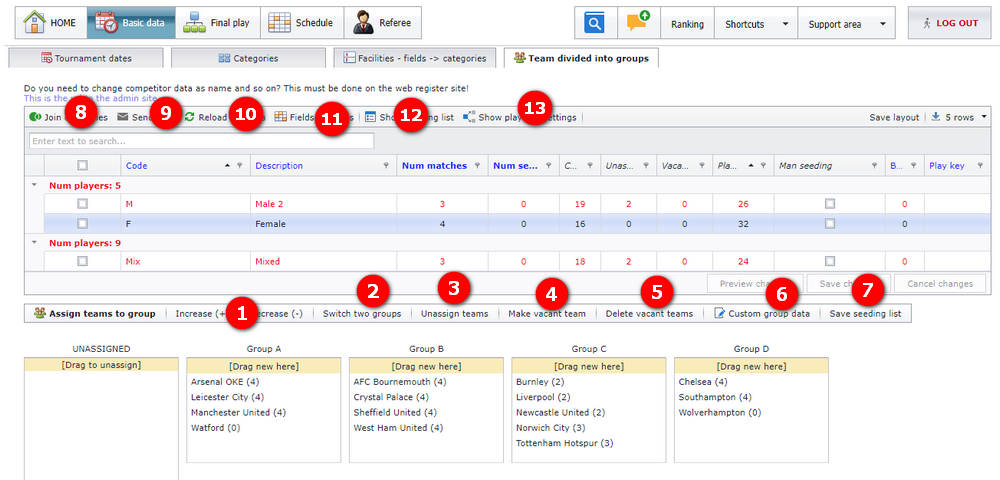
| Increase or decrease the number of groups | Changes how many groups the category has. Teams then have to be dragged to the correct group by hand. |
| Switch two groups | All teams in group X switch with the teams in group Y. Use it for whatever reason you need. |
| Reassign groups and delete matches | Divides the groups again and deletes the matches. This is the button to use when the teams in a category have changed so much that nothing is correct any more. |
| Make a vacant team | Holds a place for a team you know will register later. A vacant team behaves as an ordinary team in the match schedule, and when the new team registers TXO tries to switch the two so the matches are updated. |
| Delete vacant teams | Removes the vacant teams you do not need. If a vacant team has matches, those matches are deleted with it. |
| Name the groups | Groups can have special names, often used for sponsors, and can be set to use numbers instead of letters (Group 1 rather than Group A). |
| Save the ordering as a seeding list | Stores the current ordering of the teams as a "seeding-list". |
| Join two or more categories | All teams are moved into the category that is to remain. Let teams register into the correct category on the registration site rather than changing their category there. |
| Send e-mail or SMS to team leaders | Opens a new window where you write to the team leaders you have selected. |
| Reload data from the registration site | Fetches the registration data again. This also happens automatically when you enter the menu "Basic data". |
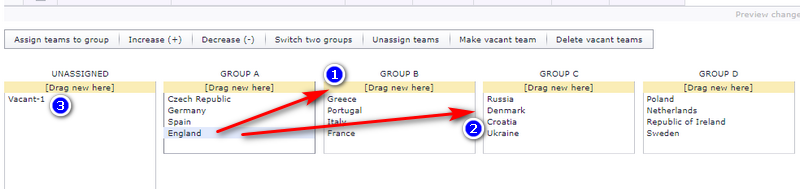
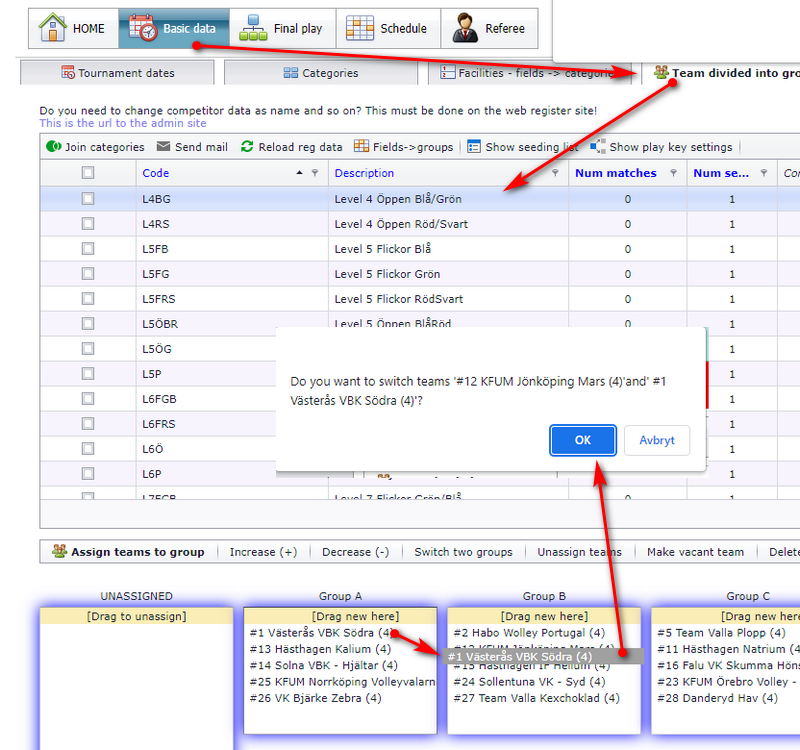
- Drag a team from one group and drop it in another to move it.
- Drop a team onto another team to switch the two teams' groups. If matches already exist, they are updated with the correct teams.
- Teams that are not divided into a group yet appear in the box of unassigned teams. Drag them into a group to make them schedulable.
If a group is set to play 3 matches - or another odd number of matches - and has 5 teams, or another odd number of teams, one team has to play one match more than the others. You can choose which team that is.
- Schedule the matches first. The switch works on matches that already exist.
- Find the team that has the extra match and the team you want to have it instead. In the example, Norwich has 4 matches and Arsenal is to have 4 matches instead.
- Drag Arsenal and drop it onto Norwich. The two teams switch matches.
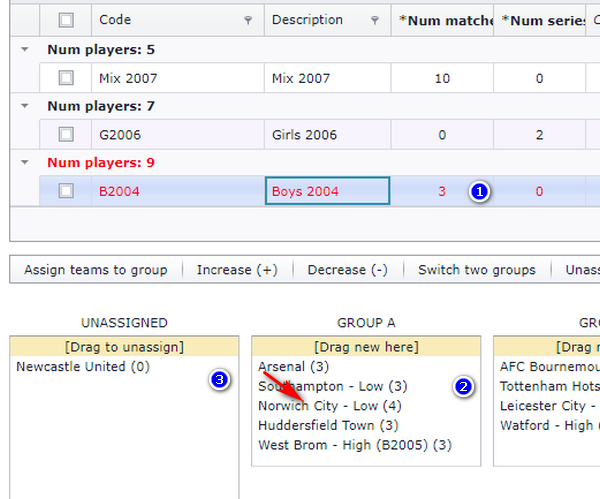
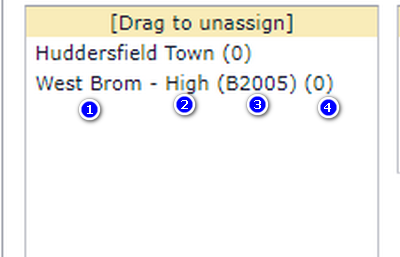
Each team inside a group box shows:
- The name of the team
- The skill level, if one is set
- The original category, if categories have been joined
- The number of matches
A team name can also carry a "$" in front of it. That marks a team that is not registered as having paid the registration fee. Some tournaments only let teams that have paid take part.
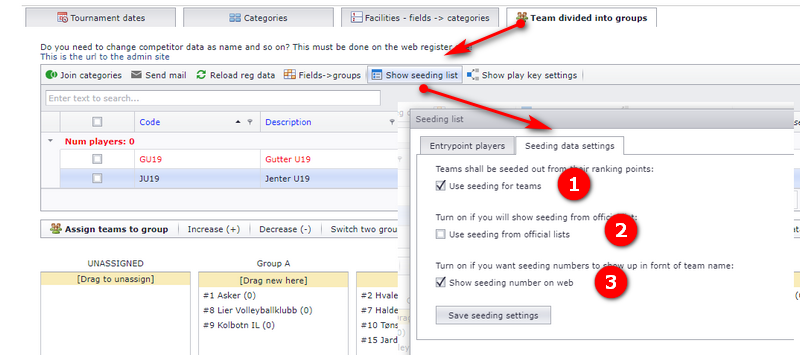
Seeding is most common in sports that use a ranking system for players, typically volleyball. It can equally be used in sports without a ranking, football for example, where it serves to position teams in accurate positions in accurate groups.
Seeding is set at tournament level, that is for all categories:
- Tick the box to use seeding in this tournament.
- Tick the box if the seeding of players is to be fetched from the official seeding list.
- Tick the box if the seeding number is to show up in front of the team name in the schedule, for example "#2 AstonVilla".
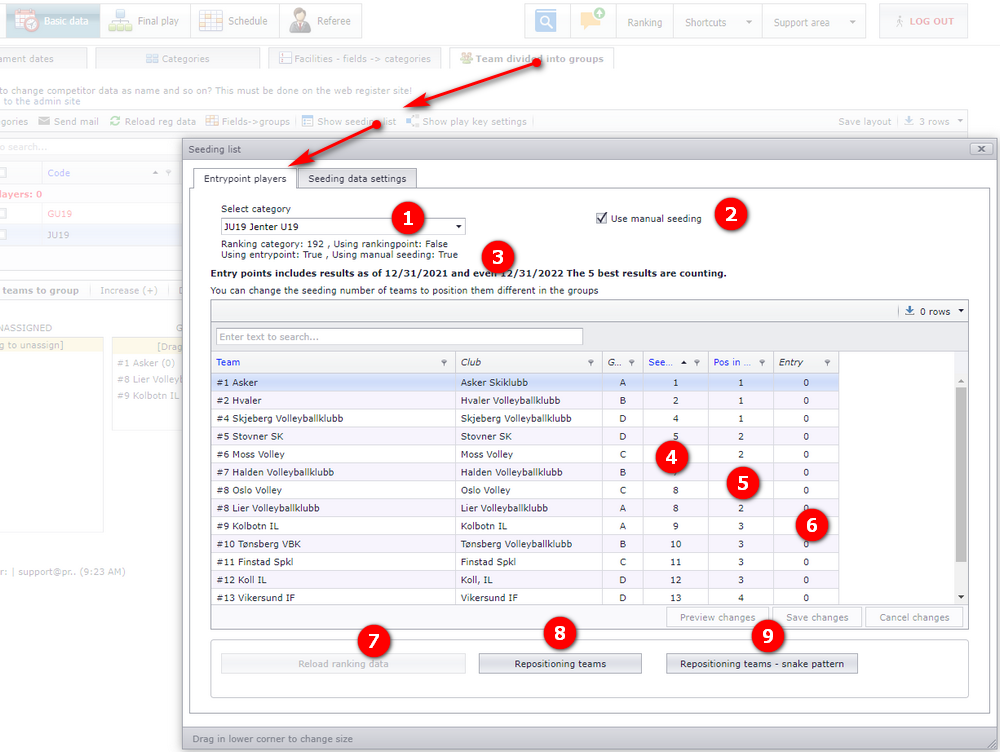
Different categories can have different seeding methods: one category can use manual seeding while another uses seeding from the official lists.
- Select the category.
- Tick "Use manual seeding" to enter your own seeding numbers in the column "Seed".
- A summary of the seeding for the category is shown next to it.
- In the column "Seed", enter a seed number. It overrides whatever number the official system has. "Use manual seeding" has to be on for this.
- The next column is "Pos in group".
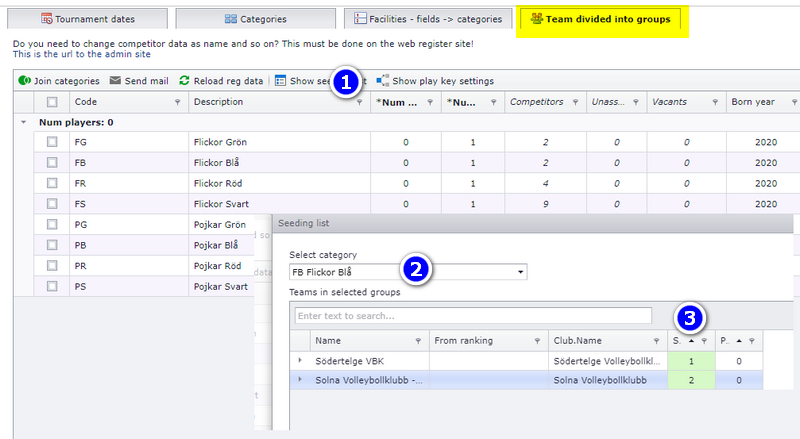
- Click on "Show seeding list".
- Select the category.
- Enter the seeding numbers as shown. Remember to click "Save changes" when you are finished.
Play keys control who is going to meet who in the different rounds, and can include referees as well. A play key overrides the default Sporting algorithms for selecting the teams for each match.
Three things have to be in place before a play key has any effect:
- Seeding must be activated for the tournament.
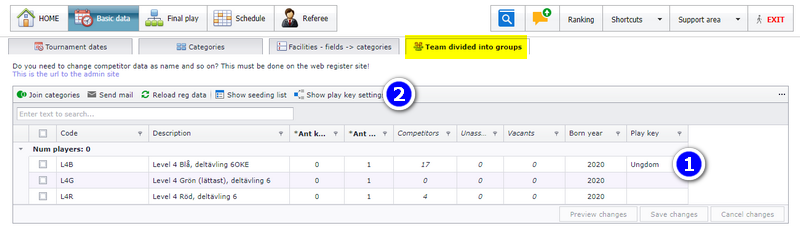
- A play key must be selected for each category, in the menu "Basics", tab "Teams divided into groups".
- Only play keys that have a group name can be selected. The group name is set in "Play key settings".
A play key covers groups whose number of teams falls inside the interval the play key defines. A group with a number of teams outside that interval is scheduled as an ordinary group instead.
To activate one, select the type of play key. The play keys you can choose from are shown in a list next to it.
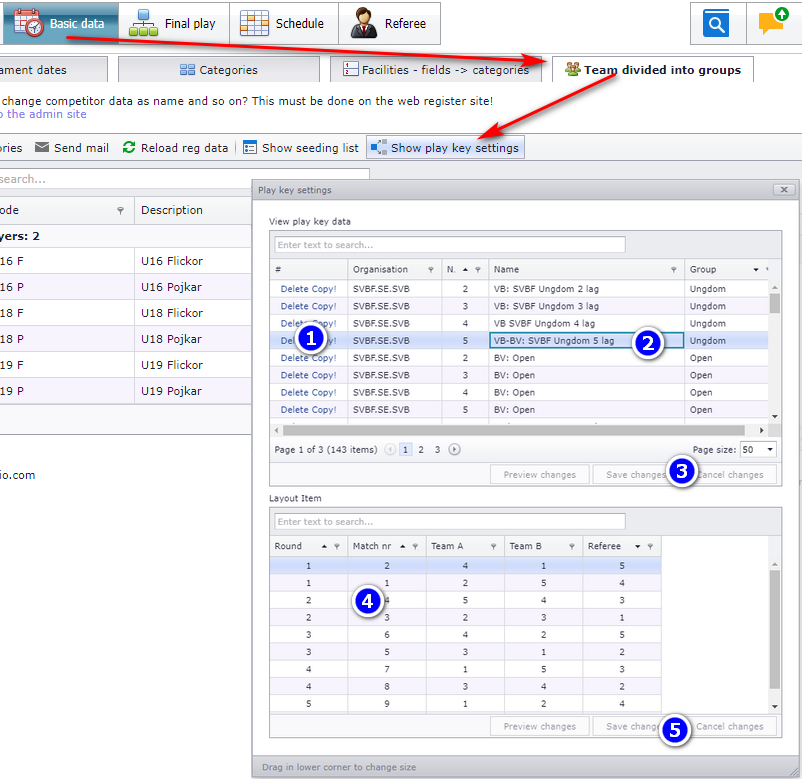
Play keys are edited by administrators in an organisation, not by tournament owners.
- New play key (the same action as copying one): select the play key row you want to copy from and click the button "Copy". The play key data is copied, and you can click "Save changes" without any more actions. The play key details are copied too and are shown in the list.
- Delete a play key: click the button "Delete" in the row you want to delete, then confirm by clicking "Save changes". Check that you are on the right row before you confirm.
- Edit a play key: click inside a cell, change the data, and confirm by clicking "Save changes".
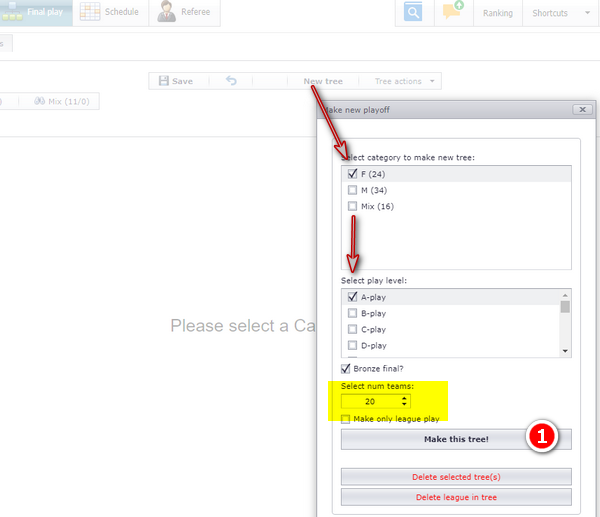
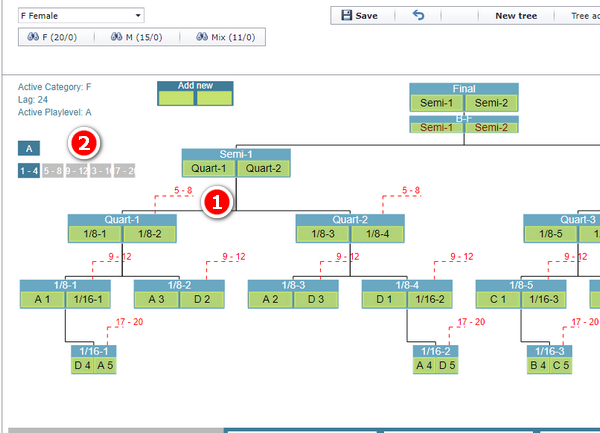
A playoff can be made so that all teams are given a position, not only the top ones. Categories with 2, 4, 8, 12, 16, 20 or 32 teams can be positioned automatically. When the matches are played, all teams are shown in a result standing list on the public match site.
Make the initial tree. Enter "New tree", select the category and the play level, and enter the number of teams - 20 in this example.
Make the positioning matches. With the default tree made, enter the menu "Make positioning matches". All positioning matches are then made.
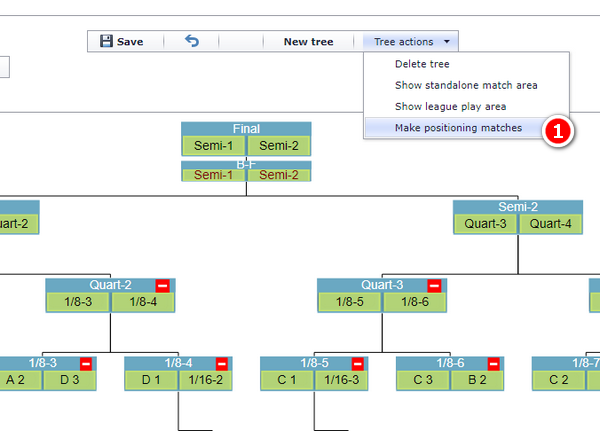
Read the symbols in the tree. In a big tree the boxes are difficult to read, which is why the tree uses some symbols. The red lines tell you where the losers of the matches play on: "5-8" means the losers of the 1/4-finals play for positions 5 to 8. Click the buttons shown to see the positioning trees.
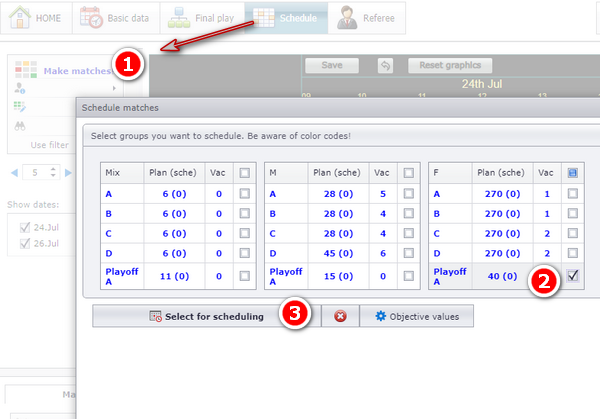
Make the matches. Once the tree is made, the matches are made as usual from the menu "Schedule". Enter the menu "Make matches", select the group or groups and the playoff or playoffs you want to schedule, and click the button "Select for scheduling".
Two teams can be switched with each other. There are several situations where this is needed:
- A team is withdrawn and is to be switched with another.
- A team is placed in the wrong group and must be switched with a team in another group.
- A team is a vacant team, and a "real" team is to take the matches.
If one or both teams are used as referee, the referee duty switches with them. The match belongs to the group of the first team.
From the group play form, this is a drag and drop of one team onto another - see "Moving and swapping teams between groups" - and you then answer "Yes" to the confirmation message.
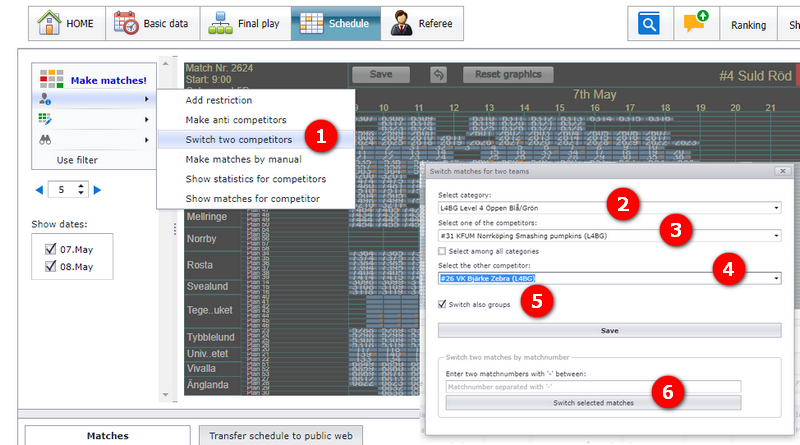
From the Schedule form:
- Enter the menu shown.
- Select the category of the first team.
- Select the first team.
- Select the second team. You can choose a team from all categories.
- Tick "Also switch groups" if the teams are to change their group as well.
- The same screen can switch only the time and venue of two matches.
- Creating the categories themselves, the dates, the fields and the match length: see "Dates, categories, fields and match length".
- Vacant teams in depth, and the clubs behind the teams: see "Teams, clubs and vacant teams".
- Keeping named teams apart or together beyond the same-club rule: see "Restrictions and anti-teams".
- Which play system a group uses: see "Playtypes and special play systems".
- Ordinary playoff trees, where only the top teams play on: see "Building the final play".
- Generating and publishing the finished match schedule: see "Making the schedule".
- Seeding practice that differs per sport or federation: see "Sport and federation specific setups".
See also
Not covered here
Was this page helpful?