Publishing the schedule, e-mail and SMS
Publishing the match schedule and individual changes to profixio.com from the Profixio Scheduler, republishing when the public site is out of step, and sending e-mail or SMS to selected teams, including reminders for match times and results.
The matches you build in the Profixio Scheduler (TXO) are visible only to the people planning the tournament. For teams, parents and everyone else to see the match schedule, you publish it to the public match schedule site on profixio.com.
- You can publish the match schedule whenever you want.
- By default only changed matches are transferred. The Scheduler is designed to transfer as little data as possible each time you publish.
- Results that already exist on the public site are NOT deleted when you publish.
- Before the schedule goes public you can publish an evaluation schedule, so that your colleagues can review it first (see "Evaluation schedule for colleagues").
- Open the «Overfør kamper til web» (Transfer matches to web) tab.
- We recommend checking for errors before you transfer. Just click the error-check tab (callout 2).
- Publish your match schedule from here (callout 3). By default you simply click the publish button: the Scheduler transfers only new data to the public site, which keeps the transfer small. All matches are now shown on the public match schedule site.
- Check the playing-time data for your category (callout 4). See "Playing time shown on the match card".
- After publishing, send e-mail and/or SMS to the team leaders (callout 5). The e-mail/SMS has a predefined text which you can of course change. See "Sending e-mail and SMS to teams".
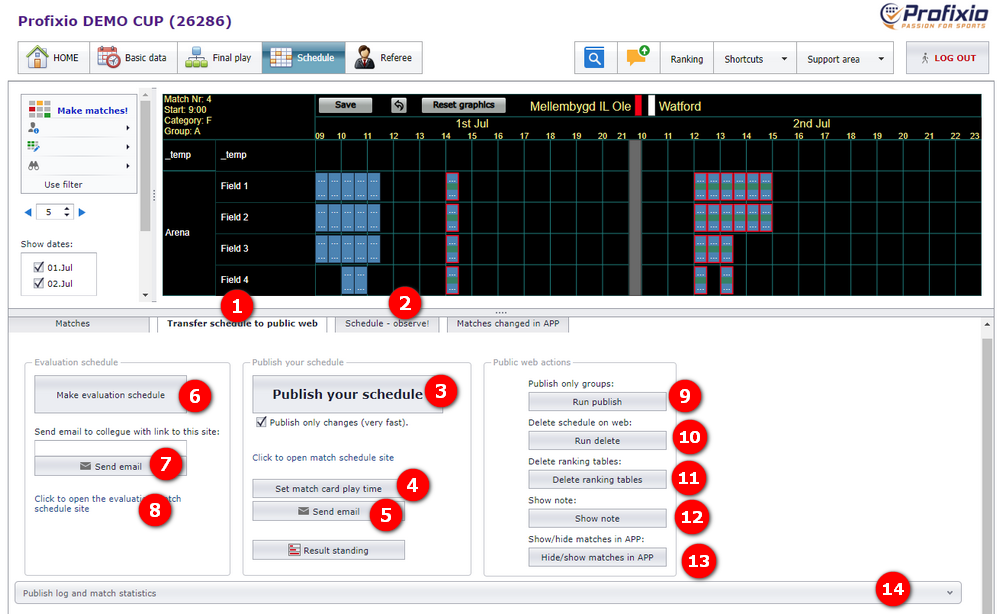
Callouts 6 to 8 are explained in "Evaluation schedule for colleagues", callouts 10 and 11 in "Republishing when the public schedule differs from the Scheduler", and callouts 9 and 12 to 14 in "Other options on the publishing screen".
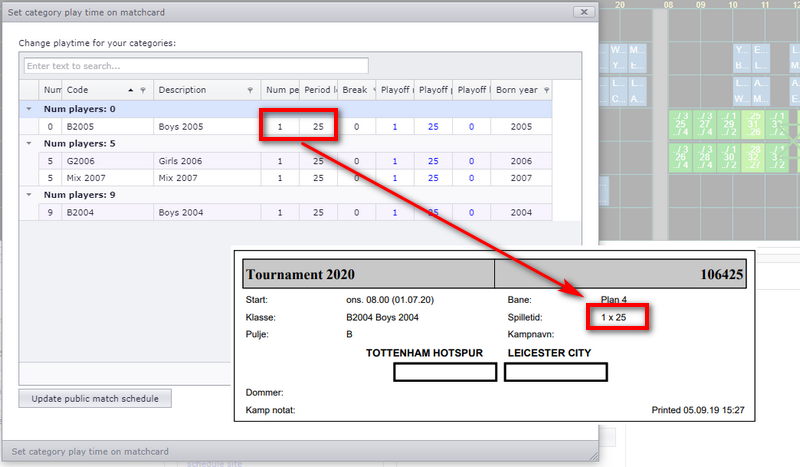
On the publishing screen, check the playing-time data for each category. These values are shown on the match card on the public site. For example, category B12 plays 1 period of 15 minutes.
NOTE: These values do not affect the match schedule itself. They only change what the match card shows.
Before the schedule goes public, it can be smart to publish an evaluation schedule so that your colleague(s) can evaluate it first. The evaluation site is hidden from ordinary visitors.
- Click the button for creating an evaluation schedule for the web (callout 6 on the publishing screen).
- Enter your colleague's e-mail address (callout 7). They receive an e-mail with a URL to the evaluation page.
- Callout 8 is just the link for viewing the evaluation page yourself.
The button for creating the evaluation schedule is marked with a star (*) and is disabled from the date the tournament starts. See "Buttons that are locked once the tournament has started".
Each publish transfers only the data that has changed since last time. If the public match schedule does not show the same data as the Scheduler, run a full comparison instead:
- Untick the box for transferring only changed data (callout 2 in the publishing options screenshot; callout 11 on the publishing screen) and publish again (callout 1). All data is then checked against the Scheduler, not just the changed data that is the default.
If the public site and the Scheduler are still completely out of step, delete all data on the public site and publish again:
- The button for deleting all data on the public match schedule site (callout 10 on the publishing screen) deletes ALL data there, including results, comments and of course the matches. It has nothing to do with the registration site, only the match schedule site.
- All data from the public site, including results if there are any, is first downloaded to the Scheduler, so nothing is lost.
- This button is marked with a star (*) and is disabled from the date the tournament starts. See "Buttons that are locked once the tournament has started".
Besides publishing, the screen has these options. Callout numbers refer to the screenshot below (options screenshot) and to the screenshot in "Publishing the match schedule step by step" (publishing screen).
| Option | What it does | Where |
|---|---|---|
| Renumber matches | Turn this on to change all match numbers so they become chronological by time and court/field. | Options screenshot, callout 3 |
| Automatic e-mail on changed matches | Team leaders can be notified automatically by e-mail when a match within 2 days changes. See "Automatic e-mail when a match within 2 days changes". | Options screenshot, callout 4 |
| Publish groups only (*) | Publishes only the group division, not the matches. NOTE: if matches already exist on the public site, they are deleted from the public site before the groups are transferred (they are of course not deleted from the Scheduler). | Publishing screen, callout 9; options screenshot, callout 5 |
| Delete all data on the public site (*) | Deletes everything on the public match schedule site so you can publish afresh. See "Republishing when the public schedule differs from the Scheduler". | Publishing screen, callout 10 |
| Delete tables | If tables (standings) are shown wrongly on the public site, delete them here. For example, a category may turn out not to show tables after all. | Options screenshot, callout 7 |
| Note on public pages | Enter a note that is shown at the top of every public page that shows matches. | Publishing screen, callout 12; options screenshot, callout 8 |
| Hide or show public matches | Hide matches for individual categories or individual days. Hidden matches are still shown to admin but not to the public. Showing hidden matches again is done in the same window. | Publishing screen, callout 13; options screenshot, callout 9 |
| History and statistics | A pull-out panel showing historical actions and some match statistics. | Publishing screen, callout 14 |
Options marked (*) are disabled from the date the tournament starts. See "Buttons that are locked once the tournament has started".
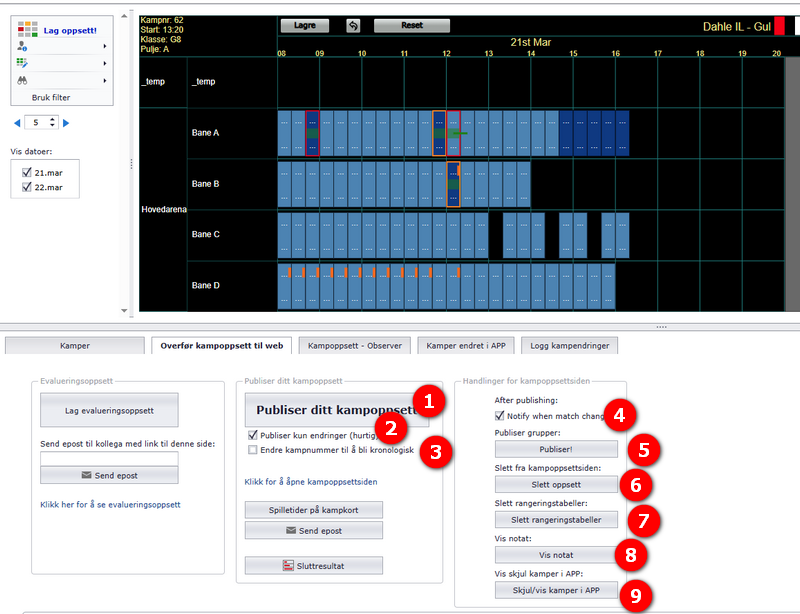
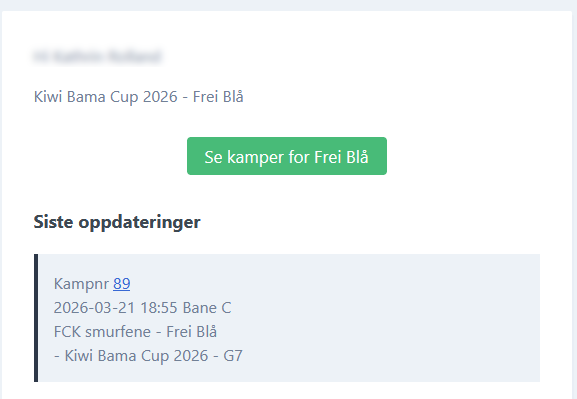
If a match is played within the next 2 days and it changes, team leaders can be notified automatically by e-mail (callout 4 in the publishing options screenshot). For changes to matches further ahead, send a message about the changed schedule (see "Message: telling teams about a changed schedule"). When matches are published for the first time, send the information with the e-mail button in the same window (see "Sending e-mail and SMS to teams").
Example of the e-mail sent when a match changes:
Buttons marked with a star (*) on the publishing screen (create evaluation schedule, publish groups only, delete all data on the public site) are disabled from the date the tournament starts. This is a safety measure: you will almost never want to delete the whole tournament once it is under way.
You can change this from the settings page:
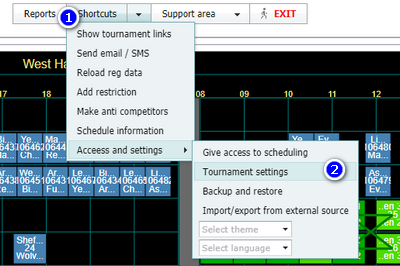
Open the menu "Shortcuts" – "Send email / SMS".
- You can send e-mail or text messages (SMS) to team leaders, contact persons and referees.
- All teams and contact persons are downloaded when you enter this page, so you have the latest data from the registration site on the web.
- You can make a filter, for example on category, to send to a selected number of teams.
- All e-mails and SMS are logged with timestamp and text, so you know who has received an e-mail or SMS and when.
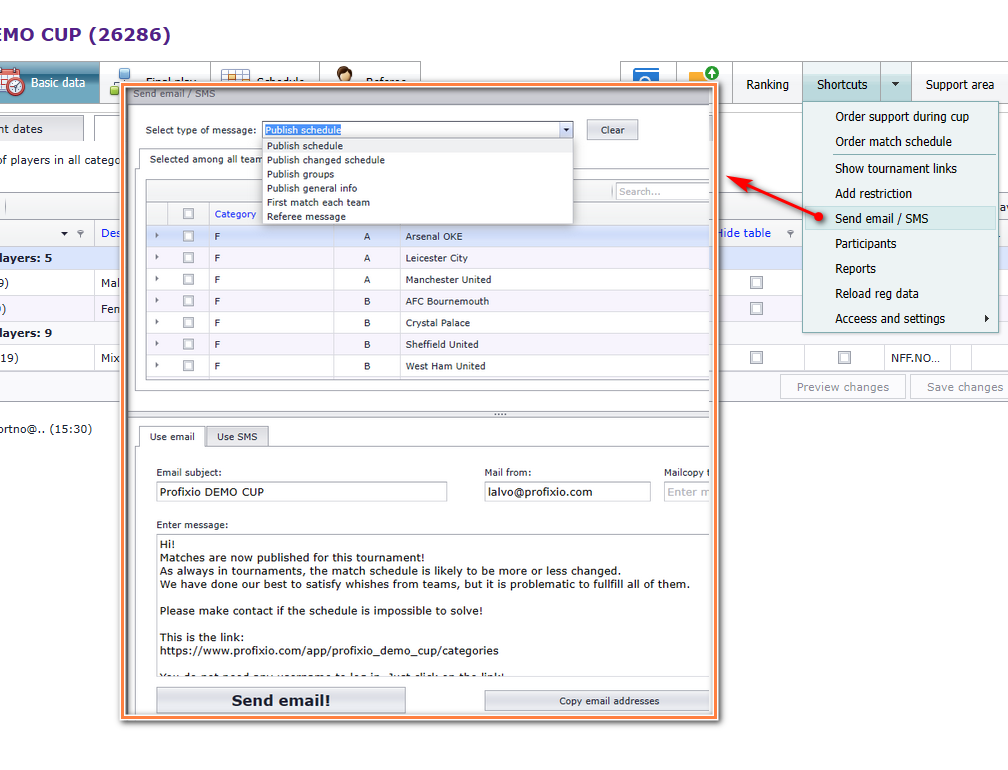
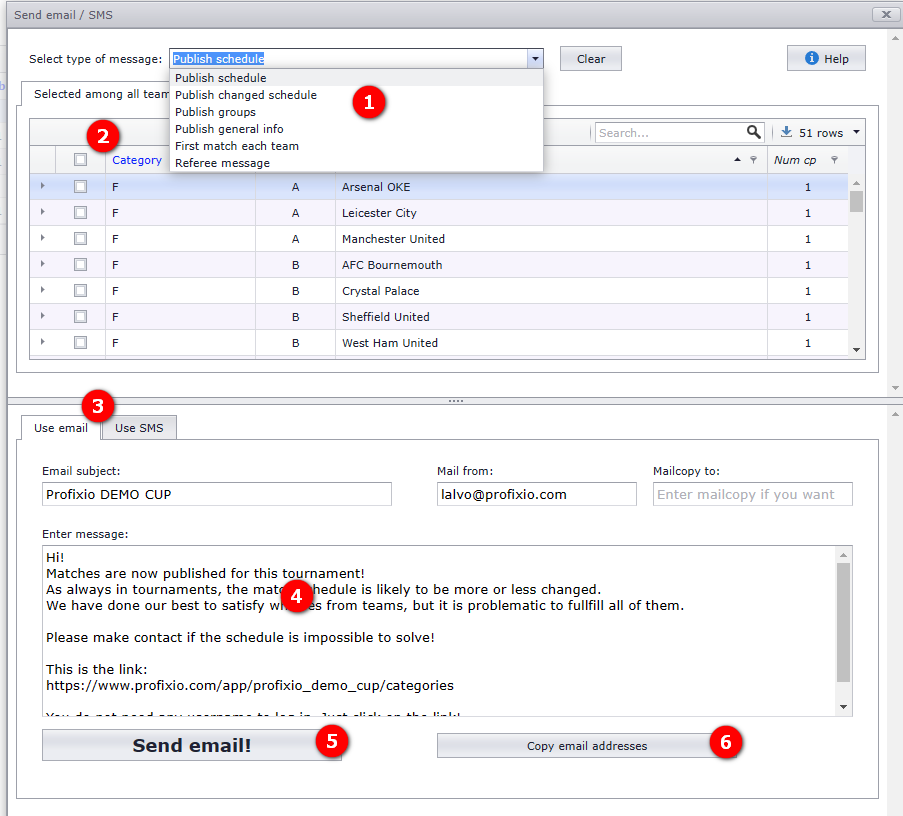
- There are 7 types of message with a standard text. Select one of them as a start.
- Select the receivers. You can make a filter in the grid to select, for example, only one category.
- Choose whether to send the message by e-mail or SMS.
- By default the subject always starts with the tournament name. If you chose in step 1 to send an e-mail about the publishing of the match schedule, the subject changes to "Tournament 2024 - Match Schedule Published!". You can change the subject as you wish. NOTE: Check that the e-mail "from address" is correct.
- Click to send.
- To copy the e-mail addresses, click this button.
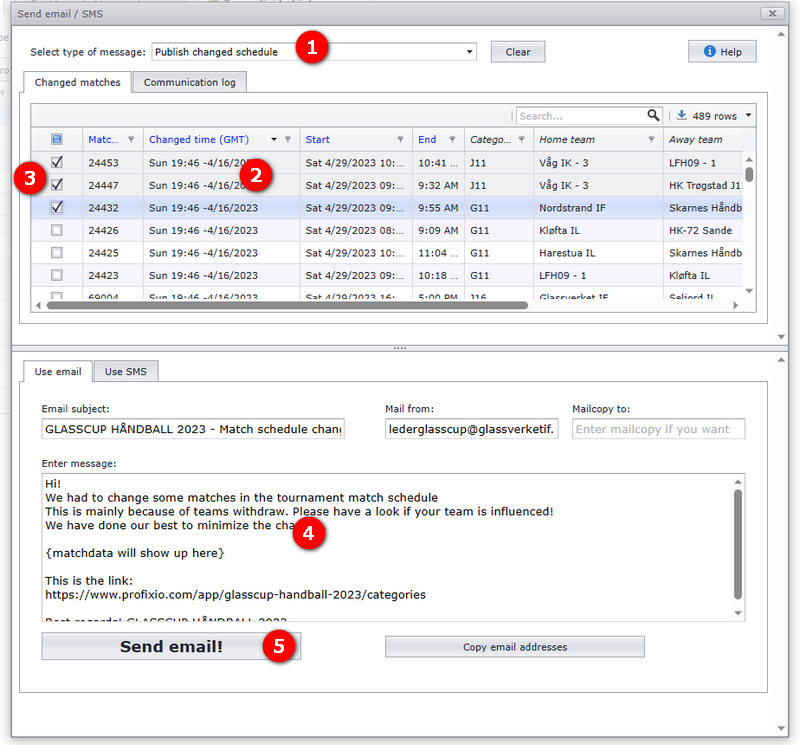
Changes are common after a schedule has been published. You can send e-mail only to the team leaders whose schedule has changed.
- Select "Publish changed schedule" in the drop-down.
- See the time of the change...
- ...and select the teams you want to inform.
- Change the text if you want.
- Click "Send email" when ready.
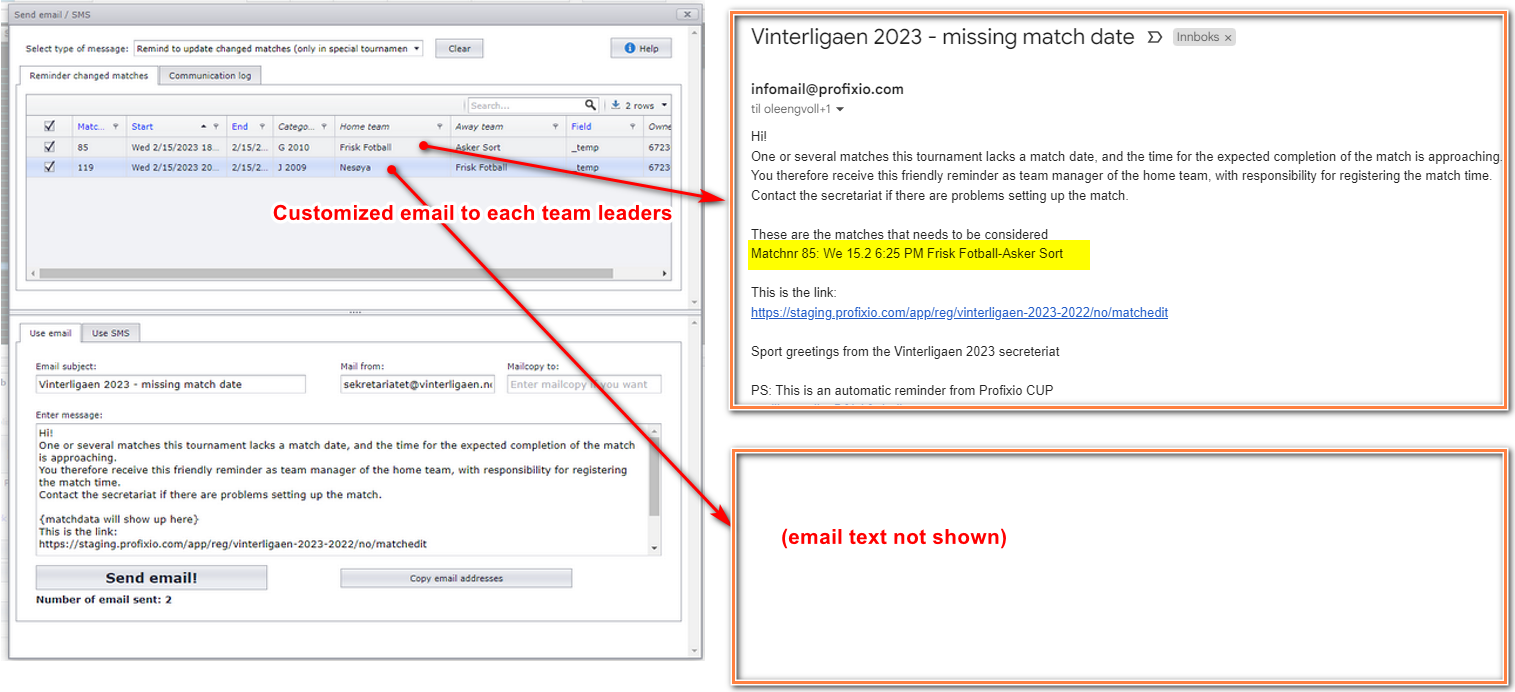
In some tournaments the home team leaders are responsible for deciding the match date, time and venue. A special URL is made for this purpose. You can send a reminder to the team leaders who have not entered a match date. The e-mail is customised to each team leader, listing their matches (see the yellow rectangle in the picture below). NOTE: As always, the e-mail text is only a suggestion and can be changed.
The reminder selects matches from:
- Matches from today and up to 30 days ahead in time
- Matches without a valid venue
- Matches that have not been sent as a reminder earlier
NOTE: If a reminder has been sent for a match and the match is then changed (for example the time, while the venue is still not valid), the match is included in the reminder list again.
In some tournaments the home team leaders are responsible for registering match results. A special URL is made for this purpose. You can send a reminder to the team leaders who have not entered a match result. The e-mail is customised to each team leader, listing their matches. NOTE: As always, the e-mail text is only a suggestion and can be changed.
The reminder selects matches from:
- Matches from today and back in time 90 days
- Matches without a result
- Matches whose category is set to show results on the public site ("show results in APP")
- Matches that have not been sent as a reminder earlier
NOTE: If a reminder has been sent for a match and the match is then changed (for example the time, while the venue is still not valid), the match is included in the reminder list again.
- Setting playing time, categories and dates before you publish: see "Dates, categories, fields and match length".
- Reading and filtering the schedule inside the Scheduler: see "Reading and filtering the schedule".
- Moving, switching and deleting matches (the changes you then republish): see "Moving, switching and deleting matches".
- Tables and result positions shown on the public site: see "Ranking tables and result positions".
- Referees as e-mail/SMS receivers: see "Assigning referees in TXO".
- Downloading teams and contact persons from the registration site: see "Loading registration data from the web".
- The settings page: see "Access, language and theme".
- Season-long leagues where home team leaders set match times: see "Running a season-long league in TXO".
See also
- Assigning referees in the Scheduler
- Dates, categories, fields and match length
- Loading registration data from the web
- Moving, switching and deleting matches
- Ranking tables and result positions
- Reading and filtering the schedule
- Running a season-long league in the Scheduler
- Giving access to new users
Was this page helpful?