Assigning referees in the Scheduler
How to get referees into the Scheduler, assign them to matches or let teams referee, work with referee partners, restrict referees to dates or categories, publish the assignments and read the referee symbols in the schedule.
Referees can register themselves on the tournament's registration site. They are loaded into the Scheduler when you activate the tournament, and you can also load them manually whenever you want. It is also possible to enter referees directly in the Scheduler.
You can register up to five different referee roles, such as Main referee, Assistant referee 1 and Assistant referee 2. Referees can be restricted from refereeing on certain dates and/or in certain categories.
Referees are published to the public match schedule, and depending on your settings they show up on different sites.
Referees are loaded in directly when you activate a tournament, so you only need to import them manually if referees have registered while you were working on the tournament.
- Go to "Handlinger → Vis import eksport" (Actions → Show import/export) and click "Importer dommere" (Import referees).
- All registered referees are imported. To also import referees from last year's tournament (if there is one), tick "Inkluder dommere fra fjorårets turnering" (Include referees from last year's tournament) — see "Including referees from last year's tournament".
- Referees can also be assigned to matches through a separate web solution. Those assignments can be imported into the Scheduler from here if you want.
- To enter referees via Excel, create the Excel file from here. It contains all matches, with room to type in the referee(s) for each match.
- After the import, the referee list "Dommer som person" (Referee as person) is updated immediately.
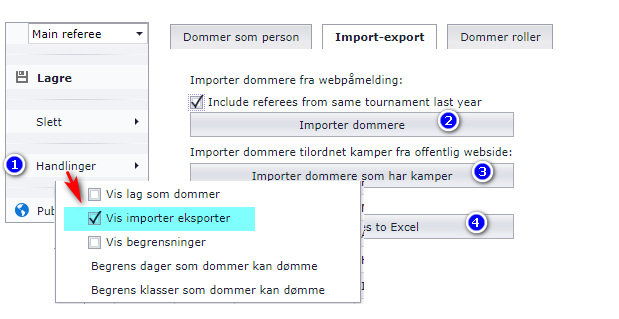
When you tick "Inkluder dommere fra fjorårets turnering" (Include referees from last year's tournament) in the referee import, this happens:
- Referees are matched on their licence code, and only from a tournament whose name starts with the same 5 characters as this year's tournament. If this year's tournament is called "Sommercup 2020" and last year's is called "Cupsommer2019", no referees can be imported.
- The imported referees get a column with the year they refereed. That lets you filter out those who refereed in, for example, 2019 when the current year is 2020.
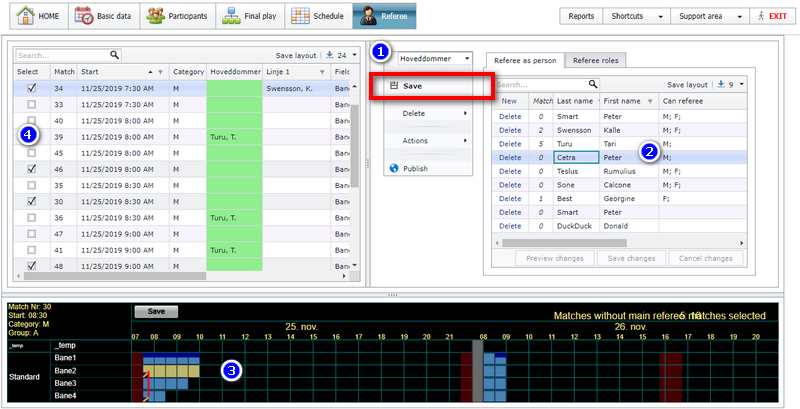
- Select the type of role, for example "Main referee". The column "Main referee" turns green in the match list.
- Select the referee row.
- Select matches in the graphical area: click the match boxes, or Ctrl-click to select several...
- ...or select the matches from the match list. You can use both.
- Click the Save button when finished, and continue with the rest of the matches.
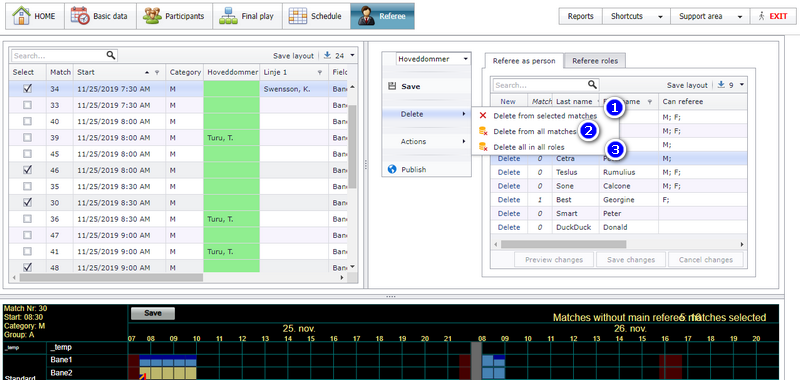
The three buttons numbered in the picture remove referees in three different scopes:
- Select the type of role, for example "Main referee", and select matches. This removes all main referees from the selected matches.
- Select the type of role, for example "Main referee", without selecting any matches. This removes all main referees from all matches.
- This removes all referees from all matches, regardless of referee role.
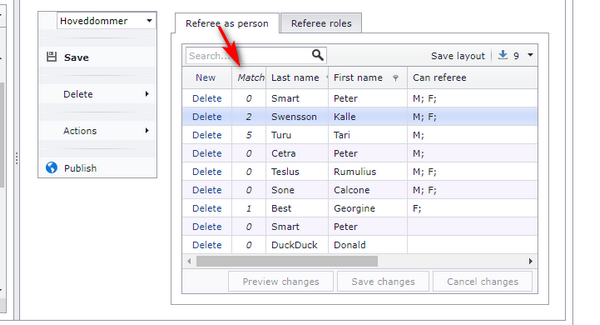
The referee list has a column showing how many matches each referee has.
Referee assignments you make in the Scheduler are not visible to public visitors until you publish them, so you can assign in peace and quiet.
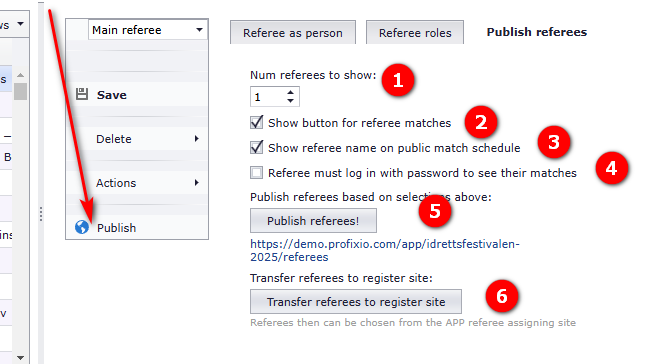
When you are ready to publish, click the button "Publish".
- To publish both the main referee and the assistant referee, enter "2" in "Num referees to show". To publish only main referees, enter "1".
Each main referee can have a partner. A referee partner is always assigned as the level 2 referee. Technically, the level 1 referee is usually defined as "Main referee" and the level 2 referee as "Assistant referee".
Note: a referee partner replaces a "Level 2" referee if one is already assigned.
Open the menu "Referee".
- Click "Actions" and tick "Use referee partner".
- A new button appears at the top of the table "Referee as person".
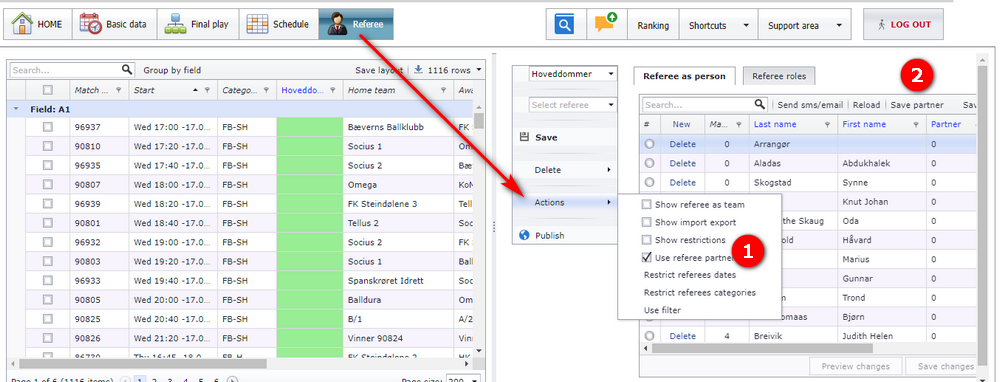
This step only assigns a partner to the referee; the matches are not updated with the partner until you click "Save Partner" (see "Updating the matches with referee partners").
- Click the referee you want to assign a partner to.
- Select the partner referee in the column "Partner".
- Click the button "Save changes".
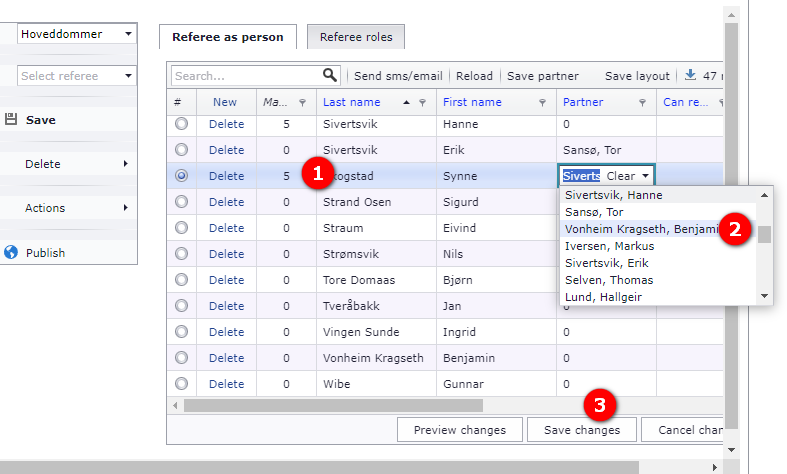
If the partner is not shown in the dropdown (2 in the picture), enter that referee manually first: click the button "New" at the top left of the table and enter the referee as usual.
When you have finished assigning referee partners, update the matches:
- Click the button "Save Partner".
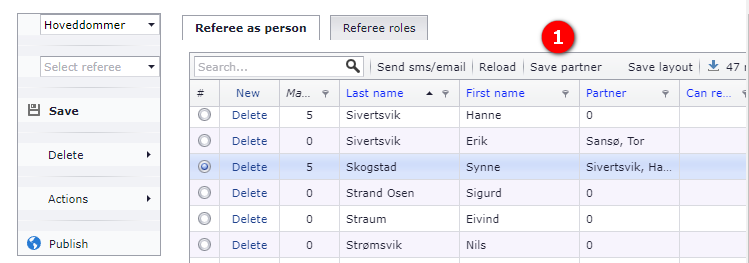
After this step, the referees must be published as usual.
If teams are to referee, select the tab "Referee from teams".
- Tick "Show referees as teams".
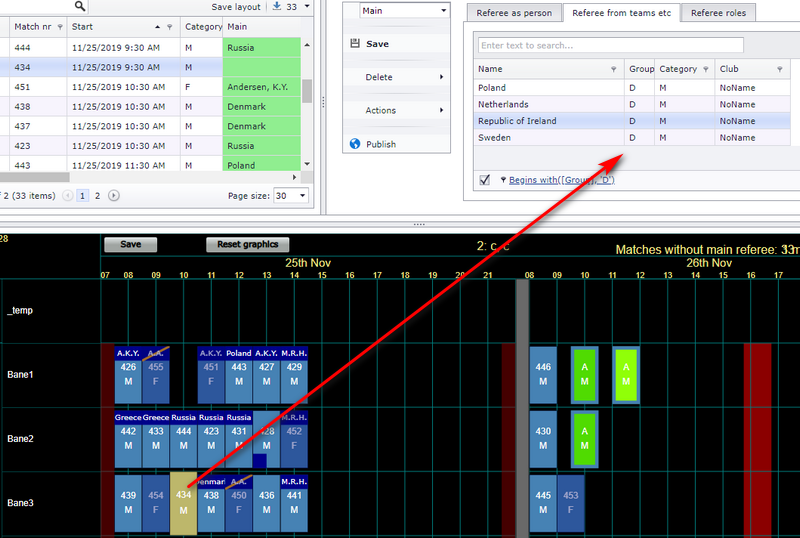
- To filter out all teams in the selected match's group, tick this box.
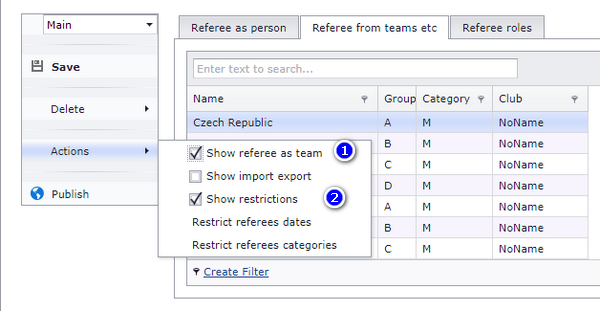
With "Show restrictions" selected, only teams in the same group as the selected match are shown in the referee list.
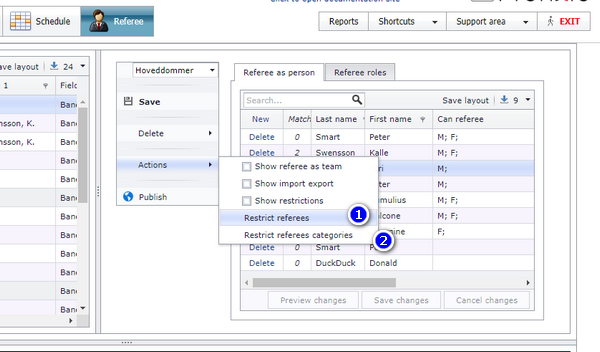
There are two kinds of referee restriction, set from the two menus numbered in the picture below:
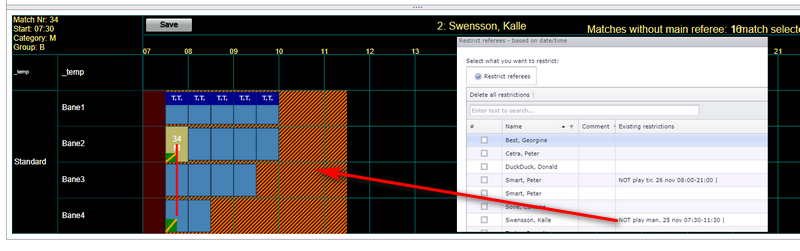
- You can restrict a referee from certain dates. You can still place the referee on a restricted date, but you get a visual symbol in the graphic window. Click menu (1) to set a date restriction.
- You can restrict a referee from certain categories. You can still place the referee on a restricted category, but you get a visual symbol in the graphic window. Click menu (2) to set a category restriction.
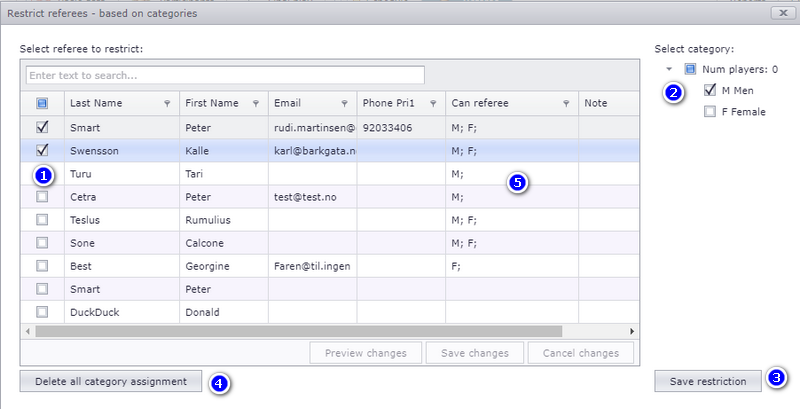
Note: if a referee has NO categories assigned, the referee can referee ALL categories.
- Open menu (2), the category restriction menu, and select one or several referees.
- Select which category(ies) this referee CAN referee.
- Click save to assign those categories to the selected referee(s).
- To delete restrictions, select one, several or all referees, and click the button marked (4).
Date restrictions
- When you click a referee with a date restriction, orange lines mark the period the referee is restricted. This is only shown when you click the referee box (the small green box at the lower left of the match box).
- If a referee is placed in a restricted area, one line crosses the referee box (the green box).
- If a referee has two "jobs" at the same time, a red line is drawn between the two matches.
Category restrictions
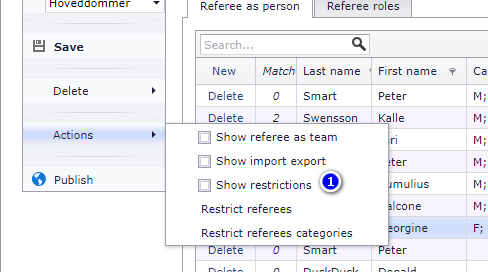
Category restrictions are only drawn when "Show restrictions" is on. Turn it on here:
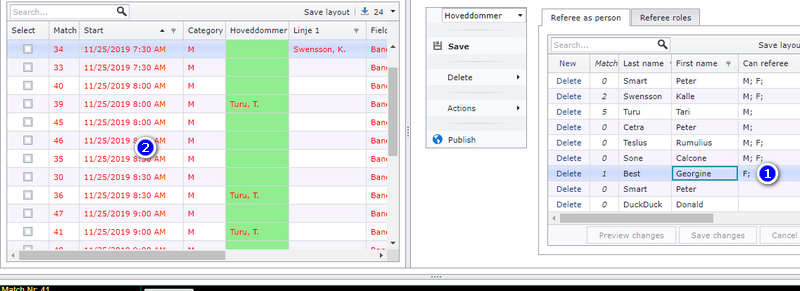
When "Show restrictions" is on, all matches in categories the selected referee is restricted from turn red.
- Click a referee.
- The restricted matches turn red.
The visualiser area gives you a lot of visual help when assigning referees:
- If a match is moved after you have assigned a referee, you are notified.
- You can drag and drop referees to move or copy them from one match to another.
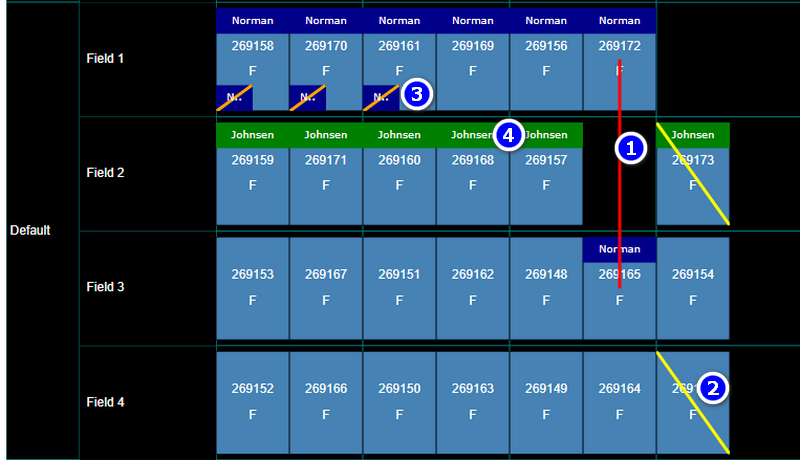
The symbols in the visualiser mean:
- A red line means a collision for the referee: the same referee is assigned to matches at the same time.
- A yellow line means the match was moved after you assigned a referee to it.
- A brown line means the referee is assigned to a match the referee is restricted from, so the referee cannot referee that match.
- Green rectangles mark the selected referee.
This page covers getting referees into the Scheduler, putting them on matches, referee partners, letting teams referee, referee restrictions and reading the referee symbols. It does not cover making the match schedule itself, moving or switching matches, the general import and export window, or the other things that are published from the Scheduler. Those are covered on their own pages.
Was this page helpful?