Building a cup or playoff tree
How to prepare a Profixio League (PL) league for cup play, make the playoff tree and assign teams to it, set dates and make and finish the tree schedule, schedule playoff groups with Profixio CUP, and add a playoff before the teams are known.
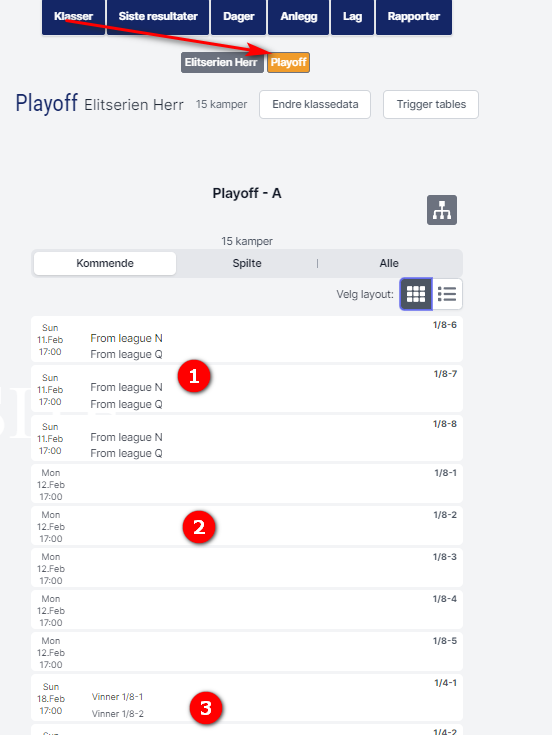
In the app's public view of matches, all playoff matches are shown with the amount of data decided by the league administrator:
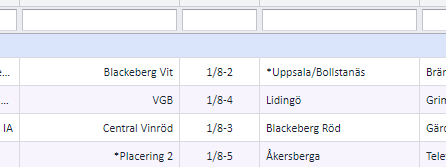
- Matches with a custom "team" name are shown with that name.
- If no name is set, the home and away team are shown without any text.
- Ordinary linked playoff matches are shown with the group position the teams are calculated from.
For other roles
Profixio League (PL) can run several types of cup play. The common pattern is that the teams first play a group play, and a playoff tree is then made out of the results of those matches. The tree holds the knock-out matches (for example 1/8 finals, 1/4 finals, semi-finals, a final and an optional bronze final), and each match in it is either linked to a group position ("the team finishing 1st in group A") or to a named team.
Two words on this page mean different things:
- Cup play / playoff tree is the competition format: a knock-out bracket made from a league that has a playoff.
- Profixio CUP (often just "CUP") is the automatic scheduling engine in PL that places matches on venues and times. It is used for group-play matches, including the group matches of a playoff level. The matches of a playoff tree are scheduled from the playoff tree window instead, and finished in the "Schedule" menu.
This page covers, in the order you do it: preparing the league settings, making the tree and assigning teams, setting dates and making the schedule, naming the tree, scheduling playoff groups with Profixio CUP, the "Include match in CUP" column, and adding a playoff before the teams are known.
Take a cup called "Swedish cup men" with 16 teams as an example. The teams first play a group play and then a playoff.
Do NOT set the groups up as levels in the league. Instead, make 4 groups directly in this league:
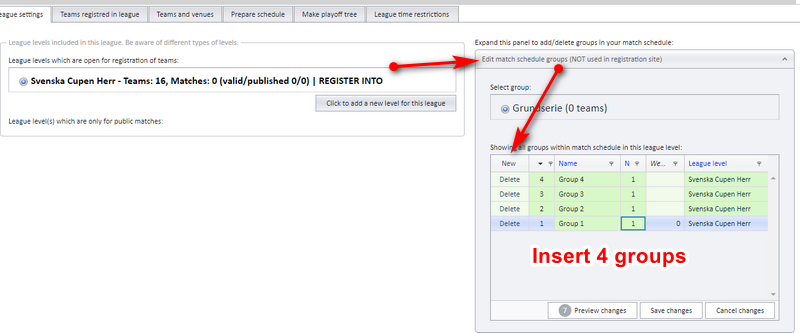
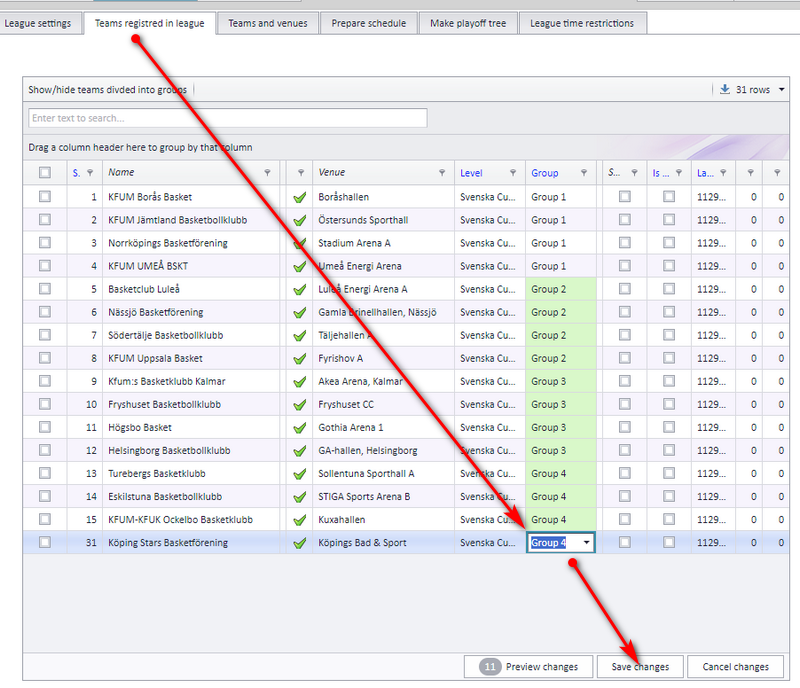
Then select the teams you want in each group:
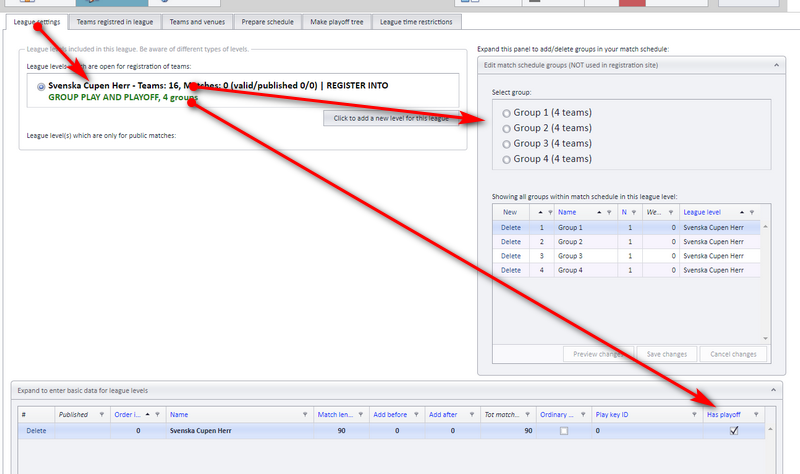
Set this league to have a playoff, and you are ready to make the playoff:
Now it is time to make the matches and set who plays whom:
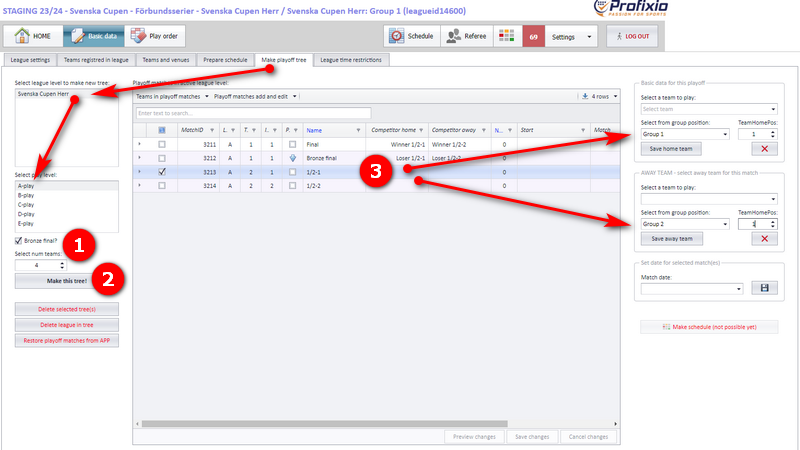
A playoff tree can only be made from a league that has a playoff (see "Preparing a league for cup play").
- Select a playoff league. If a tree already exists, it shows up in the grid.
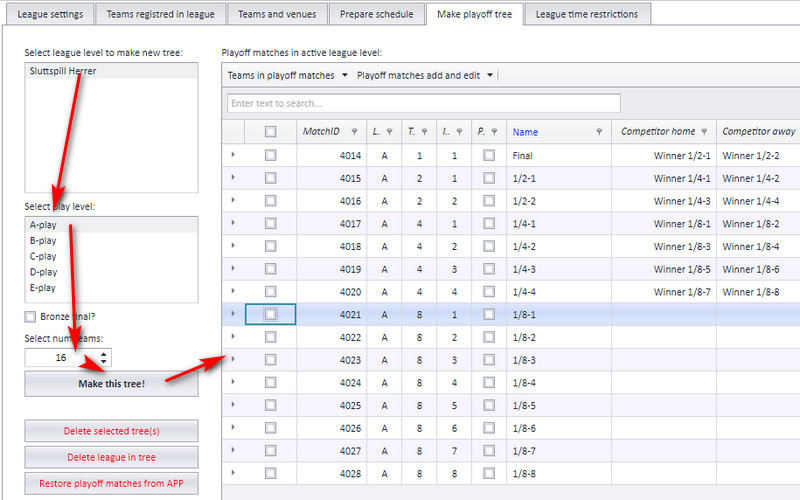
- Select the play level, and tick the bronze final if you want one.
- Enter the number of teams you want in the tree. This decides the size of the tree.
- Click the button that makes the tree ("Skapa detta träd" in the Swedish interface, "make this tree").
- The grid now shows all matches in the tree. These are not "real" matches yet: they show up in the match schedule window only after the schedule has been made (see "Setting dates and making the tree schedule"). When results are entered and the teams are decided in the app, the team names replace the placeholder "teams" shown in this grid.
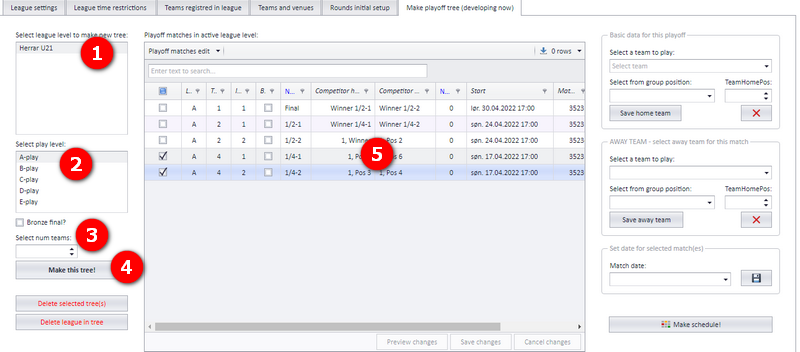
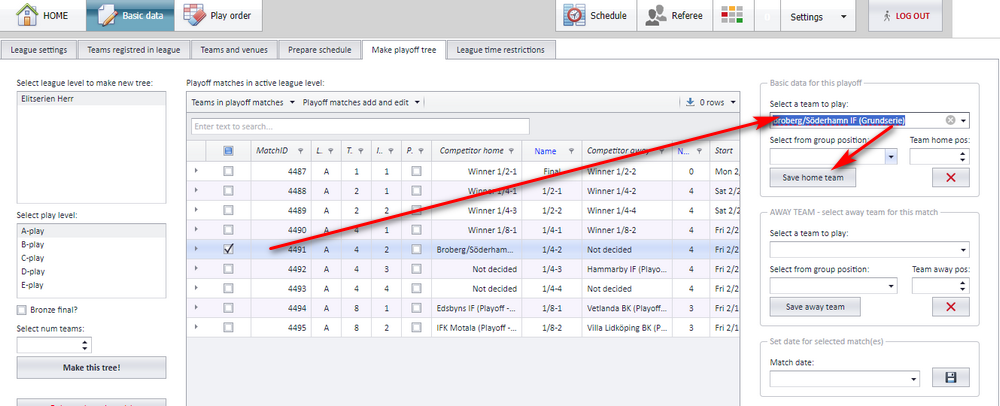
- Select a row in the grid.
- Select the home team that is going to play, or...
- ...the position in the group table that the home team is taken from (after the group play has been played).
- Do the same for the away team.
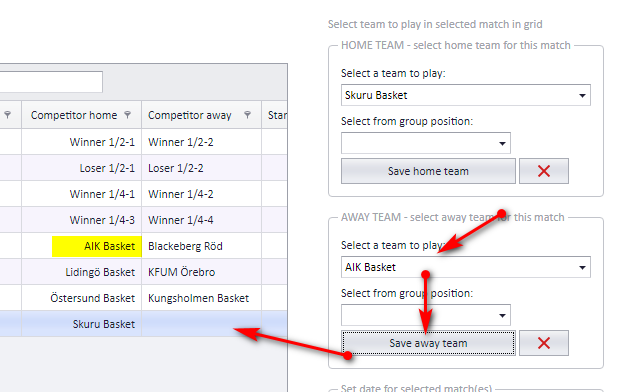
Each team can be saved in one match of a playoff tree at a time. In the example below, AIK Basket already exists in this tree, so the save on another match is refused. To move AIK Basket, first delete it as the home team in the match it is in, then assign it to the selected match.
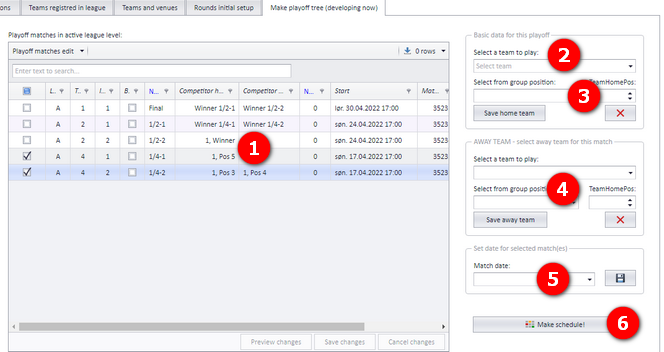
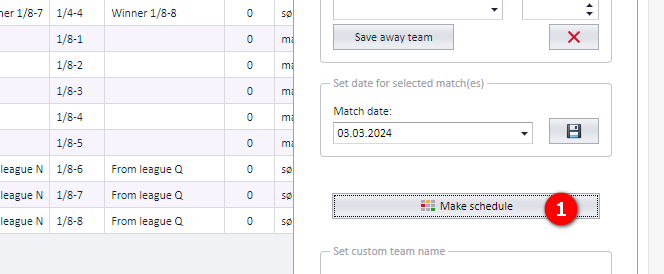
The schedule for a playoff tree is made from the playoff tree window (the button "Skapa spelschema" in the Swedish interface, "make schedule"). Profixio CUP is for matches that already have a home and an away team, so the tree matches are scheduled here instead.
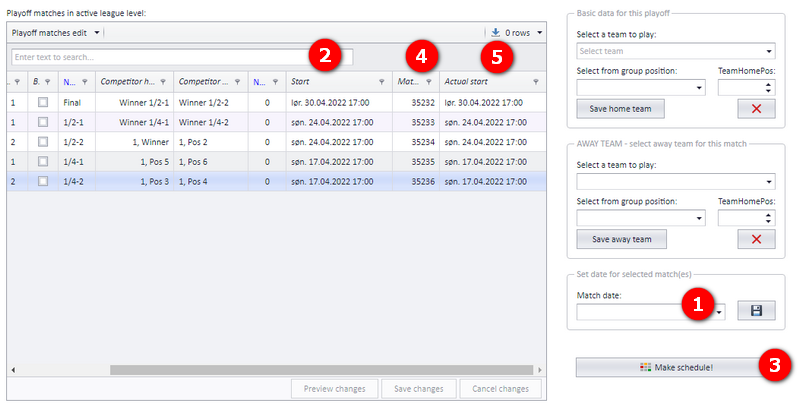
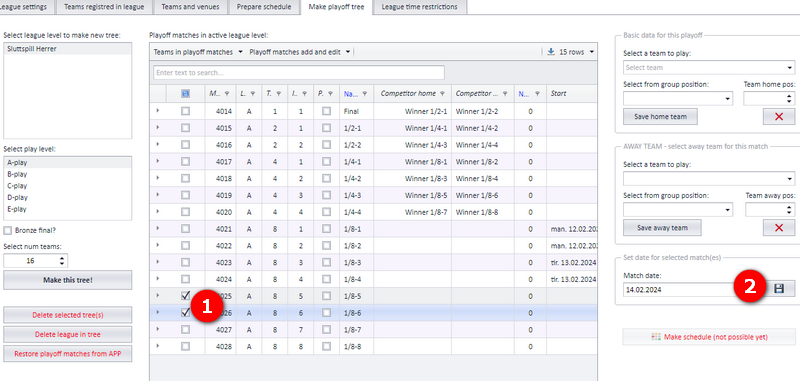
- Give each match a start date. Select the row, pick a date in the calendar and click "Save". You can select several matches and save the date to all of them at once.
- The date is shown in the column "Start" and can be changed whenever you want.
- When the dates are set, click the button that makes the schedule. Matches that are already published to the app are not changed.
- After the matches are made, the match id is shown in the column "Match".
- If a match is changed in the "Schedule" window, the actual match start shows up in this column.
The match end time and the venue are not set here; they are set in the "Schedule" menu (see "Finishing the tree schedule in the Schedule window"). It is also fine to leave the date and time for later and set them in the schedule window.
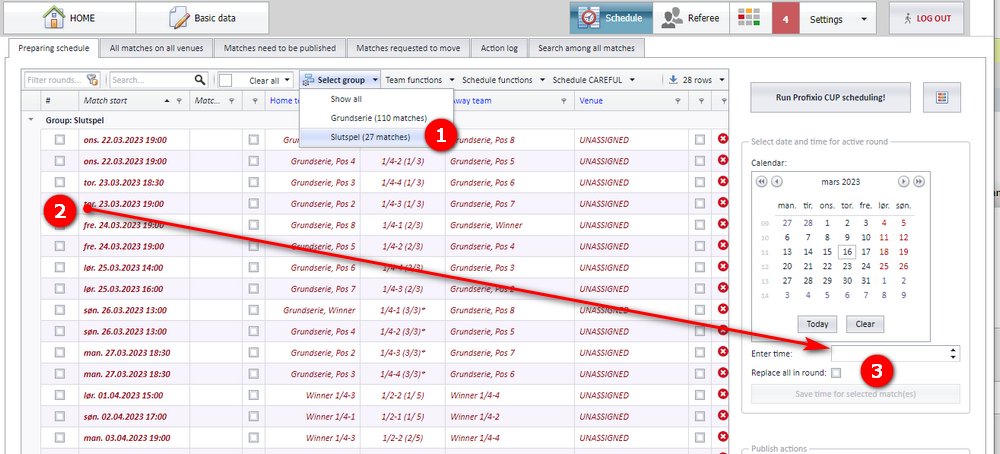
- Open the menu "Schedule" and select the playoff from the drop-down "Select group".
- Select the matches you want to give the correct time (multi-select is possible).
- Enter the date and time for the selected match(es). Remember to save.
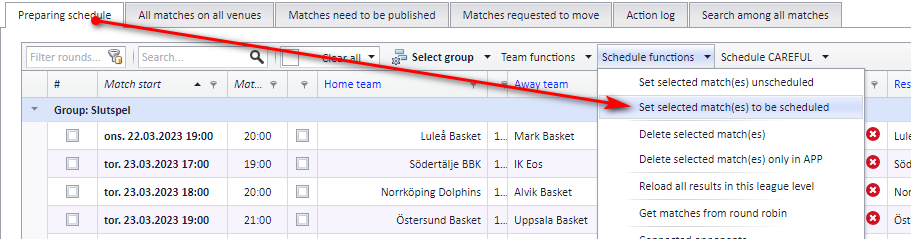
Setting the end time on selected or all matches. When the matches have the correct start date and time, you can set the end time from the league's play length. Select the matches (if you select none, all matches are included) and click "Set selected match(es) to be scheduled".
By default the playoff tree gets a name such as "C-play". This name is also shown in the app. To change it, edit the name in "League settings" ("Tävlingsinställningarna" in the Swedish interface), in the table of groups: double-click the name, type the new name and press "Spara ändringar" (save changes).
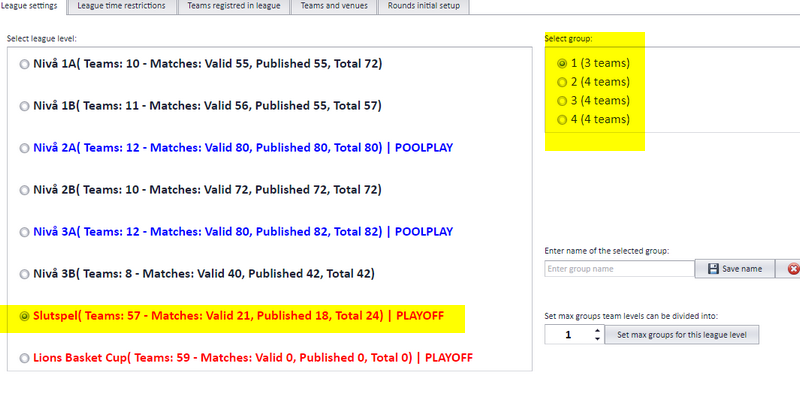
In a playoff level, all groups are treated as one: every group gets the same week restrictions, playing times and so on. In the image below there are 4 groups in the playoff "Slutspel".
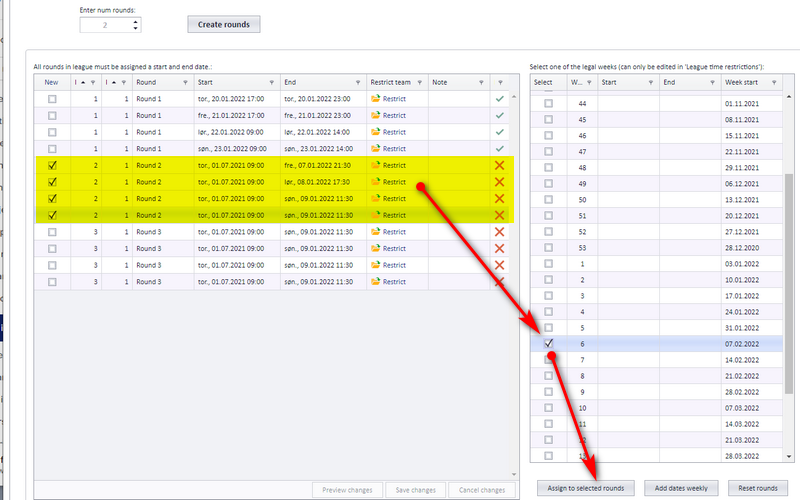
Assigning weeks to the playoff rounds. After "create rounds", every round must be given a week to play in. Tick the rounds and select the weeks. Each group plays its round X in the same week as the other groups.
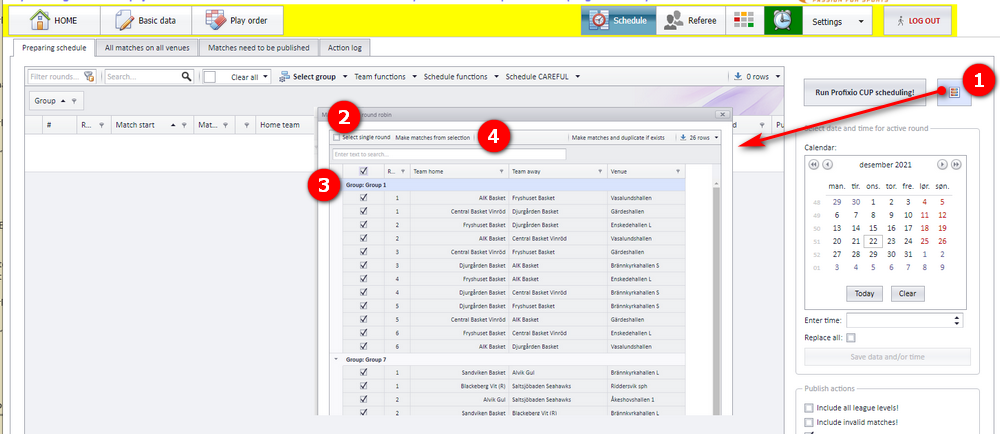
Making the match schedule.
- Click the button "Make matches from round robin".
- Select single or double round.
- Select the match(es) you want to include in the schedule.
- Click the button "Make matches from selection" when ready. When the matches have been made, the window can be closed.
When a schedule is run through Profixio CUP, the play times available to a match run from the start to the end of the round the match belongs to. The start and end of each round are set in the menu "Basic data". When a match has to be played on a certain date, tick the column "Include match in CUP" for it.
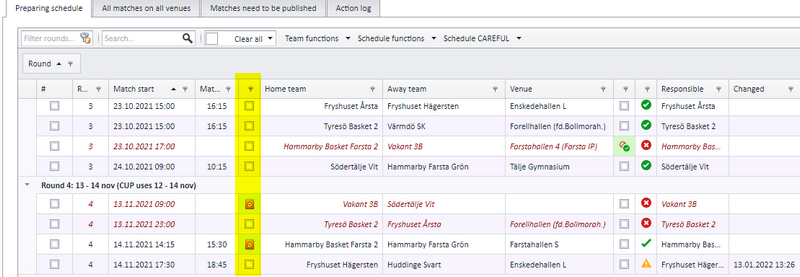
Matches with a red cross are left out of the filter that reserves venues: CUP places matches on a venue and time even if a match already exists there, as long as that match is marked with a red cross.
| Match | Included in a CUP run? |
|---|---|
| Green match | Only when "Include in CUP" is ticked |
| Overruled match | Only when "Include in CUP" is ticked |
| Yellow match | Only when "Include in CUP" is ticked |
| Match with vacant team(s) | Never, even when "Include in CUP" is ticked |
| Match with "Include in CUP" ticked and no vacant teams | Yes |
| Match without an available venue | Never |
| Red match | Always. If a red match is overruled, it turns green |
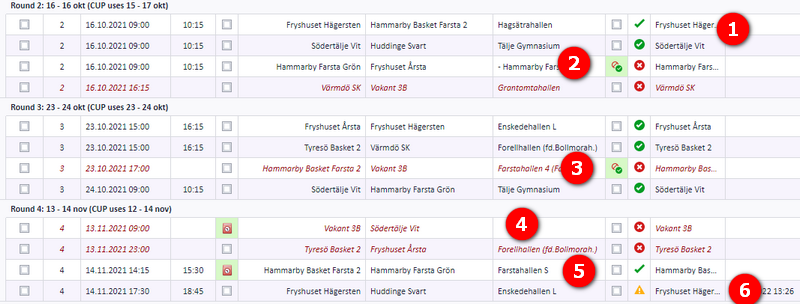
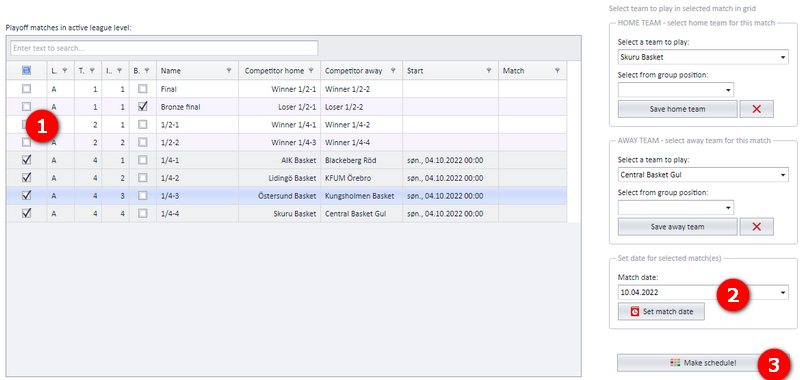
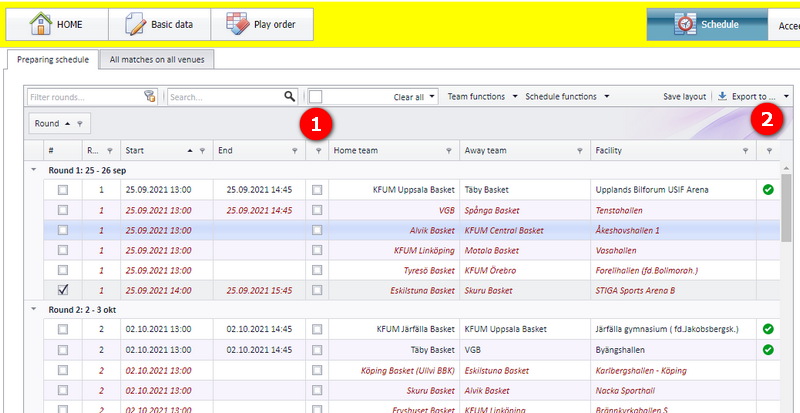
- For each match you want played on a specific date, tick the column shown at marker 1 below and enter the earliest start time for the match. When you run Profixio CUP, the match is limited to this date and placed on the first available position it can be played on.
- Red matches are always included in a CUP run whatever "Include match in CUP" is set to.
A playoff can contain "teams" that are not calculated from a group play and do not exist in the league. The home and away team can be given any name you like, for instance "To be decided in week 12" or "Team not decided".
A "team" named in this way is not moved on to the next playoff level (for example from the 1/8 final to the 1/4 final) automatically; you choose the teams that play in the next level by manual selection as well.
First decide whether the playoff needs its own level; the page "League levels and groups" covers when to make a new level and when not to. If a new level is not necessary, just tick "Has playoff" on the league.
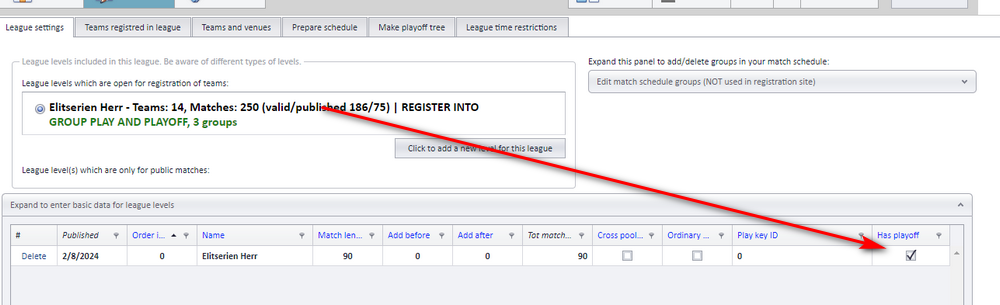
If you used "Has playoff", do NOT select teams here; continue with "Making the tree and naming custom teams".
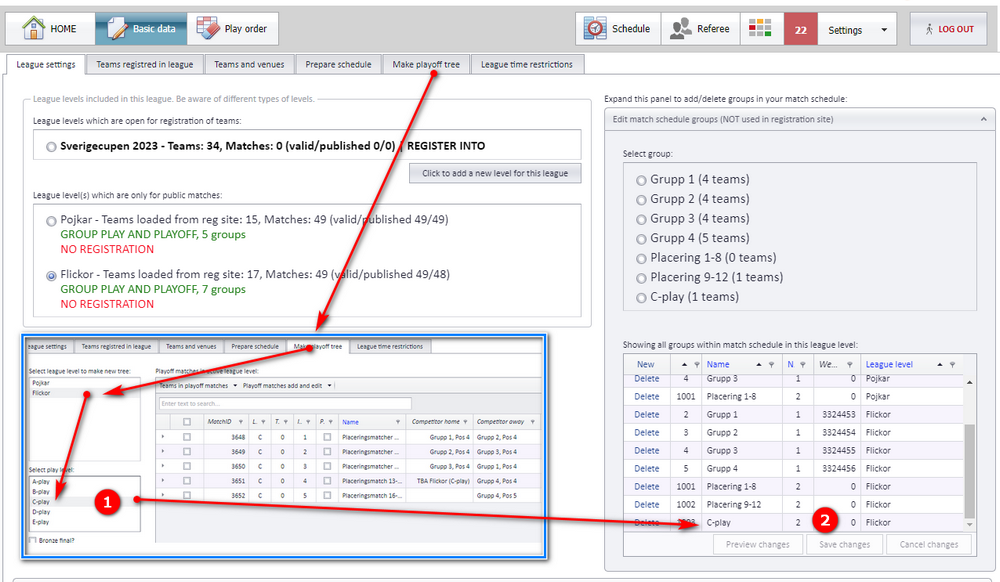
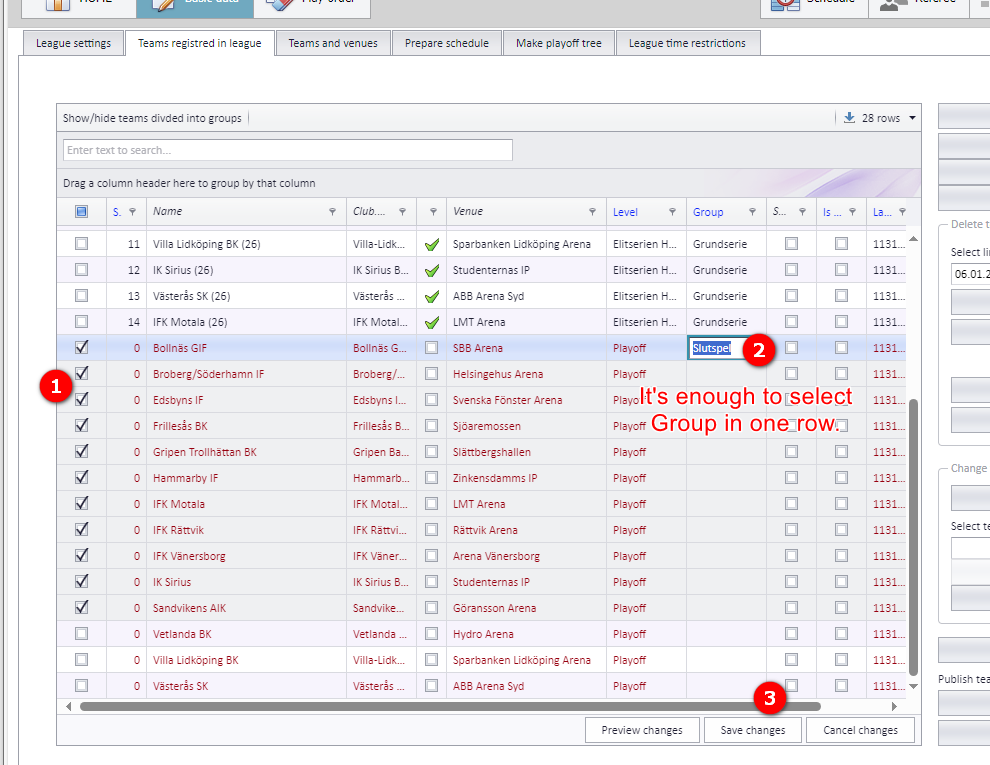
If you made a new level: later, when the matches are published to the app, the teams that play at the different levels are chosen manually. The teams it is possible to choose among must be selected on the tab "Teams registered in league", as shown below. Only these selected teams can be picked into the matches in the app when you are ready to publish the team names.
Make the playoff tree in the usual way (see "Making a playoff tree"); select the league as the arrow shows.
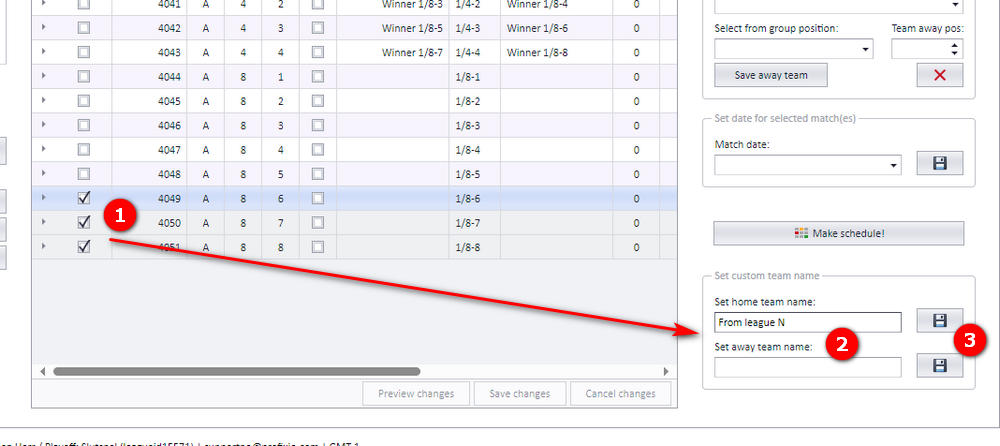
- Select the playoff matches that are going to have custom "team" names.
- Enter the "home/away team" name, and click...
- ...the save button. The names of the "teams" show up in the table.
Custom team names are shown with a * in front of the name:
Playing dates. To give a clearer view of the matches in the app, enter the match dates in chronological order. The dates can be changed whenever you want. Follow the markers.
Make schedule. To turn these playoff matches into matches, a schedule must be made. Click the button shown below; all matches are made and can be seen in the menu "Schedule".
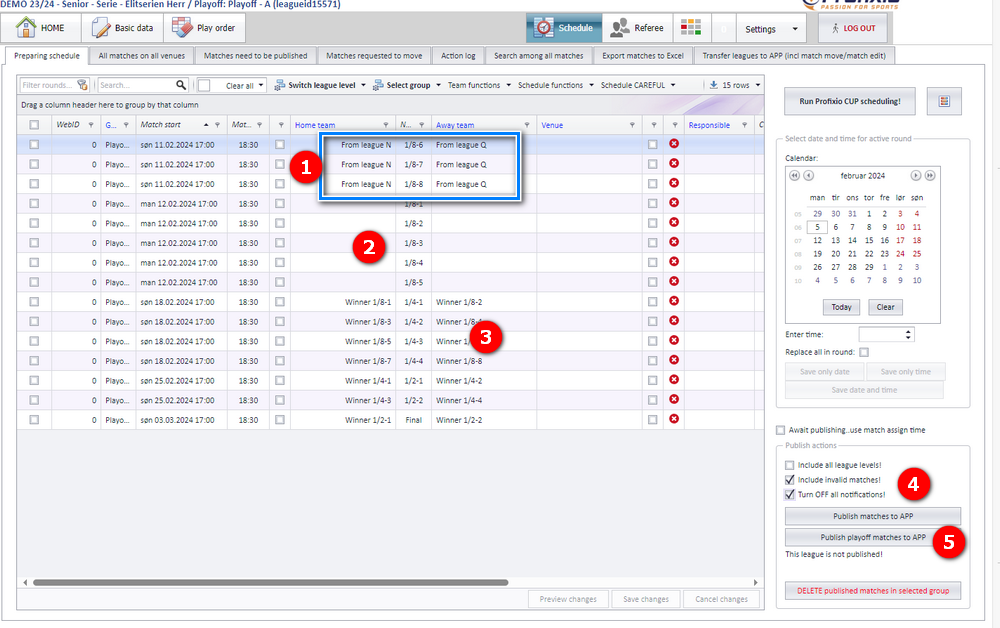
Publish schedule (from the menu "Schedule"). Publishing is done the usual way (see "Publishing the schedule"); follow the markers.
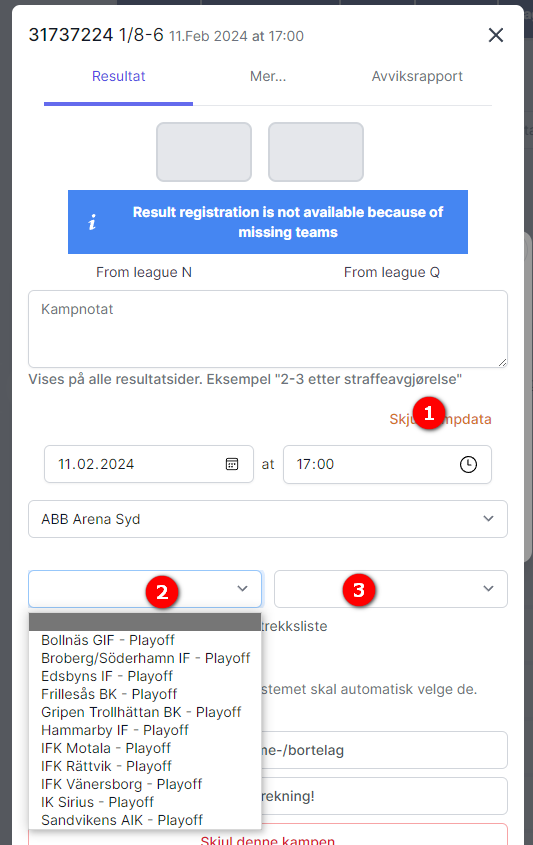
The teams in a playoff match can be changed in two ways:
- In the app, from the same pop-up window where results are registered. Follow the markers.
- In PL, follow the arrows. Remember to publish the schedule after assigning the team(s).
App:
PL:
- Moving the teams from a finished group play into the playoff, and what happens with results: see "From group play to playoff".
- Changing a single playoff match after the tree is made: see "Editing a playoff match".
- When to make a new level and how groups relate to levels: see "League levels and groups".
- Preparing rounds, week restrictions and running Profixio CUP for ordinary group play: see "Prepare and generate the schedule" and "Time restrictions for season, league and teams".
- The colour codes in the schedule views: see "Schedule views, visualizer and colour codes".
- Vacant teams and how they affect scheduling: see "Vacant teams".
- Publishing the schedule to the app: see "Publishing the schedule".
See also
- Editing a playoff match
- Going from group play to playoff
- League levels, groups and activation
- Ordinary group play
- Pool play and cross pool play
- Preparing and generating the schedule
- Publishing the schedule
- Schedule views, the Visualizer and colour codes
- Time restrictions and priority days
- Vacant teams
Was this page helpful?